Database Groups Page
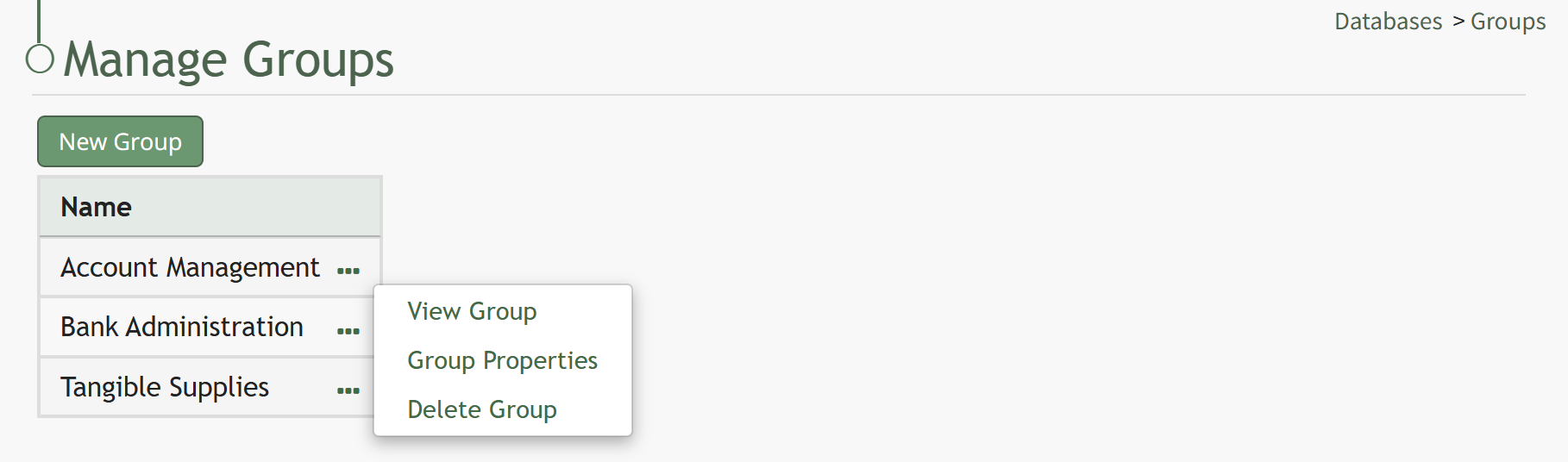
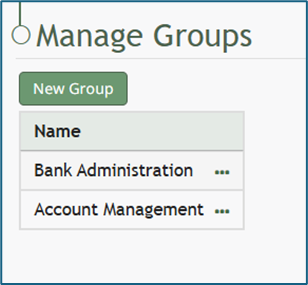
The Groups Page in the Database Module is utilized for organization function and allows databased to be grouped together for efficiency. There is a button that allows for the creation of new groups. The Groups Table on the Manage Groups Page lists all groups in alphabetical order.
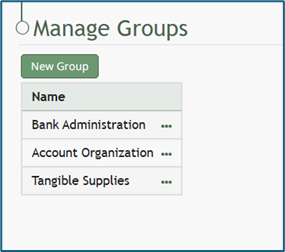
The three-dot icon to the right of a group name opens a context menu with options that are explained in the table below.
Database Groups Context Menu Option Explanations | |
Option | Explanation |
View Group | Selecting “View Group” from the context menu opens the View Group Modal, stating the name of the group. WIKI LINK HOW TO VIEW DATABASE GROUPS |
Edit Group | Selecting “Edit Group” from the context menu opens the Edit Group Modal. How To: Edit Database GroupsTo edit a database group, go to the Groups Page of the Database Module. Select the three-dot icon to the right of the Group Name you wish to edit, opening the Group Table context menu.
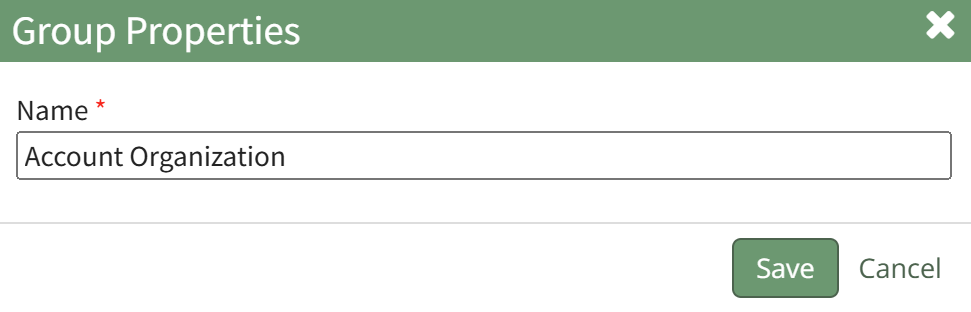
Select “Group Properties” from the context menu opening the Edit Group Modal.
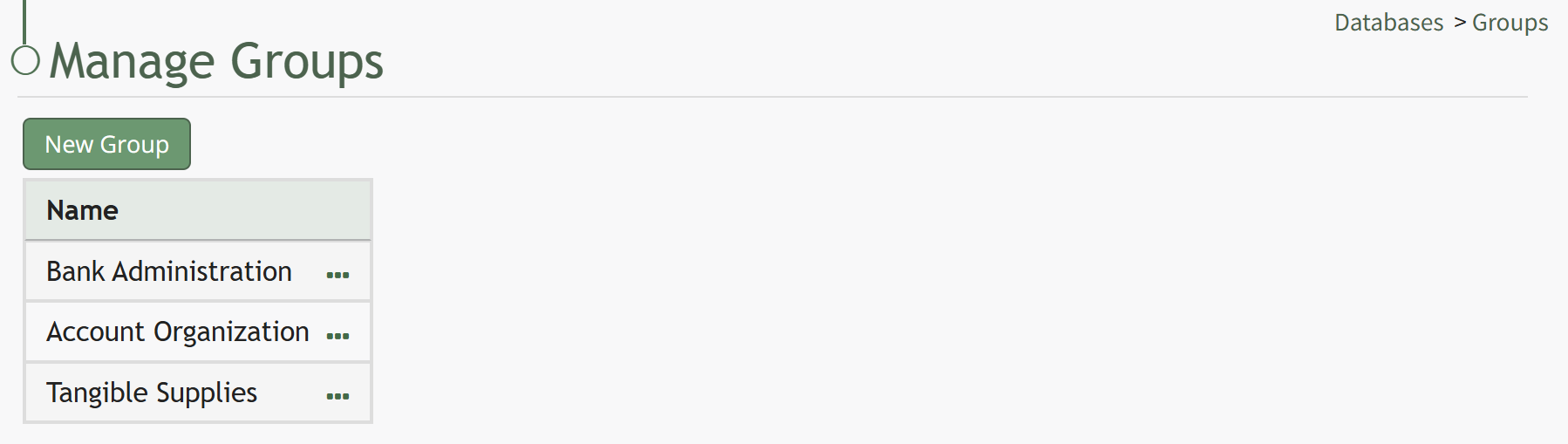
Make the desired changes to the group name and select “Save”. The edited group name will now show in the Groups Table.
|
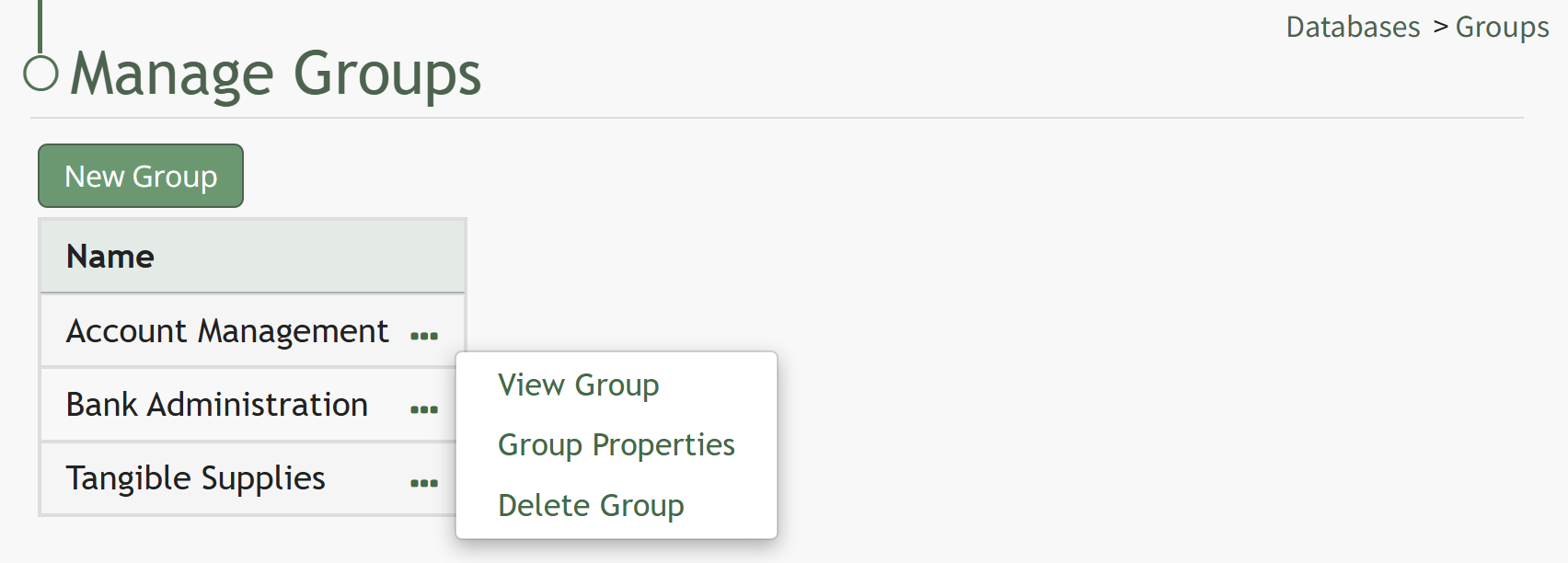
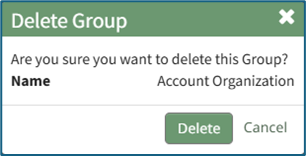
Delete Group | Selecting “Delete Group” from the context menu opens the Delete Group Confirmation Modal. How To: Delete Database GroupsTo delete a database group, go to the Groups Page of the Database Module. Select the three dot icon to the right of the Group Name you wish to delete, opening the Group Table context menu.
Select “Delete Group” from the context menu opening the Delete Group Confirmation Modal.
The modal states, “Are you sure you want to delete this Group?” and lists the Group Name on the modal. Select the “Delete” button and a pop up confirms that the group has been deleted. The deleted group no longer shows on the Groups Table.
|