
Database Fields Tab
Selecting “Fields” from the Database Table Context Menu will open a form’s Field Tab that contains the Fields Table. The Fields Table shows existing fields in the Form. Fields can be filtered for efficient access.
The Fields Tab is where new fields can be added to your Form.
How To: Add a Database Field
{{@321}}
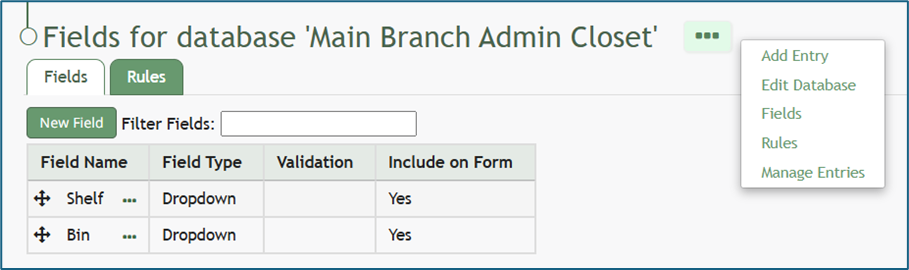
The three dot (…) icon to the right of the Entries for Database (DatabaseName) header opens a context menu with the options that are explained in the table below.
Fields / Rules Page Context Menu Option Explanation | |
Option | Explanation |
Add Entry | Selecting “Add Entry” on the context menu opens a New Database Entry Modal. The modal that appears for a new database entry has already been customized for that specific database and will vary significantly based on its purpose and design.
How To: Add an Individual Database Entry{{@325}} |
Edit Database | Selecting “Edit Database” on the context menu open the Edit Database Modal, allowing an individual to edit the specific permissions established when the database was created. How To: Edit a Database{{@333}} |
Field | Selecting “Fields” on the context menu opens the Fields for database (DatabaseName) Page on the Fields Tab which shows the Fields Table. New fields can be added to the database from this tab. How To: Add a Database Field{{@321}} |
Rules | Selecting “Rules” on the context menu opens the Rules for database (DatabaseName) Page on the Rules Tab which shows the Rules Table. New rules can be added to the database from this tab. How To: Add a Database Rule{{@323}} |
Manage Entries | Selecting “Manage Entries” on the context menu opens the Entries for Database (DatabaseName) Page and the Database Entries Table. Entries can be added, imported, and exported on this page. Bulk edits can also be enabled for efficiency. How To: Edit a Database Entry{{@3334}} |
Rules can also be accessed from the Rules Tab below the header.