
Dashboard Context Menu Explanations
To the right of a dashboard title is a vertical three dot menu that opens a context menu with options to Add Widget, Edit, Delete, Manage Speed Dials.
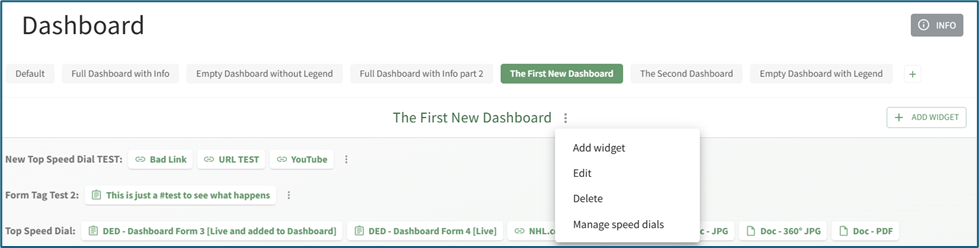
|
Dashboard Context Menu Explanations |
||
|
Option |
Explanation |
Image |
|
Add Widget |
Selecting “Add Widget” from the dashboard context menu opens the Add Widget Modal on the right-hand side of the screen and has the same function as selecting the “Add Widget” button on the screen’s right side (or in the center of an empty Dashboard). |
|
|
Edit |
Selecting “Edit” from the dashboard context menu opens the Edit Dashboard Modal, allowing an individual to alter the dashboard name. |
|
|
Deselecting the “Include Info button” checkbox will remove the grey “INFO” button from the top right-hand corner of the dashboard. |
|
|
|
Delete |
Selecting “Delete” from the dashboard context menu will open the Delete Dashboard Modal. Note: You can only delete the Default Dashboard after creation of a new Dashboard. If all Dashboards are deleted, KAStrack will automatically regenerate a new Default Dashboard. |
|
|
Manage Speed Dials |
Selecting “Manage Speed Dials” from the dashboard context menu will open the Manage Speed Dial Modal. From this modal, an individual can create, edit and delete speed dials. |
|