
Settings Page: Module Levels
“Settings” within the Courses Module directs the user to “Module Levels” page where module level permissions for the Courses Module can be customized.
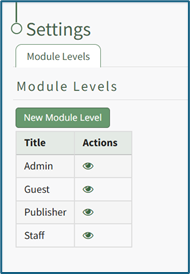
There are four base Module Levels with default permissions in KAStrack that cannot be altered by the user. An explanation of the permissions associated with each module level are shown in the Courses Module Level Permissions Table below.
Courses Module - Module Level Permissions Table | |
Module Level | Permissions |
Admin | Can manage rolls, add/edit/delete courses, see the stats page, view all course stats, manual reset course, test course, can take course on behalf of anyone |
Guest | None |
Manager | add/edit/delete courses, stats, manual reset course, test course |
Staff | None |
New Module Levels can be created in order to customize module level permissions.
How To: Create A New Module Level (Courses Module)
To create a new module level in the Courses Module, open the Module Level Tab on the Settings Page from the Main Menu.
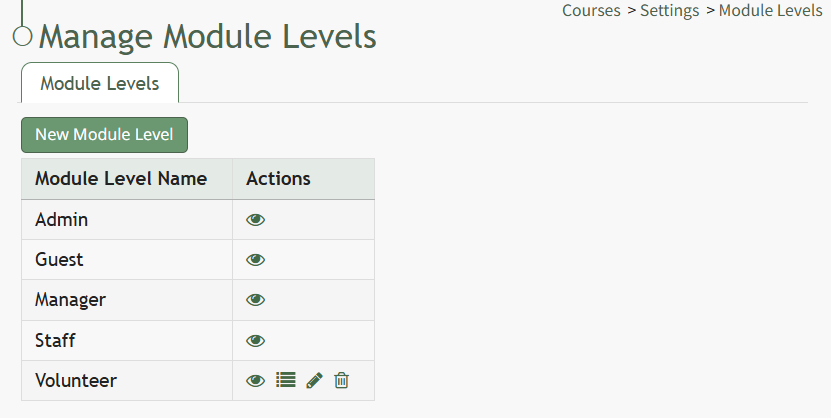
Click the "New Module Level" button.
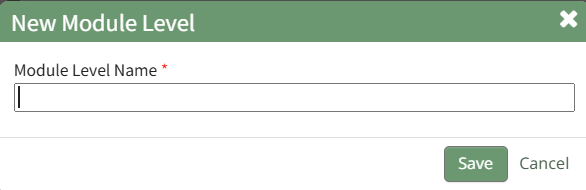
This opens the New Module Level Modal. Input the name of the customized model level and select “Save.” Module levels will be listed alphabetically in the Module Level Table.
Select the bulleted list permissions icon from the Actions Column to the right of the new module level.
Module Level Customization Icons | |
Icon | Explanation |
| The eyeball icon allows you to view users assigned to the module level as well as the permissions assigned to them. |
| The bulleted list icon allows you to assign permissions to customized module levels. |
| The pencil icon opens the Edit Module Level Modal. |
| The trashcan icon opens the Delete Module Level Confirmation Modal. |


This opens the Permissions Modal. Select the desired permissions that you want assigned to the new Module Level.

Click "Save" after selecting the desired permissions.
Access levels for all modules can also be managed in the Site Settings Module under Access Levels.
Module Level Customization Icons | |
Icon | Explanation |
| The eyeball icon allows you to view users assigned to the module level as well as the permissions assigned to them. |
| The bulleted list icon allows you to assign permissions to customized module levels. |
| The pencil icon opens the Edit Module Level Modal. |
| The trashcan icon opens the Delete Module Level Confirmation Modal. |


