
Home Page: Manage Courses Page
The Courses Module homepage is the Manage Courses Page and is only visible to users with course-management permissions.
Systems users that do not have access to the Manage Courses homepage still have the capability to take courses in KAStrack.

The Manage Courses Page houses the Course Title Table, which lists all courses alphabetically. The New Course button below the header is used to create a new course. Courses can be managed and edited by clicking on the three-dot icon to the right of the course title.
How To: Create a New Course
{{@233}}
How To: Access A Course's Details Page
{{@935}}
Course Context Menu Item Explanations
The three dot icon to the right of a course title opens the Course Context Menu with links for quick actions. An explanation of each option on the course context menu is included below.
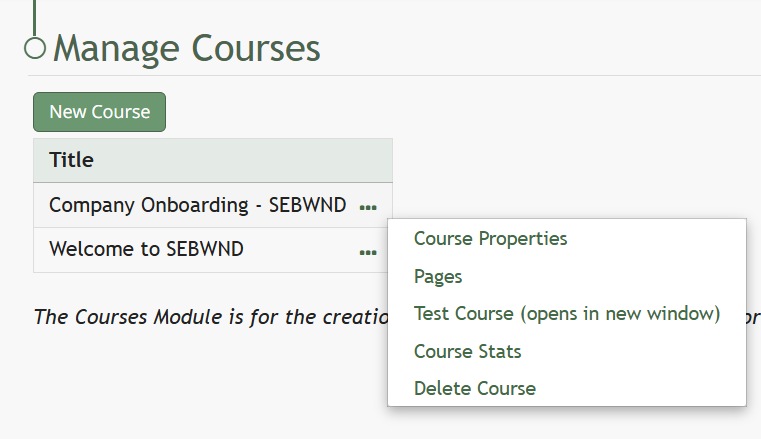
Course Context Menu Option Explanations | |
Options | Explanation |
Course Properties | Selecting Course Properties from the context menu opens the Course Properties Modal, allowing the user to edit the original parameters that were selected when the course was created. The course name, tags, number of attempts, and settings for the course can be edited from the Course Properties Modal. How To: Edit Course Properties{{@239}} |
Pages | Selecting the Pages option from the context menu opens the Course Details Page. The pages that have been created for the course are grouped in sections on the Course Details Page. How To: Edit Existing Pages{{@234}} How To: Add Pages in a Course{{@244}} |
Test Course | Selecting the Test Course option from the context menu opens a trial run of the course with quiz questions. Testing the course will not impact course stats. How To: Take a Course in Test Mode{{@241}} |
Course Stats | Selecting the Course Stats option on the context menu opens the Course Stat Page which displays records of test taking attempts and access to an individual’s answers to course questions. How To: Access Course Stats{{@242}} |
Delete Course | Selecting the Delete Course option on the context menu will open a deletion confirmation modal. The modal displays a warning that will notify the user that deleting the course will “remove all pages and history of people taking the course.” Confirmation of deletion is required. If the course is a required activity for a certification, it will not be deleted unless certification course requirement is removed from the certificate. How To: Delete a Course{{@243}} |
In KAStrack, certifications with a required activity are used to assign courses to users. To require a user to complete a course, you must create a Certification in the People module with Required Activity set to "Course - KAStrack".
How To: Set Up a Course as a Certification
{{@237}}