
Home Page: Manage Courses Page
The Courses Module homepage is the Manage Courses Page and is only visible to users with course-management permissions.
Systems users that do not have access to the Manage Courses homepage still have the capability to take courses in KAStrack.

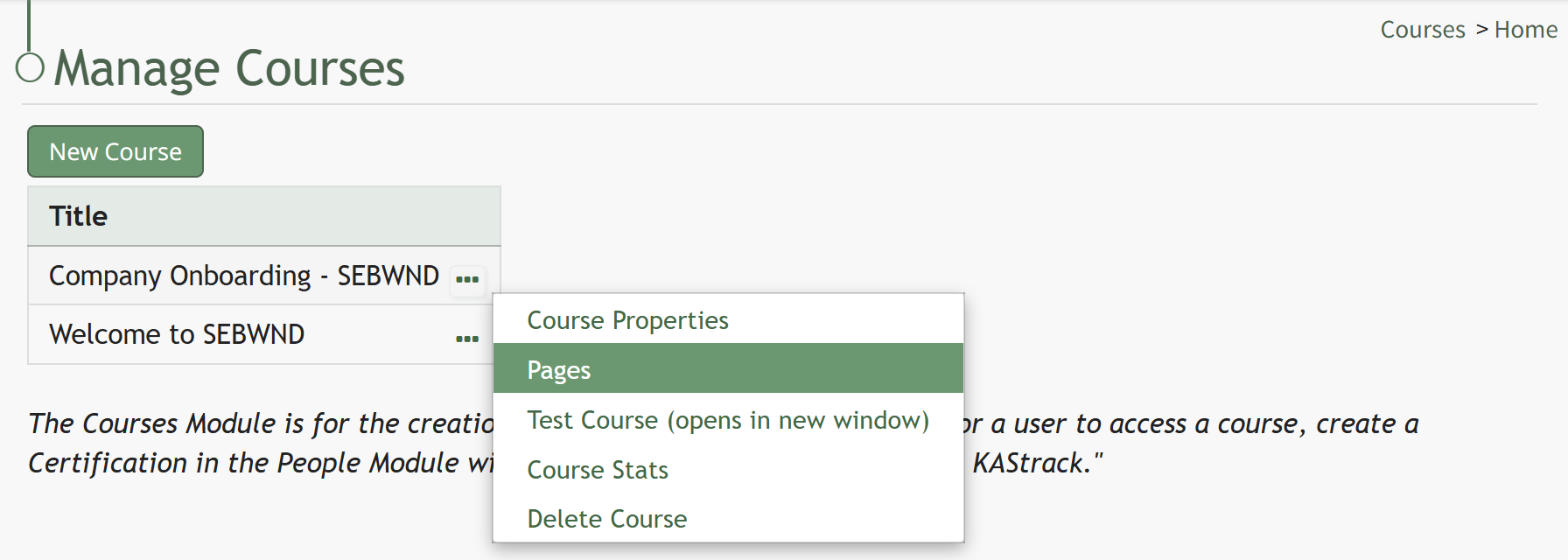
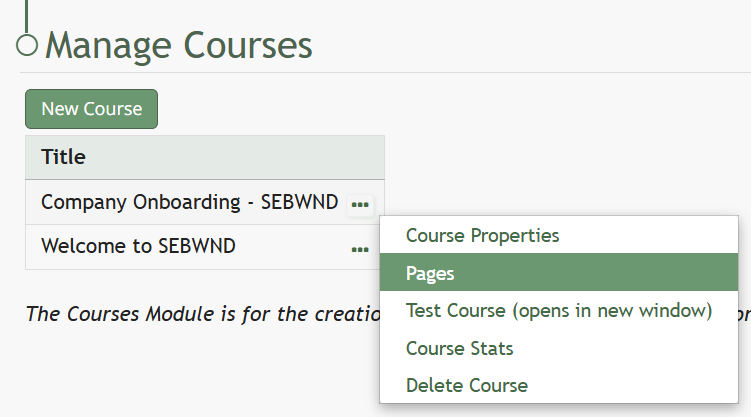
The Manage Courses Page houses the Course Title Table, which lists all courses alphabetically. The New Course button below the header is used to create a new course. Courses can be managed and edited by clicking on the three-dot icon to the right of the course title.
How To: Create a New Course
To create a new course, open the Courses Module Home Page from the Main Menu.
The Courses Module is for the creation and management of courses only. For a user to access a course, create a Certification in the People Module with a required activity set to "Course - KAStrack".
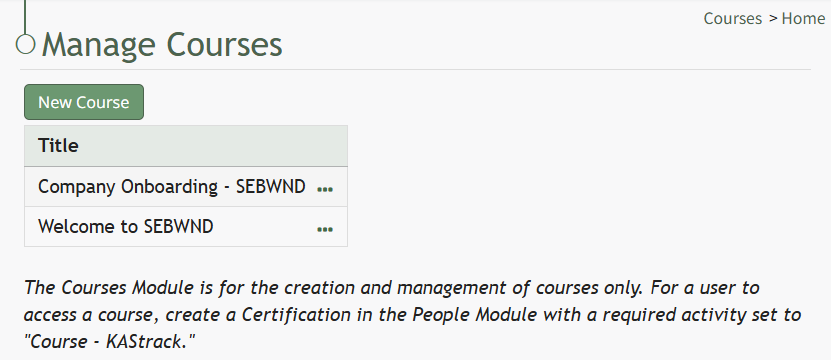
Click the “New Course” button beneath the Manage Courses header opening the New Course modal.
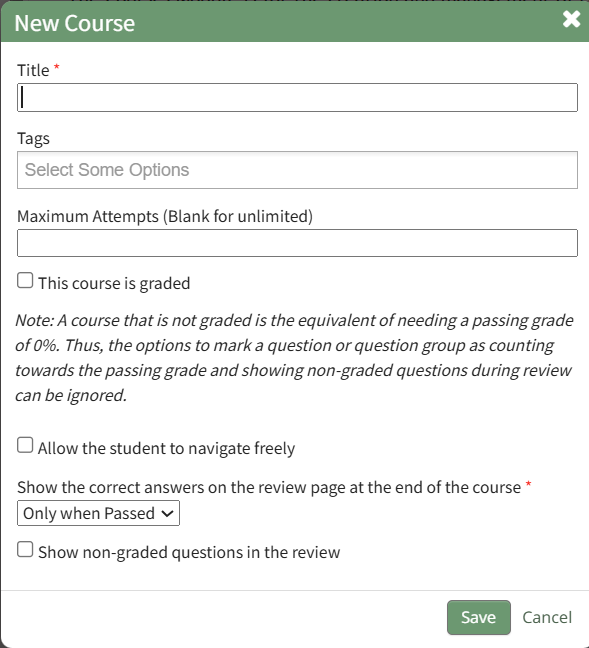
Input the desired course title and add tags for desired permissive/restrictive filters.
Input the maximum number of attempts an individual can take the course. Leave this field blank to allow for unlimited attempts.
A course that is not graded is the equivalent of needing a passing grade of 0%. Thus, options to mark a question or question group as counting towards the passing grade and showing non-graded questions during review can be ignored.
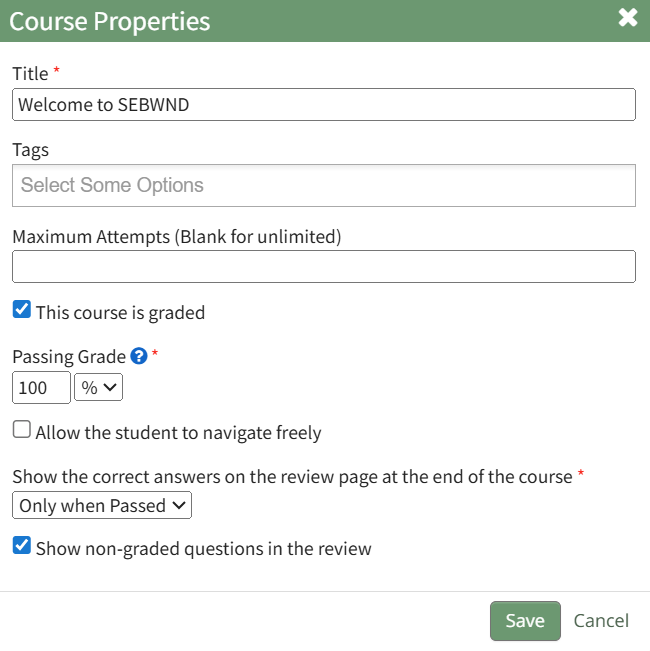
If the new course is to be graded, select the "This course is graded" checkbox. The modal will expand requiring you to input a grade that will qualify as passing the course.
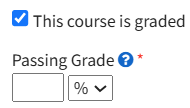
A passing grade can be calculated as the percentage or an absolute number of correctly answered eligible questions or question groups. Each question group has its own passing grade, and can be set to be part of the passing grade.
Select the “Allow the student to navigate freely” checkbox to give permission to navigate the entire course freely.
If you do not select this checkbox, you will have the ability to customize navigation options on each individual page in the course.
Click “Save” at the bottom of the modal to create the new course. The new course is now added to the table on the Course homepage.
How To: Access A Course's Details Page
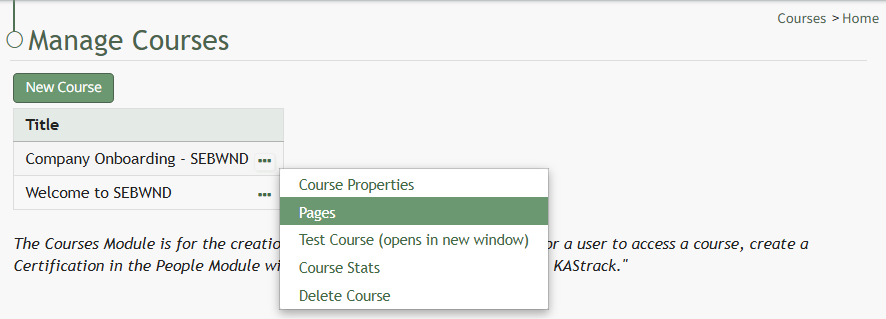
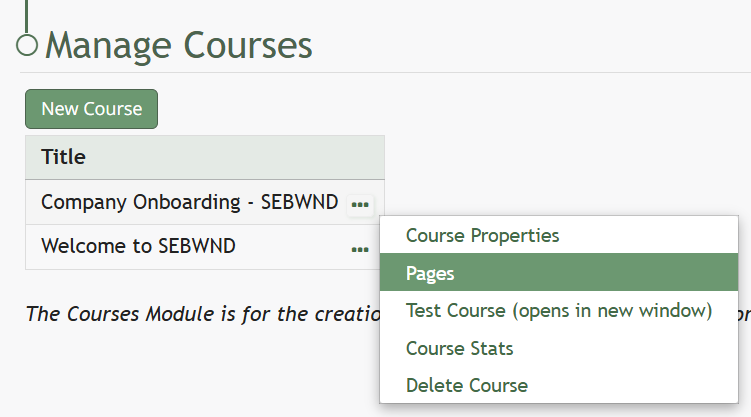
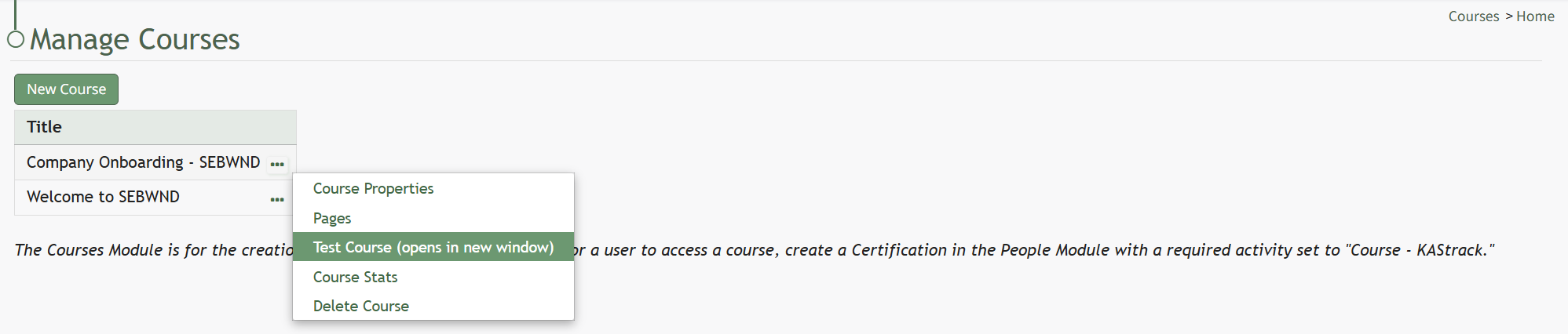
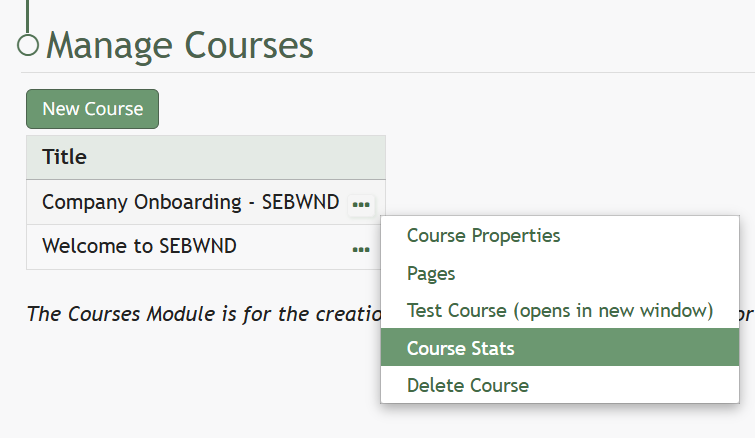
To access a course's details page, open the Courses Module Home Page from the Main Menu. Click the three-dot icon to the right of the right of the course whose Details Page wish to access, opening the Course Context Menu.
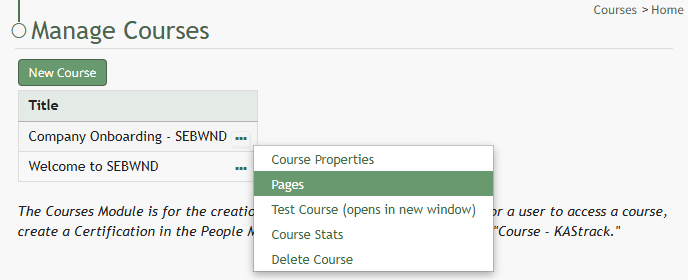
Select "Pages" from the Context Menu.
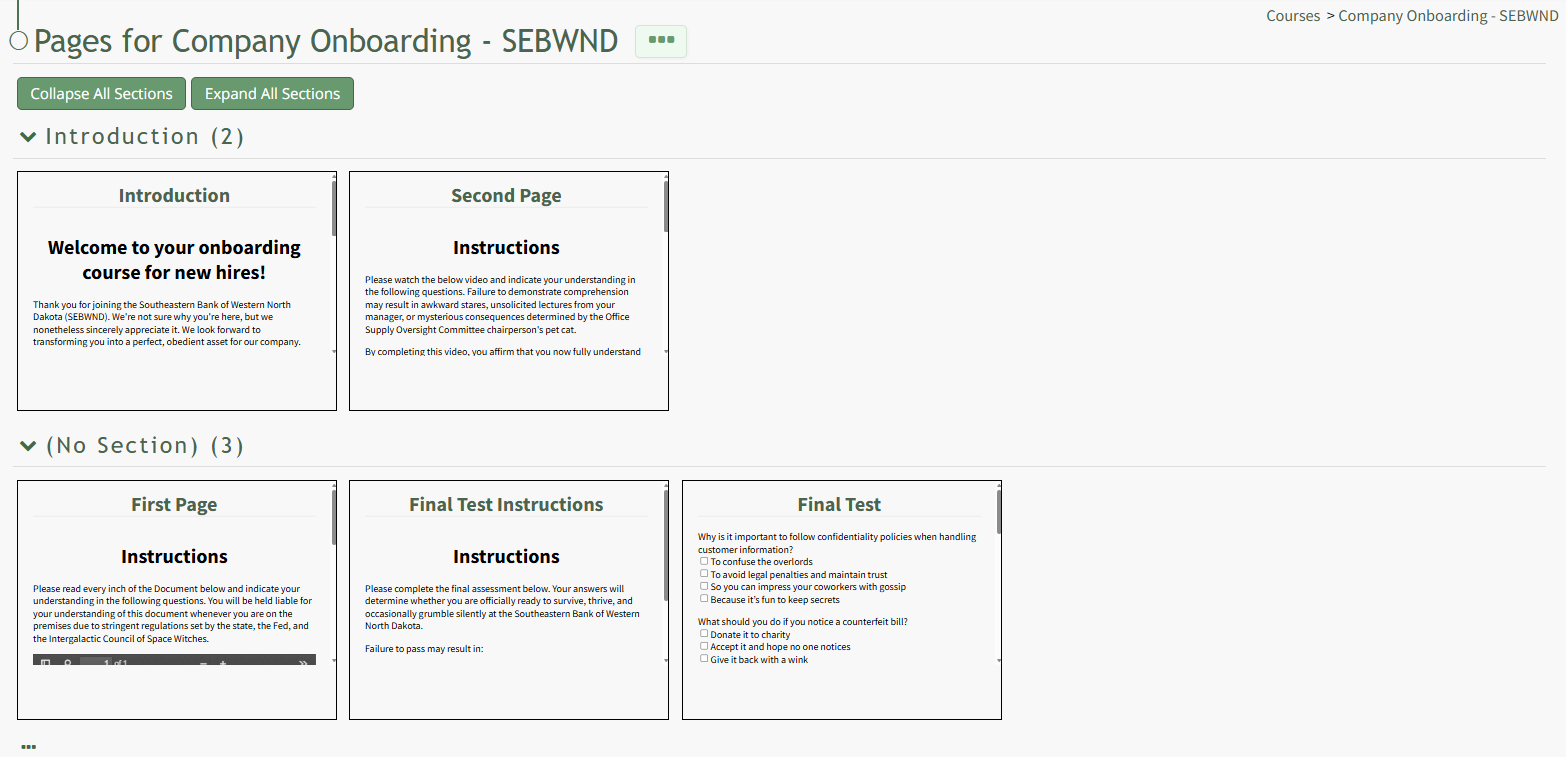
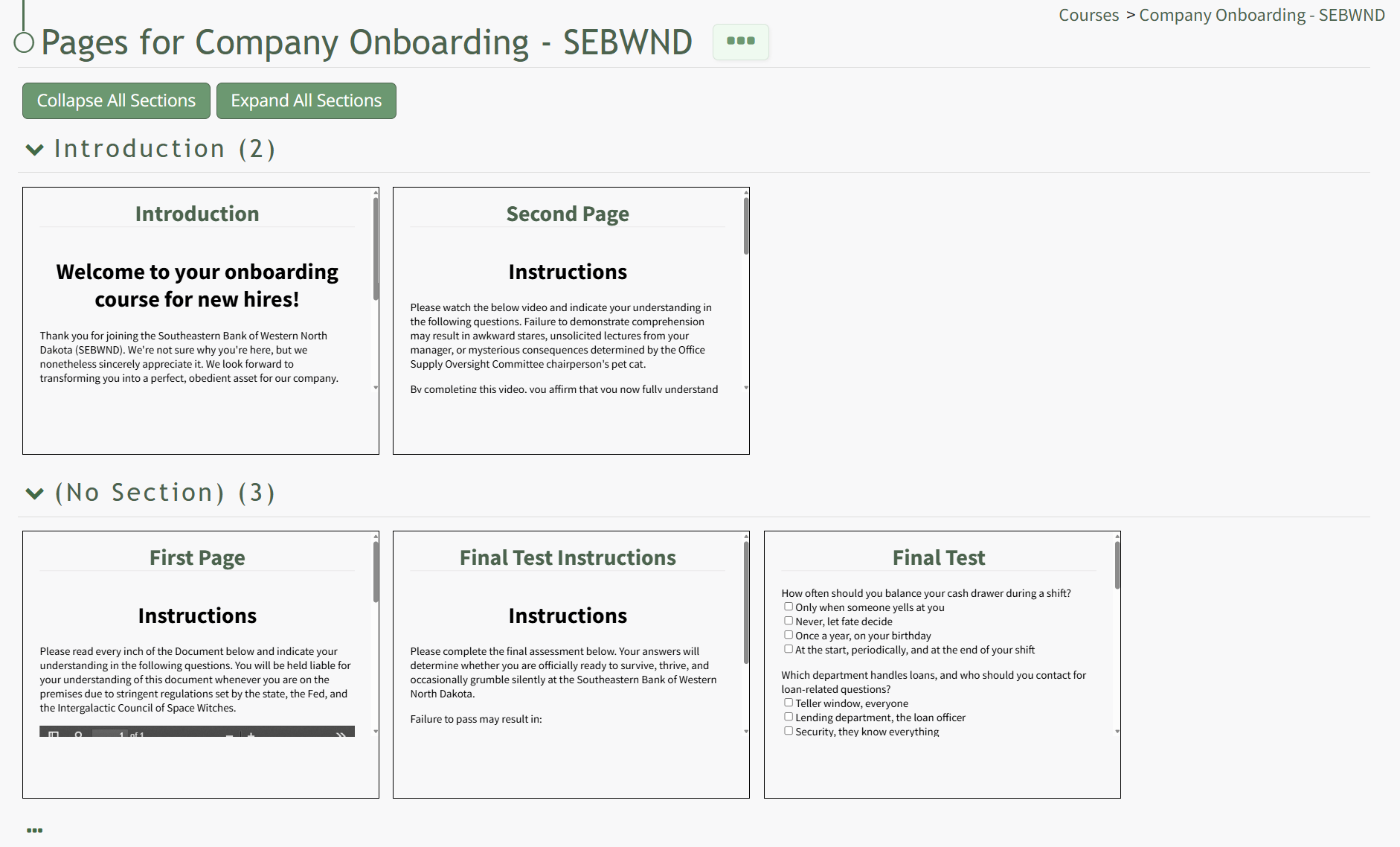
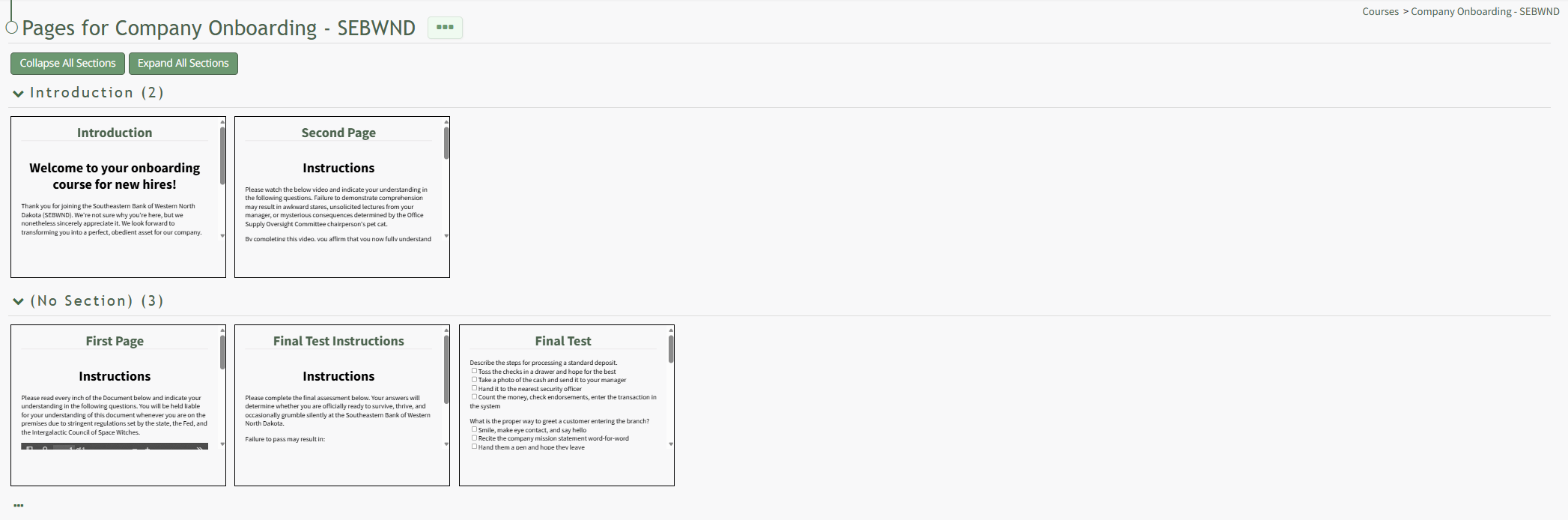
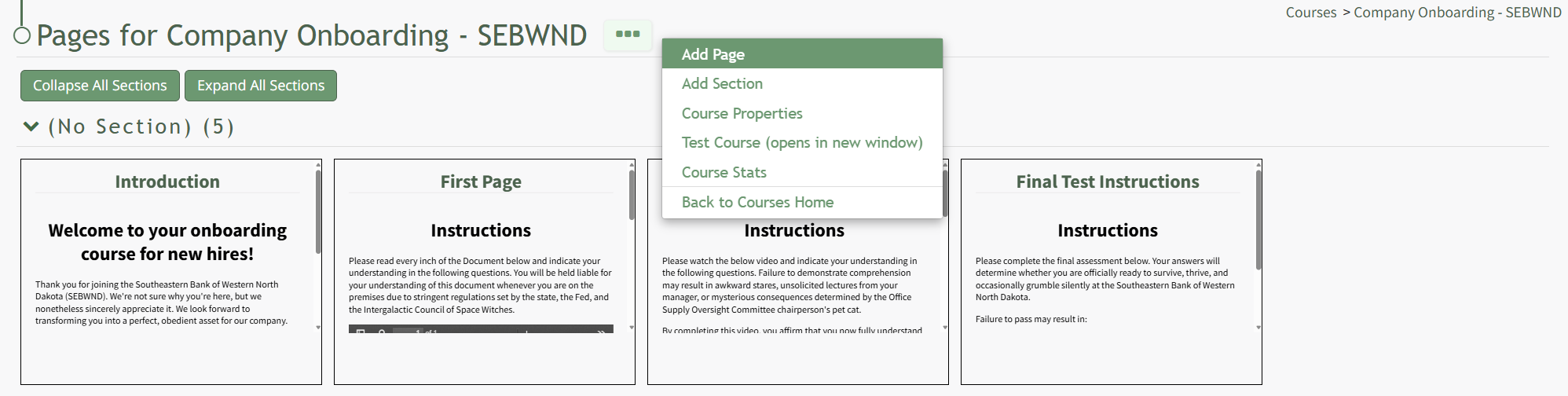
This opens the course's Details Page, displaying each page in the course grouped by sections.
Course Context Menu Item Explanations
The three dot icon to the right of a course title opens the Course Context Menu with links for quick actions. An explanation of each option on the course context menu is included below.
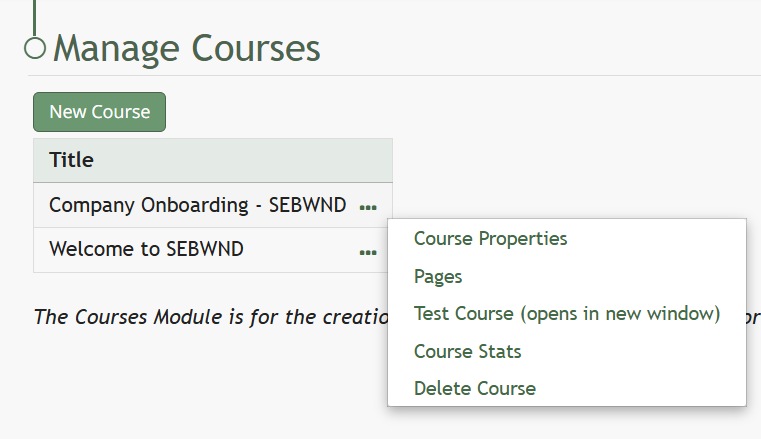
Course Context Menu Option Explanations | |||||||||||||||||||||||||||||||||||||||||||||||||||||||||||||||||||||||||||||||
Options | Explanation | ||||||||||||||||||||||||||||||||||||||||||||||||||||||||||||||||||||||||||||||
Course Properties | Selecting Course Properties from the context menu opens the Course Properties Modal, allowing the user to edit the original parameters that were selected when the course was created. The course name, tags, number of attempts, and settings for the course can be edited from the Course Properties Modal. How To: Edit Course PropertiesTo edit a course, open the Courses Module Home Page from the Main Menu and select the three-dot (…) icon to the right of the course you wish to edit opening the Course Context Menu.
Selecting “Course Properties” from the context menu opens the Course Properties Modal which allows a user to edit the original parameters that were selected when the course was created.
The Course Properties Modal displays the same options as in the New Course Modal which are explained in more details on the How To Create a New Course below. How To: Create a New CourseTo create a new course, open the Courses Module Home Page from the Main Menu. The Courses Module is for the creation and management of courses only. For a user to access a course, create a Certification in the People Module with a required activity set to "Course - KAStrack".
Click the “New Course” button beneath the Manage Courses header opening the New Course modal.
Input the desired course title and add tags for desired permissive/restrictive filters. Input the maximum number of attempts an individual can take the course. Leave this field blank to allow for unlimited attempts. A course that is not graded is the equivalent of needing a passing grade of 0%. Thus, options to mark a question or question group as counting towards the passing grade and showing non-graded questions during review can be ignored. If the new course is to be graded, select the "This course is graded" checkbox. The modal will expand requiring you to input a grade that will qualify as passing the course.
A passing grade can be calculated as the percentage or an absolute number of correctly answered eligible questions or question groups. Each question group has its own passing grade, and can be set to be part of the passing grade. Select the “Allow the student to navigate freely” checkbox to give permission to navigate the entire course freely. If you do not select this checkbox, you will have the ability to customize navigation options on each individual page in the course. Click “Save” at the bottom of the modal to create the new course. The new course is now added to the table on the Course homepage. | ||||||||||||||||||||||||||||||||||||||||||||||||||||||||||||||||||||||||||||||
Pages | Selecting the Pages option from the context menu opens the Course Details Page. The pages that have been created for the course are grouped in sections on the Course Details Page. How To: Edit Existing PagesTo edit a specific page in a course, open the Courses Module Home Page from the Main Menu. Click the three-dot icon to the right of the course whose page you want to edit, opening the Course Context Menu.
Select Pages, opening the Course Details Page.
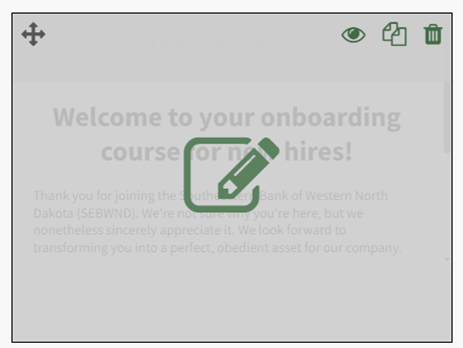
On the Course Details Page, all pages in the course are displayed. Hover the icon over the page you wish to edit to see the icons, then click the pencil and page icon. This opens the specific page and enables editing.
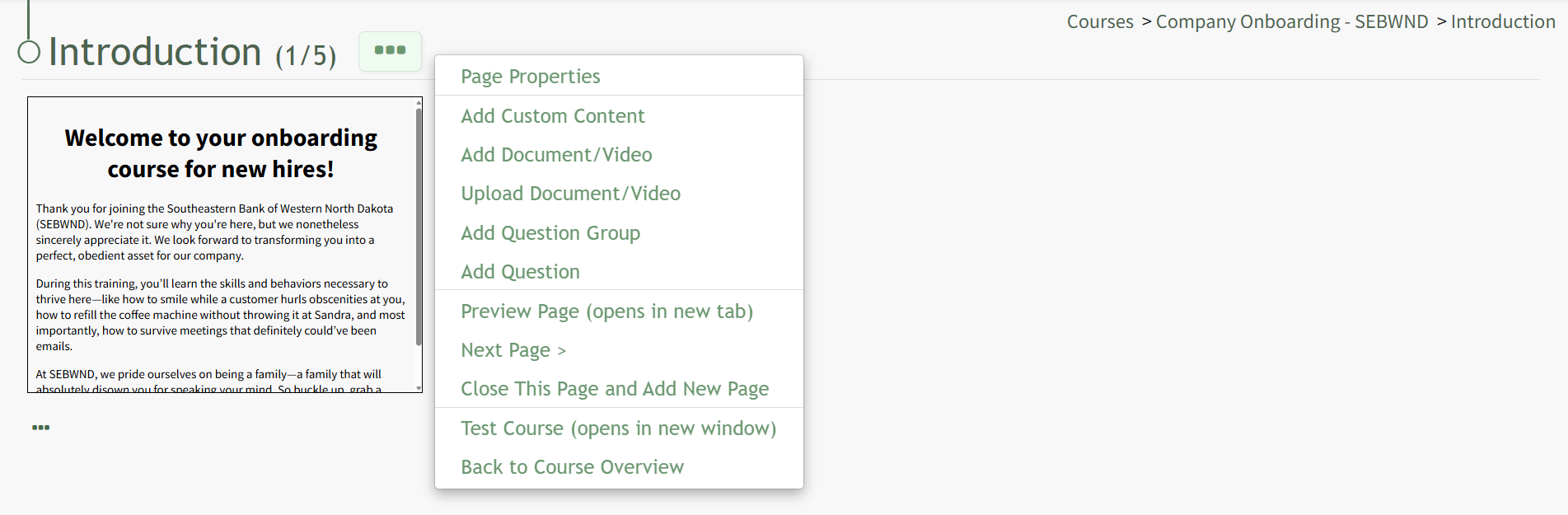
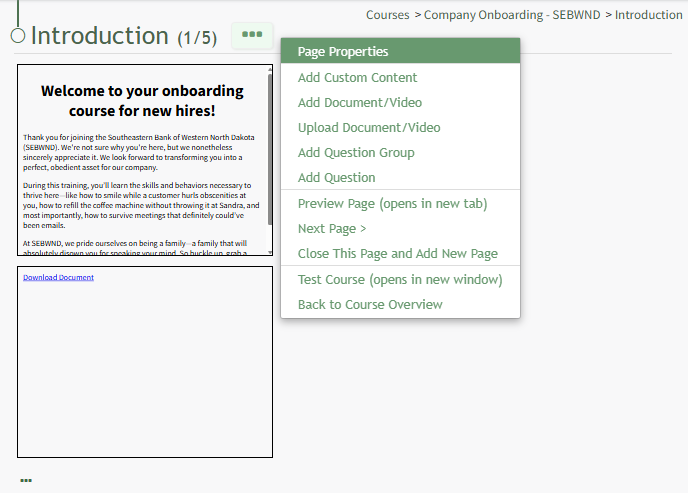
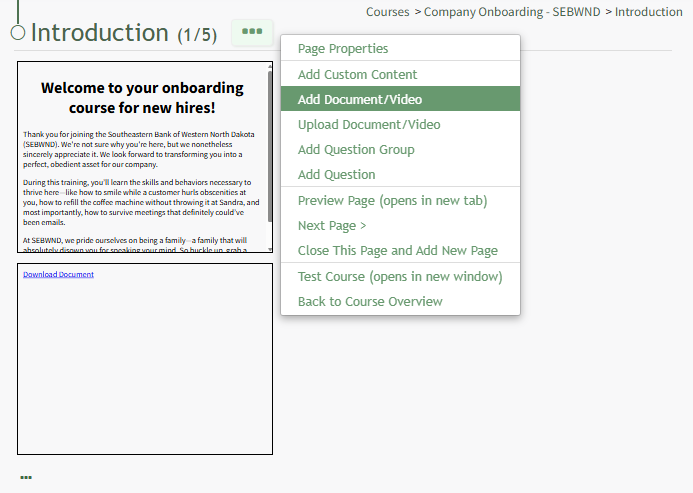
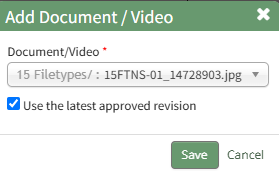
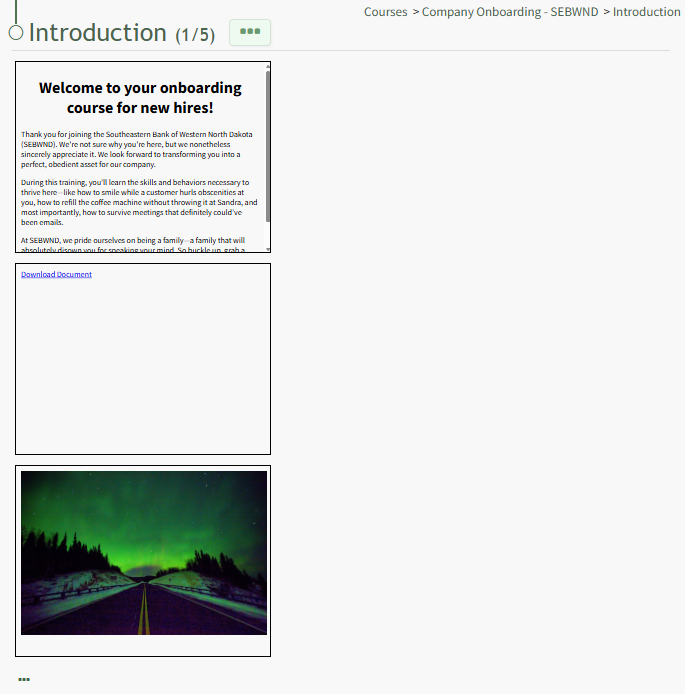
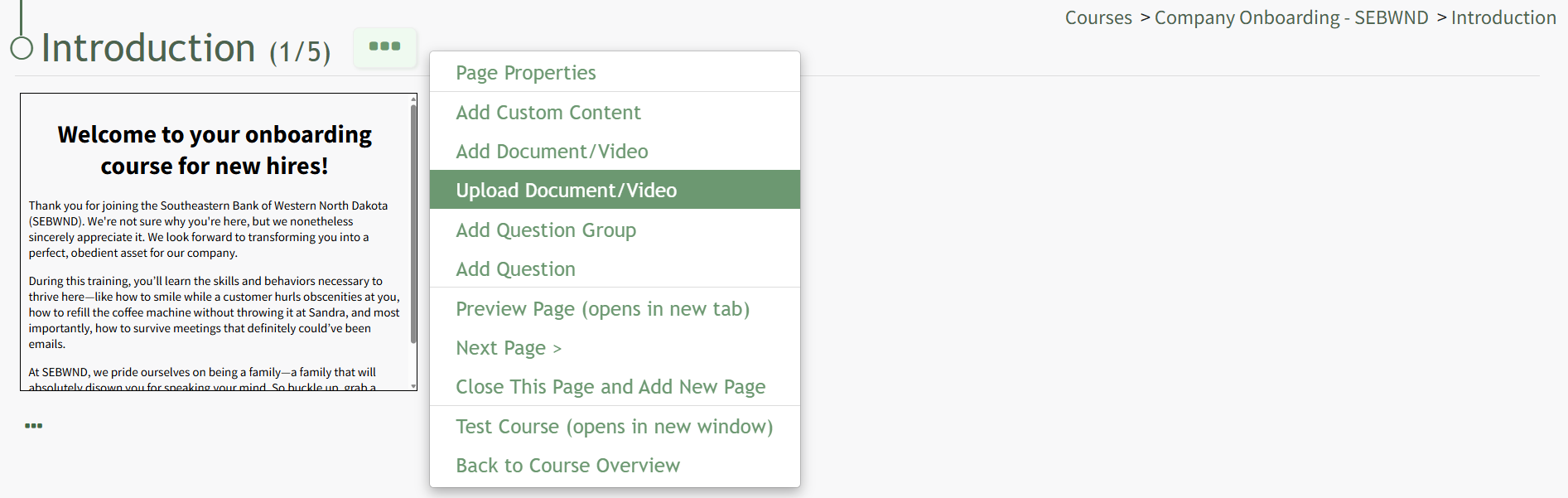
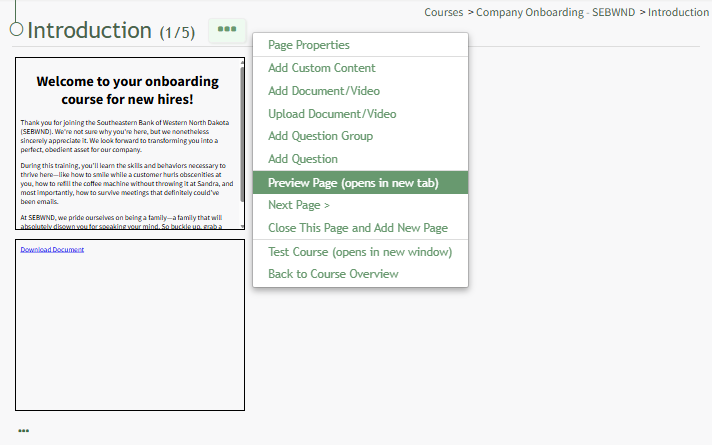
Click the three-dot icon to the right of the Page Title opening the Page Context Menu. Each of the options on the Page Context Menu are explained in the Page Context Menu Option Explanation Table below.
How To: Add Pages in a CourseTo add pages to a course, open the Courses Module Home Page from the Main Menu. Click the three-dot icon to the right of the course you wish to add pages to opening the Course Context Menu and select “Pages”.
This opens the Course Overview Page Pages for Course Name Page. Selecting the three dot (…) icon to the right of the page header open a context menu. Selecting “Add Page” open the New Page modal.
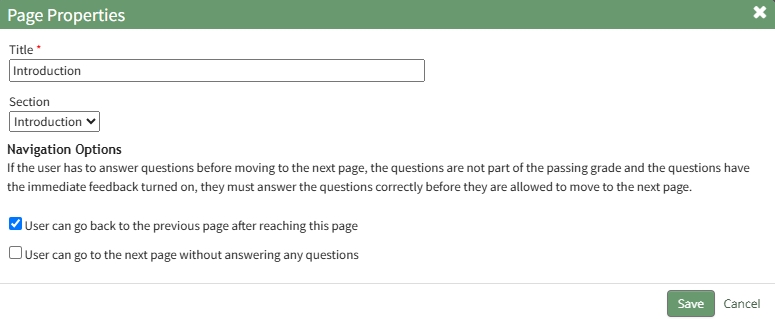
Add a Title for the new page and select the desired navigation options.
If the course properties allow the user to navigate the course freely, in place of the checkbox options you will see “This course allows the user to navigate freely, so there are no per-page navigation options.” Select the “Save” button.
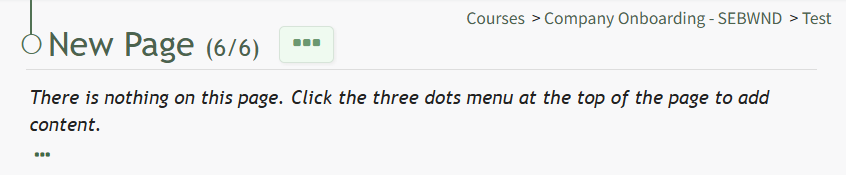
This opens the New Page. Click the three-dot icon to the right of the page header to open the Page Context Menu. For details on how to build out the course page, refer to "How To: Edit a Page in the Course" below. How To: Edit a Page in a CourseTo edit a specific page in a course, open the Courses Module Home Page from the Main Menu. Click the three-dot icon to the right of the course whose page you want to edit, opening the Course Context Menu.
Select Pages, opening the Course Details Page.
On the Course Details Page, all pages in the course are displayed. Hover the icon over the page you wish to edit to see the icons, then click the pencil and page icon. This opens the specific page and enables editing.
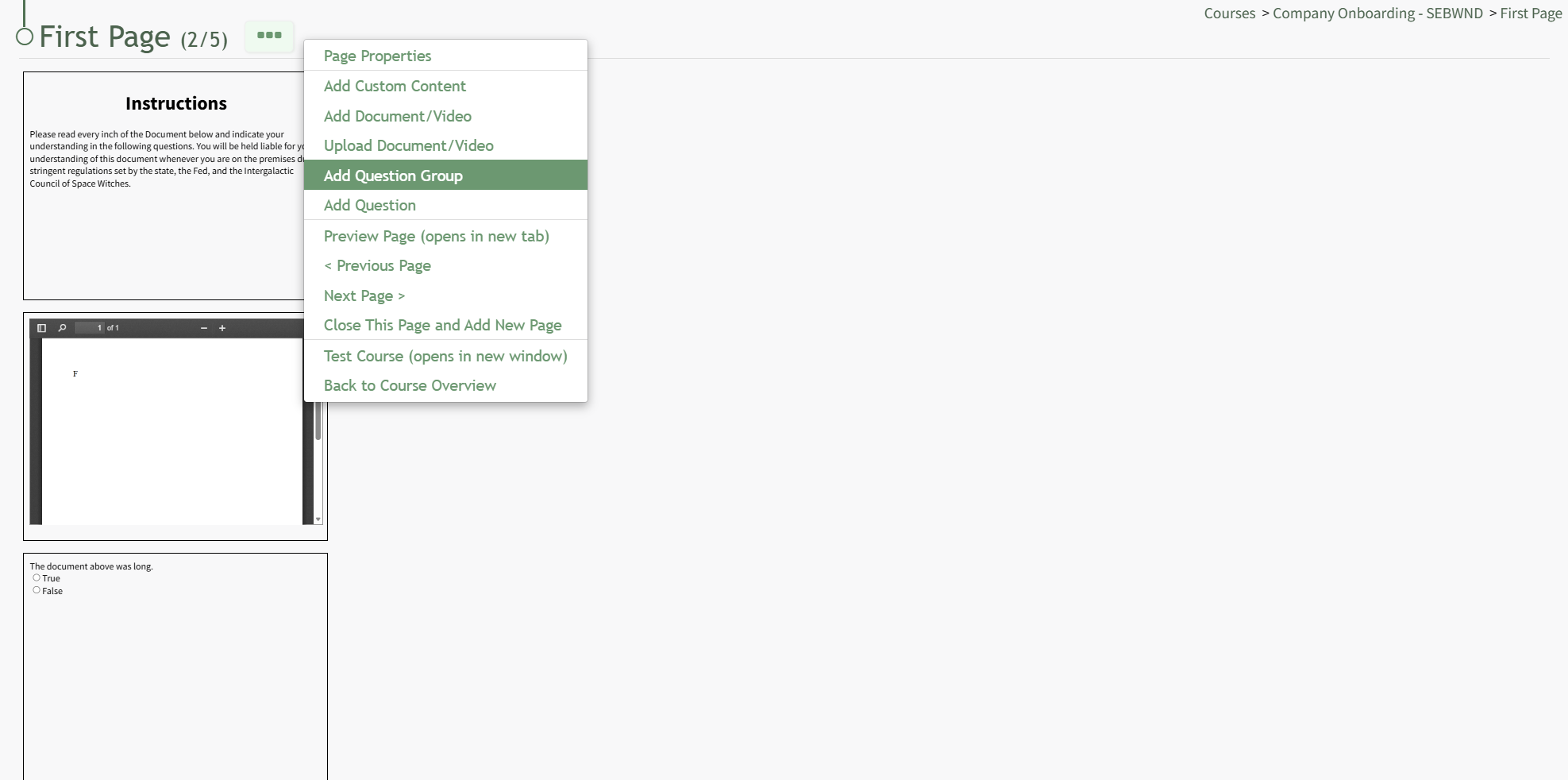
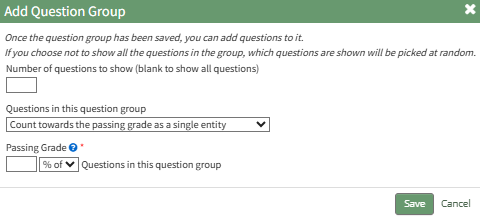
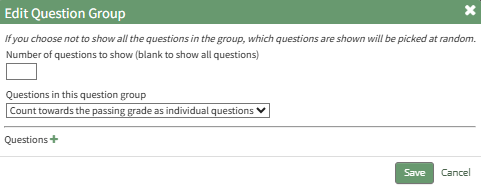
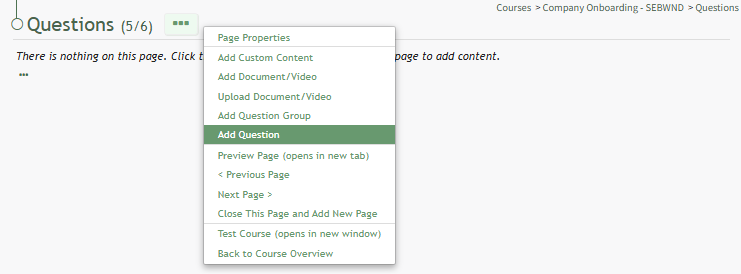
Click the three-dot icon to the right of the Page Title opening the Page Context Menu. Each of the options on the Page Context Menu are explained in the Page Context Menu Option Explanation Table below.
| ||||||||||||||||||||||||||||||||||||||||||||||||||||||||||||||||||||||||||||||
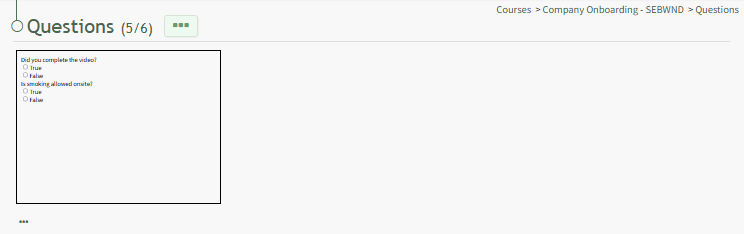
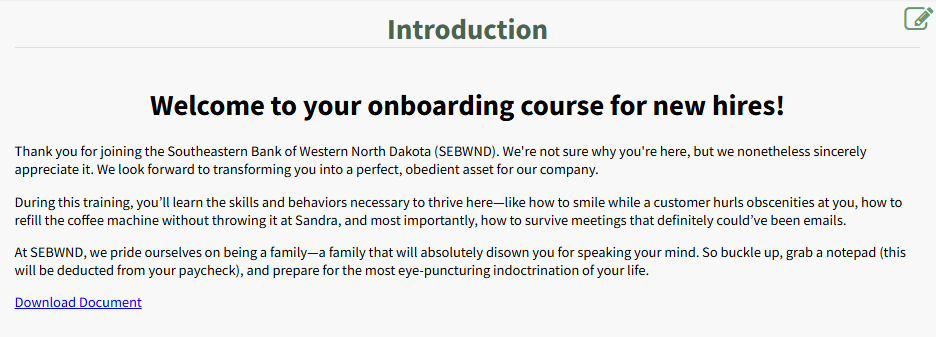
Test Course | Selecting the Test Course option from the context menu opens a trial run of the course with quiz questions. Testing the course will not impact course stats. How To: Take a Course in Test ModeTo take a course in test mode, open the Courses Module Home Page from the Main Menu. Click the three-dot (…) icon to the right of the course title opening the course context menu. Select "Test Course".
The course opens in a new window.
The course is displayed from the user perspective, as if you were actually taking the course. When taking the course in Test Mode, results will not be recorded and will not impact course stats. | ||||||||||||||||||||||||||||||||||||||||||||||||||||||||||||||||||||||||||||||
Course Stats | Selecting the Course Stats option on the context menu opens the Course Stat Page which displays records of test taking attempts and access to an individual’s answers to course questions. How To: Access Course StatsTo access the stats associated with a specific course, open the Courses Module Home Page from the Main Menu. Existing courses are listed alphabetically in the table underneath the “New Course” button according to title.
To view a courses stats, select the three dot (…) icon to the right of the title and select "Course Stats" from the context menu.
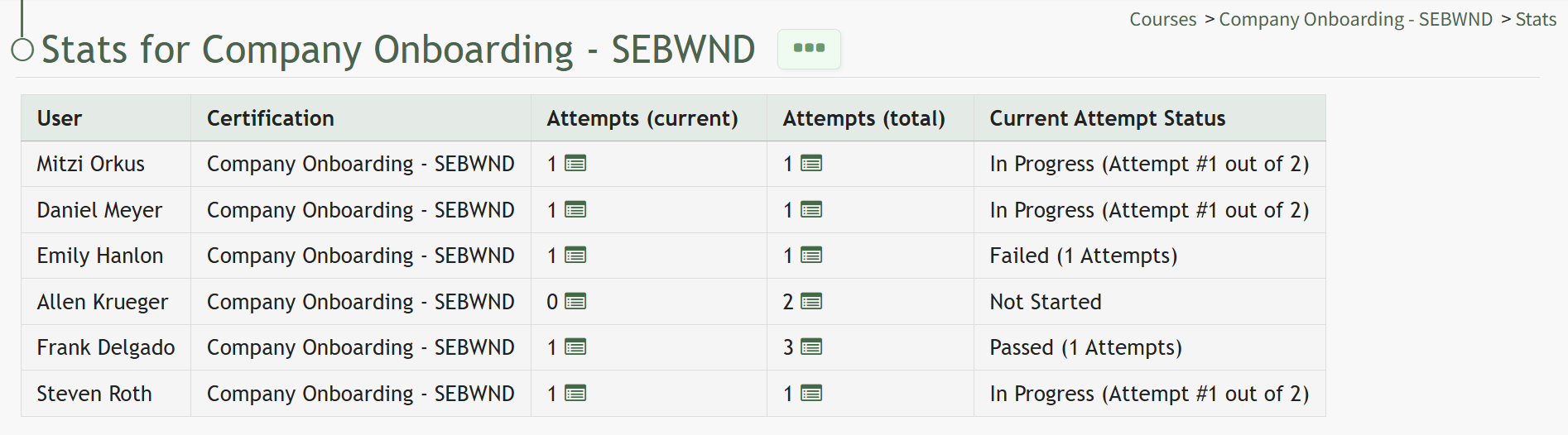
“Course Stats” opens a page titled Stats for [Name of Course] that displays the records of every user’s test taking attempts.
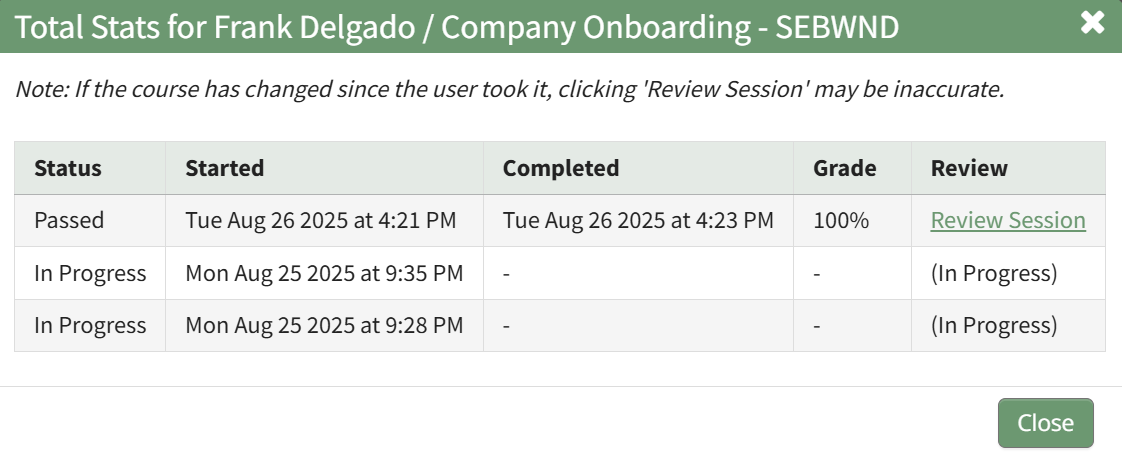
Clicking on the icon in the Attempts (current) Column or the Attempts (total) Column will open the Stats Modal for the selected individual.
The clickable link in the Review Column opens the individual's Course Review Page, where specific questions and their answers can be reviewed. | ||||||||||||||||||||||||||||||||||||||||||||||||||||||||||||||||||||||||||||||
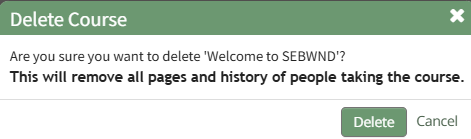
Delete Course | Selecting the Delete Course option on the context menu will open a deletion confirmation modal. The modal displays a warning that will notify the user that deleting the course will “remove all pages and history of people taking the course.” Confirmation of deletion is required. If the course is a required activity for a certification, it will not be deleted unless certification course requirement is removed from the certificate. How To: Delete a CourseTo delete a course, go to the Courses Module Home Page on the Main Menu. All courses are listed alphabetically in the Courses Table underneath the “New Course” button according to title.
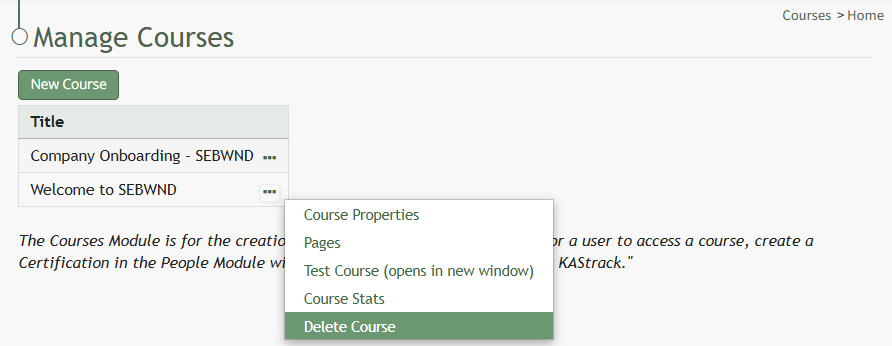
Click the three-dot icon to the right of the course title opening the Course Context Menu and select Delete Course.
This opens the Delete Course Confirmation Module that states, "Are you sure you want to delete [Course Name]? This will remove all pages and history of people taking the course." Select "Delete" to delete the course. Deleting a course deletes the pages of the course and the course stats associated with it. If the course is a required activity for a certification, it will not be deleted unless certification course requirement is removed from the certificate. | ||||||||||||||||||||||||||||||||||||||||||||||||||||||||||||||||||||||||||||||
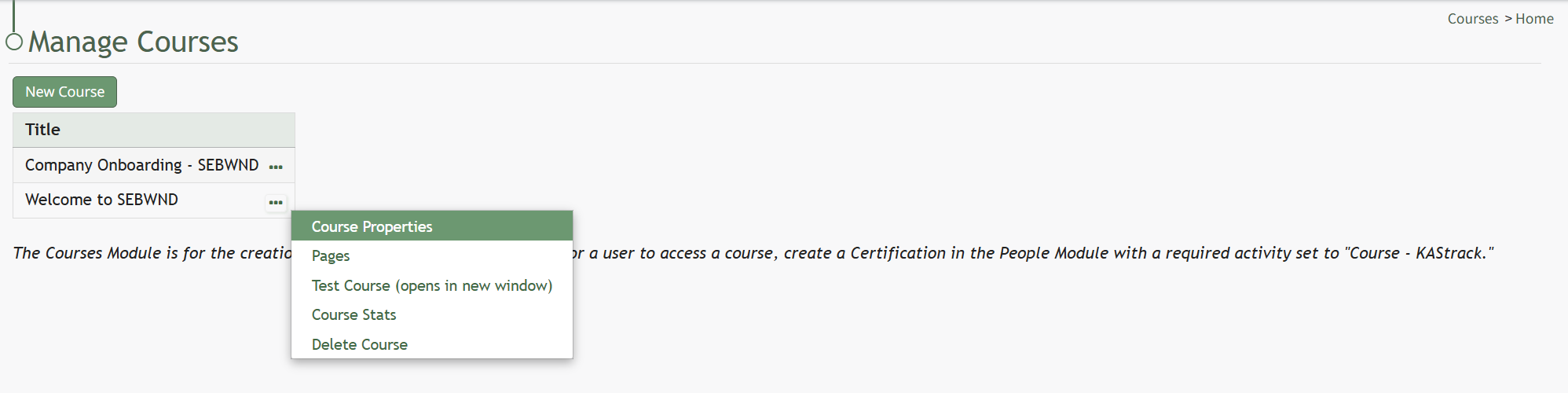



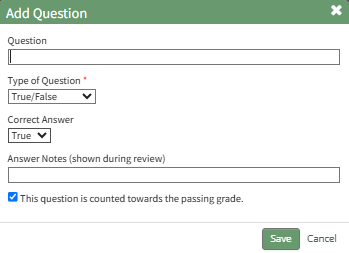
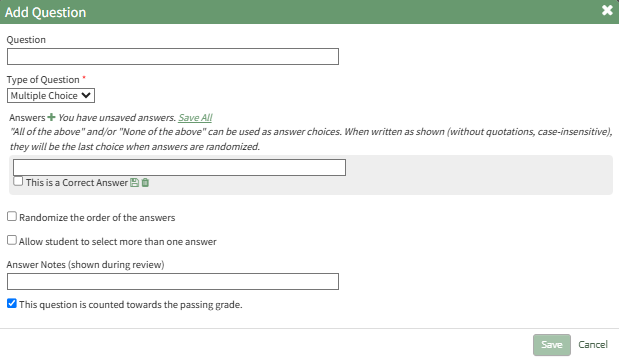

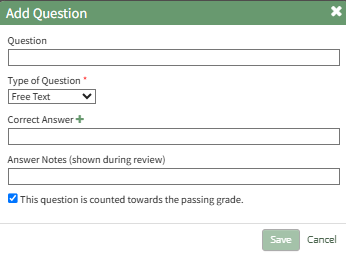
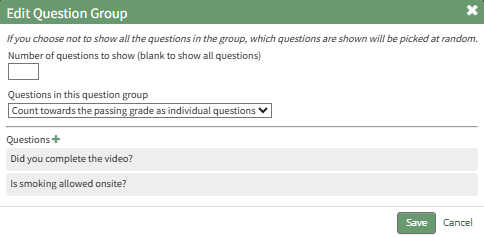


In KAStrack, certifications with a required activity are used to assign courses to users. To require a user to complete a course, you must create a Certification in the People module with Required Activity set to "Course - KAStrack".
How To: Set Up a Course as a Certification
In order for a user to access a course, the course must be set as a required activity in a certification after the course is created in the People Module. This certification must then be assigned to the user.

To do so, select the Certifications page in the People Module. Click the plus-sign (+) button to the right of the Certification header which opens the Add Certification page.

There are five data categories that allow a user to customize preferences: General, Tracking Settings, Activities, Privacy, and Advanced Settings. Detailed information about each can be found in the People Module.

Set up a course as a certification, select “Course – KAStrack” as the Required Activity for the certification from the dropdown menu.
Any courses that have been created in KAStrack show on the Choose a Course dropdown menu. Select the course you want to assign.