
Home Page: Manage Courses Page
The Courses Module homepage is the Manage Courses Page and is only visible to users with course-management permissions. System
Systems users that do not have access to thisthe module.Manage Courses homepage still have the capability to take courses in KAStrack.

KAStrackIn usesKAStrack, Certifications within the People Module to assign a course to users. Before a certificationcertifications with a required activity isare setused up,to assign courses to users.. To require a user will not be able to takecomplete a course.
How To: Set Up a Course as a Certification
{{@237}}
Courses are taken as part of a certification. To setup a certification with a course as a required activity,course, you must create a Certification in the People module with Required Activity set to "Course - KAStrack".
How To: Set Up a Course as a Certification
{{@237}}
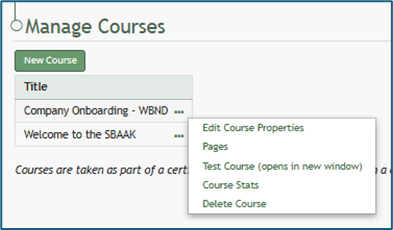
The Manage Courses pagePage displayshouses athe Course Title table, listing all courses alphabetically. The New Course button beneathbelow the pageheader header.is used to create a new course. Existing courses can be managed and edited by clicking on the three-dot icon to the right of the course title.
How To: Create a New Course
{{@233}}
Course Context Menu Item Explanations
The three dot icon to the right of a course title opens the Course Context Menu with links for quick actions. An explanation of each option on the course context menu is included below.
Course Context Menu Option Explanations | |
Options | Explanation |
Edit Course Properties |
How To: Edit Course Page Properties{{@239}} |
Pages |
How To: Edit Existing Pages{{@234}} How To: Add Pages in a New / Existing Course{{@244}} |
Test Course |
Testing the course will not impact course stats. How To: Take a Course in Test Mode{{@241}} |
Course Stats |
How To: Access Course Stats{{@242}} |
Delete Course |
If the course is a required activity for a certification, it will not be deleted unless certification course requirement is removed from the certificate. How To: Delete a Course{{@243}} |