A Course's Details Page
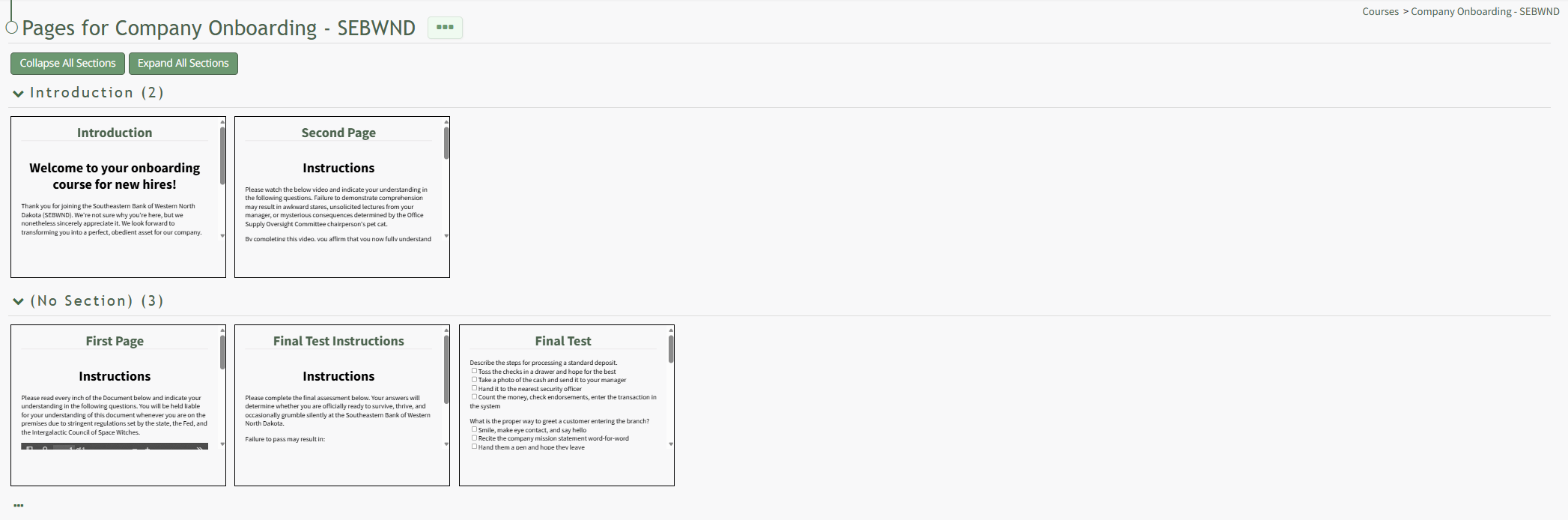
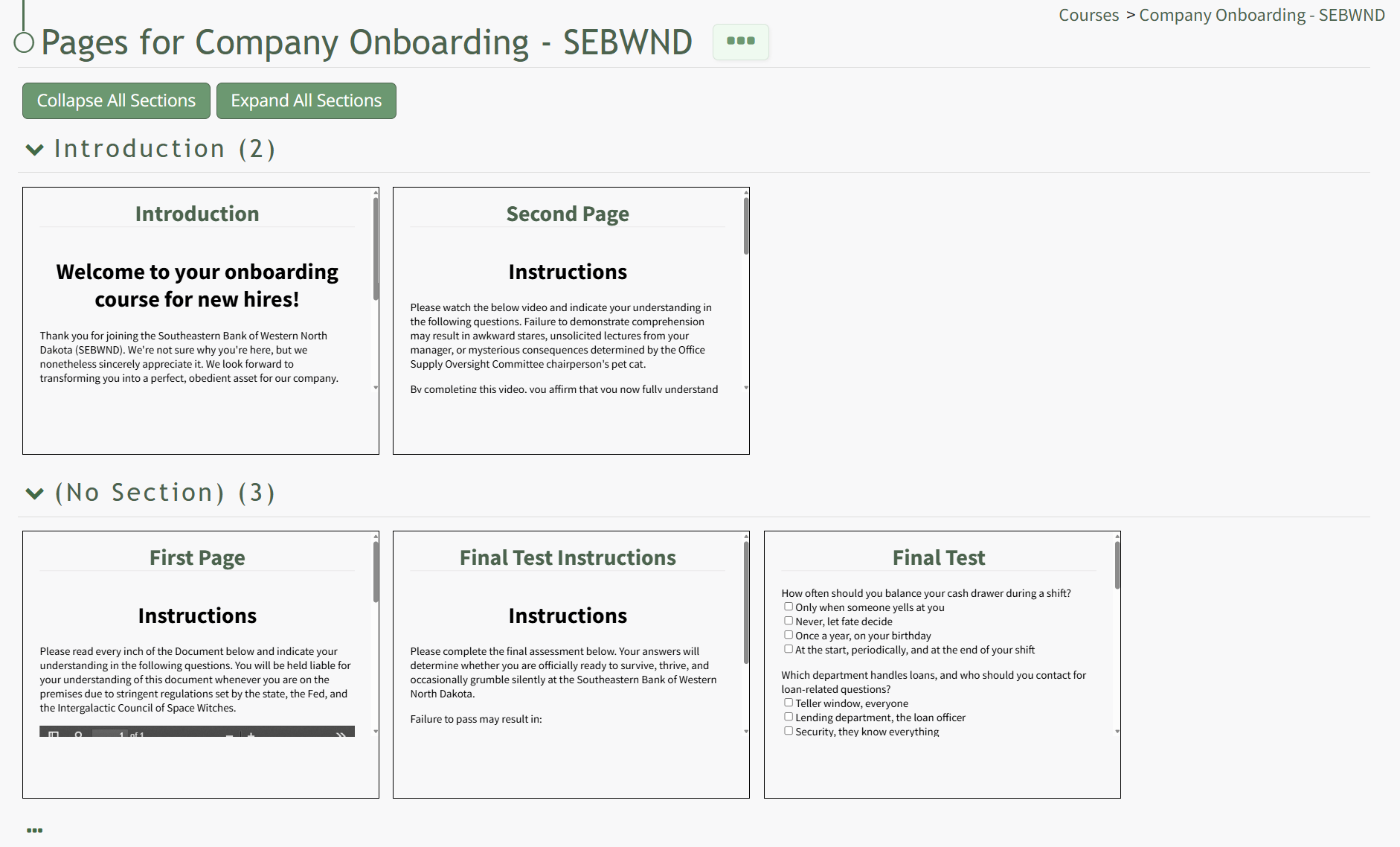
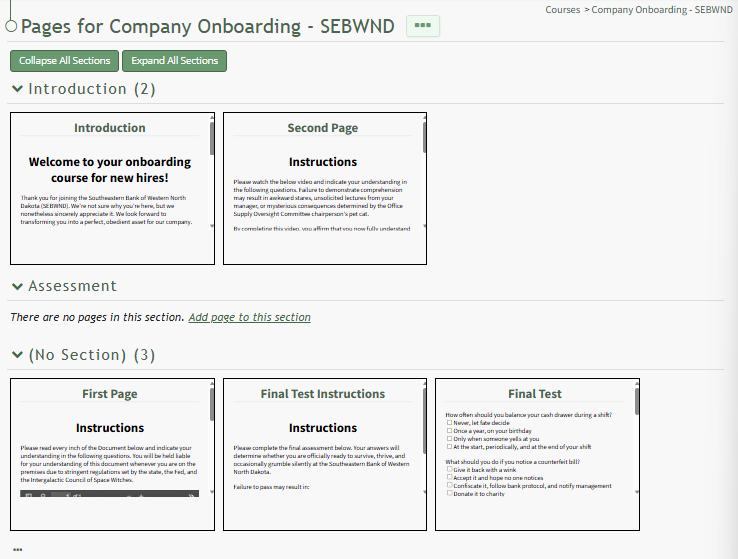
Every Course created in KAStrack will have it's own Course Details Page where all pages in the course are visible.
Each page in a course opens to its individual page when clicked, where the specific page can be edited.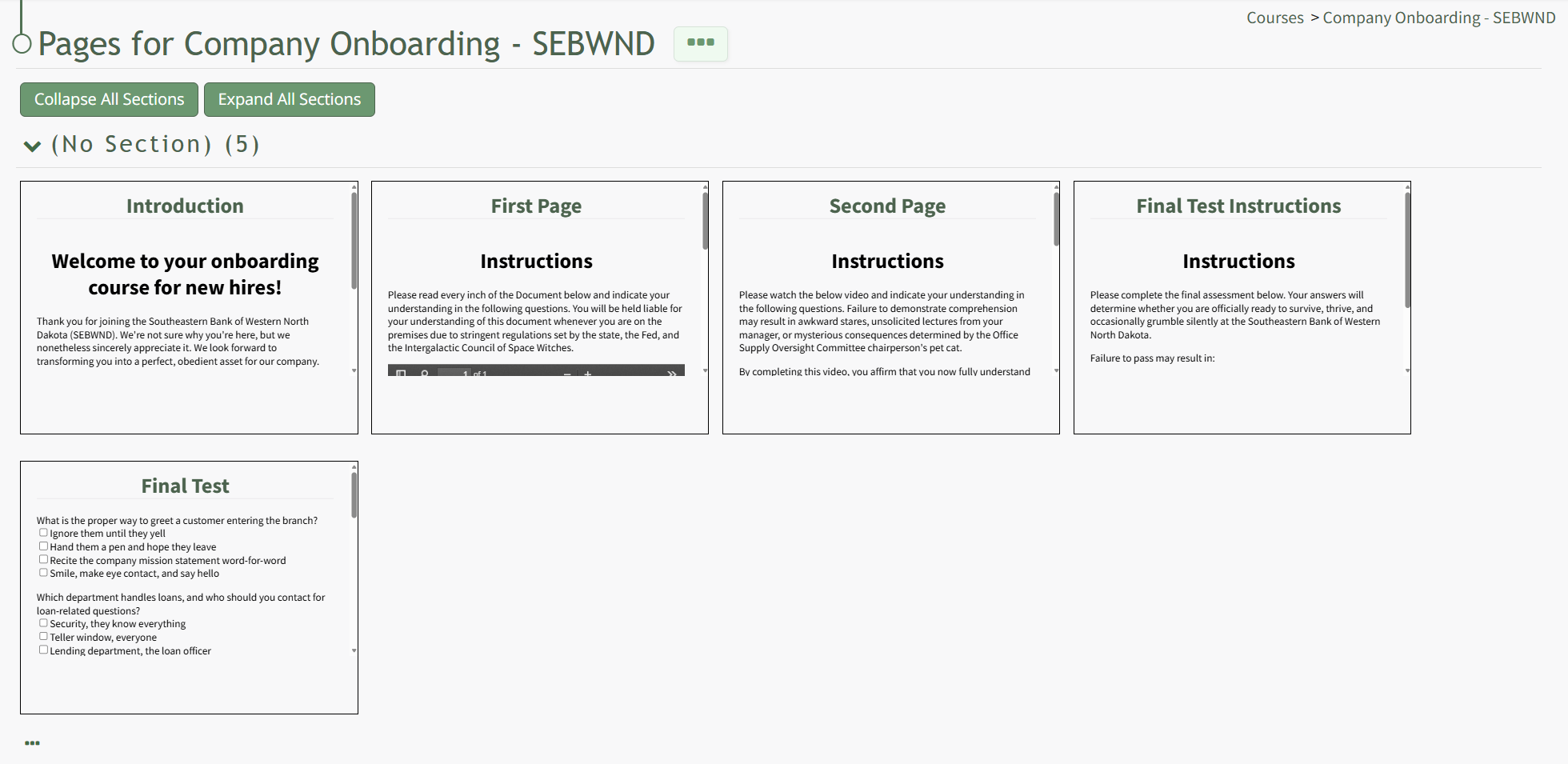
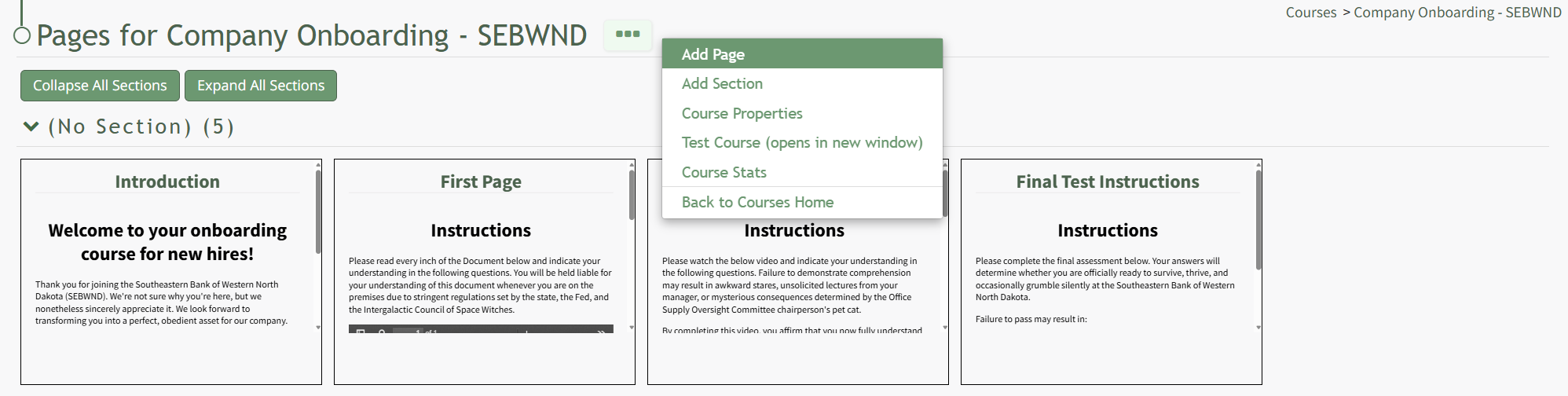
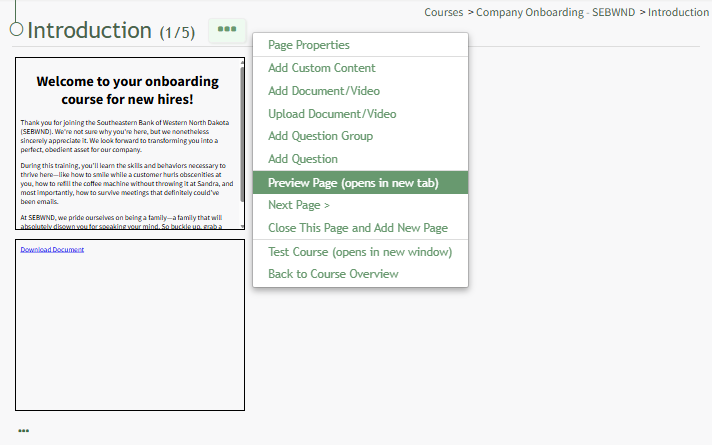
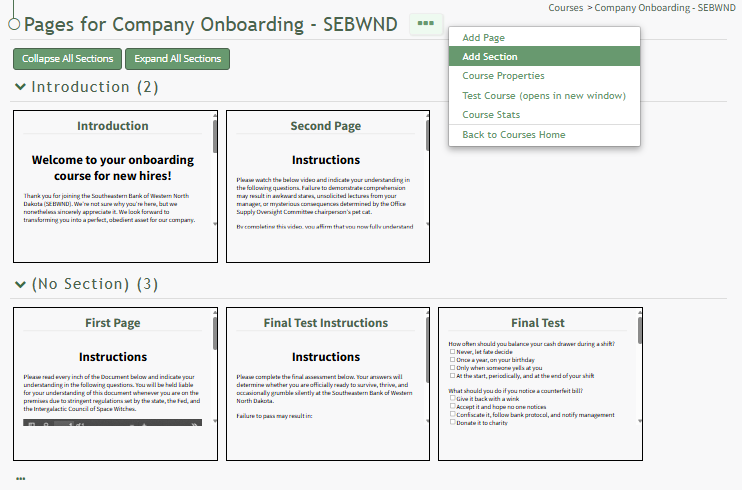
The three-dot icon to the right of the page header and at the bottom of the page can be clicked to open the Course Details Page Context Menu. An explanation of each option in the Course Details Page Context Menu has been included in the table below.
Course Detail Page Context Menu Option Explanations | |||||||||||||||||||||||||||
Option | Explanation | ||||||||||||||||||||||||||
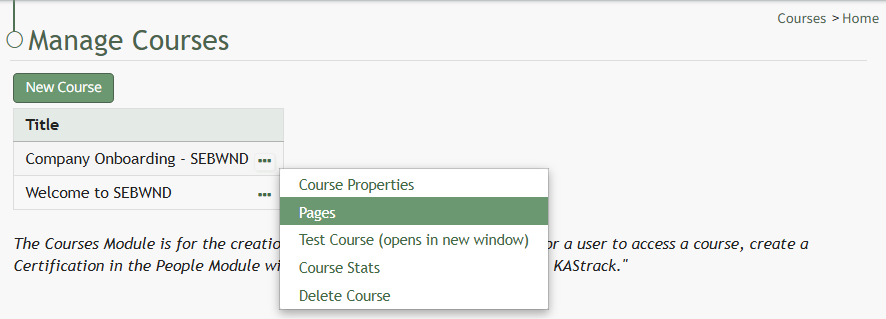
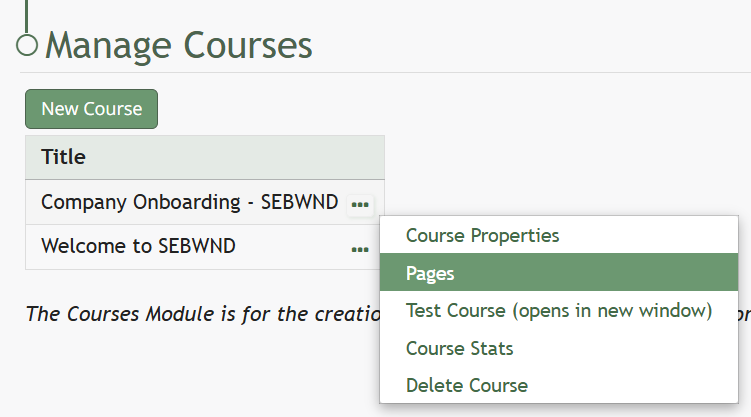
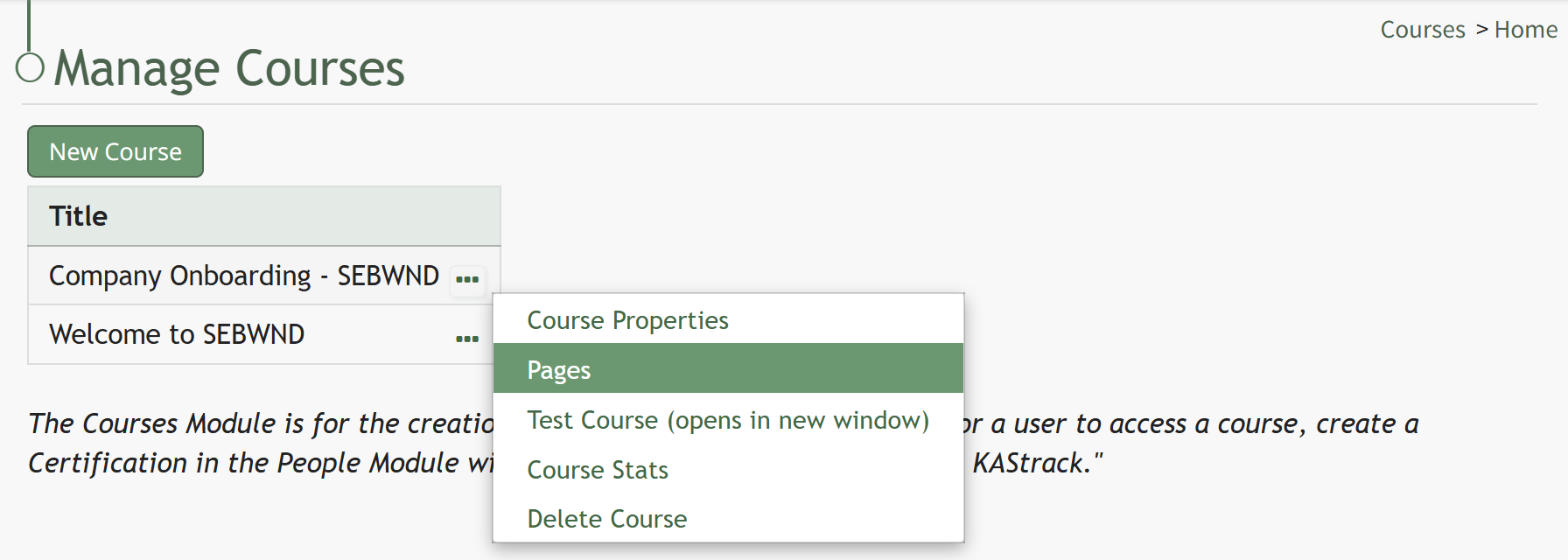
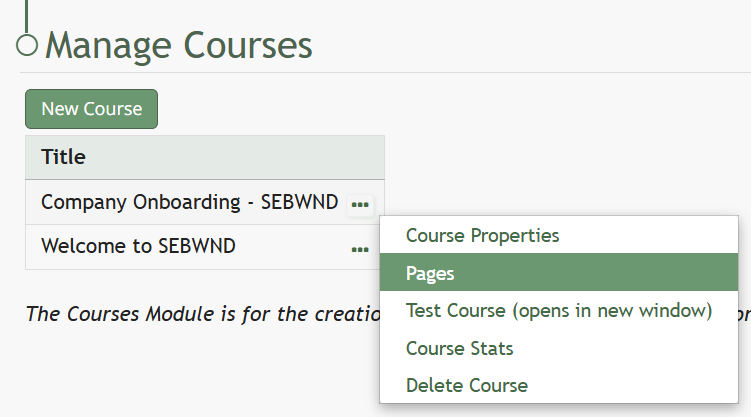
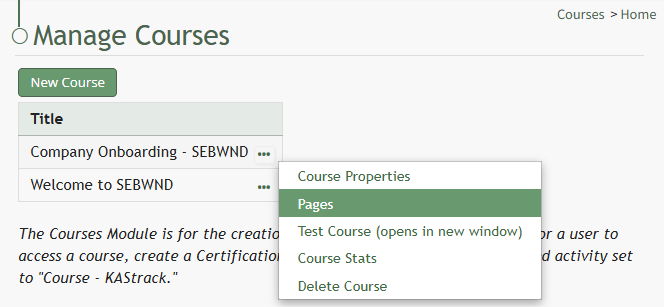
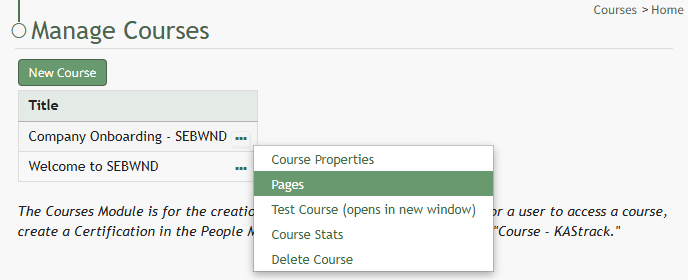
Add Page | Selecting Add Page from the context menu opens the New Page Modal, where a user can title the new page, identify the section it belongs in, and select the navigation options for the page. How To: Add Pages in a CourseTo add pages to a course, open the Courses Module Home Page from the Main Menu. Click the three-dot icon to the right of the course you wish to add pages to opening the Course Context Menu and select “Pages”.
This opens the Course Overview Page Pages for Course Name Page. Selecting the three dot (…) icon to the right of the page header open a context menu. Selecting “Add Page” open the New Page modal.
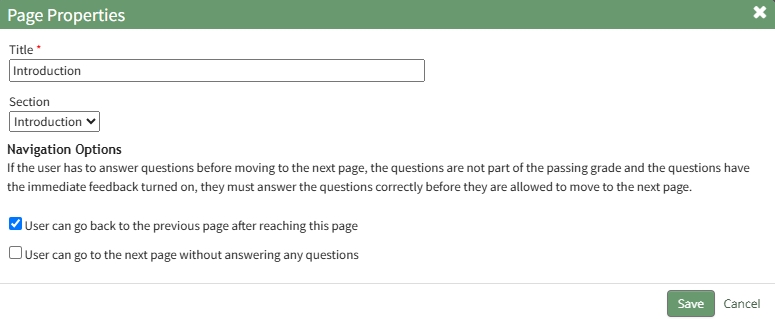
Add a Title for the new page and select the desired navigation options.
If the course properties allow the user to navigate the course freely, in place of the checkbox options you will see “This course allows the user to navigate freely, so there are no per-page navigation options.” Select the “Save” button.
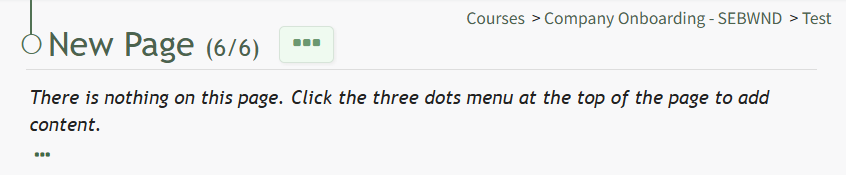
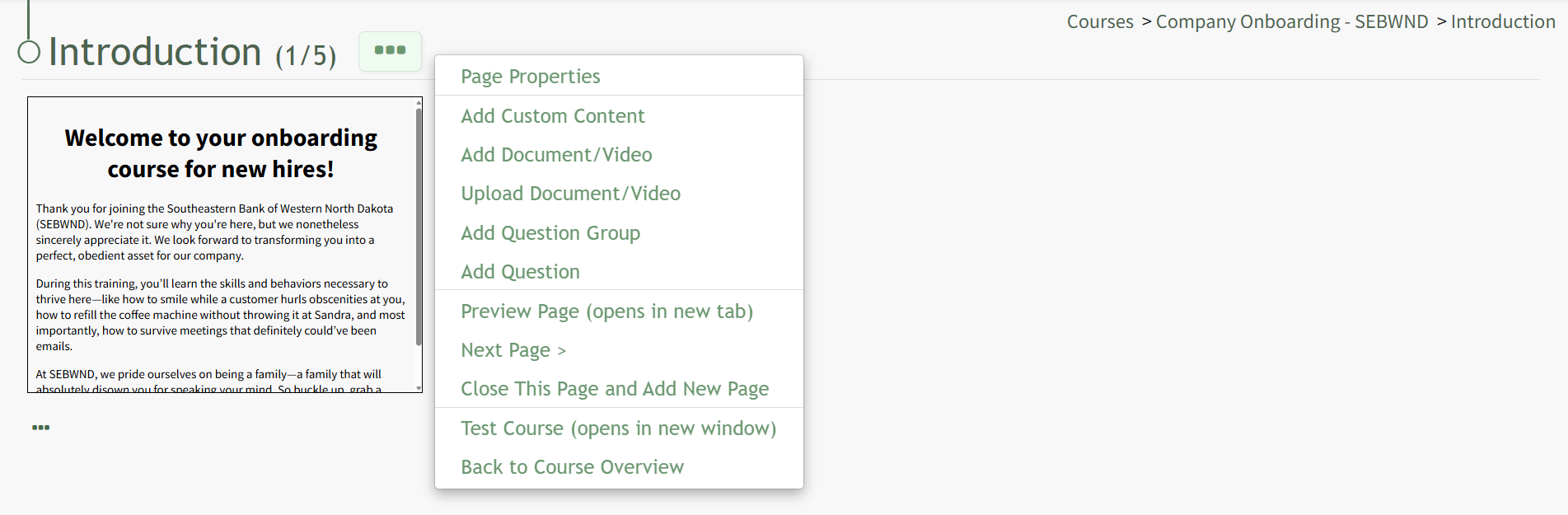
This opens the New Page. Click the three-dot icon to the right of the page header to open the Page Context Menu. For details on how to build out the course page, refer to "How To: Edit a Page in the Course" below. How To: Edit a Page in a CourseTo edit a specific page in a course, open the Courses Module Home Page from the Main Menu. Click the three-dot icon to the right of the course whose page you want to edit, opening the Course Context Menu.
Select Pages, opening the Course Details Page.
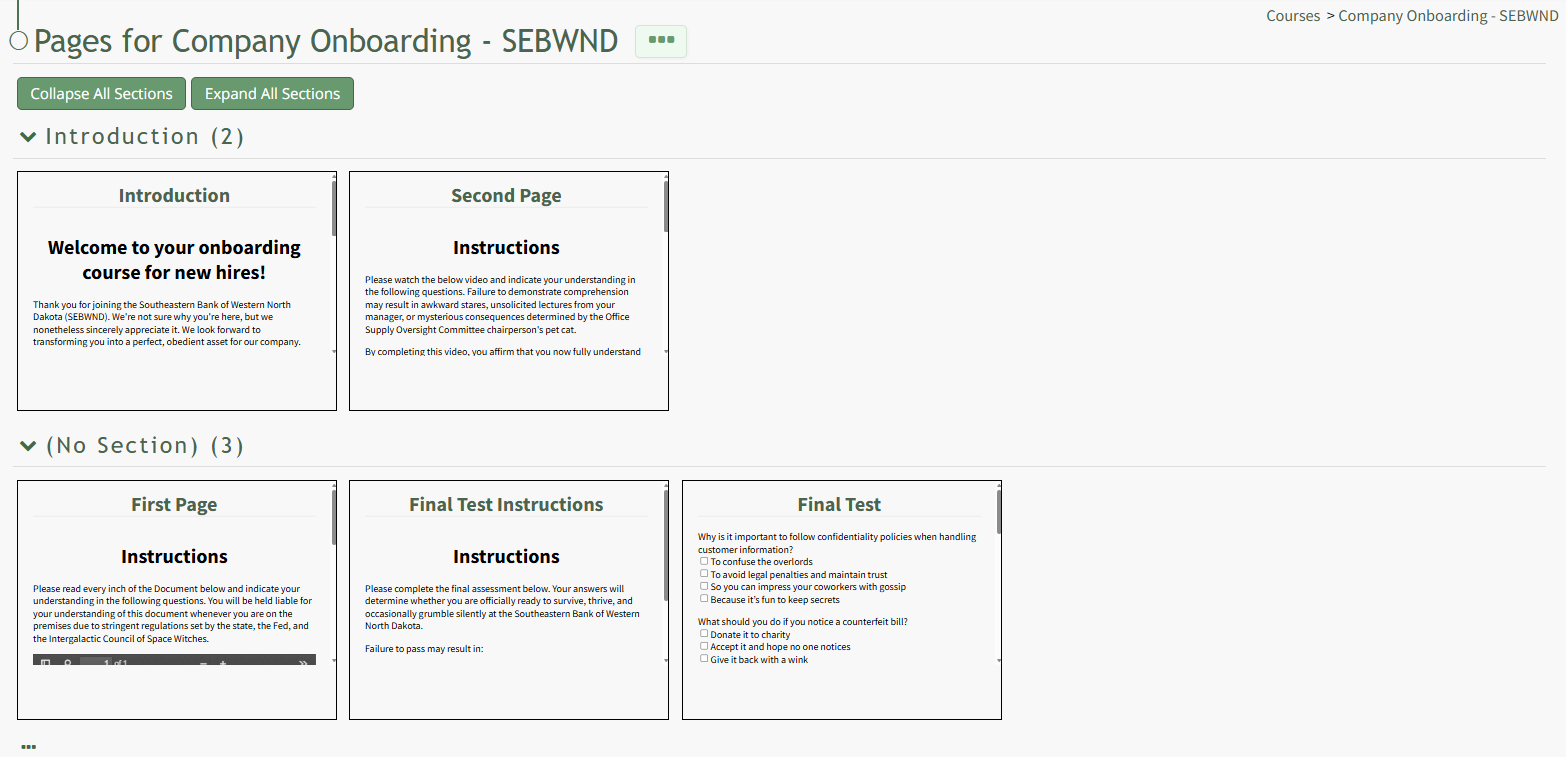
On the Course Details Page, all pages in the course are displayed. Hover the icon over the page you wish to edit to see the icons, then click the pencil and page icon. This opens the specific page and enables editing.
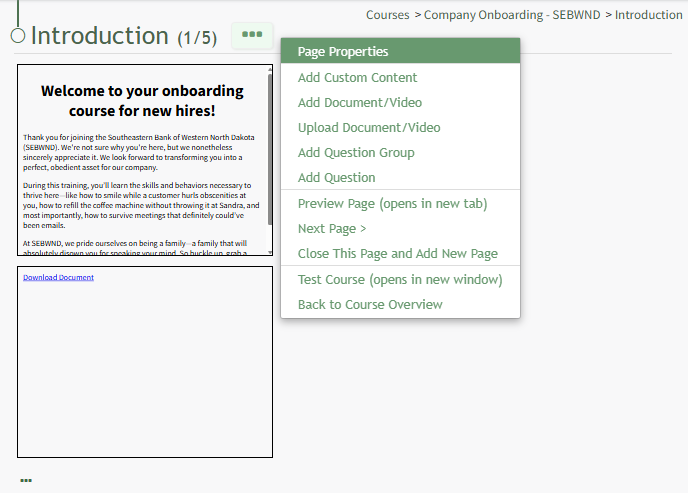
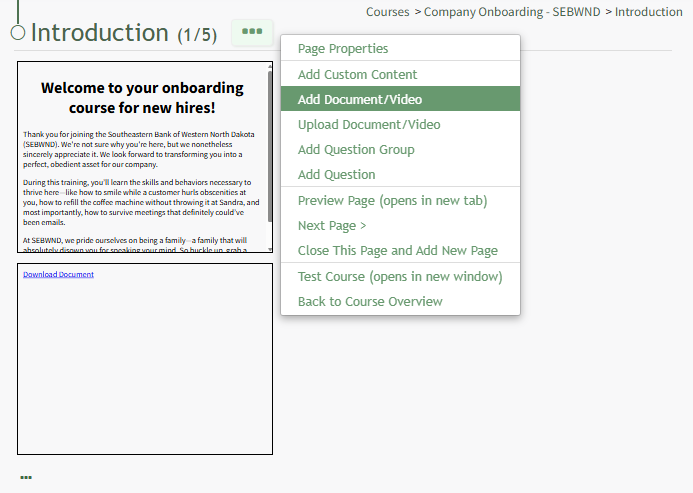
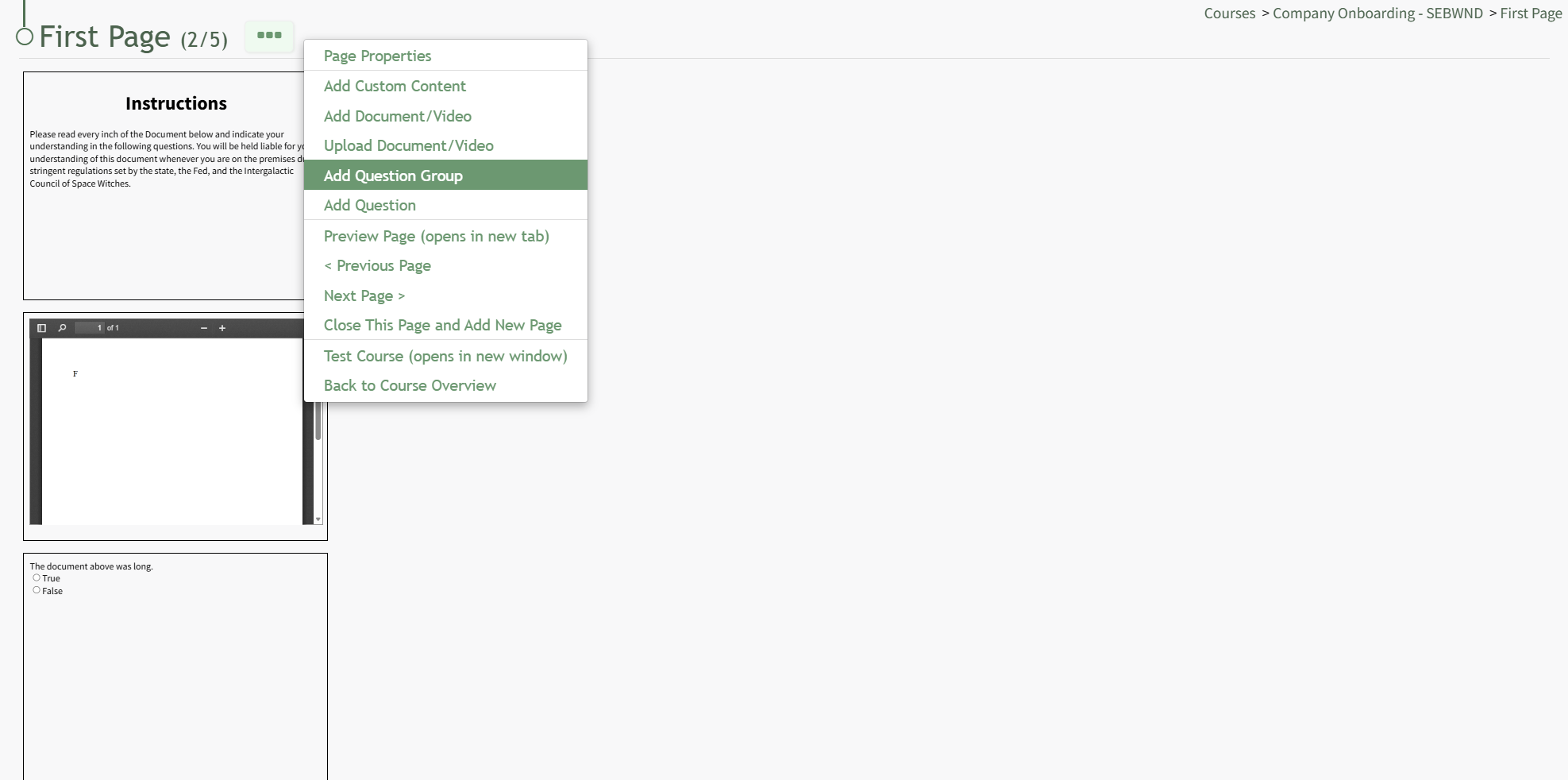
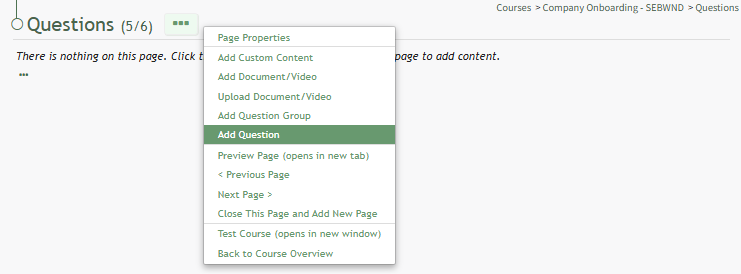
Click the three-dot icon to the right of the Page Title opening the Page Context Menu. Each of the options on the Page Context Menu are explained in the Page Context Menu Option Explanation Table below.
| ||||||||||||||||||||||||||
Add Section | Selecting Add Section from the context menu opens the Add Section Modal. How To: Add a Section to a CourseTo add a new section to a course, open the Courses Module Home Page from the Main Menu. Click the three-dot icon to the right of the right of the course whose Details Page wish to access, opening the Manage Courses Context Menu. Select "Pages".
This opens the course's Details Page. Click the three-dot icon to the right of the course title.
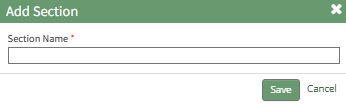
This opens the Course Context Menu. Select the option to "Add Section" opening the Add Section Modal.
Input the new section name into the modal and click the "Save" button.
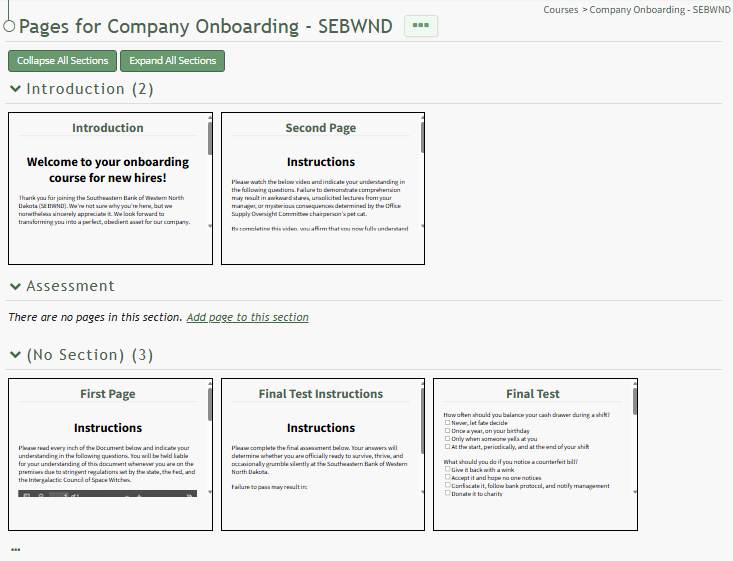
The newly created section is now visible on the Course's Details Page and pages can be added to it. How To: Add Pages to a New SectionTo add pages to a new section, you must open the course's Details Page. How To: Access A Course's Details PageTo access a course's details page, open the Courses Module Home Page from the Main Menu. Click the three-dot icon to the right of the right of the course whose Details Page wish to access, opening the Course Context Menu.
Select "Pages" from the Context Menu.
This opens the course's Details Page, displaying each page in the course grouped by sections.
A section without pages in it will state, "There are no pages in this section. Add page to this section." Click the link to Add page to this section to create a new page in the section. You can also drag and drop a page to its desired section.
| ||||||||||||||||||||||||||
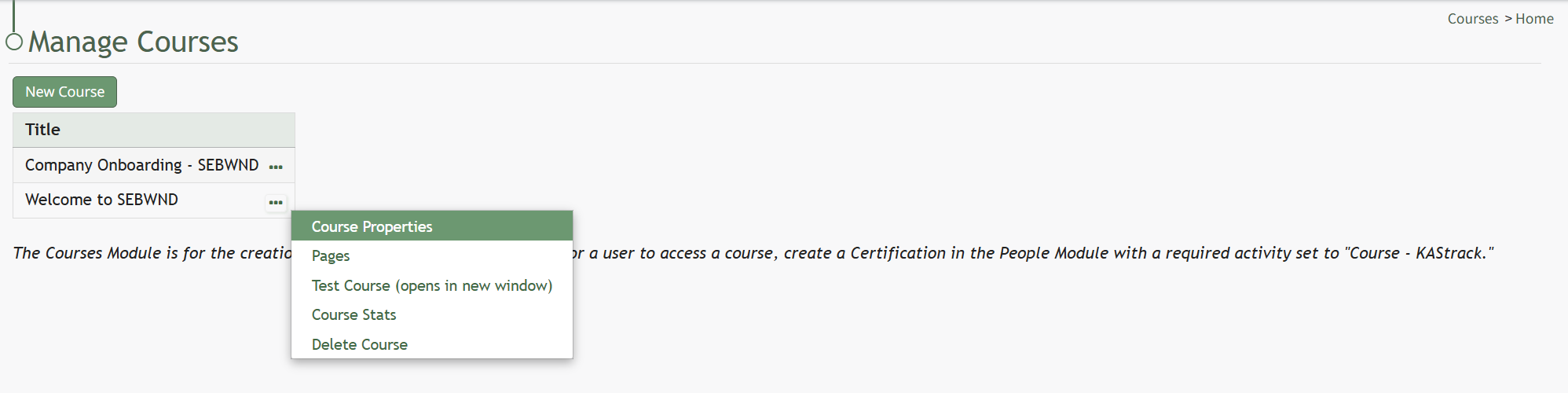
Course Properties | Selecting Course Properties from the context menu opens the Course Properties Modal, allowing the user to edit the original parameters that were selected when the course was created. The course name, tags, number of attempts, and settings for the course can be edited from the Course Properties Modal. How To: Edit Course PropertiesTo edit a course, open the Courses Module Home Page from the Main Menu and select the three-dot (…) icon to the right of the course you wish to edit opening the Course Context Menu.
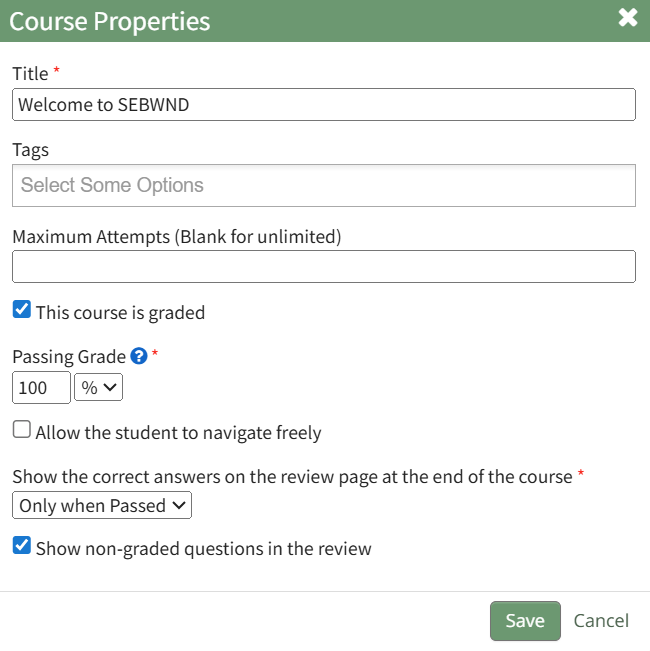
Selecting “Course Properties” from the context menu opens the Course Properties Modal which allows a user to edit the original parameters that were selected when the course was created.
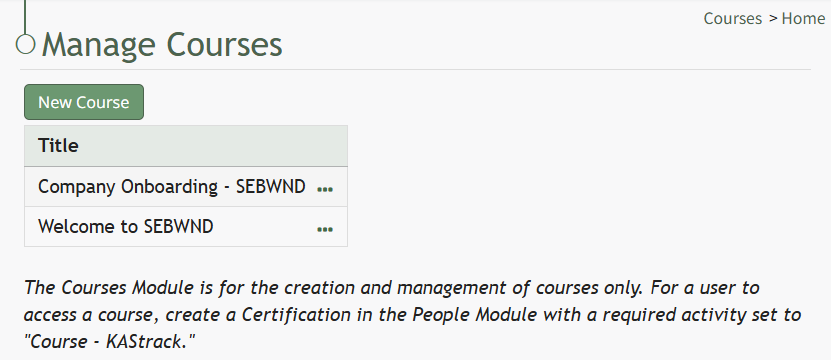
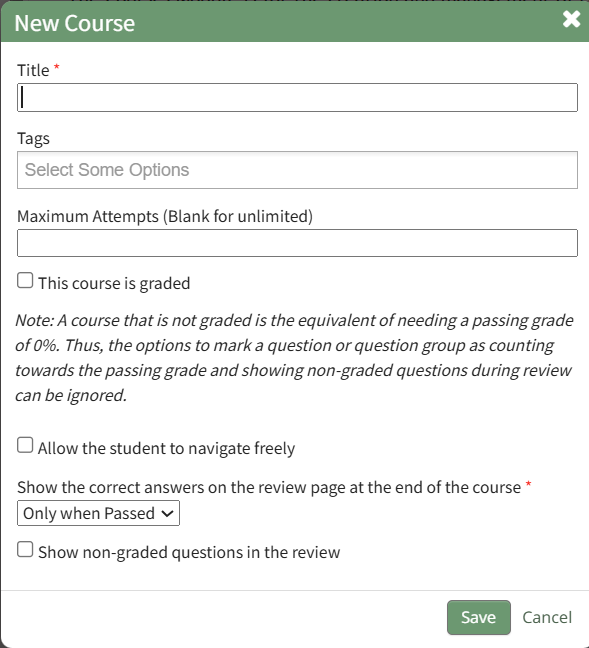
The Course Properties Modal displays the same options as in the New Course Modal which are explained in more details on the How To Create a New Course below. How To: Create a New CourseTo create a new course, open the Courses Module Home Page from the Main Menu. The Courses Module is for the creation and management of courses only. For a user to access a course, create a Certification in the People Module with a required activity set to "Course - KAStrack".
Click the “New Course” button beneath the Manage Courses header opening the New Course modal.
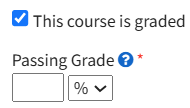
Input the desired course title and add tags for desired permissive/restrictive filters. Input the maximum number of attempts an individual can take the course. Leave this field blank to allow for unlimited attempts. A course that is not graded is the equivalent of needing a passing grade of 0%. Thus, options to mark a question or question group as counting towards the passing grade and showing non-graded questions during review can be ignored. If the new course is to be graded, select the "This course is graded" checkbox. The modal will expand requiring you to input a grade that will qualify as passing the course.
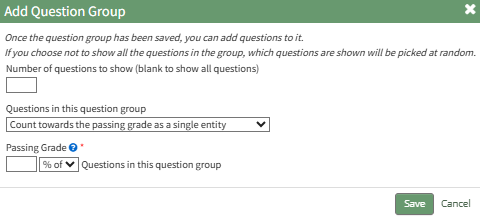
A passing grade can be calculated as the percentage or an absolute number of correctly answered eligible questions or question groups. Each question group has its own passing grade, and can be set to be part of the passing grade. Select the “Allow the student to navigate freely” checkbox to give permission to navigate the entire course freely. If you do not select this checkbox, you will have the ability to customize navigation options on each individual page in the course. Click “Save” at the bottom of the modal to create the new course. The new course is now added to the table on the Course homepage. | ||||||||||||||||||||||||||
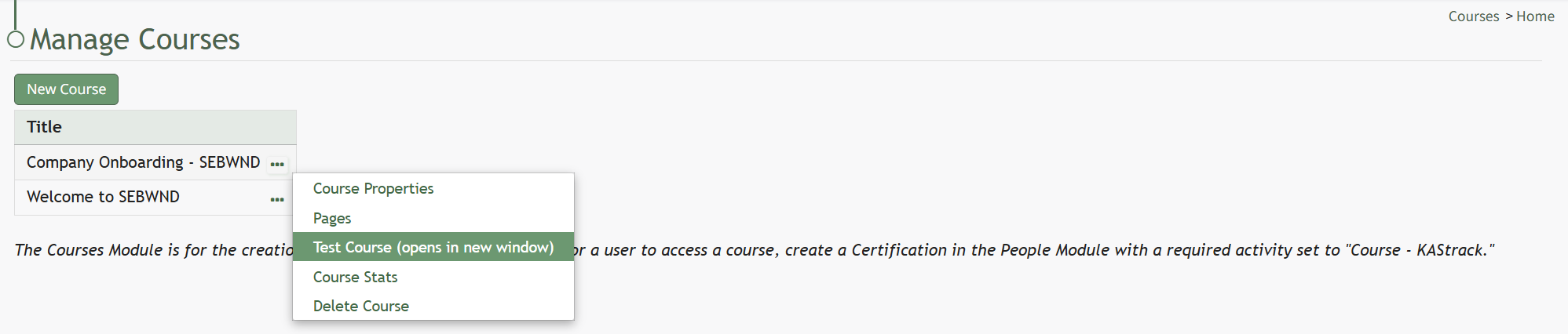
Test Course | Selecting the Test Course option from the context menu opens a trial run of the course with quiz questions. Testing the course will not impact course stats. How To: Take a Course in Test ModeTo take a course in test mode, open the Courses Module Home Page from the Main Menu. Click the three-dot (…) icon to the right of the course title opening the course context menu. Select "Test Course".
The course opens in a new window.
The course is displayed from the user perspective, as if you were actually taking the course. When taking the course in Test Mode, results will not be recorded and will not impact course stats. | ||||||||||||||||||||||||||
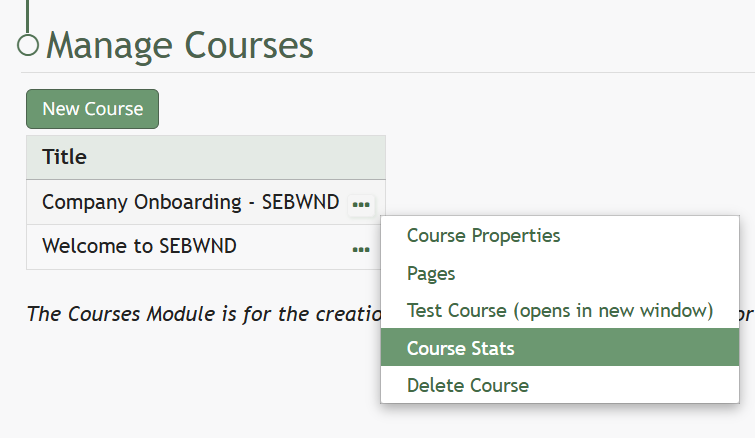
Course Stats | Selecting the Course Stats option on the context menu opens the Course Stat Page which displays records of test taking attempts and access to an individual’s answers to course questions. How To: Access Course StatsTo access the stats associated with a specific course, open the Courses Module Home Page from the Main Menu. Existing courses are listed alphabetically in the table underneath the “New Course” button according to title.
To view a courses stats, select the three dot (…) icon to the right of the title and select "Course Stats" from the context menu.
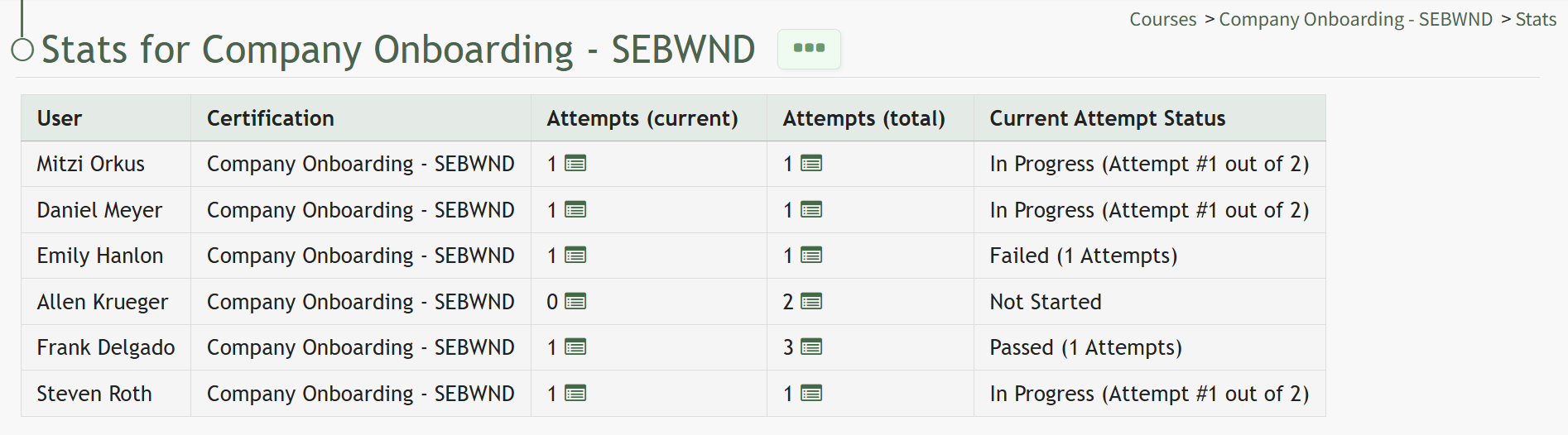
“Course Stats” opens a page titled Stats for [Name of Course] that displays the records of every user’s test taking attempts.
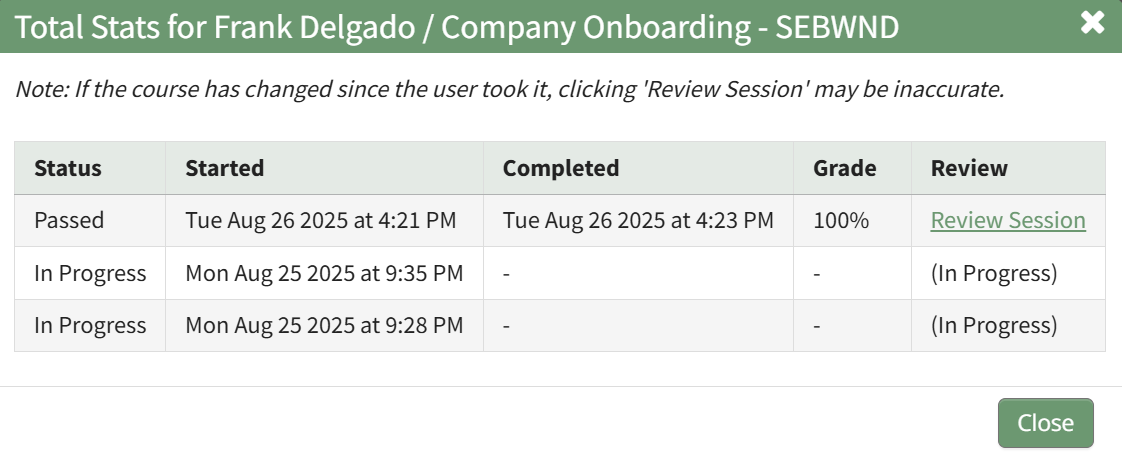
Clicking on the icon in the Attempts (current) Column or the Attempts (total) Column will open the Stats Modal for the selected individual.
The clickable link in the Review Column opens the individual's Course Review Page, where specific questions and their answers can be reviewed. | ||||||||||||||||||||||||||
Back to Courses Home | Selecting Back to Courses Home on the context menu will take the user back to the Courses Home Page, the Manage Courses Page. | ||||||||||||||||||||||||||

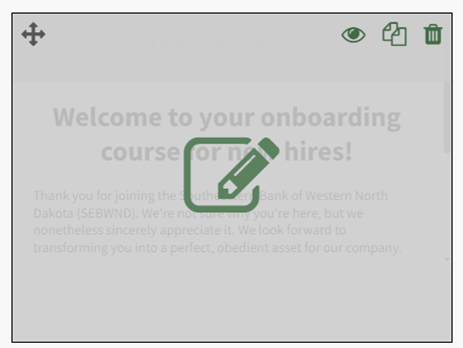


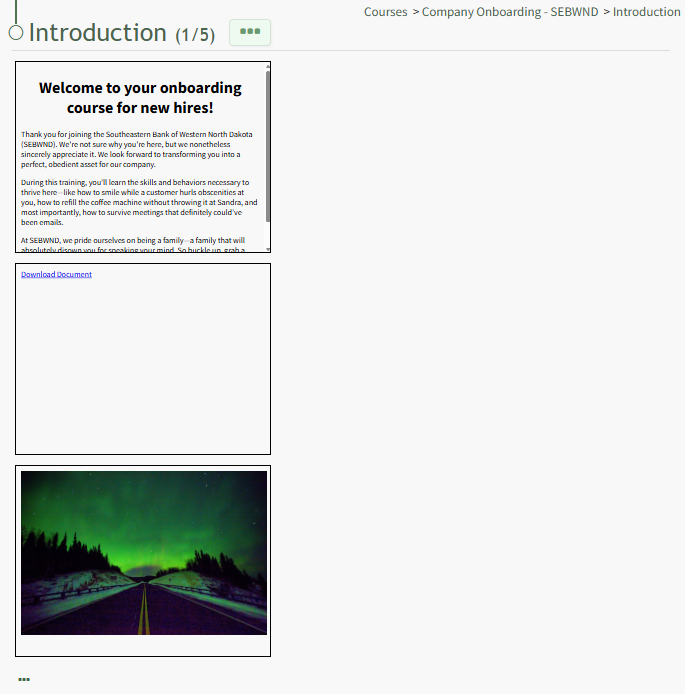
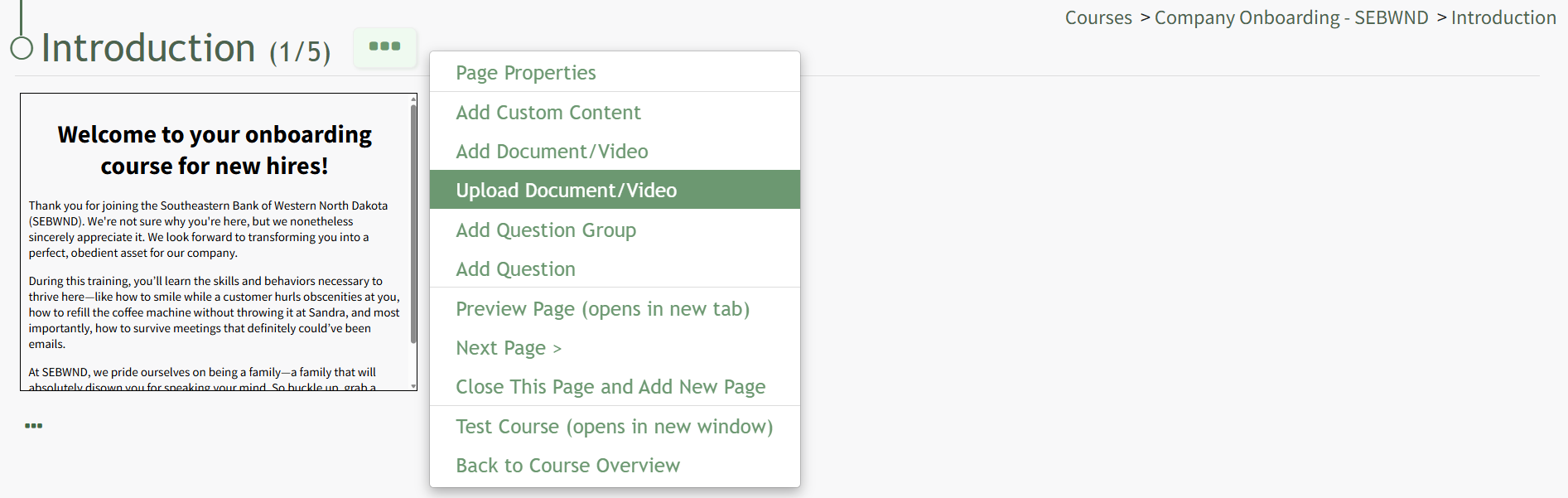
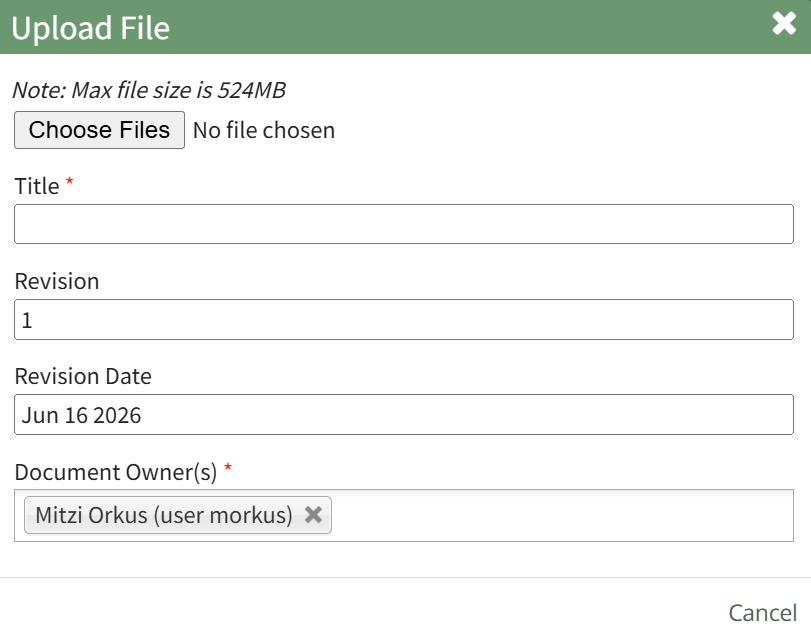
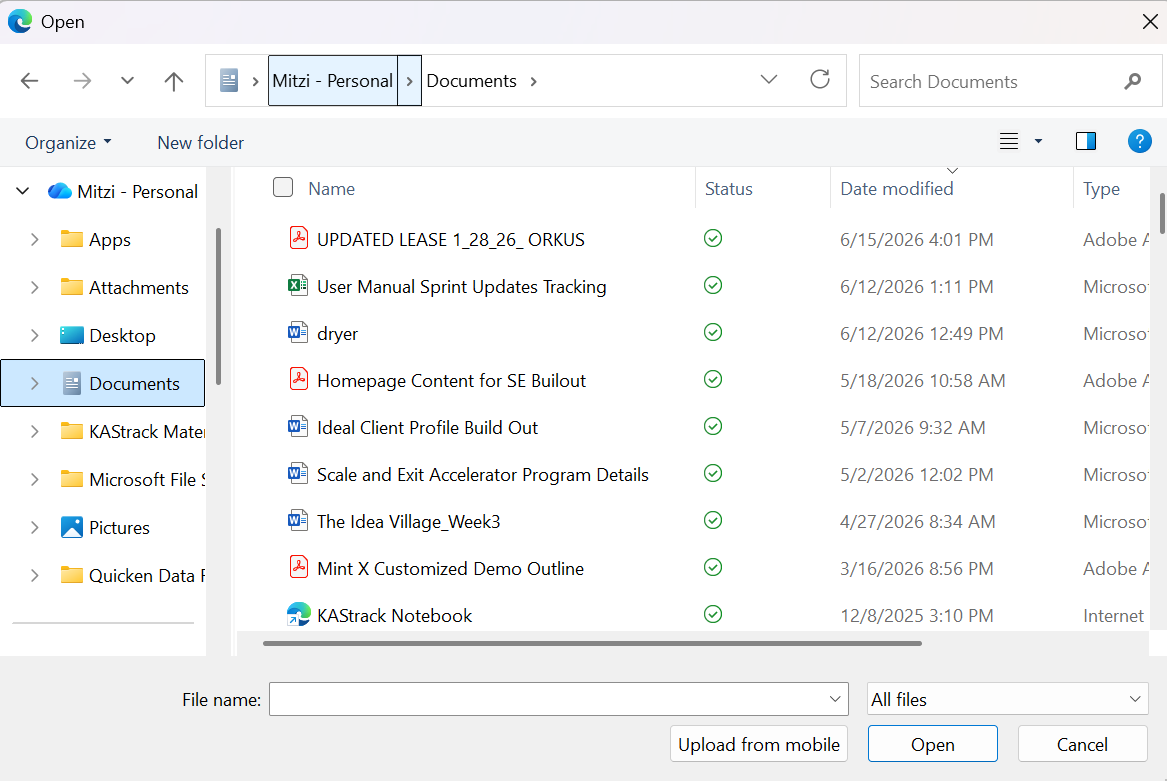
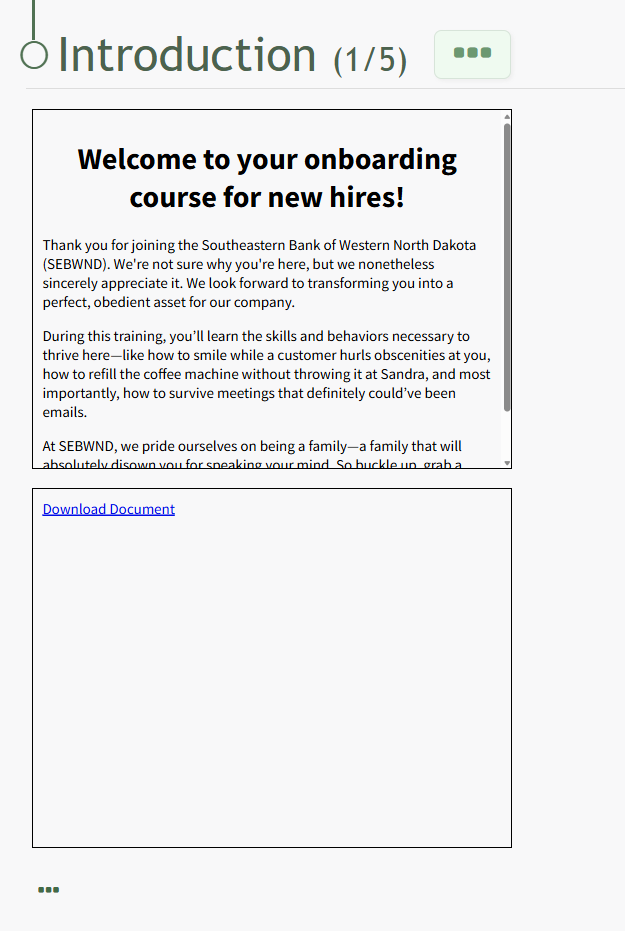


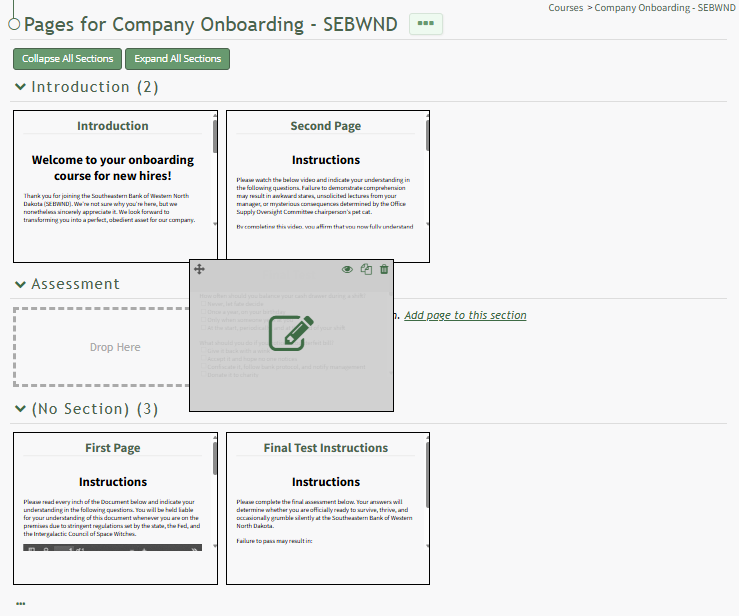

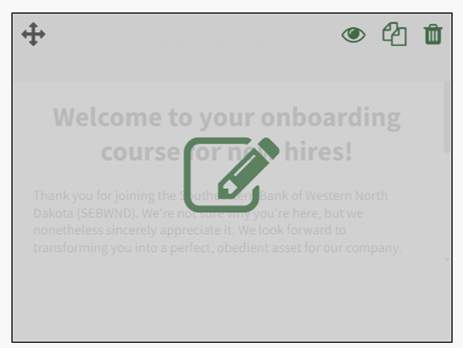
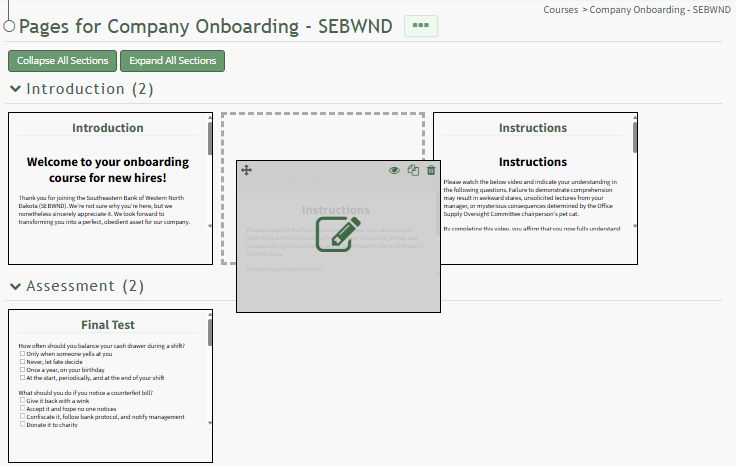
Hovering your cursor over a page shades the specified page revealing icons that can be utilized for page management. An explanation of the icons found on an individual page are explained in the Couse Page Icon Explanation Table below.
Page Icon Explanations | |||||||||||||||||||||||||||||||||||||||||||||||||||||
Icon | Explanation | ||||||||||||||||||||||||||||||||||||||||||||||||||||
| Clicking the page and pen icon in the center of the page will open the individual page in the course, where the details of the page can be managed and edited. How To: Edit a Specific Course in a PageTo edit a specific page in a course, open the Courses Module Home Page from the Main Menu. Click the three-dot icon to the right of the course whose page you want to edit, opening the Course Context Menu.
Select Pages, opening the Course Details Page.
On the Course Details Page, all pages in the course are displayed. Hover the icon over the page you wish to edit to see the icons, then click the pencil and page icon. This opens the specific page and enables editing.
Click the three-dot icon to the right of the Page Title opening the Page Context Menu. Each of the options on the Page Context Menu are explained in the Page Context Menu Option Explanation Table below.
| ||||||||||||||||||||||||||||||||||||||||||||||||||||
| Clicking and holding the directional cross icon in the top left corner of the page allows a user to drag and reposition the page, reordering the pages in the course. How To: Edit the Order of Pages in a CourseTo edit the order of pages in the course, you must be on the course's Details Page. How To: Access A Course's Details PageTo access a course's details page, open the Courses Module Home Page from the Main Menu. Click the three-dot icon to the right of the right of the course whose Details Page wish to access, opening the Course Context Menu.
Select "Pages" from the Context Menu.
This opens the course's Details Page, displaying each page in the course grouped by sections.
Drag and drop the pages to reposition them as desired. | ||||||||||||||||||||||||||||||||||||||||||||||||||||
| Clicking the eyeball icon opens the specified page in preview mode. Page Preview mode is different from the course test mode. Only the individual page is visible and any buttons on the page have been disabled. | ||||||||||||||||||||||||||||||||||||||||||||||||||||
| |||||||||||||||||||||||||||||||||||||||||||||||||||||
| |||||||||||||||||||||||||||||||||||||||||||||||||||||