
A Course's Details Page
Every Course created in KAStrack will have it's own Course Details Page.
How To: Access A Course's Details Page
{{@935}}
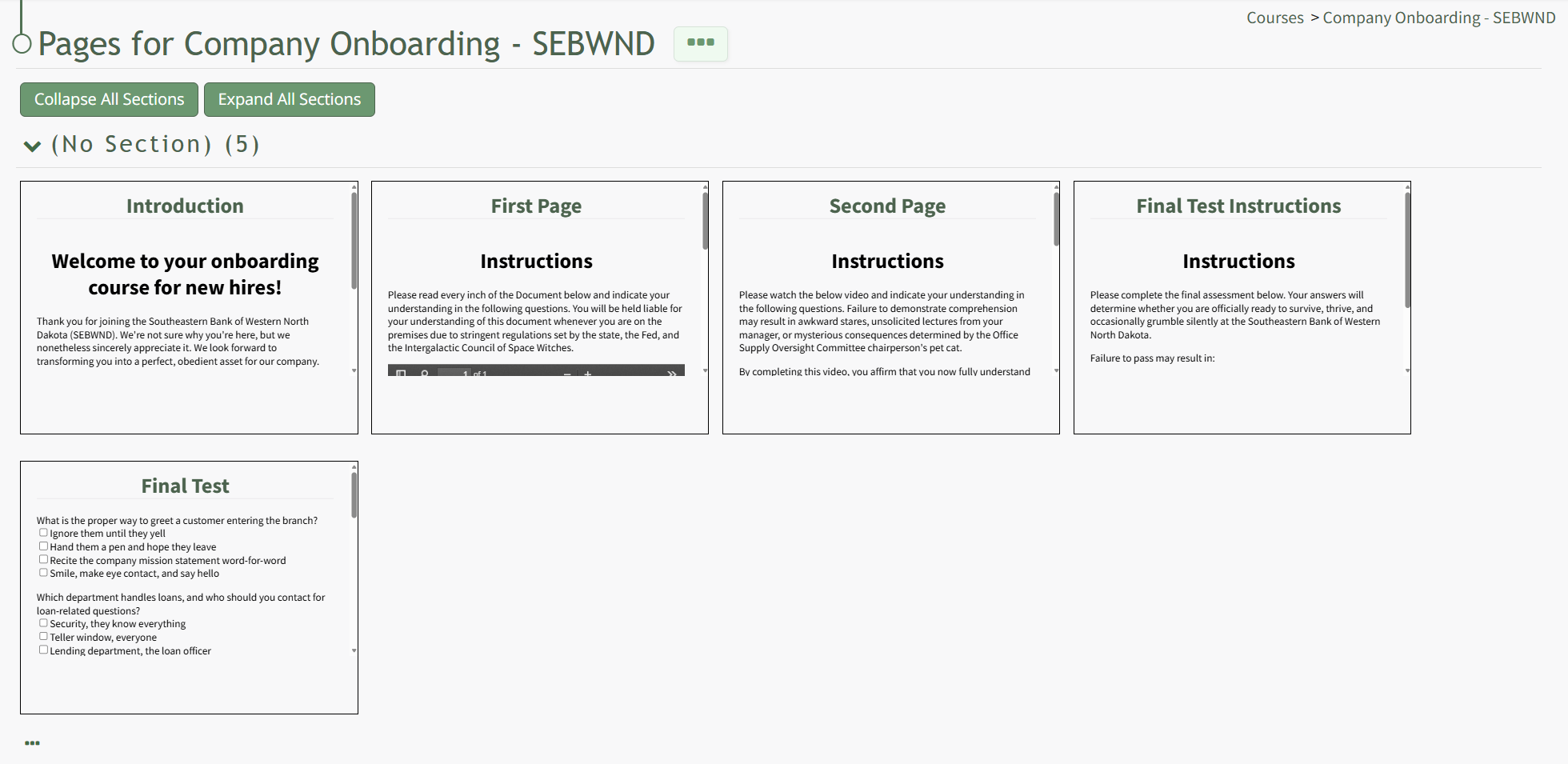
The three-dot icon to the right of the page header and at the bottom of the page can be clicked to open the Course Details Page Context Menu. An explanation of each option in the Course Details Page Context Menu has been included in the table below.
Course Detail Page Context Menu Option Explanations | |
Option | Explanation |
Add Page | Selecting Add Page from the context menu opens the New Page Modal, where a user can title the new page, identify the section it belongs in, and select the navigation options for the page. How To: Add Pages in a Course{{@244}} |
Add Section | Selecting Add Section from the context menu opens the Add Section Modal. How To: Add a Section to a Course{{@936}} |
Course Properties | Selecting Course Properties from the context menu opens the Course Properties Modal, allowing the user to edit the original parameters that were selected when the course was created. The course name, tags, number of attempts, and settings for the course can be edited from the Course Properties Modal. How To: Edit Course Properties{{@239}} |
Test Course | Selecting the Test Course option from the context menu opens a trial run of the course with quiz questions. Testing the course will not impact course stats. How To: Take a Course in Test Mode{{@241}} |
Course Stats | Selecting the Course Stats option on the context menu opens the Course Stat Page which displays records of test taking attempts and access to an individual’s answers to course questions. How To: Access Course Stats{{@242}} |
Back to Courses Home | Selecting Back to Courses Home on the context menu will take the user back to the Courses Home Page, the Manage Courses Page. |
Hovering your cursor over a page shades the specified page revealing icons that can be utilized for page management. An explanation of the icons found on an individual page are explained in the Couse Page Icon Explanation Table below.