
Settings Page: Module Levels Tab
The Module Levels Tab shows the different module levels for the Communications Module and the default permissions that are granted to each module level. The eyeball icon under the Actions column opens a modal that allows the user to view the permissions granted to the users with that role.
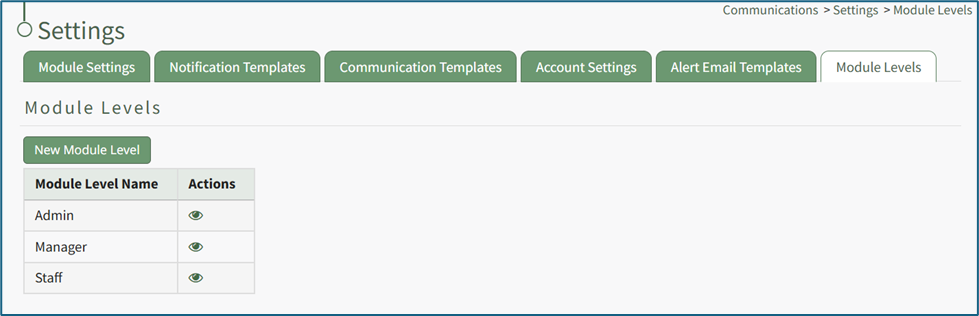
There are three base Module Levels with default permissions in the Communications Module that cannot be altered by the user:
Calendar Module: Module Level Permissions | |
Module Level | Permissions |
Admin | send communication, advanced send comm options, edit supervised users settings, manage notification templates (new/edit/delete), edit any users settings, edit new user settings, switch on off, manage roles (view roles, add role, unassign role, role permissions, assign hidden roles, edit role, delete role, assign roles), manage email config (view, edit, delete,and revert emailconfig), setup cc email, manage communication templates (view, edit, delete communication templates) |
Manager | edit supervised users settings, view email config, send communication |
Staff | N/A |
Customized Module Levels can be created.
How To: Create a New Module Level (Communications Module)
To create a new module level, go to the Module Levels Tab on the Settings Page of the Communications Module.
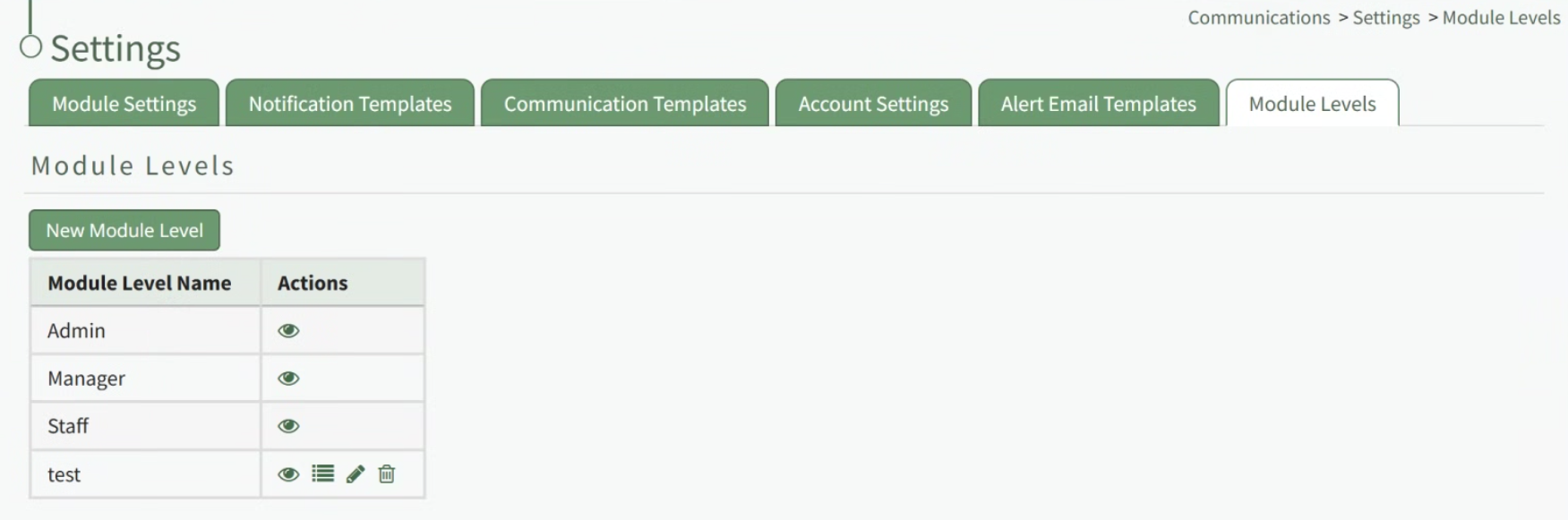
Select the “New Module Level” button opening the New Module Level Modal.
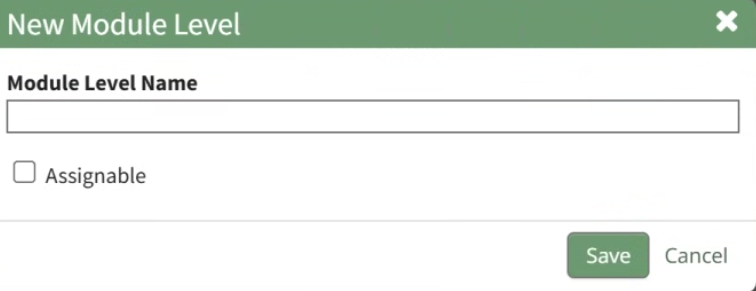
Input the new Module Level Name.
Select the “Assignable” checkbox, so that the module level can be assigned to users.
Click “Cancel” to return to the Module Levels Tab on the Communications Page without creating a new module level. Select “Save” and the new module level will show on the Module Level Table.
Users can select which permissions are allowed for a customized module level. Select the Permissions icon (the bullet point list to the right of the eye) to assign the permissions the new Module Level would have within the Communications Module.

Select “Save” and the permissions are now assigned to the Module Level.
Access levels for all modules can be managed in the Site Settings Module on the Access Levels Tab.