Settings Page
The Module Levels Tab on the Settings Page of the Calendar Module can be accessed from the Main Menu. ItThe automaticallysystem opens to the Module Level Tab showing the differentdefault module levels created for the Calendar Module andare visible in the Module Levels Table. New modules with customizable permissions thatcan havebe beencreated grantedand tomanaged each.on this tab.
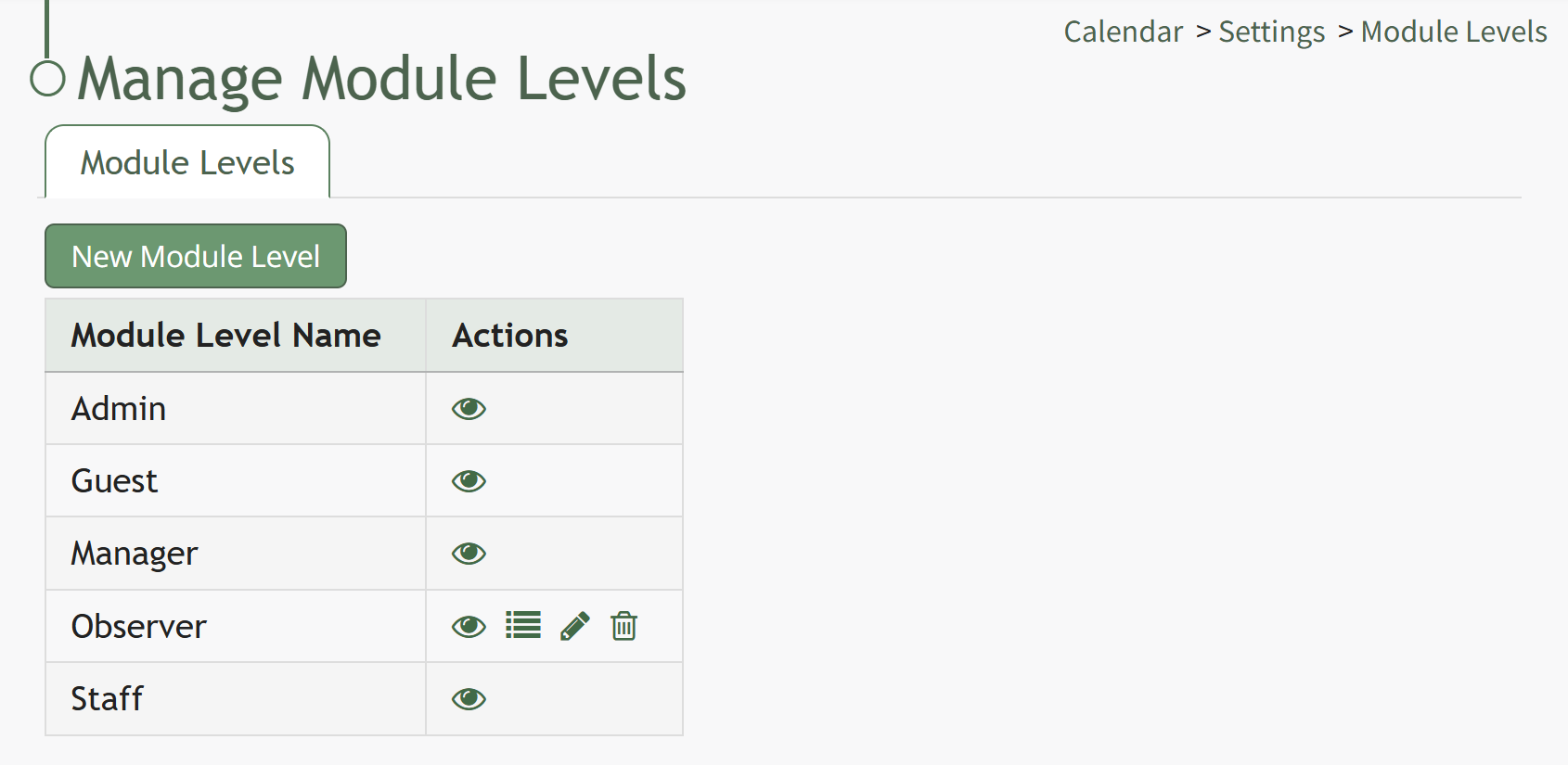
There are four basesystem default Module Levels associated with the Calendar Module. An explanation of the permissions associated with each default permissionsmodule level are shown in the Calendar Module thatLevel Permissions Table below.
System default module levels cannot be altered by the user.customized.
Calendar Module Module Level and Permissions | |
Module Level | Permissions |
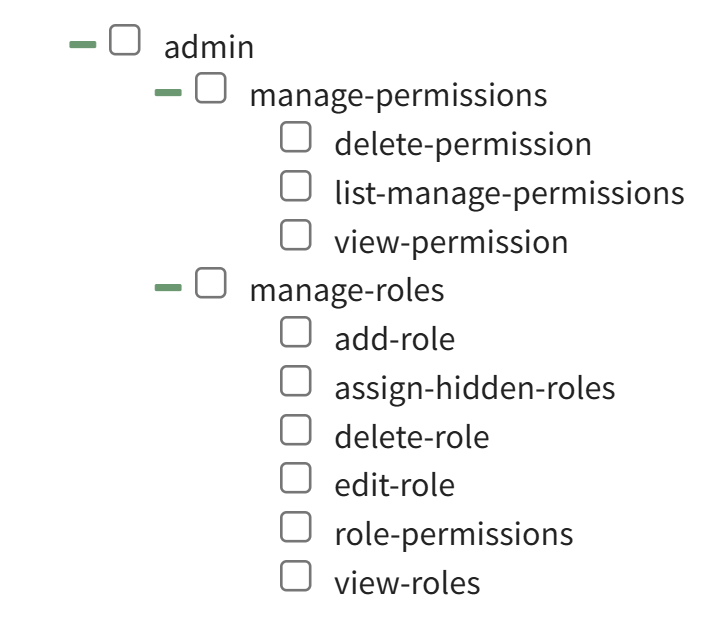
Admin | Manage Roles (add / view / edit / delete roles, assign hidden roles, role permissions), Manage Permissions (view / delete permission, list manage permissions) |
Guest | None |
Manager | None |
Staff | None |
CustomizedNew Module Levels can be created.
Howin To:order Createto a Newcustomize Module Level (Calendarpermissions. Module)
{{@116}}An explanation of the icons associated with customized module levels have been provided in the table below.
Module Level Customization Icons | |
Icon | Action |
| The eyeball icon allows you to view users assigned to the module level as well as the permissions assigned to them. |
| The bulleted list icon allows you to assign permissions to customized module levels. |
| The pencil icon opens the Edit Module Level Modal. |
| The trashcan icon opens the Delete Module Level Confirmation Modal. |


How To: Create a New Module Level (Calendar Module)
{{@116}}
A complete list of all permissions associated with the Calendar Module have been provided below.