Attendance Settings
The Settings Page of the Attendance Module cannot be accessed from the Main Menu or within the module itself.
To access the Settings Page of the Attendance Module, open the Access Levels Tab in the Site Settings Module from the Main Menu and Select the Attendance Tab below the Access Levels header.
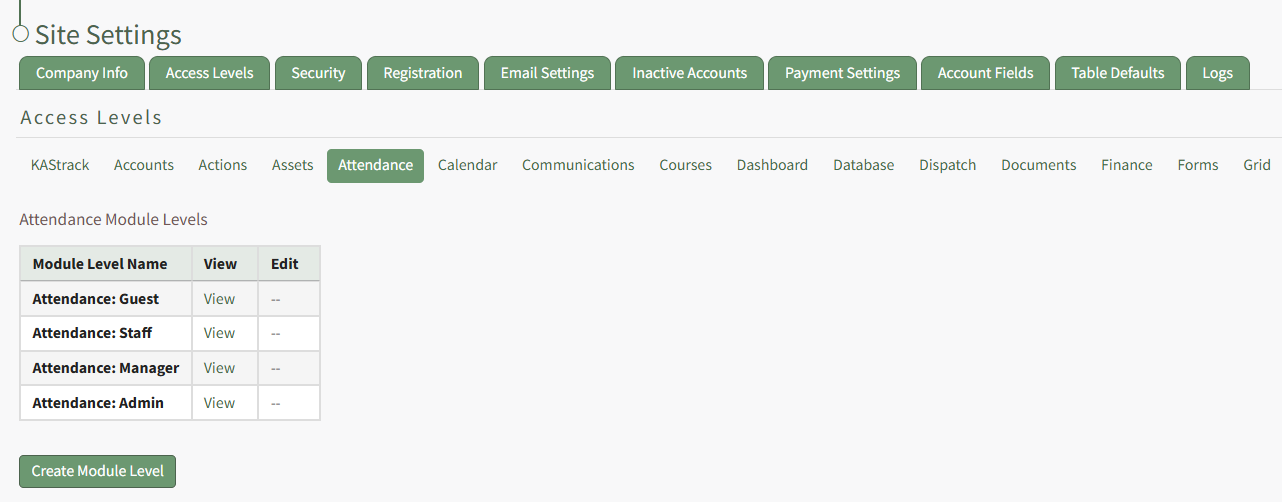
Clicking "View" in the Attendance Module Levels Table or the Create Module Level button will open the Manage Module Levels Page for the Attendance Module.
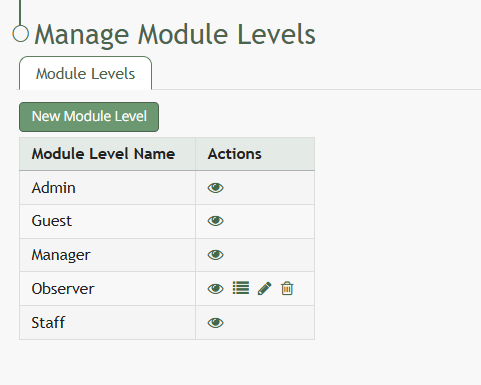
There are four system default module levels associated with the Attendance Module. An explanation of the permissions associated with each default module level are shown in the Attendance Module Level Permissions Table below.
System default module levels cannot be customized.
Attendance Module - Module Level Permissions | |
Module Level | Permissions |
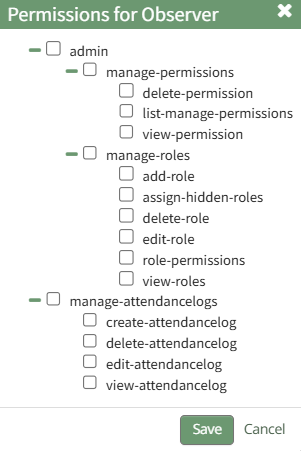
Admin | Manage Attendance Log (delete/edit/view/create attendance log), Manage roles (add/delete/edit/view role, assign hidden roles, role permissions), Manage permissions (delete/view permissions, list manage permissions) |
Manager | Manage Attendance Log (delete/edit/view/create attendance log) |
Staff | View Attendance Log |
Guest | None |
New Module levels can be created in order to customize module level permissions. An explanation of the icons associated with customized module levels have been provided in the table below.
Module Level Customization Icons | |
Icon | Explanation |
| The eyeball icon allows you to view users assigned to the module level as well as the permissions assigned to them. |
| The bulleted list icon allows you to assign permissions to customized module levels. |
| The pencil icon opens the Edit Module Level Modal. |
| The trashcan icon opens the Delete Module Level Confirmation Modal. |


How To: Create a New Module Level (Attendance Module)
{{@950}}
A complete list of the permissions associated with the Attendance Module have been included below.