
Assets Settings Page: Task Template Tab
A Task Template is a user generated tool used to aid bulk task schedule creation. Task templates are created from the task schedule of a pre-existing asset.
The Task Template Tab on the Settings Page shows all existing templates in tabular format. A user can search for different task templates through the filter. New task templates are created through the Add Task Template button on this tab. WIKI LINK HOW TO: CREATE A NEW TASK TEMPLATE
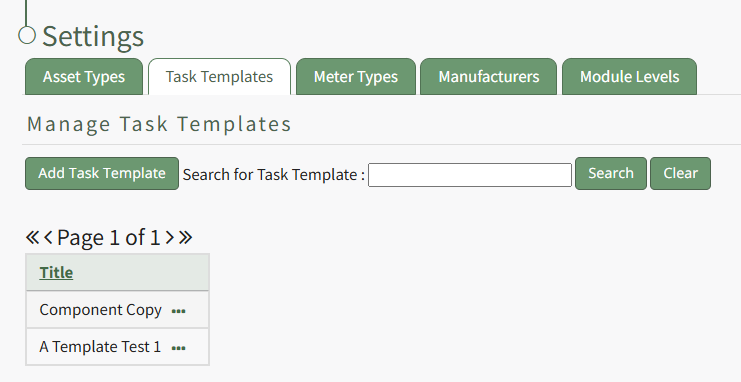
Existing task templates are shown by title in the Task Template Table on this tab.
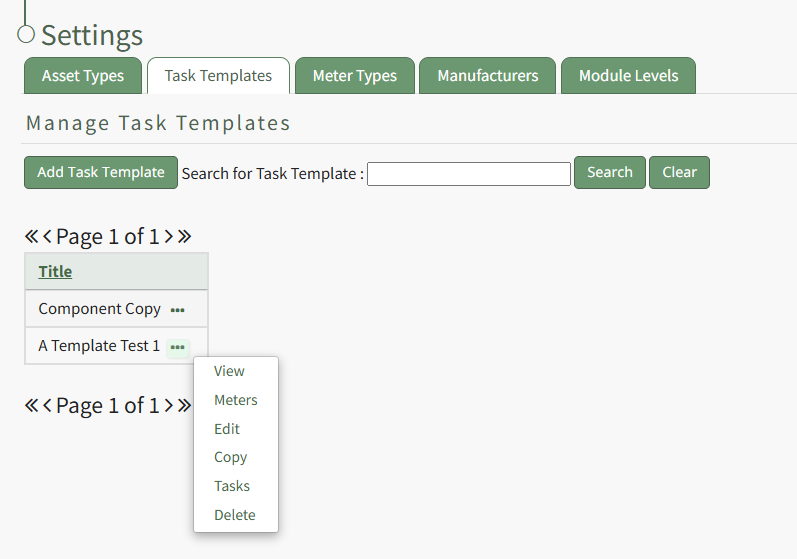
Selecting the three-got icon to the right of the Task Template title will open the Task Template Context Menu.
| |
Option | Explanation |
View |
WIKI LINK HOW TO: |
|
WIKI LINK HOW TO:
|
Edit |
WIKI LINK HOW TO: |
Copy | |
Tasks | |
Delete |
WIKI LINK HOW TO: |