
Assets Settings Page: Meter Types Tab
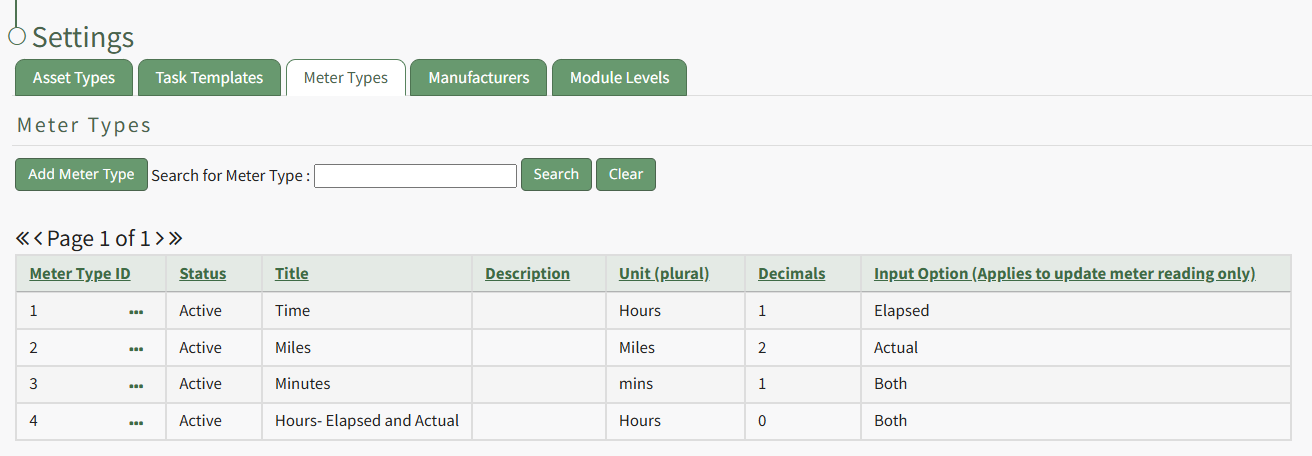
Various types of meters can be created and managed from the Meter Type Tab on the Settings Page of the Assets Module.
The table shows types of meters, not a list of individual meters. New meter types will be listed in table format on the Meter Type Tab with the meter data fields as column headers.
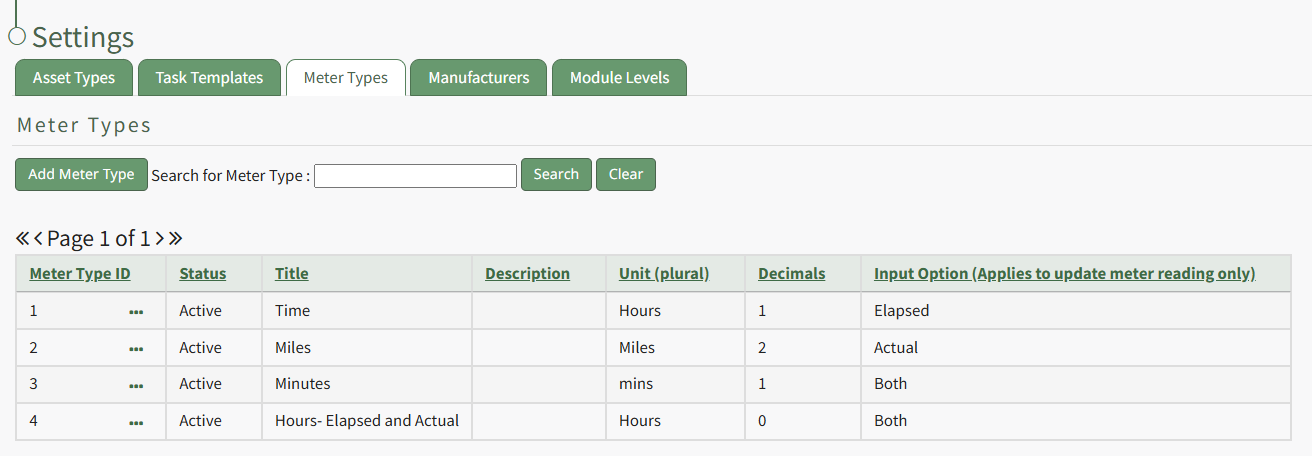
Selecting the green “Add Meter Type" button will open the New Meter Type Modal, from which a new meter can be named and parameters designated.
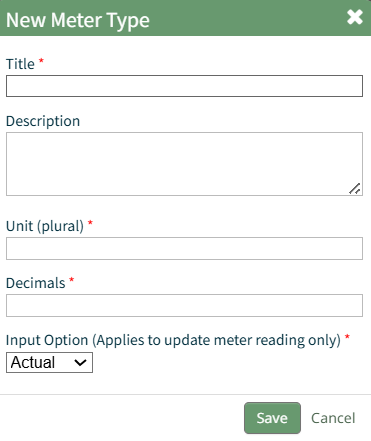
The dropdown list of log input options includes “actual,” “elapsed” or “both” to allow one to select an applicable data metric to track the new meter.
Selecting the three-dot icon to the right of a Meter Type title will open the Meter Type Context Menu. The options available to manage the Meter Type are explained in the table below.
Meter Type Context Menu Option Explanations Table | |
Option | Explanation |
View | Selecting "View" from the context menu will open the View Meter Type Modal which lists all key information regarding the specified meter type.
How To: View a Meter Type's Key Information{{@760}} |
Edit | Selecting “Edit” from the context menu will open the Edit Meter Type Modal where the meter fields can be altered. How To: Edit a Meter Type{{@762}} |
Delete | Selecting Delete from the Meter Type Context menu will open a deletion confirmation modal that states, "Please confirm you wish to delete this meter type." How To: Delete a Meter Type{{@761}}
|