
Assets Settings Page: Manufacturers Tab
The Manufacturers Tab on the Settings Page of the Assets Module allows the user to add new manufacturers, search through existing manufacturers and manage them from this page.
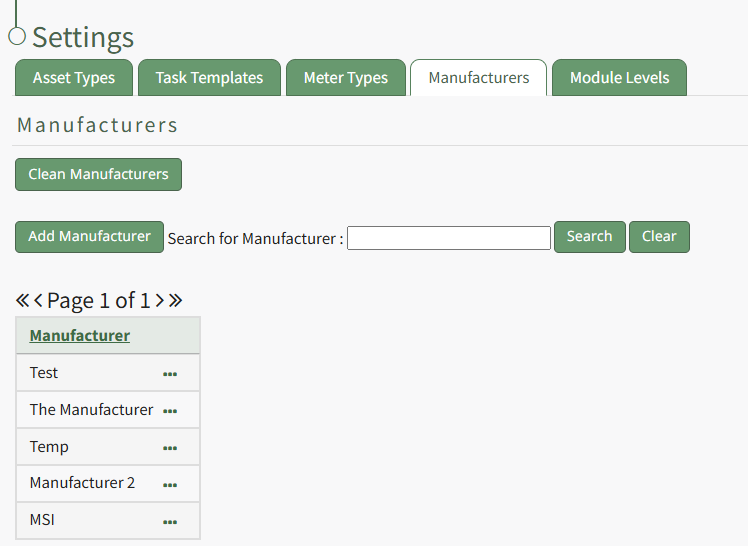
Selecting the green “Add Manufacturer” button will open a modal that will allow the user to add a new manufacturer who will be added to the table on the Manufacturer tab.
How To: Add a New Manufacturer
{{@862}}
The “Clean Manufacturers” allows the user to remove any manufacturers with no asset associated and to merge any duplicate manufacturers listed.
KAStrack is programmed to require a backup of data prior to cleaning the manufacturers, so if this button is selected and a backup has not yet been completed, a prompt will appear to remind the user to first save the data and then return to this page.
Selecting the three-dot icon located to the right of the manufacturer in the Manufacturer Title table allows you to Manage the specific Manufacturer information.
Manufacturer Context Menu Option Explanations Table | |
Option | Explanation |
View | Selecting "View" from the context menu will open the Manufacturer Modal which lists assets, task templates, and files associated with the specified manufacturer.
How To: View a Manufacturer's Key Information{{@758}}
|
Edit | Selecting “Edit” from the context menu will open the Edit Manufacturer Modal where the manufacturer name can be altered. How To: Change a Manufacturer's Name{{@757}}
|
Delete | Selecting Delete from the context menu will open a deletion confirmation modal that states, "Please confirm you wish to delete this manufacturer." How To: Delete a Manufacturer{{@756}} |