Assets Files Page
Files in the Asset module are not automatically included the Documents Module, although they can be manually added to both.
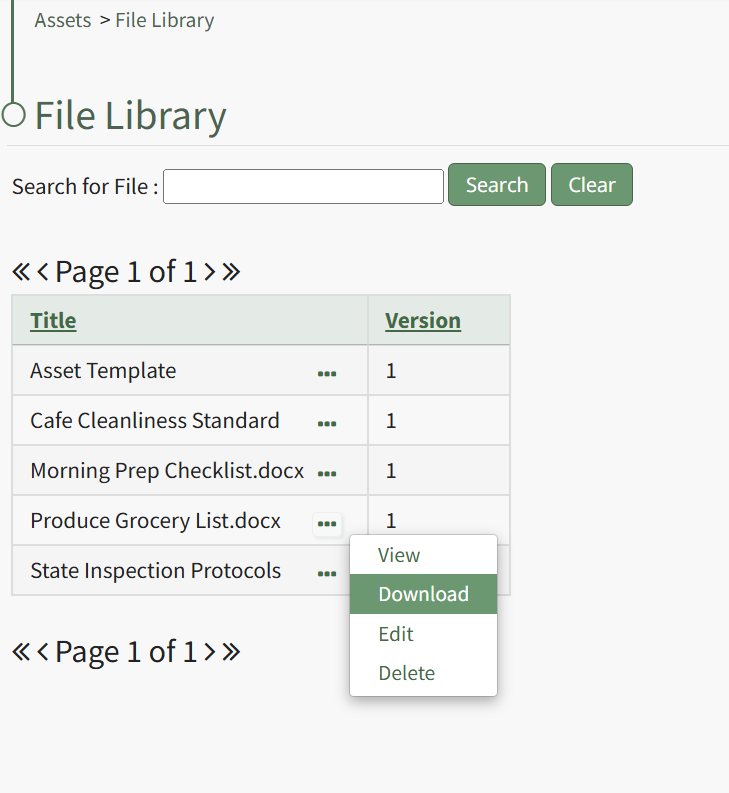
Selecting the Files Page in the Assets Module from the Main Menu opens the File Library page. Any files uploaded in conjunction with the Asset Module are stored in the File Library Table.
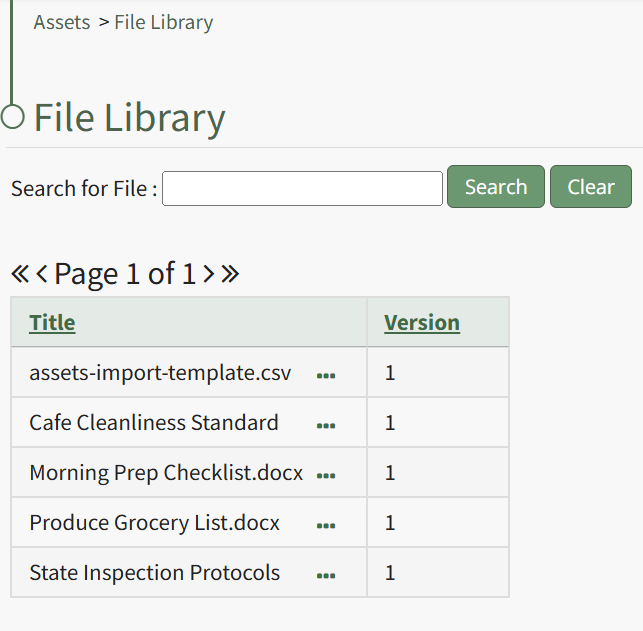
Users can query for specific files via the search box located above the table. Selecting clear will remove the filter applied by a user’s search.
The File Library table lists uploaded files and their version number, allowing revisions to be tracked.
Clicking the three dot (…) icon to the right of the file title opens the Files Context Menu whose options are explained in the table below.
Asset Files Context Menu Option Explanation Table | |
Option | Explanation |
View |
Selecting "View"on the Files Context Menu opens the read-only View File Modal which states the file title, version number, and file description. Any references to the file are stated on the modal. WIKI LINK HOW TO VIEW A FILE'S KEY INFORMATION
|
Download | Selecting "Download" on the Files Context Menu will automatically download the selected file to your personal device. How To: Download a File from the File LibraryTo download a file from the Asset Module File Library, select the Files Page in the Assets Module on the Main Menu. Click the three-dot icon to the right of the file you wish to download in the File Library Table to open the Files Context Menu.
Select "Download" from the context menu and the file will automatically be downloaded to your personal device. |
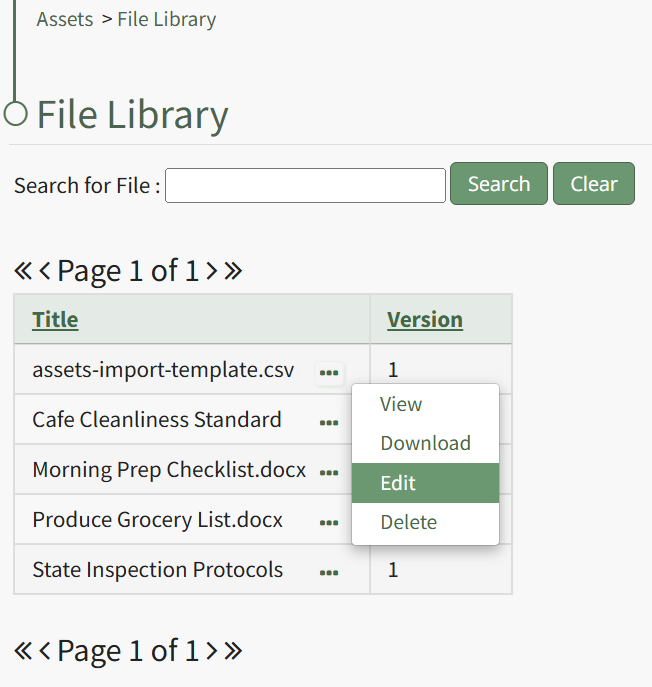
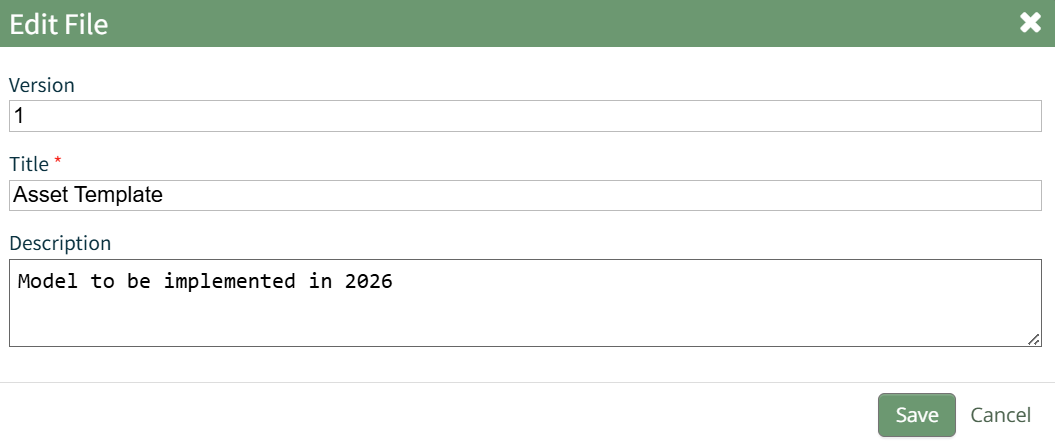
Edit | Selecting "Edit" on the Files Context Menu opens the Edit File Modal, where the version number, file title, and file description can be edited. How To: Edit a File's Details in the File LibraryTo edit the details associated with a file in the Asset Module File Library, select the Files Page in the Assets Module on the Main Menu. Click the three-dot icon to the right of the file you wish to edit the File Library Table to open the Files Context Menu.
Select "Edit" from the context menu opening the Edit File Modal.
Changes to the file version number, title, and description can be made directly in the modal. Select the "Save" button and a popup confirms that the file edits have been saved. The changes are reflected on the File Library Table. |
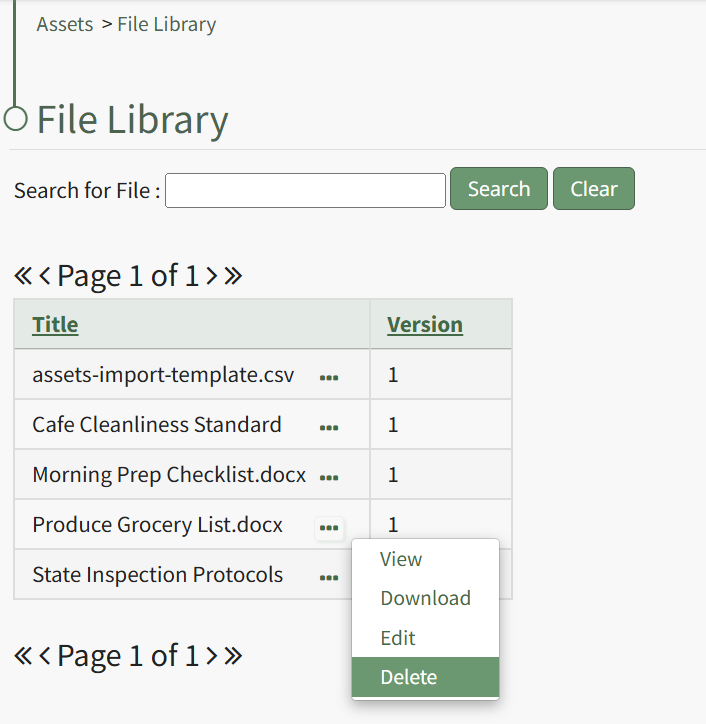
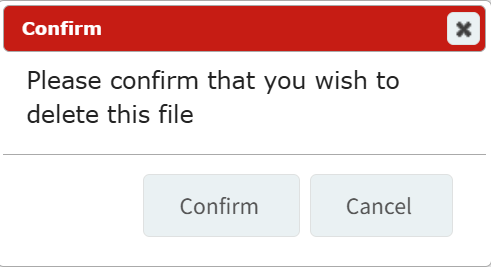
Delete | Selecting "Delete" on the Files Context Menu opens the Delete File Confirmation modal which states, "Please confirm that you wish to delete this file." How To: Delete a File in the File LibraryTo delete a file from the Asset Module's File Library, select the Files Page in the Assets Module on the Main Menu. Click the three-dot icon to the right of the file you wish to delete from the File Library Table to open the Files Context Menu.
Select "Delete" from the context menu opening a Delete File Confirmation Modal which states, "Please confirm that you wish to delete this file."
Click the "Confirm" button and a pop up will confirm that the file has been deleted. A file cannot be deleted unless it is not referenced by anything. |