
Action Groups: An Action Group Page
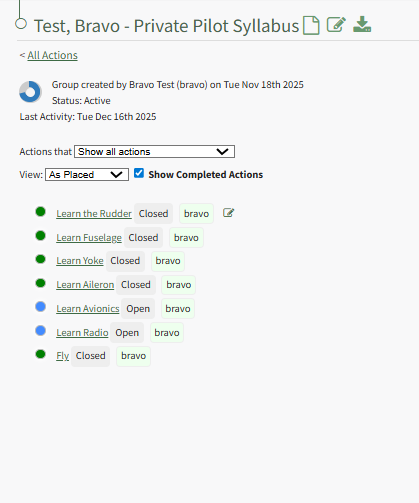
Each Action Group opens to its own Action Group Summary Page that can be viewed by clicking the action group title on the Home Page or the Groups Page of the Actions Module. listing all actions associated with the action group.
To the right of the Action Group Title are three icons that can be used as quick links for Action Group actions. The Icons are explained in the table below.
Action Group Page Icon Explanations | |
Icon | Explanation |
| Hovering the cursor over the Page Icon opens a context menu that displays quick link icons with options to create a new action or bulk import new actions. WIKI LINK HOW TO CREATE A NEW ACTION WIKI LINK HOW TO IMPORT BULK ACTIONS |
| Selecting the Edit Icon opens the Edit Action Group Modal. WIKI LINK HOW TO EDIT AN ACTION GROUP |
| Selecting the Export Icon automatically downloads a .csv file of all actions associated with the action group to your personal device. WIKI LINK HOW TO EXPORT ACTIONS IN A CSV FILE |


An individual action group page header indicates what user created the action group, the date/time created, as well as the action group status.

The doughnut chart gives a visual representation of the status of the action group. The color indicates action status, and the amount of color indicates the percentage of actions complete.
Actions are not weighted. Each action carried equal percentage when the action group status indicates a percent complete.
Action Module Legend - Actions Color Coding | |
Icon | Explanation |
| The color green indicates that the action has been completed. |
| The color sky blue indicates that the action is outstanding with no due date. |
| The color blue indicates that the action is outstanding. |
| The color yellow indicates that the action is nearing its due date. |
| The color red indicates that the action is overdue. |
| The color purple indicates the action group is past the number of days of inactivity that was established for the action group. It is never used as an indicator for an individual action. |


Understanding
The Action Group FieldsStatus
Reviewas well as the Date of Last Activity in the Action Group Fieldare Inputalso Explanationsdisplayed Table below to seein the informationheader.
The whenActions creatingModule aFilter newoptions actionare group.explained in the table below.
| ||
Field | Options | Explanation |
(dropdown menu) |
| Selecting |
|
| |
|
| |
|
| |
|
| |
|
| |
|
| |
|
| |
|
| |
|
| |
|
| |
|
| |
|
| |
|
| |
|
| |
(checkbox) |
| |
Show groups that are (dropdown menu) | Active | Selecting "Active" will only show actions associated with Active status Action Groups on the filtered list. |
In Need of | Selecting | |
Cancelled | Selecting "Cancelled" will only show actions associated with Cancelled status Action Groups on the filtered list. | |
Archived | Selecting "Archived" will only show actions associated with Archived status Action Groups on the filtered list. | |
Show All Groups | Selecting "Show All Groups" will show all actions associated with any Action Groups on the filtered list. | |
The way actions are displayed in an Action Group can be ableselected tovia seedropdown actionsmenu. Option include As Placed, By Due Date, and By User.
Each incomplete Action in the Action Group is displayed on the Action Group Summary page.Page Viewing an actions detail page will be dependent on their permissions.
Organization can utilize this field to identifyas a keyclickable contactlink. for an action group. If this action group is being utilized for certification or training processes, using the relevant individual’s name as the focal point provides a database reference that enables reports and organizational capabilities.
Only one user can be designated as the focal point.
Assigned User Permissions Section
The permissions established in this section will be applied to all users in the group by default.
Edit All Fields
SelectingSelect the "EditShow AllCompleted Fields"Actions checkbox willif removeyou allwould otherlike checkboxespreviously fromcompleted the modal and will give all usersactions in the action group to be displayed on the abilityAction Group Summary Page.
Next to the action title, key information about the action is indicated.

The action status will be shown first, highlighted in grey. The Action Date follows, highlighted in yellow. Finally, the user or role assigned the action will be indicated by green highlight. If no one was assigned the action, Unassigned will be highlighted in red.
The highlighting behind key action information is only for visual clarity and is not representative of any meaning.
Actions can be edited from the Actions Home Page by hovering the cursor over the action and clicking the edit action status, add comments, delete own comments, and upload files. icon.
Edit Action Status
Selecting the "Edit Action Status" checkbox will give all assigned users in the action group the ability to edit the action status.
Add Comments
Selecting the "Add Comments" checkbox will give all users in the action group the ability to add comments to an action.
Delete Own Comments
Selecting the "Delete Own Comments" checkbox will give all users in the action group the ability to delete their own comments made regarding an action.
Upload Files
Selecting the "Upload Files" checkbox will give all users in the action group the ability to upload files to an action.
WIKI LINK HOW TO CREATE A NEW ACTION
WIKI LINK HOW TO EDIT AN ACTION
WIKI LINK HOW TO EDIT AN ACTION GROUP