
Action Groups: An Action Group Page
Each Action Group opens to its own Action Group Summary Page that can be viewed by clicking the action group title on the Home Page or the Groups Page of the Actions Module. listing all actions associated with the action group.
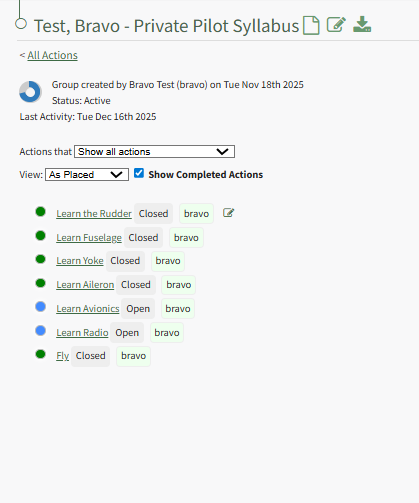
To the right of the Action Group Title are three icons that can be used as quick links for Action Group actions. The Icons are explained in the table below.
Action Group Page Icon Explanations | |
Icon | Explanation |
| Hovering the cursor over the Page Icon opens a context menu that displays quick link icons with options to create a new action or bulk import new actions. WIKI LINK HOW TO CREATE A NEW ACTION WIKI LINK HOW TO IMPORT BULK ACTIONS |
| Selecting the Edit Icon opens the Edit Action Group Modal. WIKI LINK HOW TO EDIT AN ACTION GROUP |
| Selecting the Export Icon automatically downloads a .csv file of all actions associated with the action group to your personal device. WIKI LINK HOW TO EXPORT ACTIONS IN A CSV FILE |


An individual action group page header indicates what user created the action group, the date/time created, as well as the action group status.

The doughnut chart gives a visual representation of the status of the action group. The color indicates action status, and the amount of color indicates the percentage of actions complete.
Actions are not weighted. Each action carried equal percentage when the action group status indicates a percent complete.
Action Module Legend - Actions Color Coding | |
Icon | Explanation |
| The color green indicates that the action has been completed. |
| The color sky blue indicates that the action is outstanding with no due date. |
| The color blue indicates that the action is outstanding. |
| The color yellow indicates that the action is nearing its due date. |
| The color red indicates that the action is overdue. |
| The color purple indicates the action group is past the number of days of inactivity that was established for the action group. It is never used as an indicator for an individual action. |


The Action Group Status as well as the Date of Last Activity in the Action Group are also displayed in the header.
The Actions Module Filter options are explained in the table below.
Actions Module Filter Option Explanations | ||
Field | Options | Explanation |
Actions that (dropdown menu) | are relevant to you | Selecting "are relevant to you" will show a list of all actions that are relevant to you. |
are assigned to you | Selecting "Are Assigned to You" will show a list of all actions that are assigned to you. | |
you are an approver for | Selecting "You are an Approver For" will show a list of all actions that you are identified as an approver for. | |
you are interested party for | Selecting "You are an Interested Party For" will show a list of all actions that you have been identified as an interested party for. | |
show all actions | Selecting "Shows all Actions" will show a list of all actions. | |
View (dropdown menu) | As Placed | Selecting "View As Placed" will show a list of all actions organized by Action Groups. |
By Due Date | Selecting "View by Due Date" will show a list of all actions organized by Overdue, 15-30 days, and No Due Date. | |
By User | Selecting "View by User" will organize alphabetically by the first assigned user. All unassigned actions will show at the bottom of the action list. | |
Show Completed Action (checkbox) | Selecting the "Show Completed Actions" checkbox will include completed actions in the list on the filtered view. | |
Show groups that are (dropdown menu) | Active | Selecting "Active" will only show actions associated with Active status Action Groups on the filtered list. |
In Need of Attention | Selecting "In Need of Attention" will only show actions associated with In Need of Attention status Action Groups on the filtered list. | |
Cancelled | Selecting "Cancelled" will only show actions associated with Cancelled status Action Groups on the filtered list. | |
Archived | Selecting "Archived" will only show actions associated with Archived status Action Groups on the filtered list. | |
Show All Groups | Selecting "Show All Groups" will show all actions associated with any Action Groups on the filtered list. | |
The way actions are displayed in an Action Group can be selected via dropdown menu. Option include As Placed, By Due Date, and By User.
Each incomplete Action in the Action Group is displayed on the Action Group Summary Page as a clickable link. Select the "Show Completed Actions checkbox if you would like previously completed actions in the action group to be displayed on the Action Group Summary Page.
Next to the action title, key information about the action is indicated.

The action status will be shown first, highlighted in grey. The Action Date follows, highlighted in yellow. Finally, the user or role assigned the action will be indicated by green highlight. If no one was assigned the action, Unassigned will be highlighted in red.
The highlighting behind key action information is only for visual clarity and is not representative of any meaning.
Actions can be edited from the Actions Home Page by hovering the cursor over the action and clicking the edit action icon.