
Actions Templates Page
Selecting Templates from the Main Menu opens the Manage Templates Page that allows for the creation and management of templates that allow a new action group to be populated with action tasks. The creation of templates allows for the quick duplication of repeating / recurring action groups.
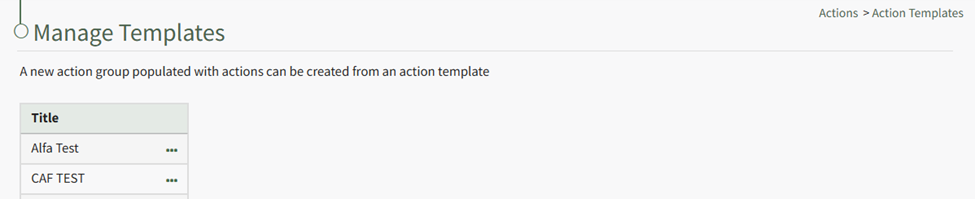
The Templates Table is located on the Manage Templates Page. Selecting the three-dot icon to the right of a template title opens a context menu with quick links for action group templates.
Template Context Menu Option Explanation | |
Option | Explanation |
View | Selecting View from the context menu opens the View Template Modal which states the template id number, title, description, and budget amount. |
Actions | Selecting Actions from the context menu opens the Manage Actions Groups Page. |
Edit | Selecting Edit from the context menu opens the Edit Template Modal, which allows the Action Group Template to be edited. How To: Edit an Action Group Template{{@731}} |
Copy | Selecting Copy from the context menu opens the Copy Modal, which allows the new template to be renamed before being saved. How To: Copy an Action Group Status{{@614}} |
Progress | Selecting Progress from the context menu opens a new page which shows the completion percentage of the action group template. |
Delete | Selecting Delete from the context menu opens the Delete Template Modal, which states the Title of the Template you are confirming deletion for. The template is permanently deleted through confirming this modal. How To: Delete an Action Group Template{{@615}} |
If your user account has the appropriate permissions, , the New Template Button will show above the Template Table.
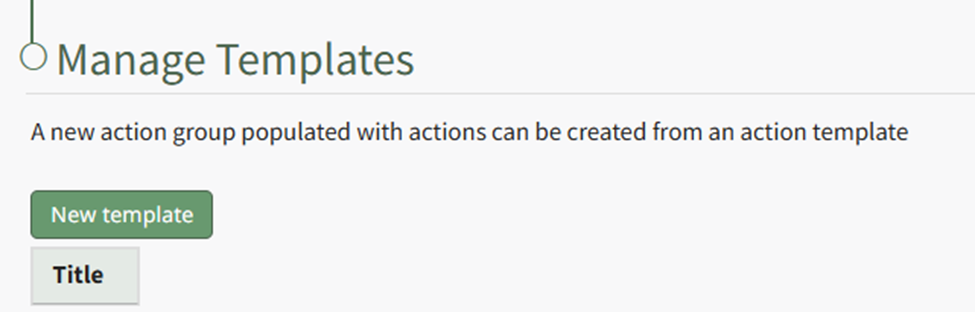
Clicking the New Template button will open the New Template Modal where new action group templates and their associated actions can be created.
How To: Create a New Action Group Template
{{@602}}