
Actions Groups Page
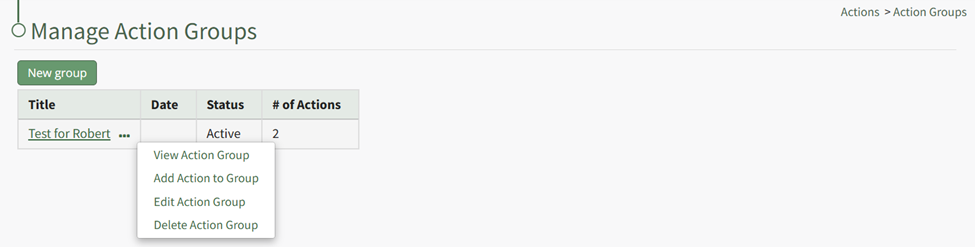
Action Group Context Menu Option Explanation Table | |
Option | Explanation |
View Action Group | Selecting "View Action Group" opens the View Action Group Modal which displays the action group status, days for default warning, Action Group title and tags, description, days for inactivity alert, and who to send the inactivity alert to. |
Add Action to Group | Selecting "Add Action to Group" opens the New Action Modal, allowing for the creation of new actions within the action group. |
Edit Action Group | Selecting "Edit Action Group" opens the Edit Action Group Modal that allows for changes to the parameters set for that specific action group. |
Delete Action Group | Selecting "Delete Action Group" will open the deletion confirmation modal which states the title of the action group you are confirming will be deleted. |
An Action Group Page
Action Group Page Icon Explanations | |
Icon | Explanation |
| Hovering the cursor over the Page Icon opens a context menu that displays quick link icons with options to create a new action or bulk import new actions. WIKI LINK HOW TO CREATE A NEW ACTION WIKI LINK HOW TO IMPORT BULK ACTIONS |
| Selecting the Edit Icon opens the Edit Action Group Modal. WIKI LINK HOW TO EDIT AN ACTION GROUP |
| Selecting the Export Icon automatically downloads a .csv file of all actions associated with the action group to your personal device. WIKI LINK HOW TO EXPORT ACTIONS IN A CSV FILE |


