Settings Page: Reports Module Level Tab
The Module Levels Tab of Settings Page can be accessed from the Main Menu. The system default module levels for the module are visible in the Module Levels Table. New module levels with customizable permissions can be created and managed on this tab.
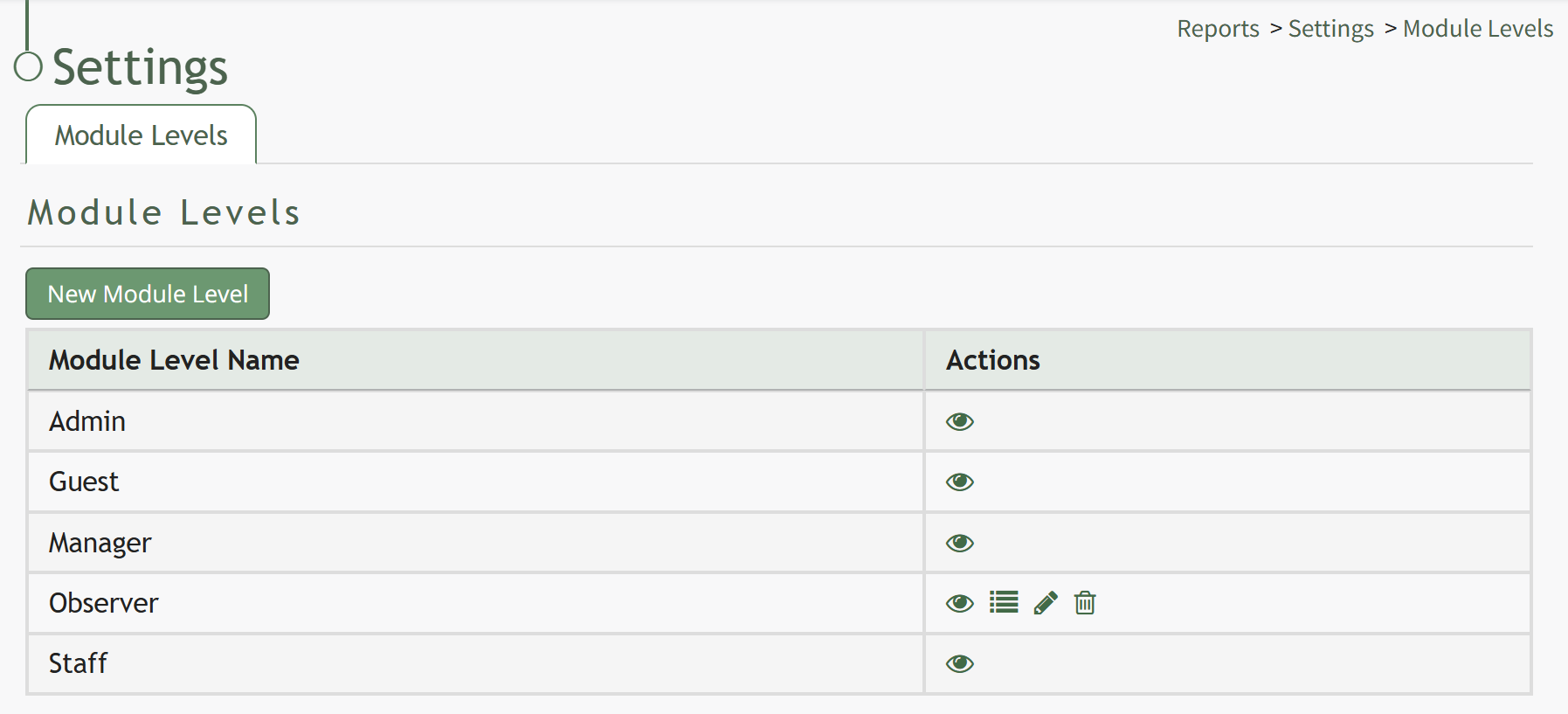
There are four system default module levels associated with the Reports Module. An explanation of the permissions associated with each default module level are shown in the Reports Module Level Permissions Table below.
System default module levels cannot be customized.
Reports Module Level Permissions Table | |
Module Level | Permissions |
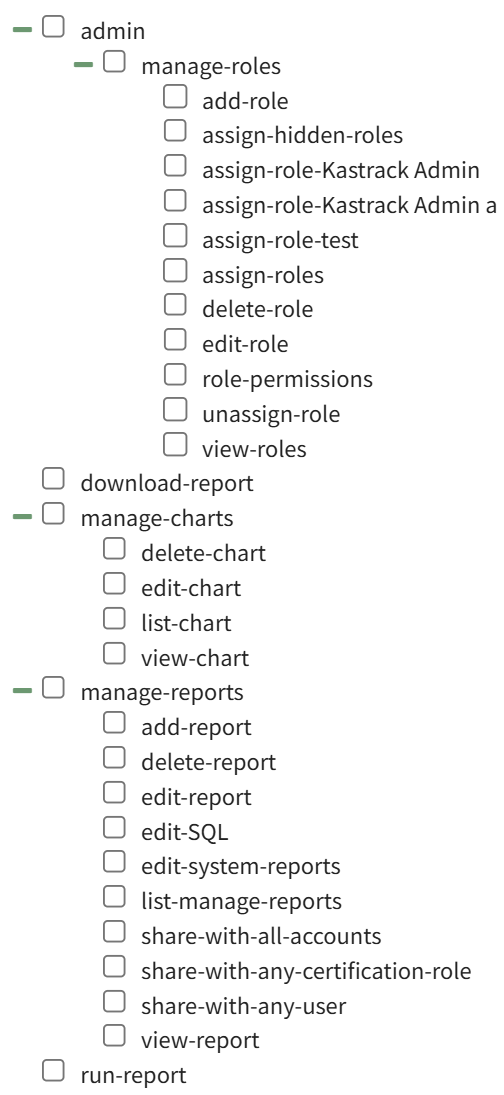
Admin | Download Report, Run Report, Manage Charts (list / view / edit / delete chart), Manage Reports (add / view / edit / delete report, edit SQL, share with any certification role, share with any user, share with all accounts, list-manage reports, edit system reports), Manage roles (delete / edit / view / add / assign / unassign roles, assign role test, assign hidden role, role permissions, assign role Kastrack Admin) |
Guest | None |
Manager | Download Report, Run Report, Manage Charts (list / view / edit / delete chart), Manage Reports (add / view / edit / delete report, edit SQL, share with any certification role, share with any user, share with all accounts, list-manage reports, edit system reports) |
Staff | Download Report, Run Report |
New Module Levels can be created in order to customize module level permissions to suit your organization's needs. An explanation of the icons associated with customized module levels have been provided in the table below.
Module Level Customization Icons | |
Icon | Explanation |
| The eyeball icon allows you to view users assigned to the module level as well as the permissions assigned to them. |
| The bulleted list icon allows you to assign permissions to customized module levels. |
| The pencil icon opens the Edit Module Level Modal. |
| The trashcan icon opens the Delete Module Level Confirmation Modal. |


How To: Create a Custom Module Level (Reports Module)
To add a new module level in the Reports Module, go to the Settings Page and select the “New Module Level” button.

This opens the New Module Level Modal.
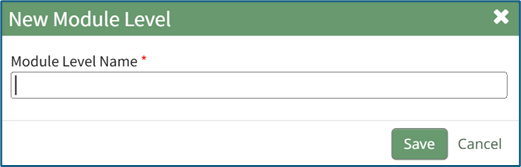
Input a name for the new module level and select the “Save” button.
The new module level will now be shown in the module level table on the Settings Page. Module levels created by your organization can be customized. Select the bulleted list icon to add permissions to the new module level.

Click the checkboxes for the permissions you would like to be granted to the new module level.
Select “Save” when done adding permissions.
A complete list of all permissions associated with the Reports Module have been provided below.