# Reports: Module Pages

# Reports Home Page

<span style="white-space: pre-wrap;">The Reports Home Page is where all available system and custom reports are housed. Clicking on the report title will open the report. Refer to System Reports for a detailed explanation of the 11 system generated reports. </span>

[![image.png](https://kaswiki.kastrack.com/uploads/images/gallery/2025-12/scaled-1680-/nTGimage.png)](https://kaswiki.kastrack.com/uploads/images/gallery/2025-12/nTGimage.png)

A filter box at the top of the Home Page allows an individual to search by report title, by module, tag, or if the report was starred.

<table id="bkmrk-reports-module-home-"><colgroup><col style="width: 117px;"></col><col style="width: 240px;"></col><col style="width: 445px;"></col></colgroup><tbody><tr><td colspan="3">**Reports Module Home Page Icon Explanations**

</td></tr><tr><td>**Icon**

</td><td colspan="2">**Explanation**

</td></tr><tr><td>[![image.png](https://kaswiki.kastrack.com/uploads/images/gallery/2025-12/scaled-1680-/CTPimage.png)](https://kaswiki.kastrack.com/uploads/images/gallery/2025-12/CTPimage.png)

</td><td colspan="2">The star icon stars a report (marking the report as important). This acts as an additional filter, as you can filter by “Starred Only” on the Reports Home Page.

</td></tr><tr><td>[![image.png](https://kaswiki.kastrack.com/uploads/images/gallery/2025-12/scaled-1680-/827image.png)](https://kaswiki.kastrack.com/uploads/images/gallery/2025-12/827image.png)

</td><td colspan="2">The excel icon will download the report in an excel (.xlsx) file to your personal device.

</td></tr><tr><td rowspan="7">[![image.png](https://kaswiki.kastrack.com/uploads/images/gallery/2025-12/scaled-1680-/nFOimage.png)](https://kaswiki.kastrack.com/uploads/images/gallery/2025-12/nFOimage.png)

</td><td rowspan="7">The download icon opens the Download Modal which allows an individual to select from seven different formats to download the report from a dropdown menu. Possible download formats are listed to the right.

<details><summary>How To: Download a Report</summary>

{{@276}}

</details></td><td>Comma Separated Values (.csv)

</td></tr><tr><td>Tab Separated Values (.tsv)

</td></tr><tr><td>Other Separated Values (.txt)

</td></tr><tr><td>Open Document Format (.ods)

</td></tr><tr><td>Excel 97 (.xls)

</td></tr><tr><td>Excel 2007 and later (.xlsx)

</td></tr><tr><td>PDF

</td></tr><tr style="height: 10px;"><td>[![image.png](https://kaswiki.kastrack.com/uploads/images/gallery/2025-12/scaled-1680-/chOimage.png)](https://kaswiki.kastrack.com/uploads/images/gallery/2025-12/chOimage.png)

</td><td colspan="2"><span style="white-space: pre-wrap;">The chart icon opens the Chart Wizard Modal, allowing an individual to create a chart from the data generated by the report. </span>

<details><summary>How To: Create a Chart</summary>

{{@279}}

</details></td></tr></tbody></table>

<span style="white-space: pre-wrap;"></span>

# Charts Page

The Charts Page of the Reports Module displays a table of all charts that have been created by or shared with an individual.

[![image.png](https://kaswiki.kastrack.com/uploads/images/gallery/2025-12/scaled-1680-/eU8image.png)](https://kaswiki.kastrack.com/uploads/images/gallery/2025-12/eU8image.png)

If an individual created the chart, the three dot icon opening the chart table context menu will be visible. If a chart was shared with an individual, the three dot icon accessing the context menu will not be visible. The Chart Table Context Menu displays options to view, edit, or delete a chart.

<table id="bkmrk-chart-table-context-"><colgroup><col style="width: 94px;"></col><col style="width: 387px;"></col><col style="width: 506px;"></col></colgroup><tbody><tr><td colspan="3">**Chart Table Context Menu Explanations**

</td></tr><tr><td>**Option**

</td><td>**Comments**

</td><td>**Image**

</td></tr><tr><td>View Chart

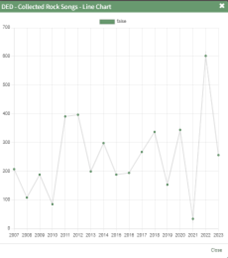
</td><td>Selecting “View Chart” from the context menu opens a Chart Modal that shows the selected chart.

</td><td>[![image.png](https://kaswiki.kastrack.com/uploads/images/gallery/2025-12/scaled-1680-/ygaimage.png)](https://kaswiki.kastrack.com/uploads/images/gallery/2025-12/ygaimage.png)

</td></tr><tr><td>Edit Chart

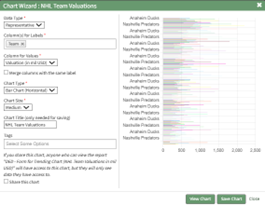
</td><td>Selecting “Edit Chart” from the context menu opens the Chart Wizard Modal, allowing an individual to make changes to the chart properties while viewing a preview of the chart.

<details><summary>How To: Edit a Chart</summary>

{{@281}}

</details></td><td>[![image.png](https://kaswiki.kastrack.com/uploads/images/gallery/2025-12/scaled-1680-/pofimage.png)](https://kaswiki.kastrack.com/uploads/images/gallery/2025-12/pofimage.png)

</td></tr><tr><td>Delete Chart

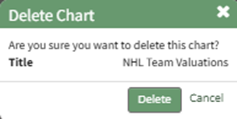
</td><td>Selecting “Delete Chart” from the context menu opens the Delete Chart Confirmation Modal.

<details><summary>How To: Delete a Chart</summary>

{{@280}}

</details></td><td>[![image.png](https://kaswiki.kastrack.com/uploads/images/gallery/2025-12/scaled-1680-/L9qimage.png)](https://kaswiki.kastrack.com/uploads/images/gallery/2025-12/L9qimage.png)

</td></tr></tbody></table>

<span style="white-space: pre-wrap;">Charts are created based on the data from a specific report. To create a chart, select the chart wizard icon on a report page or from the Reports Module Home Page. </span>

<details id="bkmrk-how-to%3A-create-a-cha"><summary>How To: Create a Chart</summary>

{{@279}}

</details>

# Manage Reports Page: Custom Reports Tab

The Manage Reports Page is where individuals with a Reports Module Admin or Manager Module Level can create and manage reports. The Manage Reports Page is comprised of two tabs: Custom Reports and System Reports. The selected tab will be white, not green.

The Custom Reports Tab houses the Custom Reports Table showing any available custom reports created by users.

[![image.png](https://kaswiki.kastrack.com/uploads/images/gallery/2025-12/scaled-1680-/l4aimage.png)](https://kaswiki.kastrack.com/uploads/images/gallery/2025-12/l4aimage.png)

<span style="color: black;">The Custom Report Table has a context menu accessible from the three-dot icon to the right of the custom report name.</span>

<table id="bkmrk-custom-report-conten"><colgroup><col style="width: 136px;"></col><col style="width: 700px;"></col></colgroup><tbody><tr><td colspan="2">**Custom Report Content Menu Explanations**

</td></tr><tr><td>**Option**

</td><td>**Comments**

</td></tr><tr><td>View Report

</td><td>Selecting “View Report” from the context menu opens the View Report Modal which states the Report Title, the Primary Module, the creation date and time, and shares the Link Path if the report is public.

</td></tr><tr><td>Run Report

</td><td>Selecting “Run Report” from the context menu runs the selected report and opens the report page showing all the data within.

<details><summary>How To: Run a Report</summary>

{{@274}}

</details></td></tr><tr><td>Copy Report

</td><td>Selecting “Copy Report” from the context menu opens the Copy Report Modal which allows you to rename and create the copied report.

<details><summary>How To: Copy a Report</summary>

{{@275}}

</details></td></tr><tr><td>Report Wizard

</td><td><span style="white-space: pre-wrap;">Selecting “Report Wizard” from the context menu opens the Report Wizard Page, which is used to customize a report after it has been created. </span>

</td></tr><tr><td>Download Report

</td><td>Selecting “Download Report” from the context menu opens the Download Report Modal which offers seven options on a dropdown menu for download formatting.

<details><summary>How To: Download a Report</summary>

{{@276}}

</details></td></tr><tr><td>Report Properties

</td><td>Selecting “Report Properties” from the context menu opens the Report Properties Modal, allowing an individual to alter their choices made on the New Report Modal.

<details><summary>How To: Edit a Report</summary>

{{@277}}

</details></td></tr><tr><td>Delete Report

</td><td>Selecting “Delete Report” from the context menu opens the Delete Report Confirmation Modal that lists the title of the report to be deleted with the question, “Are you sure you want to delete this report?”

<details><summary>How To: Delete a Report</summary>

{{@278}}

</details></td></tr></tbody></table>

# Manage Reports Page: System Reports

The System Reports Tab houses the System Reports table and the possible system generated reports that are based on data from the Accounts, Finance, and People Modules.

[![image.png](https://kaswiki.kastrack.com/uploads/images/gallery/2025-12/scaled-1680-/drPimage.png)](https://kaswiki.kastrack.com/uploads/images/gallery/2025-12/drPimage.png)

<table id="bkmrk-system-report-contex"><colgroup><col style="width: 127px;"></col><col style="width: 708px;"></col></colgroup><tbody><tr><td colspan="2">**System Report Context Menu Explanations**

</td></tr><tr><td>**Option**

</td><td>**Explanation**

</td></tr><tr><td>Run Report

</td><td>Selecting “Run Report” will run the selected report and take the individual to the report page showing all the data within.

<details><summary>How To: Run a Report</summary>

{{@274}}

</details></td></tr><tr><td>Download Report

</td><td>Selecting “Download Report” will open the Download Modal, providing a dropdown menu with seven different formatting options for the download.

<details><summary>How To: Download a Report</summary>

{{@276}}

</details></td></tr><tr style="height: 10px;"><td>Permissions

</td><td>Selecting “Permissions” will open the Assign Permissions Modal.

<details><summary>How To: Assign Permissions to a Custom Report</summary>

{{@272}}

</details><details><summary>How To: Assign Permissions to a System Report</summary>

{{@282}}

</details></td></tr></tbody></table>

---

# Settings Page: Reports Module Level Tab

The Module Levels Tab of Settings Page can be accessed from the Main Menu. The system default module levels for the module are visible in the Module Levels Table. New module levels with customizable permissions can be created and managed on this tab.

[![image.png](https://kaswiki.kastrack.com/uploads/images/gallery/2026-06/scaled-1680-/gpFimage.png)](https://kaswiki.kastrack.com/uploads/images/gallery/2026-06/gpFimage.png)

<span style="white-space: pre-wrap;">There are four system default module levels associated with the Reports Module. An explanation of the permissions associated with each default module level are shown in the Reports Module Level Permissions Table below. </span>

<p class="callout info">System default module levels cannot be customized.</p>

<table id="bkmrk-reports-module-level"><colgroup><col style="width: 110px;"></col><col style="width: 709px;"></col></colgroup><tbody><tr><td colspan="2">**Reports Module Level Permissions Table**

</td></tr><tr><td>**Module Level**

</td><td>**Permissions**

</td></tr><tr><td>Admin

</td><td><span style="color: black;">Download Report, Run Report, Manage Charts (list / view / edit / delete chart), Manage Reports (add / view / edit / delete report, edit SQL, share with any certification role, share with any user, share with all accounts, list-manage reports, edit system reports), Manage roles (delete / edit / view / add / assign / unassign roles, assign role test, assign hidden role, role permissions, assign role Kastrack Admin)</span>

</td></tr><tr><td>Guest

</td><td>None

</td></tr><tr><td>Manager

</td><td><span style="color: black;">Download Report, Run Report, Manage Charts (list / view / edit / delete chart), Manage Reports (add / view / edit / delete report, edit SQL, share with any certification role, share with any user, share with all accounts, list-manage reports, edit system reports)</span>

</td></tr><tr><td>Staff

</td><td><span style="color: black;">Download Report, Run Report</span>

</td></tr></tbody></table>

New Module Levels can be created in order to customize module level permissions to suit your organization's needs. An explanation of the icons associated with customized module levels have been provided in the table below.

<table id="bkmrk-module-level-customi" style="box-sizing: border-box; outline-color: rgb(32, 110, 167); outline-width: 1px; margin: 0.3em 0px 1.375em; padding: 0px; border: 0px; font-style: normal; font-variant-ligatures: normal; font-variant-caps: normal; font-variant-numeric: inherit; font-variant-east-asian: inherit; font-variant-alternates: inherit; font-variant-position: inherit; font-variant-emoji: inherit; font-weight: 400; font-stretch: inherit; font-size: 14px; line-height: inherit; font-family: -apple-system, BlinkMacSystemFont, "Segoe UI", Oxygen, Ubuntu, Roboto, Cantarell, "Fira Sans", "Droid Sans", "Helvetica Neue", sans-serif; font-optical-sizing: inherit; font-size-adjust: inherit; font-kerning: inherit; font-feature-settings: inherit; font-variation-settings: inherit; vertical-align: baseline; border-collapse: collapse; border-spacing: 0px; min-width: 100px; max-width: 100%; hyphens: auto; table-layout: fixed; color: rgb(68, 68, 68); letter-spacing: normal; orphans: 2; text-align: start; text-transform: none; widows: 2; word-spacing: 0px; -webkit-text-stroke-width: 0px; white-space: normal; background-color: rgb(255, 255, 255); text-decoration-thickness: initial; text-decoration-style: initial; text-decoration-color: initial;"><colgroup><col></col><col style="width: 767px;"></col></colgroup><tbody><tr style="box-sizing: border-box; outline-color: rgb(32, 110, 167); outline-width: 1px; margin: 0px; padding: 0px; border: 0px; font: inherit; vertical-align: baseline;"><td colspan="2" style="box-sizing: border-box; outline-color: rgb(32, 110, 167); outline-width: 1px; margin: 0px; padding: 6px 8px; border: 1px solid rgb(221, 221, 221); font-style: inherit; font-variant: inherit; font-weight: inherit; font-stretch: inherit; font-size: inherit; line-height: 1.2; font-family: inherit; font-optical-sizing: inherit; font-size-adjust: inherit; font-kerning: inherit; font-feature-settings: inherit; font-variation-settings: inherit; vertical-align: top; min-width: 10px; overflow: auto; word-break: break-word;">**Module Level Customization Icons**

</td></tr><tr style="box-sizing: border-box; outline-color: rgb(32, 110, 167); outline-width: 1px; margin: 0px; padding: 0px; border: 0px; font: inherit; vertical-align: baseline;"><td style="box-sizing: border-box; outline-color: rgb(32, 110, 167); outline-width: 1px; margin: 0px; padding: 6px 8px; border: 1px solid rgb(221, 221, 221); font-style: inherit; font-variant: inherit; font-weight: inherit; font-stretch: inherit; font-size: inherit; line-height: 1.2; font-family: inherit; font-optical-sizing: inherit; font-size-adjust: inherit; font-kerning: inherit; font-feature-settings: inherit; font-variation-settings: inherit; vertical-align: top; min-width: 10px; overflow: auto; word-break: break-word;">**Icon**

</td><td style="box-sizing: border-box; outline-color: rgb(32, 110, 167); outline-width: 1px; margin: 0px; padding: 6px 8px; border: 1px solid rgb(221, 221, 221); font-style: inherit; font-variant: inherit; font-weight: inherit; font-stretch: inherit; font-size: inherit; line-height: 1.2; font-family: inherit; font-optical-sizing: inherit; font-size-adjust: inherit; font-kerning: inherit; font-feature-settings: inherit; font-variation-settings: inherit; vertical-align: top; min-width: 10px; overflow: auto; word-break: break-word;">**Explanation**

</td></tr><tr style="box-sizing: border-box; outline-color: rgb(32, 110, 167); outline-width: 1px; margin: 0px; padding: 0px; border: 0px; font: inherit; vertical-align: baseline;"><td style="box-sizing: border-box; outline-color: rgb(32, 110, 167); outline-width: 1px; margin: 0px; padding: 6px 8px; border: 1px solid rgb(221, 221, 221); font-style: inherit; font-variant: inherit; font-weight: inherit; font-stretch: inherit; font-size: inherit; line-height: 1.2; font-family: inherit; font-optical-sizing: inherit; font-size-adjust: inherit; font-kerning: inherit; font-feature-settings: inherit; font-variation-settings: inherit; vertical-align: top; min-width: 10px; overflow: auto; word-break: break-word;">[![image.png](https://kaswiki.kastrack.com/uploads/images/gallery/2025-12/scaled-1680-/OQrimage.png)](https://kaswiki.kastrack.com/uploads/images/gallery/2025-12/OQrimage.png)

</td><td style="box-sizing: border-box; outline-color: rgb(32, 110, 167); outline-width: 1px; margin: 0px; padding: 6px 8px; border: 1px solid rgb(221, 221, 221); font-style: inherit; font-variant: inherit; font-weight: inherit; font-stretch: inherit; font-size: inherit; line-height: 1.2; font-family: inherit; font-optical-sizing: inherit; font-size-adjust: inherit; font-kerning: inherit; font-feature-settings: inherit; font-variation-settings: inherit; vertical-align: top; min-width: 10px; overflow: auto; word-break: break-word;">The eyeball icon allows you to view users assigned to the module level as well as the permissions assigned to them.

</td></tr><tr style="box-sizing: border-box; outline-color: rgb(32, 110, 167); outline-width: 1px; margin: 0px; padding: 0px; border: 0px; font: inherit; vertical-align: baseline;"><td style="box-sizing: border-box; outline-color: rgb(32, 110, 167); outline-width: 1px; margin: 0px; padding: 6px 8px; border: 1px solid rgb(221, 221, 221); font-style: inherit; font-variant: inherit; font-weight: inherit; font-stretch: inherit; font-size: inherit; line-height: 1.2; font-family: inherit; font-optical-sizing: inherit; font-size-adjust: inherit; font-kerning: inherit; font-feature-settings: inherit; font-variation-settings: inherit; vertical-align: top; min-width: 10px; overflow: auto; word-break: break-word;">[![image.png](https://kaswiki.kastrack.com/uploads/images/gallery/2025-12/scaled-1680-/Bbrimage.png)](https://kaswiki.kastrack.com/uploads/images/gallery/2025-12/Bbrimage.png)

</td><td style="box-sizing: border-box; outline-color: rgb(32, 110, 167); outline-width: 1px; margin: 0px; padding: 6px 8px; border: 1px solid rgb(221, 221, 221); font-style: inherit; font-variant: inherit; font-weight: inherit; font-stretch: inherit; font-size: inherit; line-height: 1.2; font-family: inherit; font-optical-sizing: inherit; font-size-adjust: inherit; font-kerning: inherit; font-feature-settings: inherit; font-variation-settings: inherit; vertical-align: top; min-width: 10px; overflow: auto; word-break: break-word;">The bulleted list icon allows you to assign permissions to customized module levels.

</td></tr><tr style="box-sizing: border-box; outline-color: rgb(32, 110, 167); outline-width: 1px; margin: 0px; padding: 0px; border: 0px; font: inherit; vertical-align: baseline;"><td style="box-sizing: border-box; outline-color: rgb(32, 110, 167); outline-width: 1px; margin: 0px; padding: 6px 8px; border: 1px solid rgb(221, 221, 221); font-style: inherit; font-variant: inherit; font-weight: inherit; font-stretch: inherit; font-size: inherit; line-height: 1.2; font-family: inherit; font-optical-sizing: inherit; font-size-adjust: inherit; font-kerning: inherit; font-feature-settings: inherit; font-variation-settings: inherit; vertical-align: top; min-width: 10px; overflow: auto; word-break: break-word;">[![image.png](https://kaswiki.kastrack.com/uploads/images/gallery/2025-12/scaled-1680-/ELJimage.png)](https://kaswiki.kastrack.com/uploads/images/gallery/2025-12/ELJimage.png)

</td><td style="box-sizing: border-box; outline-color: rgb(32, 110, 167); outline-width: 1px; margin: 0px; padding: 6px 8px; border: 1px solid rgb(221, 221, 221); font-style: inherit; font-variant: inherit; font-weight: inherit; font-stretch: inherit; font-size: inherit; line-height: 1.2; font-family: inherit; font-optical-sizing: inherit; font-size-adjust: inherit; font-kerning: inherit; font-feature-settings: inherit; font-variation-settings: inherit; vertical-align: top; min-width: 10px; overflow: auto; word-break: break-word;">The pencil icon opens the Edit Module Level Modal.

</td></tr><tr style="box-sizing: border-box; outline-color: rgb(32, 110, 167); outline-width: 1px; margin: 0px; padding: 0px; border: 0px; font: inherit; vertical-align: baseline;"><td style="box-sizing: border-box; outline-color: rgb(32, 110, 167); outline-width: 1px; margin: 0px; padding: 6px 8px; border: 1px solid rgb(221, 221, 221); font-style: inherit; font-variant: inherit; font-weight: inherit; font-stretch: inherit; font-size: inherit; line-height: 1.2; font-family: inherit; font-optical-sizing: inherit; font-size-adjust: inherit; font-kerning: inherit; font-feature-settings: inherit; font-variation-settings: inherit; vertical-align: top; min-width: 10px; overflow: auto; word-break: break-word;">[![image.png](https://kaswiki.kastrack.com/uploads/images/gallery/2025-12/scaled-1680-/Uwlimage.png)](https://kaswiki.kastrack.com/uploads/images/gallery/2025-12/Uwlimage.png)

</td><td style="box-sizing: border-box; outline-color: rgb(32, 110, 167); outline-width: 1px; margin: 0px; padding: 6px 8px; border: 1px solid rgb(221, 221, 221); font-style: inherit; font-variant: inherit; font-weight: inherit; font-stretch: inherit; font-size: inherit; line-height: 1.2; font-family: inherit; font-optical-sizing: inherit; font-size-adjust: inherit; font-kerning: inherit; font-feature-settings: inherit; font-variation-settings: inherit; vertical-align: top; min-width: 10px; overflow: auto; word-break: break-word;">The trashcan icon opens the Delete Module Level Confirmation Modal.

</td></tr></tbody></table>

<details id="bkmrk-how-to%3A-create-a-cus"><summary>How To: Create a Custom Module Level (Reports Module)</summary>

{{@284}}

</details>A complete list of all permissions associated with the Reports Module have been provided below.

[![image.png](https://kaswiki.kastrack.com/uploads/images/gallery/2026-06/scaled-1680-/7pzimage.png)](https://kaswiki.kastrack.com/uploads/images/gallery/2026-06/7pzimage.png)

# Reports Wizard Page

The Report Wizard Page is used to design and customize individual reports.

[![image.png](https://kaswiki.kastrack.com/uploads/images/gallery/2025-12/scaled-1680-/pnuimage.png)](https://kaswiki.kastrack.com/uploads/images/gallery/2025-12/pnuimage.png)

The Report Wizard is divided into the following  
<span style="white-space: pre-wrap;"> tabs: Columns, Restrictions, Options, Preview and Save. You can advance from tab to tab without losing changes</span>  
<span style="white-space: pre-wrap;"> but must click the Save Tab before leaving the Report Wizard Page or changes made will be lost. </span>

<p class="callout info">The Save Tab functions as a button and does not open to a new page.</p>

#### Columns Tab

The Columns Tab allows an individual to select  
<span style="white-space: pre-wrap;"> the desired columns for the report from different tables utilized in the primary module that was selected for</span>  
<span style="white-space: pre-wrap;"> the report. </span>

<p class="callout info">The Primary Module can be changed by selecting Edit Report from the Context Menu on the Manage page.</p>

<details id="bkmrk-how-to%3A-edit-a-repor"><summary>How To: Edit a Report</summary>

{{@277}}

</details>[![image.png](https://kaswiki.kastrack.com/uploads/images/gallery/2025-12/scaled-1680-/M4Aimage.png)](https://kaswiki.kastrack.com/uploads/images/gallery/2025-12/M4Aimage.png)

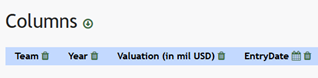
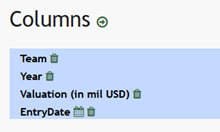
Selecting an option as a column header for the report will change the button from blue to green and will have a check mark to the left of the column title. All items selected will show under Column in the header on the horizontal blue line. The columns can be dragged and dropped for correct placement in the report. Icons used on the Column Tab are shown in the Column Tab Icons Table below.

<table id="bkmrk-column-tab-icon-expl"><colgroup><col style="width: 88px;"></col><col style="width: 240px;"></col><col style="width: 352px;"></col></colgroup><tbody><tr><td colspan="3">**Column Tab Icon Explanations Table**

</td></tr><tr><td>**Icon**

</td><td>**Explanation**

</td><td>**Image**

</td></tr><tr><td>[![image.png](https://kaswiki.kastrack.com/uploads/images/gallery/2025-12/scaled-1680-/J8Zimage.png)](https://kaswiki.kastrack.com/uploads/images/gallery/2025-12/J8Zimage.png)

</td><td>When the down arrow icon shows next to the Column Tab header, the report columns are listed in a horizontal row, and clicking on the arrow will change it to a vertical display.

</td><td>[![image.png](https://kaswiki.kastrack.com/uploads/images/gallery/2025-12/scaled-1680-/IQgimage.png)](https://kaswiki.kastrack.com/uploads/images/gallery/2025-12/IQgimage.png)

</td></tr><tr><td>[![image.png](https://kaswiki.kastrack.com/uploads/images/gallery/2025-12/scaled-1680-/En5image.png)](https://kaswiki.kastrack.com/uploads/images/gallery/2025-12/En5image.png)

</td><td>When the right arrow icon shows next to the Column Tab header, the report columns are listed vertically and clicking on the arrow will change it to a horizontal display.

</td><td>[![image.png](https://kaswiki.kastrack.com/uploads/images/gallery/2025-12/scaled-1680-/YrPimage.png)](https://kaswiki.kastrack.com/uploads/images/gallery/2025-12/YrPimage.png)

</td></tr><tr><td>[![image.png](https://kaswiki.kastrack.com/uploads/images/gallery/2025-12/scaled-1680-/RPrimage.png)](https://kaswiki.kastrack.com/uploads/images/gallery/2025-12/RPrimage.png)

</td><td>The trashcan icon will automatically delete the selected column header when clicked.

</td><td></td></tr><tr><td>[![image.png](https://kaswiki.kastrack.com/uploads/images/gallery/2025-12/scaled-1680-/q0Mimage.png)](https://kaswiki.kastrack.com/uploads/images/gallery/2025-12/q0Mimage.png)

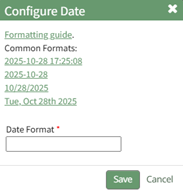
</td><td>The calendar icon shows for any system date fields and opens the Configure Date Modal which allows an individual to select the desired date format for the report.

</td><td>[![image.png](https://kaswiki.kastrack.com/uploads/images/gallery/2025-12/scaled-1680-/OUhimage.png)](https://kaswiki.kastrack.com/uploads/images/gallery/2025-12/OUhimage.png)

</td></tr><tr><td>[![image.png](https://kaswiki.kastrack.com/uploads/images/gallery/2025-12/scaled-1680-/bWvimage.png)](https://kaswiki.kastrack.com/uploads/images/gallery/2025-12/bWvimage.png)

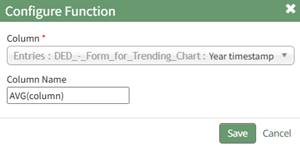
</td><td>The gear icon will open the Configure Function Modal, which is used to configure one of the four special functions (Average, Count, Function, Sum).

</td><td>[![image.png](https://kaswiki.kastrack.com/uploads/images/gallery/2025-12/scaled-1680-/MaEimage.png)](https://kaswiki.kastrack.com/uploads/images/gallery/2025-12/MaEimage.png)

</td></tr></tbody></table>

The possible headers displayed on a report vary based on the primary module selected for the report. A list of possible column headers associated with each primary module and the tables contained within the module are shown on the Possible Report Column Headers Table below.

<table id="bkmrk-possible-report-colu"><colgroup><col style="width: 91px;"></col><col style="width: 247px;"></col><col style="width: 556px;"></col></colgroup><tbody><tr><td colspan="3">**Possible Report Column Headers by Module**

</td></tr><tr><td>**Module**

</td><td>**Table**

</td><td>**Entries**

</td></tr><tr><td style="background-color: rgb(149, 165, 166);"></td><td>Special

</td><td>Avg (column), Count, Function, Sum (Column)

<p class="callout info">The Function option allows advanced customization by technically skilled users. If you would like to use this and need help, please contact the KAStrack support team.</p>

</td></tr><tr><td rowspan="6">Assets

</td><td>Assets

</td><td>Asset Status, Child Deferred, Created By, Creation Date, Critical, Critical Spares, Deferred, Description, Model Number, Serial Number, Tagging Type, Title, Title (Link), URL, URL (Link), Warn Status (Color), Warn Status (Critical)

</td></tr><tr><td>Asset Types

</td><td>Asset Type, Created By

</td></tr><tr><td>Manufacturers

</td><td>Manufacturer, Created By

</td></tr><tr><td>Meters

</td><td>Last Reading, Last Reading (Date), Last Reading (Value), Logged by User, Meter Name

</td></tr><tr><td>Meter Logs

</td><td>Reading, Reading Date, Reading User ID

</td></tr><tr><td>Asset Fields / Asset Tasks

</td><td>Both of these options will expand to include the asset fields and asset tasks that are specific to your subdomain.

</td></tr><tr><td rowspan="2">Dispatch

</td><td>Dispatches

</td><td>Can View Incidents, Created By (user), Creation Date, Dispatch #, Dispatch Closed Date, Dispatch Date, Distribution List Footer, GUID, Last Update, Notes, Pending Approval, Status, Title

</td></tr><tr><td>Itinerary Items

</td><td>Actual Arrival or Start Date, Actual Departure or Finish Date, Arrival or Start Delay (minutes), Arrival or Start Status, Departure or Finish Delay (minutes), Departure or Finish Status, Dispatch #, Expected Arrival or Start Date, Expected Departure or Finish Date, Incident, Location or Activity Name, Overall Status, Type

</td></tr><tr><td rowspan="2">Forms

</td><td>Forms

</td><td>Identifier, Status, Title

</td></tr><tr><td>Entries

</td><td>This open will expand to include form entries that are specific to your subdomain.

</td></tr><tr><td rowspan="3">Meetings

</td><td>Meeting Participants

</td><td>Participant

</td></tr><tr><td>Meeting Instances

</td><td>Archived, Date, Non-KAStrack Participants, Presenters, Subject, Summary

</td></tr><tr><td>Meetings

</td><td>Archived, Count, Date Created, Day of Month, Day of Week, Description, End Date, Meeting Frequency, Meeting Interval, Month, Prioritized, Recurring, Start Time, Title, Visibility

</td></tr><tr><td rowspan="10">People

</td><td>People Accounts

</td><td>Account, Additional Custom Field for Email, Address 1, Address 2, Approved By, Approved Date, Email, Email Verification Required, Email Verified Date, Employee ID, Field for BCC Email, Field for CC Email, Field for Send Comm CC Email, First Name, Home Page, Inactive, Last Active, Last Name, Map A&amp;P #, Other Account Field, Password Token Expiration, People Report Status, Phone, Photo, Registration Date, Sensitive Account Field, Status, Timeout, Username

</td></tr><tr><td>Certification Roles

</td><td>Certification Role Name

</td></tr><tr><td>Certifications

</td><td>After Duration, After Interval, After Period, Attachment Required, Auto Approve, Auto Approve Activity, Before Duration, Before Interval, Before Period, Certification Expires, Certification ID, Certification Information, Certification Interval, Certification Name, Completion Cost, Completion Duration, Completion Interval, Coordinator ID, Due Duration, Due Interval, Duration of Certification, Expiration Style, Extended Interval, Force Date, Force Expiration, Generate Certificate, Hide Attachments from QR Reports, Hide Attachements from Shared Reports, Hide Expiration, Hide from QR Reports, Hide from Shared Reports, Notification Duration, Notification Interval, Refresher Certification Duration, Refresher Certification Interval, Refresher Completion Cost, Refresher Completion Duration, Refresher Completion Interval, Refresher Due Duration, Refresher Due Interval, Refresher Extend Interval, Refresher Notification Duration, Refresher Notification Interval, Refresher Training, Send Attachments, Training ID, URL

</td></tr><tr><td>Supervisors

</td><td>Supervisors, UserID, Username

</td></tr><tr><td>Trend User Certs (by user and supervisors)

</td><td>Account, Date, Is Me, Percentage Valid Certifications for Supervised Users, Percentage Valid Certifications for User, Supervised By Me, Total Certifications for Supervised Users, Total Certifications For User, Valid Certifications for Supervised Users, Valid Certifications for User

</td></tr><tr><td>Trend User Certs (by certifications)

</td><td>Certification, Date, Percentage Valid for All Users, Total Assigned For All Users, Total Valid For All Users

</td></tr><tr><td>Trend User Certs (by certifications by supervisors)

</td><td>Account, Certification ID, Date, Is Me, Percentage Valid for Supervised Users, Supervised by Me, Total Assigned for Supervised Users, Total Valid for Supervised Users

</td></tr><tr><td>Trend User Certs By Roles (by Users and Supervisors)

</td><td>Account, Date, Is Me, Percentage Valid Certifications for Supervised Users, Percentage Valid Certifications for User, Percentage Valid Roles for Supervised Users, Total Certifications for User, Total Roles for Supervised Users, Valid Certifications for Supervised Users, Valid Certifications for User, Valid Roles for Supervised Users

</td></tr><tr><td>User Certification Expiration Dates

</td><td>The options presented in this table are specific to the certifications required in your subdomain.

</td></tr><tr><td>User Certifications

</td><td>Approved By, Approved Date, Certification ID, Completion Date, Expiration Date, Instructor ID, Submitted Date, User ID

</td></tr></tbody></table>

#### Restrictions Tab

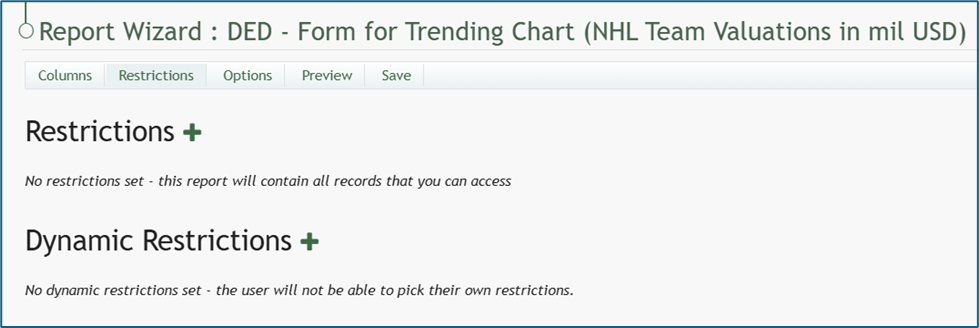
Restrictions and dynamic restrictions are  
<span style="white-space: pre-wrap;"> established on the Restrictions Tab of the Report Wizard. The Restrictions Tab can be utilized to limit the data</span>  
<span style="white-space: pre-wrap;"> shown on a report based on certain conditions being met. </span>

<p class="callout info"><span style="white-space: pre-wrap;">Restrictions incorporates REGEX to allow detailed customization. More information about REGEX can be found in the </span>[Supplemental Resources](https://kaswiki.kastrack.com/books/supplemental-resources/page/regular-expression-regex-resources).</p>

[![image.png](https://kaswiki.kastrack.com/uploads/images/gallery/2025-12/scaled-1680-/PgGimage.png)](https://kaswiki.kastrack.com/uploads/images/gallery/2025-12/PgGimage.png)

Multiple restrictions can be created with an and  
<span style="white-space: pre-wrap;"> / or applied. </span>

<p class="callout info">No slashes can be used when specifying the value for a restriction.</p>

Dynamic restrictions can be utilized whenever a report features date related entries.

[![image.png](https://kaswiki.kastrack.com/uploads/images/gallery/2025-12/scaled-1680-/lzTimage.png)](https://kaswiki.kastrack.com/uploads/images/gallery/2025-12/lzTimage.png)
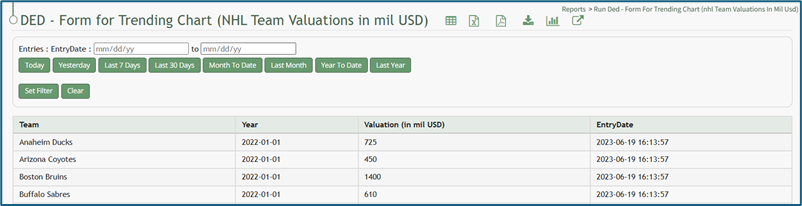
<details id="bkmrk-how-to%3A-include-dyna"><summary>How To: Include Dynamic Restrictions on a Custom Report</summary>

{{@273}}

</details>#### Options Tab

The Options Tab of the Report Wizard Page controls other optional settings for a report. Currently, there is one available option that can be used to select a column header for default sorting.

[![image.png](https://kaswiki.kastrack.com/uploads/images/gallery/2025-12/scaled-1680-/FaNimage.png)](https://kaswiki.kastrack.com/uploads/images/gallery/2025-12/FaNimage.png)

Multiple options can be selected by clicking the  
<span style="white-space: pre-wrap;"> plus “+” icon. </span>

<p class="callout info">Changes must be saved by clicking the Saved Tab before leaving the Report Wizard Page.</p>

#### Preview Tab

The Preview Tab of the Report Wizard Page shows a preview of the report and any changes that have been made to the report.

[![image.png](https://kaswiki.kastrack.com/uploads/images/gallery/2025-12/scaled-1680-/vjuimage.png)](https://kaswiki.kastrack.com/uploads/images/gallery/2025-12/vjuimage.png)
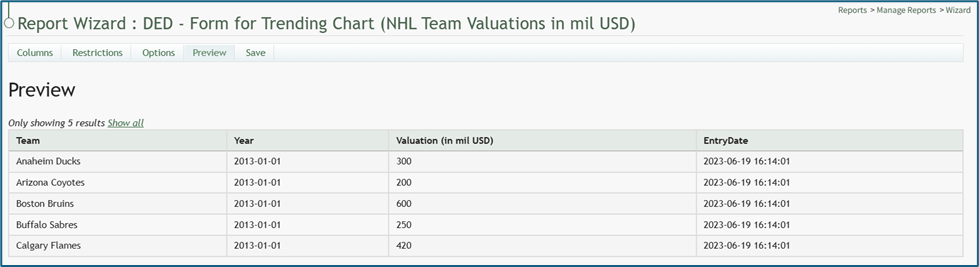
Dynamic headers are not included on the preview page, nor are the report header or report icons. The preview will show the first five lines of the report, but the clickable link “Show All” can be selected to show all data on the preview page.

#### Save Tab

The Save Tab does not open a new tab. By clicking the tab, any changes made on the Report Wizard are saved.