Certification Roles Page
The Certification Roles Page is available in the People Module on the Main Menu as Roles. When Roles selected from the Main Menu, the Certification Roles Page opens allowing individuals with permission to input all user certification roles and to organize certifications according to roles/department.
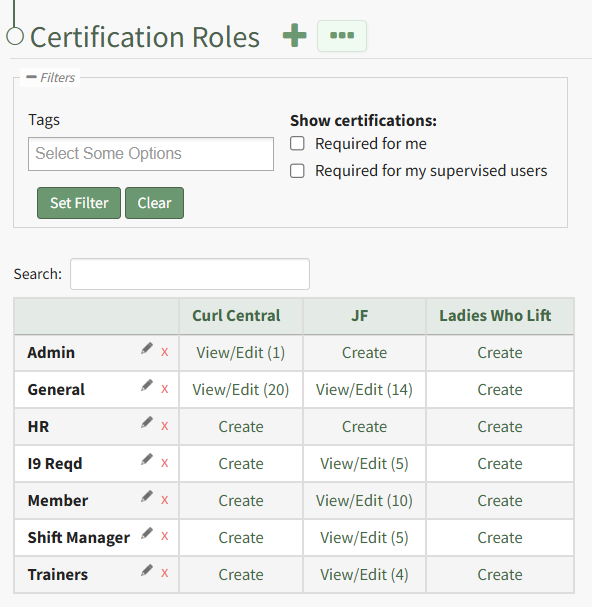
Within KAStrack, the term “Certification Role” pertains to what role an employee has within a company, or what department / grouping they’re associated with. A user can have one role, multiple roles, or none. Certification roles are utilized to make setup, organization, asset responsibility and resource access simpler. In the People Module, roles can be utilized to assign Certification requirements to groups of users in similar positions.
Individuals with certification roles are not required to have certifications, which can be useful for activities such as communication, asset ownership, approvals, etc. Individuals may also have Certification requirements outside of a Certification Role, known as “Other Required Certifications”.
Understanding the Roles Page
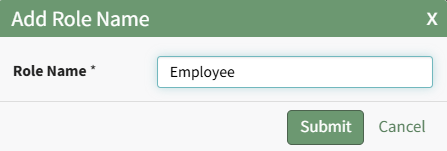
Clicking the plus sign icon to the right of the Certification Roles header will open the Add Role Name Modal, allowing for the creation of new roles in KAStrack.
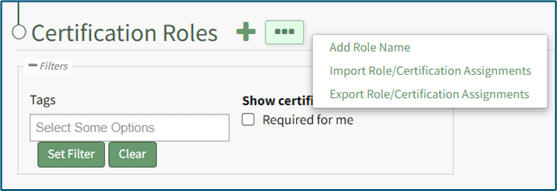
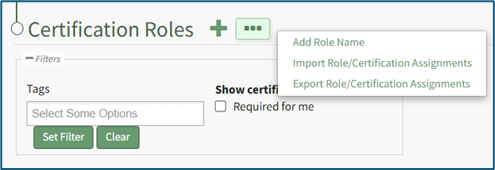
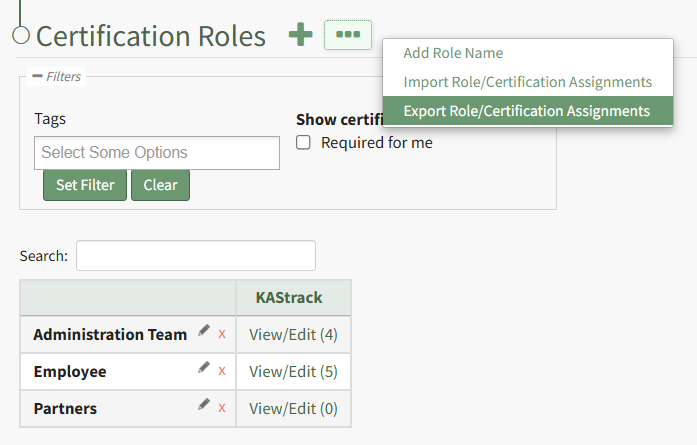
Selecting the three-dot icon in the header row opens the Certification Roles Page Content Menu. The options on the context menu are explained in the table below.
Certification Roles Page Context Menu Option Explanations | |
Option | Explanation |
Add Role Name | Selecting the Add Role Name option from the context menu opens the Add Role Name Modal, initiating the same action as the plus sign icon in the header row. How To: Create, Define, and Assign Users to a New Certification RoleTo create and define a new certification role, select Roles in the People Module on the Main Menu opening the Certification Roles Page.
Click the plus sign icon to the right of the Certification Roles header to open the Add Role Name Modal. Clicking the three-dot icon to the right of the header and selecting Add Role Name from the Certification Roles Page Context Menu will initiate the same action as selecting the plus sign icon.
Input the new role's name and click the Submit button. The newly created role is now visible on the Certification Roles Table in alphabetical order.
Select the clickable link to "Create" opening the Define Role Page.
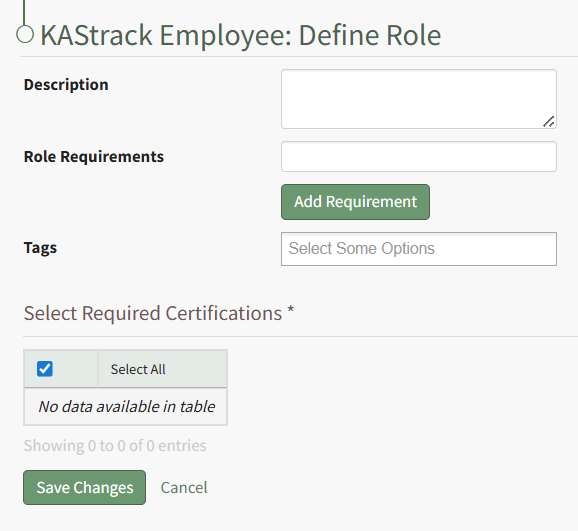
Input the role description and any relevant role requirements. Role requirements are specific to your organization. Multuple requirements can be included. Any existing certifications will be listed in the table in the Select Required Certifications Table and can be selected via checkbox. Certification roles are not required to have a certification associated with them. Select "Save Changes" and certification role's Edit Users Page opens.
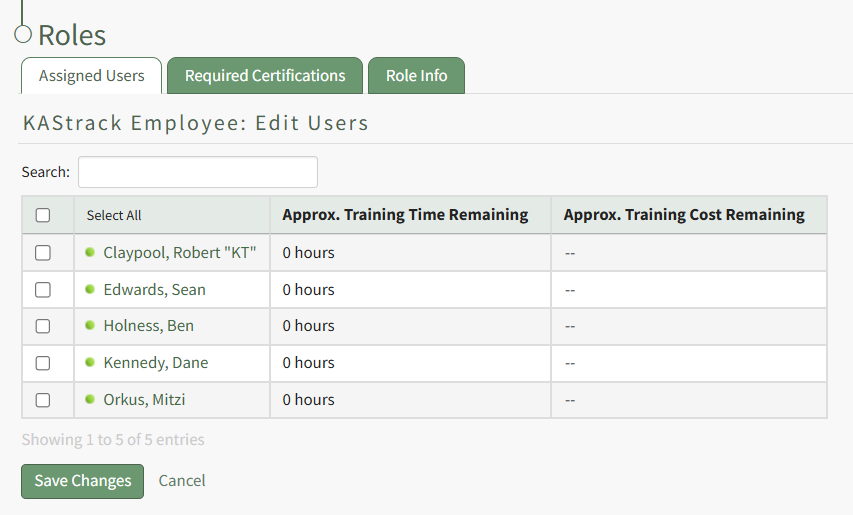
Identify the users that should be assigned to the certification role by selecting the checkbox to the left of the user's name. Selecting the checkbox on the top row of the table will select/deselect all checkboxes in the table. Click the Save Changes button below the table and the assigned users will now show in the newly created certification role. |
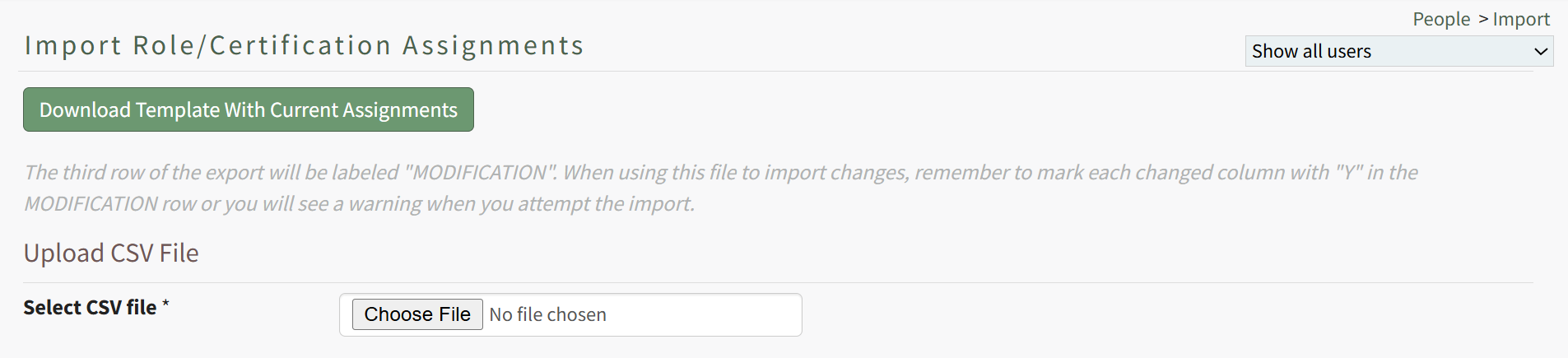
Import Role/Certification Assignments | Selecting the Import Role/Certification Assignment option from the context menu opens the Import Roles/Certification Assignments Page, which provides a downloadable template with current assignments and enables the upload of a CSV file. How To: Import Role/Certification AssignmentsCertification assignments to Certification Roles can be imported in bulk into KAStrack. Select the Roles Page in the People Module from the Main Menu to display the Certification Roles Table. Click the three dot (…) icon to open a context menu and select “Import Role/Certification Assignments”.
A template is provided to simplify importing.
Click the “Download Template with Current Assignments” button to download the Role Certifications Template CSV to your device. This template includes the current assignment of Certifications to Certification Roles.
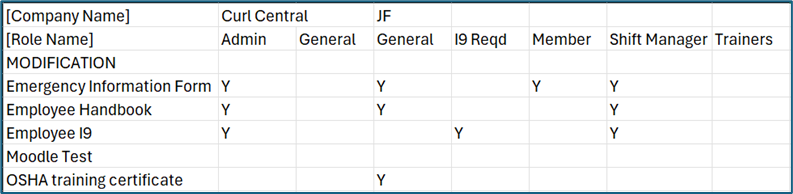
The first column of the template starting in the fourth row lists the name of all available Certifications in KAStrack. The first row of the template contains the name of the Company the Certification Role is associated with. The second row contains the names of Certification Roles. The Company Name will only be listed once in the [Company Name] row, in the cell above its first associated Certification Role. Thus, all Certification Roles to the right of that one are part of the same Company, until another Company Name appears in the top row (if applicable). To change which Certification Roles a Certification is assigned to, insert a capital ‘Y’ in the cell to the right of the desired Certification below the Certification Role you wish to have it assigned to. You can assign a Certification to any number of Certification Roles. To remove assignment of a Certification from a Role, simply remove the capital ‘Y’ from its cell (you will still need to enter a ‘Y’ in the MODIFICATION row to alert the system to this change). After making the desired changes to the template, save the spreadsheet with a UTF-8 CSV file format. Back in KAStrack, click the “Choose File” button to select the file from your device. Click the “Import role/certification assignments” to upload the file and import the changes into KAStrack. The screen will then display a success or fail message, and, if failed, alert to any changes that should be made to the imported file. |
Export Role/Certification Assignments | Selecting the Export Role/Certification Assignments option from the context menu opens the Export Role/Certification Assignments Modal that requires a user to click "Export" before downloading the role/certification assignments to your personal device. How To: Export Role/Certification AssignmentsCertification assignments to Certification Roles can be exported from KAStrack into a CSV file. Select Roles Page in the People Module from the Main Menu to open the Certification Roles Table. Click the three-dot icon to the right of the header to open the Certification Roles Page Context Menu and select “Export Roles/Certification Assignments”.
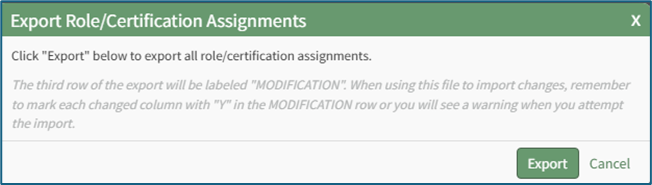
This opens the Export Role/Certification Assignments Modal.
Select the “Export” button to download a CSV file into your device’s Downloads folder that contains all role/certification assignments. |
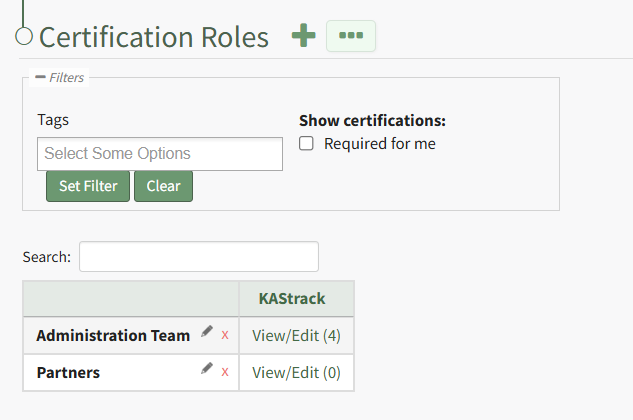
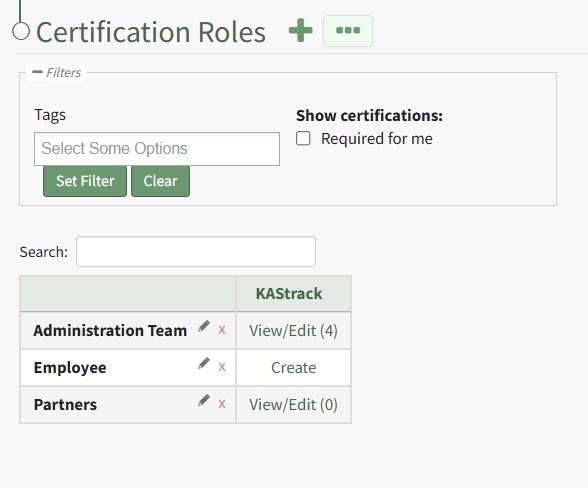
The filter section on the Certification Roles Page allows you to filter roles by tags. Checkboxes allow an individual to show certifications "Required for me" or to show certifications "Required for my supervised users".
The Certification Roles Table lists all certification roles (rows) and all companies (columns) created in KAStrack.
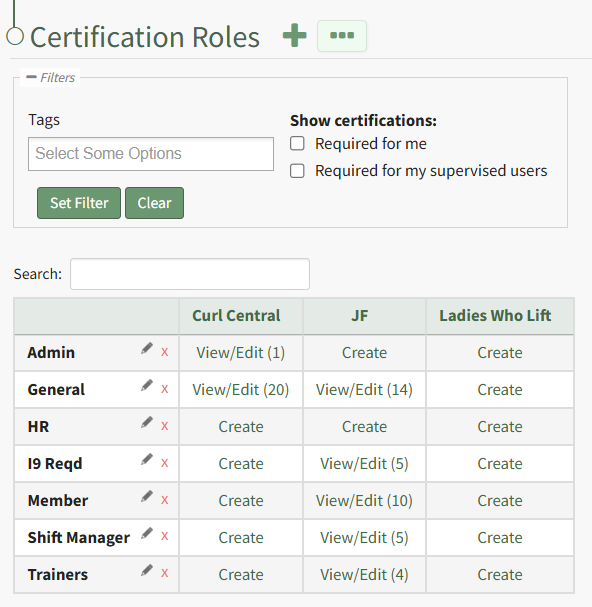
Role names can be edited or deleted within this table by clicking the pencil icon (to edit) or the “X” icon (to delete).
How To: Delete a Certification Role
To permanently delete a certification role, select the Roles in the People Module from the Main Menu to open the Certification Roles Page.
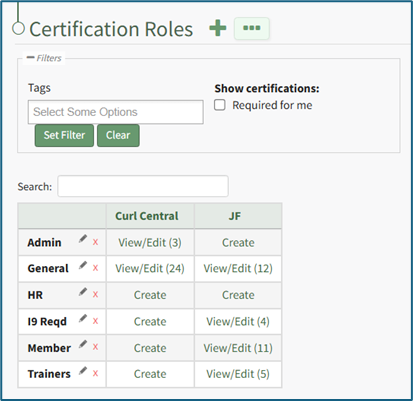
Identify the certification role you wish to permanently delete and click the “View/Edit (#)” clickable link associated with it to open the certification role's Details Page. Select the Role Info Tab.
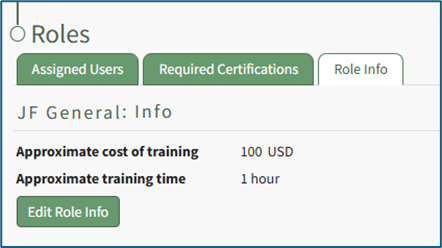
Click the “Edit Role Info” button to open the certification role's Edit Info Page.
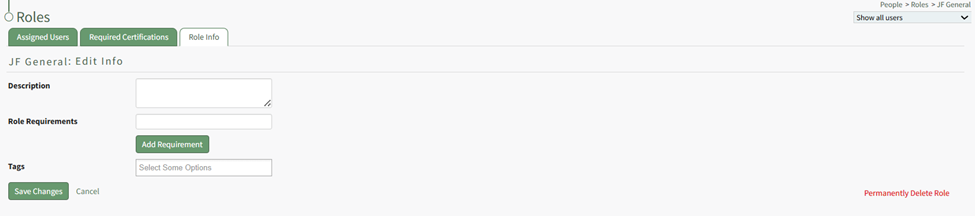
Click “Permanently Delete Role” from the bottom right-hand corner of the Edit Info Page to delete the Certification Role, opening a Deletion Confirmation Modal.
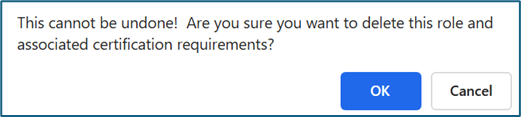
The modal states “This cannot be undone! Are you sure you want to delete this role and associated certification requirements?” Click the “OK” button to permanently delete the certification role.
Deleting a Certification Role does not delete associated Certifications or users, but rather the Certification Requirements assigned to users by the Role.
How To: Edit Certification Role Information
To edit the information associated with a specific certification role, select Roles in the People Module from the Main Menu to open the Certification Roles Page.
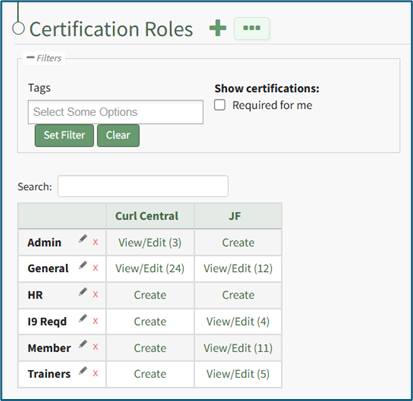
Identify the certification role whose information you wish to edit and click the “View/Edit (#)” clickable link associated with it to open a specific certification role's Details Page. Select the Role Info Tab.
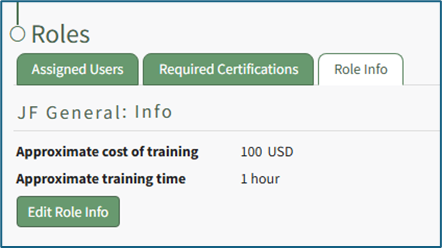
Click the “Edit Role Info” button opening the Edit Info Page allowing you to edit the certification role information specified when the certification role was created.
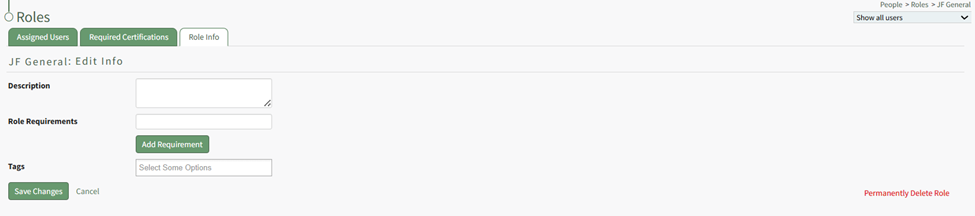
Alter the description, role required, tags, and/or any competency settings for the Certification Role (if competency tracking is enabled for your KAStrack installation), and then click the “Save Changes” button to return to the Role Info Tab.
How To: Define Competency Settings for a Role
If competency tracking is enabled for your KAStrack installation, you can define the Competency Settings for a Certification Role while creating or editing the role. Competency allows your organization a way to track users’ fitness / competence to be assigned to a particular role. This provides a way to ensure users meet the necessary requirements and standards to perform the role they're in.
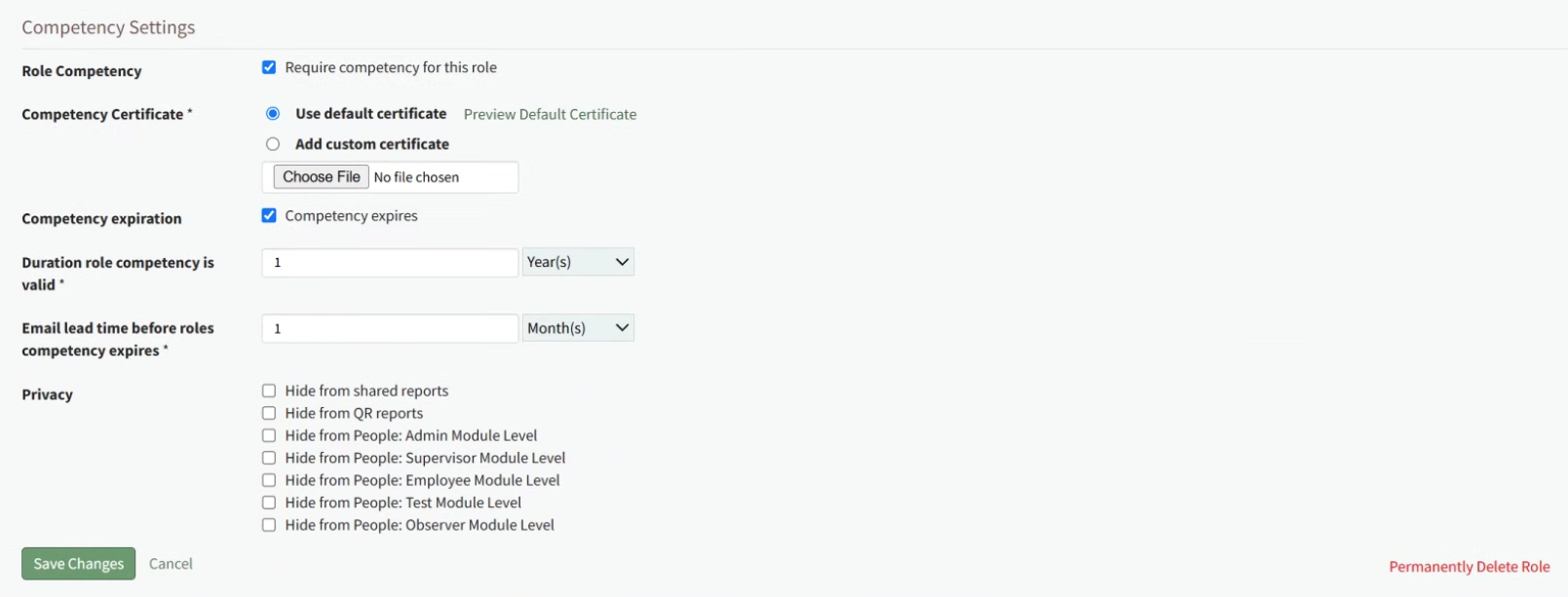
To enable Competency tracking for a Certification Role, click the checkbox next to “Require competency for this role”.
Next, choose whether to “Use default certificate” or “Add custom certificate” for Competency evaluation. Using the default certificate will assign a system-generated evaluation worksheet to be filled out when the assigned user’s competency requirement is being completed. If you’d like to use a different certificate for this purpose, choose “Add custom certificate” and then select the “Choose File” button underneath it and upload the desired file.
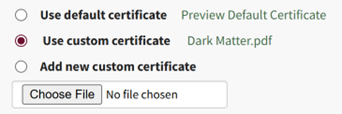
When editing Competency Settings after a custom certificate has been selected, these options change to allow selection between the default certificate, the existing custom certificate, and adding a new custom certificate.
If the competency expires after a certain amount of time, click the checkbox next to “Competency expires”. This allows you to define the “Duration role competency is valid” and “Email lead time before roles competency expires”. The duration the competency is valid refers to the time until the competency expires. The email lead time refers to the warning period given to the user before their competency has expired. Fill in a numerical value next to each field, and choose the time period of either years, months, weeks, or days. To ensure the user is properly alerted that their competency is expiring soon, make sure that the “Email lead time” value is sooner than the value for the “Duration role competency is valid”.
Privacy settings on the Competency allow you to hide competency for this role from various reports and/or users with specified People Module Levels. Click the checkbox next to any options you’d like to hide the role competency from. If choosing People Module Levels, users with only those Module Levels will not see the role competency when viewing reports that include it, and also will not see it as a required action If they are assigned to this Certification Role. If you’d like to hide the Competency from inclusion in any shared reports or QR reports, regardless of a user’s People Module Levels, select those options.
Selecting a People Module Level in Privacy hides the Competency from users with only that Module Level. If a user has multiple People Module Levels, they may still see the Competency unless the Competency is hidden from all of those Module Levels.
How To: Record a New Competency Certificate
Competency tracking allows your organization a way to track users’ fitness / competence to be assigned to a particular role. This provides a way to ensure users meet the necessary requirements and standards to perform the role they're in. When competency tracking is enabled for your KAStrack installation, you can set up individual Certification Roles to track competency by defining competency settings in the Certification Role's Details Page.
Define Competency Settings for a Role
If competency tracking is enabled for your KAStrack installation, you can define the Competency Settings for a Certification Role while creating or editing the role. Competency allows your organization a way to track users’ fitness / competence to be assigned to a particular role. This provides a way to ensure users meet the necessary requirements and standards to perform the role they're in.
To enable Competency tracking for a Certification Role, click the checkbox next to “Require competency for this role”.
Next, choose whether to “Use default certificate” or “Add custom certificate” for Competency evaluation. Using the default certificate will assign a system-generated evaluation worksheet to be filled out when the assigned user’s competency requirement is being completed. If you’d like to use a different certificate for this purpose, choose “Add custom certificate” and then select the “Choose File” button underneath it and upload the desired file.
When editing Competency Settings after a custom certificate has been selected, these options change to allow selection between the default certificate, the existing custom certificate, and adding a new custom certificate.
If the competency expires after a certain amount of time, click the checkbox next to “Competency expires”. This allows you to define the “Duration role competency is valid” and “Email lead time before roles competency expires”. The duration the competency is valid refers to the time until the competency expires. The email lead time refers to the warning period given to the user before their competency has expired. Fill in a numerical value next to each field, and choose the time period of either years, months, weeks, or days. To ensure the user is properly alerted that their competency is expiring soon, make sure that the “Email lead time” value is sooner than the value for the “Duration role competency is valid”.
Privacy settings on the Competency allow you to hide competency for this role from various reports and/or users with specified People Module Levels. Click the checkbox next to any options you’d like to hide the role competency from. If choosing People Module Levels, users with only those Module Levels will not see the role competency when viewing reports that include it, and also will not see it as a required action If they are assigned to this Certification Role. If you’d like to hide the Competency from inclusion in any shared reports or QR reports, regardless of a user’s People Module Levels, select those options.
Selecting a People Module Level in Privacy hides the Competency from users with only that Module Level. If a user has multiple People Module Levels, they may still see the Competency unless the Competency is hidden from all of those Module Levels.
How To: Record a New Competency Certificate
Competency tracking allows your organization a way to track users’ fitness / competence to be assigned to a particular role. This provides a way to ensure users meet the necessary requirements and standards to perform the role they're in. When competency tracking is enabled for your KAStrack installation, you can set up individual Certification Roles to track competency by defining competency settings in the Certification Role's Details Page.
Define Competency Settings for a Role
If competency tracking is enabled for your KAStrack installation, you can define the Competency Settings for a Certification Role while creating or editing the role. Competency allows your organization a way to track users’ fitness / competence to be assigned to a particular role. This provides a way to ensure users meet the necessary requirements and standards to perform the role they're in.
To enable Competency tracking for a Certification Role, click the checkbox next to “Require competency for this role”.
Next, choose whether to “Use default certificate” or “Add custom certificate” for Competency evaluation. Using the default certificate will assign a system-generated evaluation worksheet to be filled out when the assigned user’s competency requirement is being completed. If you’d like to use a different certificate for this purpose, choose “Add custom certificate” and then select the “Choose File” button underneath it and upload the desired file.
When editing Competency Settings after a custom certificate has been selected, these options change to allow selection between the default certificate, the existing custom certificate, and adding a new custom certificate.
If the competency expires after a certain amount of time, click the checkbox next to “Competency expires”. This allows you to define the “Duration role competency is valid” and “Email lead time before roles competency expires”. The duration the competency is valid refers to the time until the competency expires. The email lead time refers to the warning period given to the user before their competency has expired. Fill in a numerical value next to each field, and choose the time period of either years, months, weeks, or days. To ensure the user is properly alerted that their competency is expiring soon, make sure that the “Email lead time” value is sooner than the value for the “Duration role competency is valid”.
Privacy settings on the Competency allow you to hide competency for this role from various reports and/or users with specified People Module Levels. Click the checkbox next to any options you’d like to hide the role competency from. If choosing People Module Levels, users with only those Module Levels will not see the role competency when viewing reports that include it, and also will not see it as a required action If they are assigned to this Certification Role. If you’d like to hide the Competency from inclusion in any shared reports or QR reports, regardless of a user’s People Module Levels, select those options.
Selecting a People Module Level in Privacy hides the Competency from users with only that Module Level. If a user has multiple People Module Levels, they may still see the Competency unless the Competency is hidden from all of those Module Levels.
How To: Record a New Competency Certificate
{{@919}}
Once a Certification Role has Competency settings defined, there are three ways that the Competency can be marked complete for a user.
Recording Competency Certificates from an individual User's Page
Employees, their Supervisor(s), and site Admins can record Competency Certificates by visiting an individual User's page in the People Module.
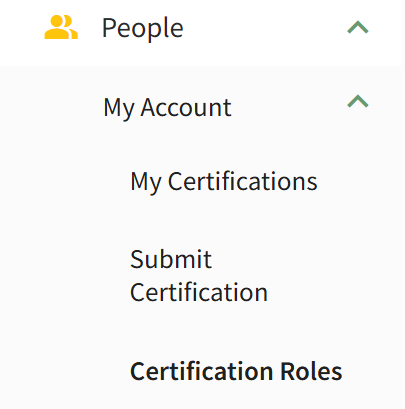
For an Employee looking to record their own Competency Certificate, click on People, then My Account, then Certification Roles from the Main Menu to access the Manage Roles/Certifications tab of the User page.
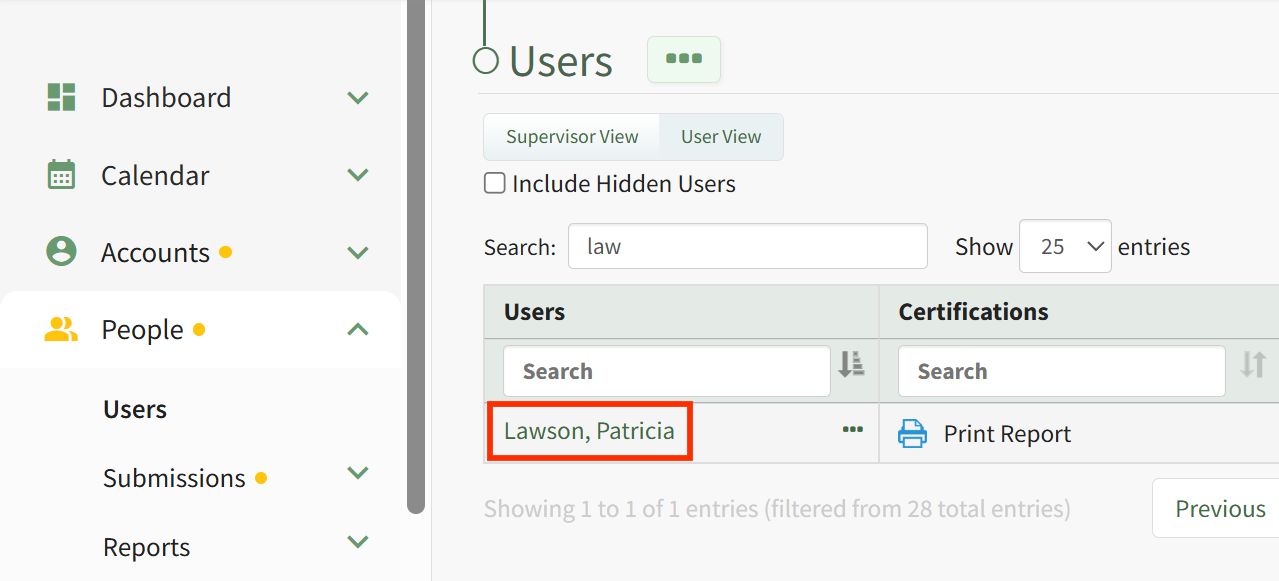
For a Supervisor or Admin looking to record Competency for another user, click on People, then Users from the Main Menu, then click on the name of the user you wish to record Competency for.
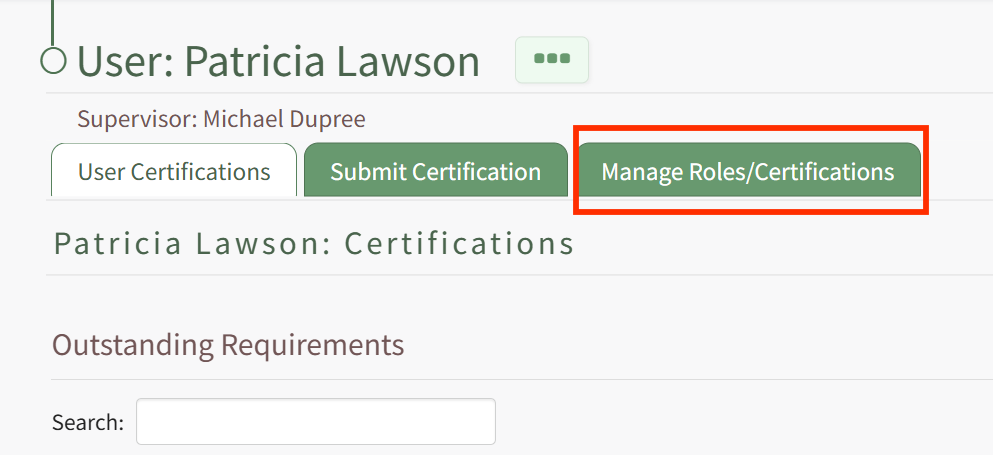
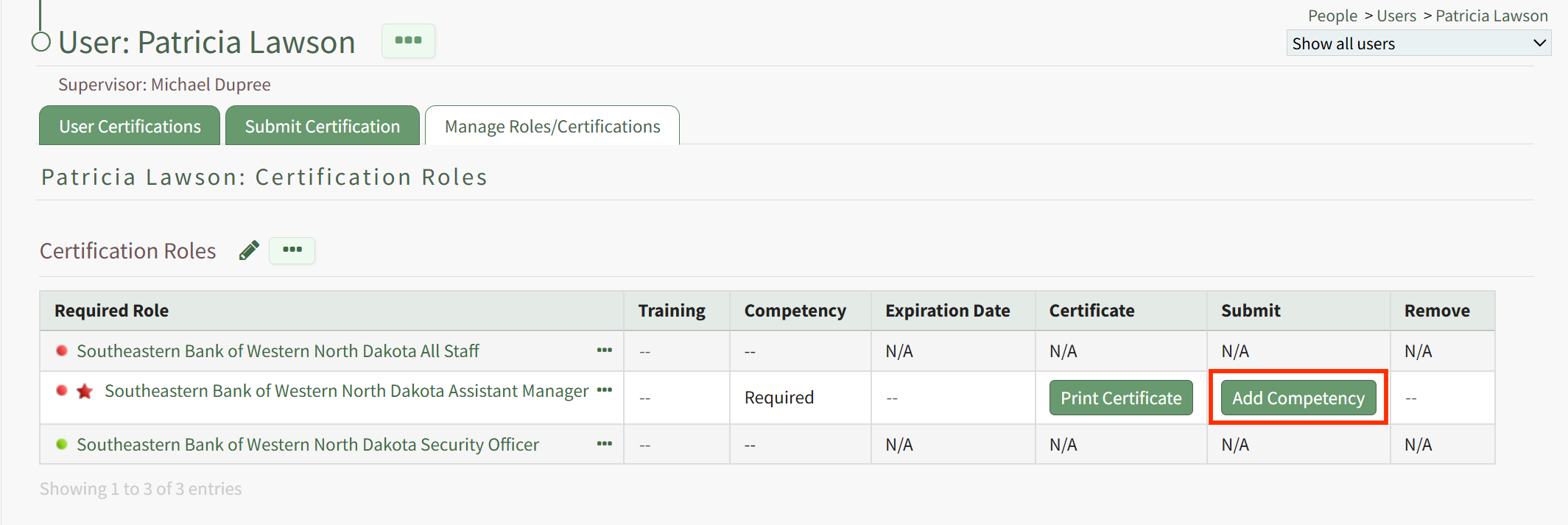
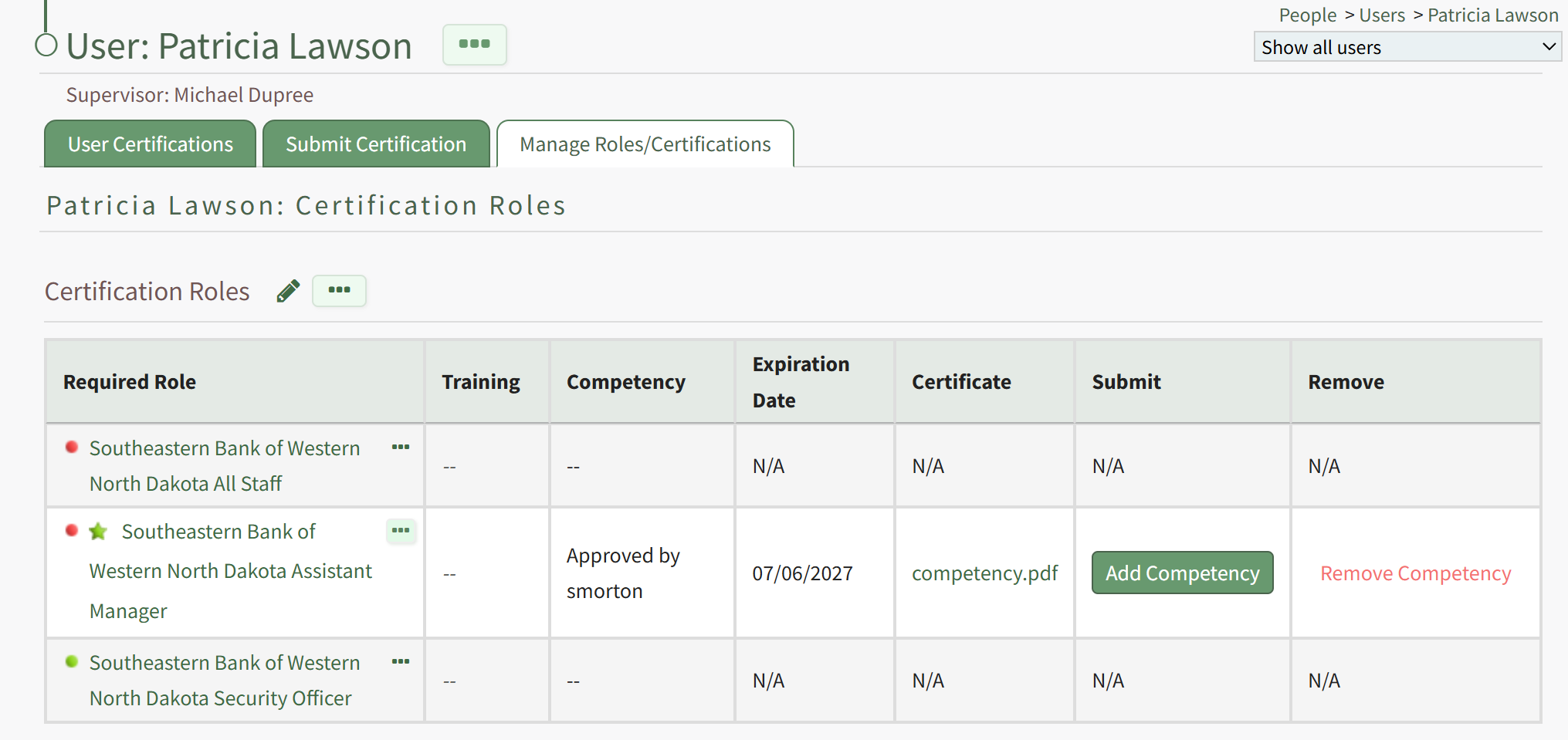
Once on the Manage Roles/Certifications tab, you will see the Certification Roles and Other Required Certifications tables. If the user is assigned a Certification Role that has Competency required, this will be indicated in the Certification Roles table by a star icon next to the Certification Role's Name in the Required Role column. The Competency column of the table will show a status message, an Expiration Date will be provided in the Expiration Column (if an approved submission already exists), a Certificate Template can be printed from the Certificate column (this may take a few minutes), and you can record the new Competency Completion from the Submit Column. Thus, to record a new Competency Completion for the associated Role, click the Add Competency button in the Submit column.
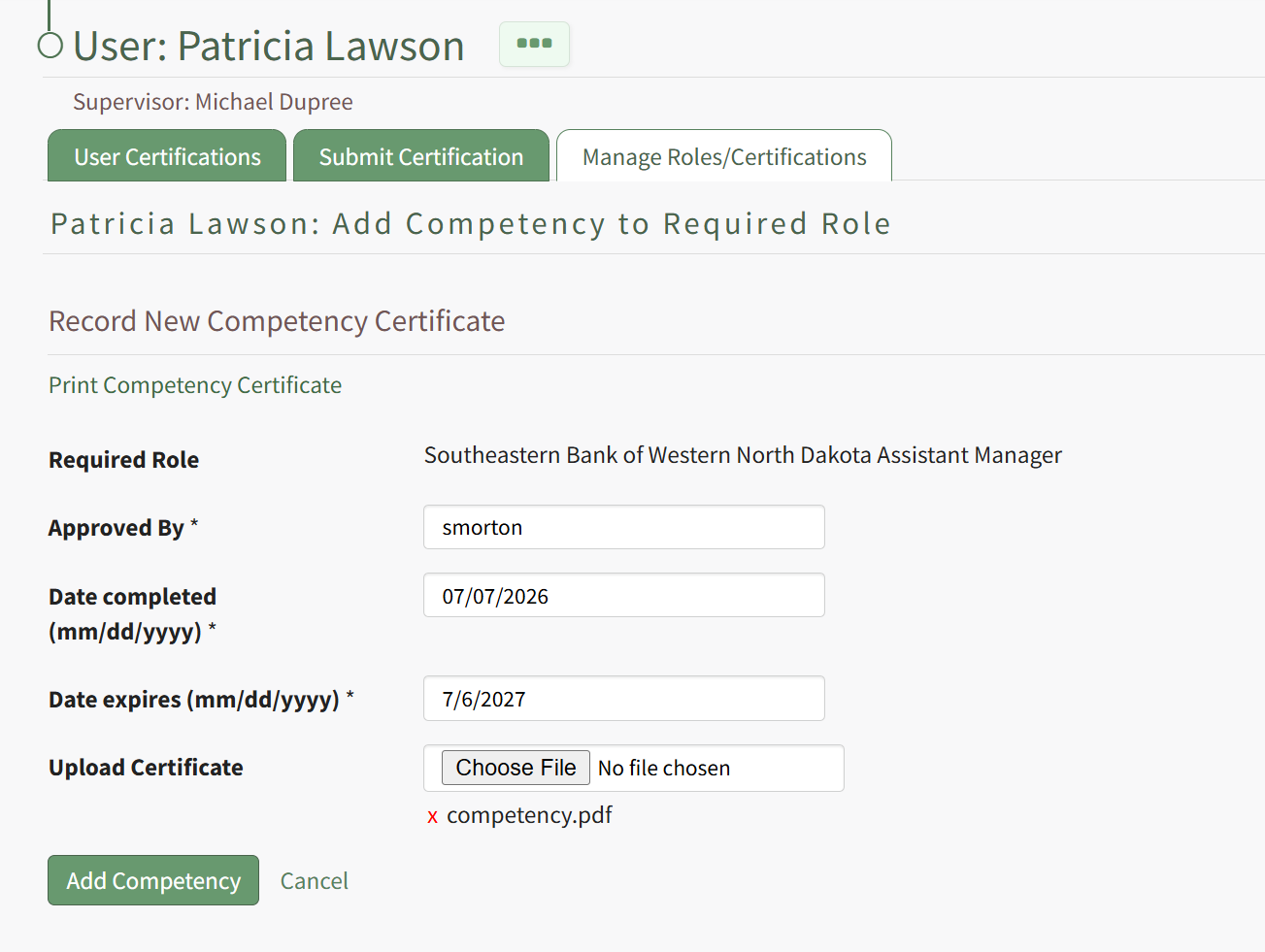
Clicking Add Competency launches the Add Competency to Required Role page for the user. Fill in the fields on the page, including who has approved the completion and the Date Completed. If the competency expires, an expiration date will be filled in automatically for the user. If this expiration date is not acceptable, you can change it to a sufficient expiration date. If a Competency Certificate is required for completion, then select the Choose File button to upload the completed Certificate file.
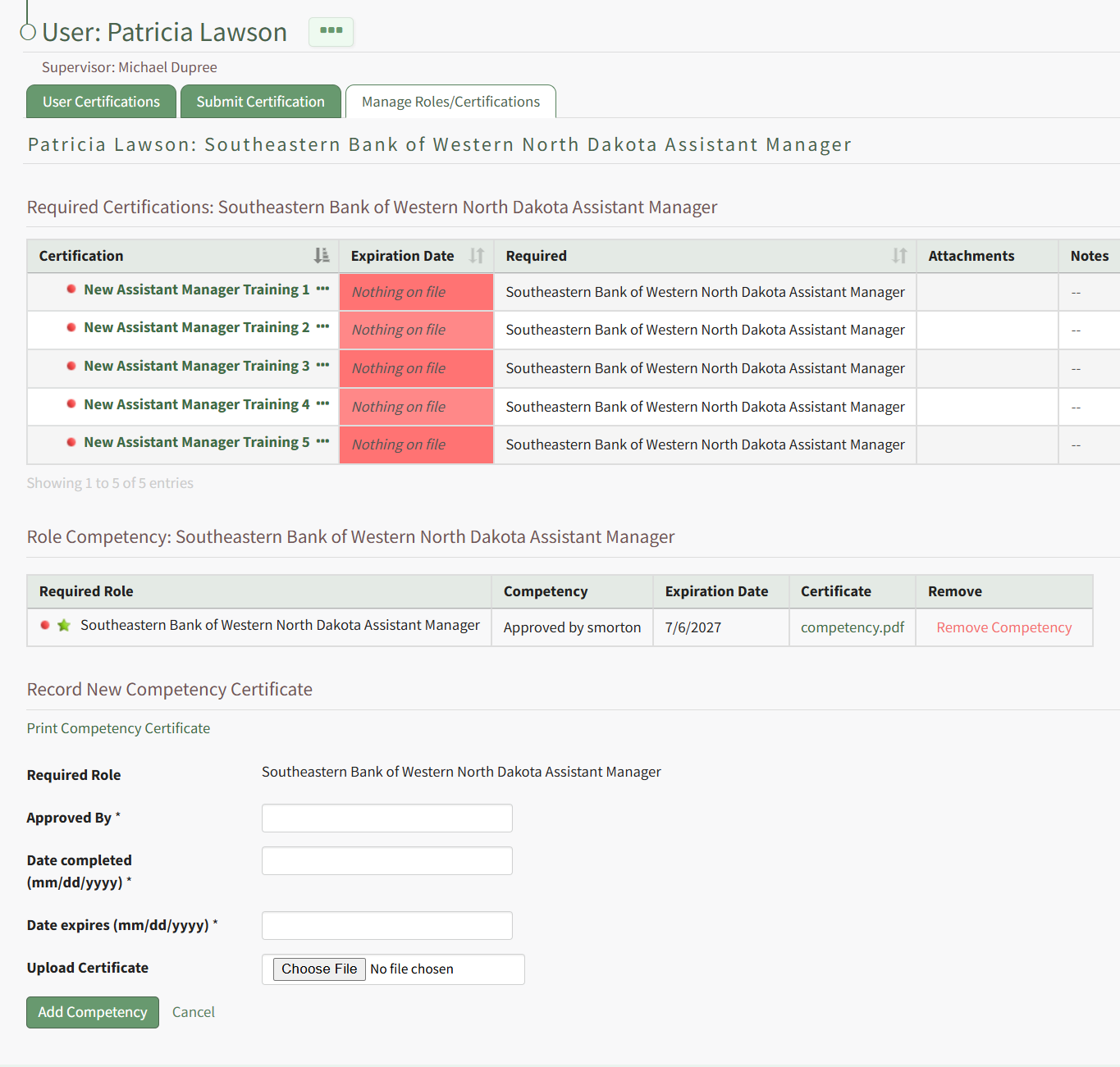
Hit the Add Competency button, and the completion will be submitted. This will redirect to the specific Role Page for this user, and show a summary of the Competency Completion submission.
If submitted by an Admin or Supervisor, the Competency Completion will show as approved.
This is also reflected in the overall Certification Roles table for the user from the Manage Roles/Certifications tab.
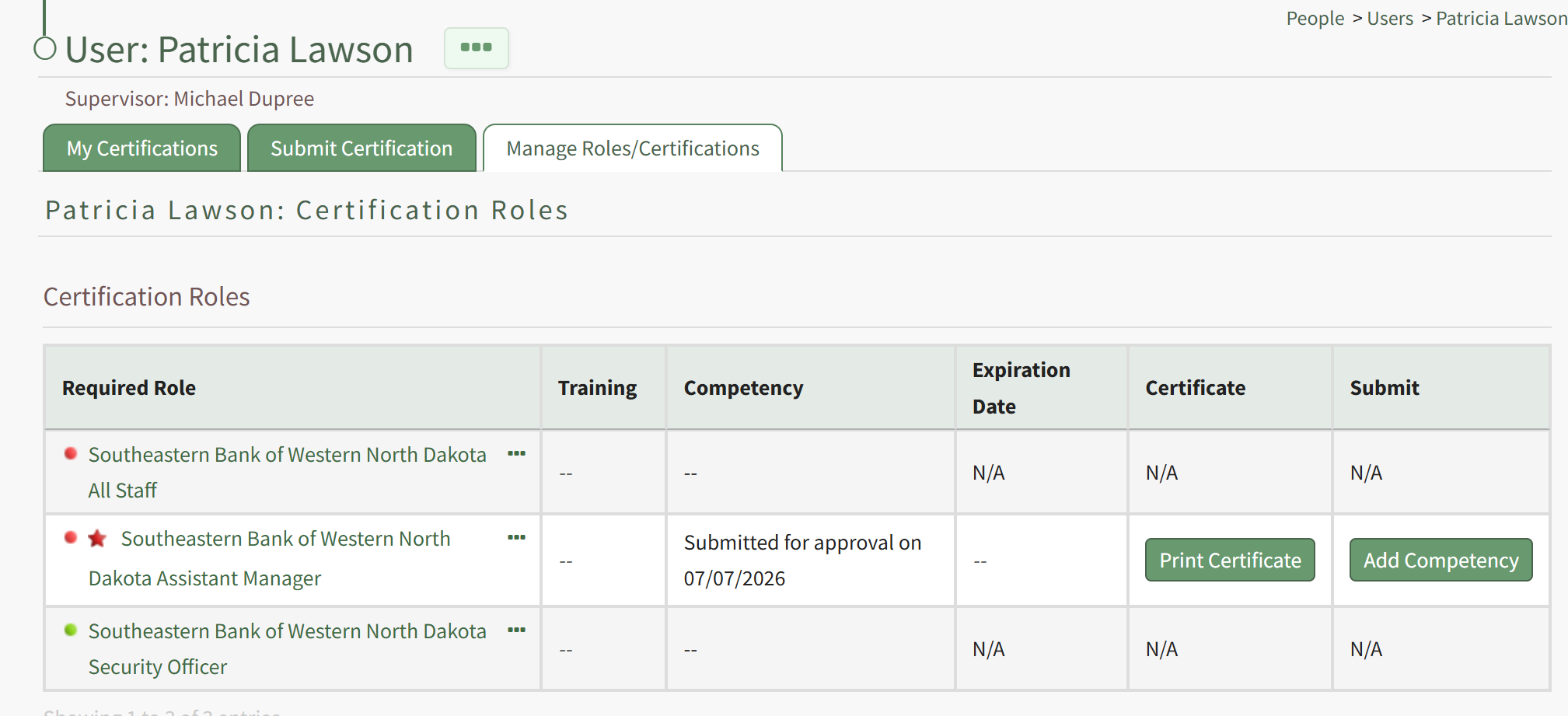
If the Employee has submitted their own Competency Completion, the status will show as "Submitted for approval".
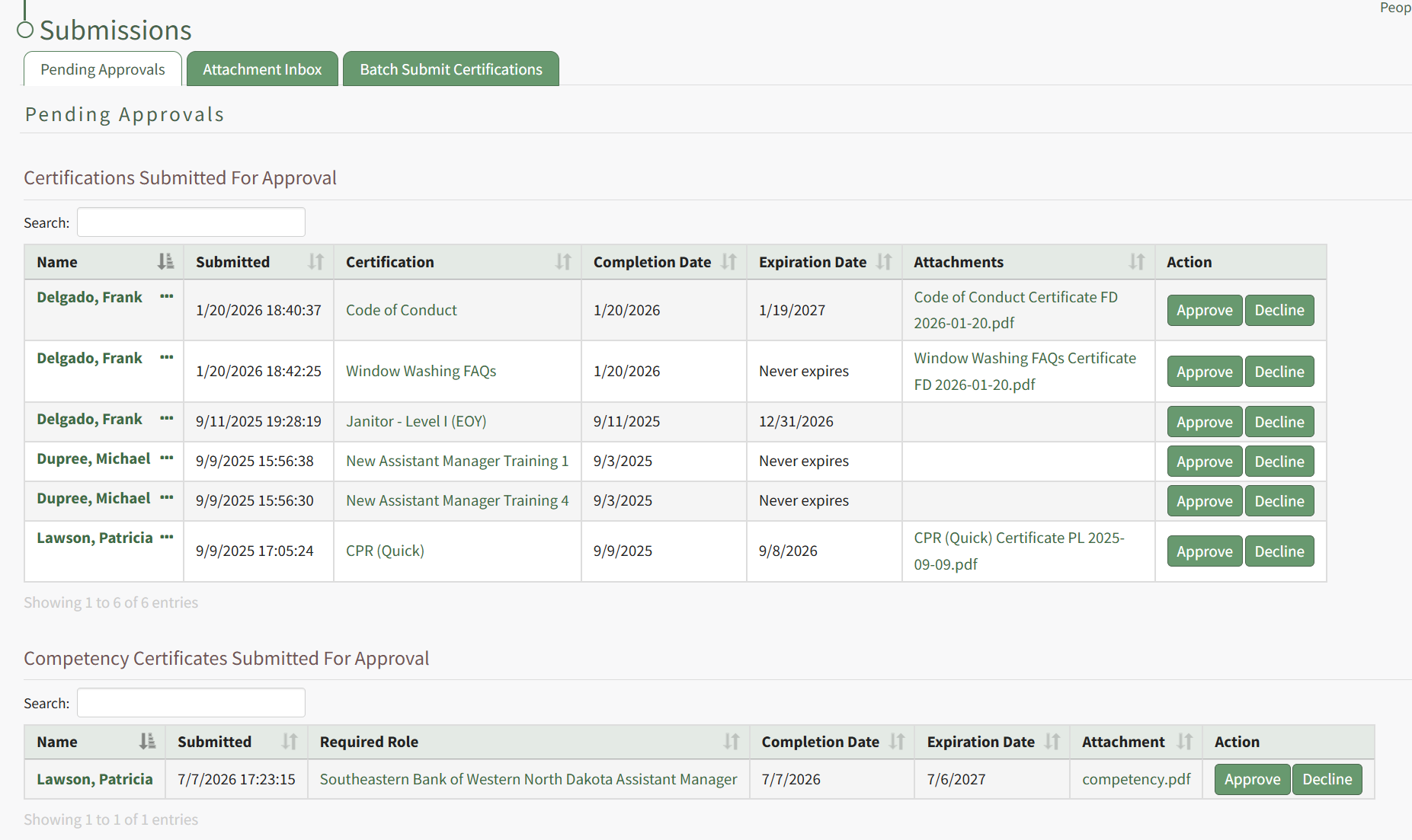
An Admin or Supervisor can then review the Competency Completion by going to People, then clicking Submissions, then Pending Approvals from the Main Menu. Competency Completions pending approval are shown in the bottom table, "Competency Certificates Submitted For Approval".
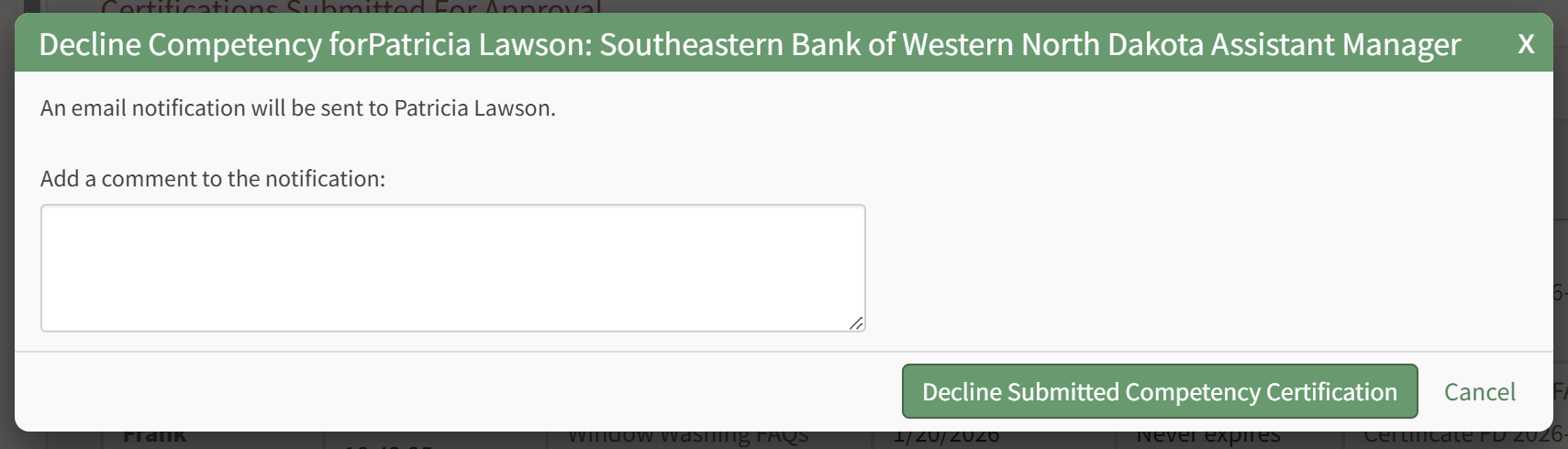
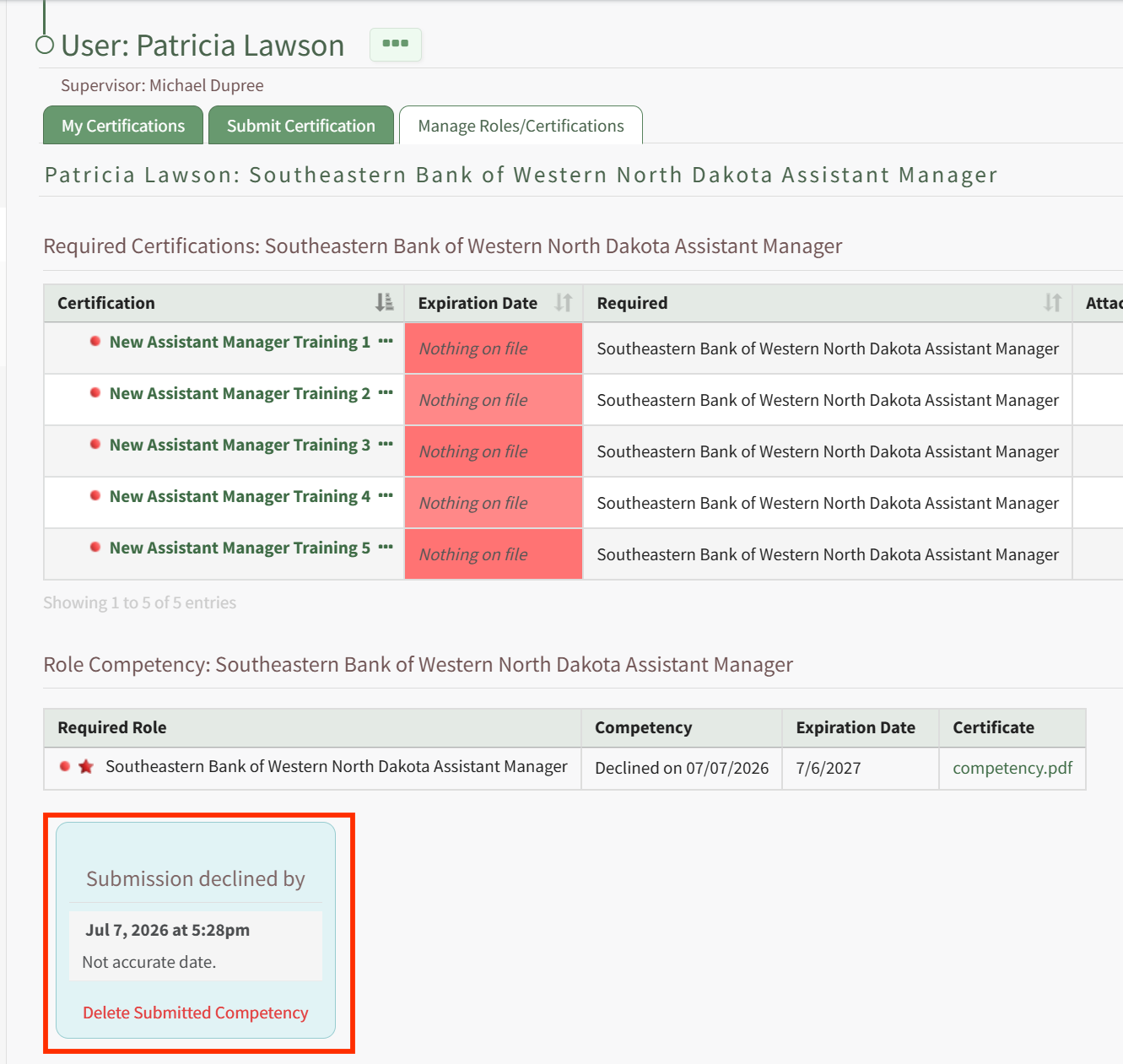
Click Approve to Approve the submission, or Decline if there are issues with the submission. If you select Decline, a modal appears allow for input of a message to the user of why the submission was declined.
The user will see this message in the specific role page associated with that Competency.
Recording Competency Certificates from the Roles Page
A Supervisor or site Admin can record Competency Certificates by visiting the Roles page of the People Module.
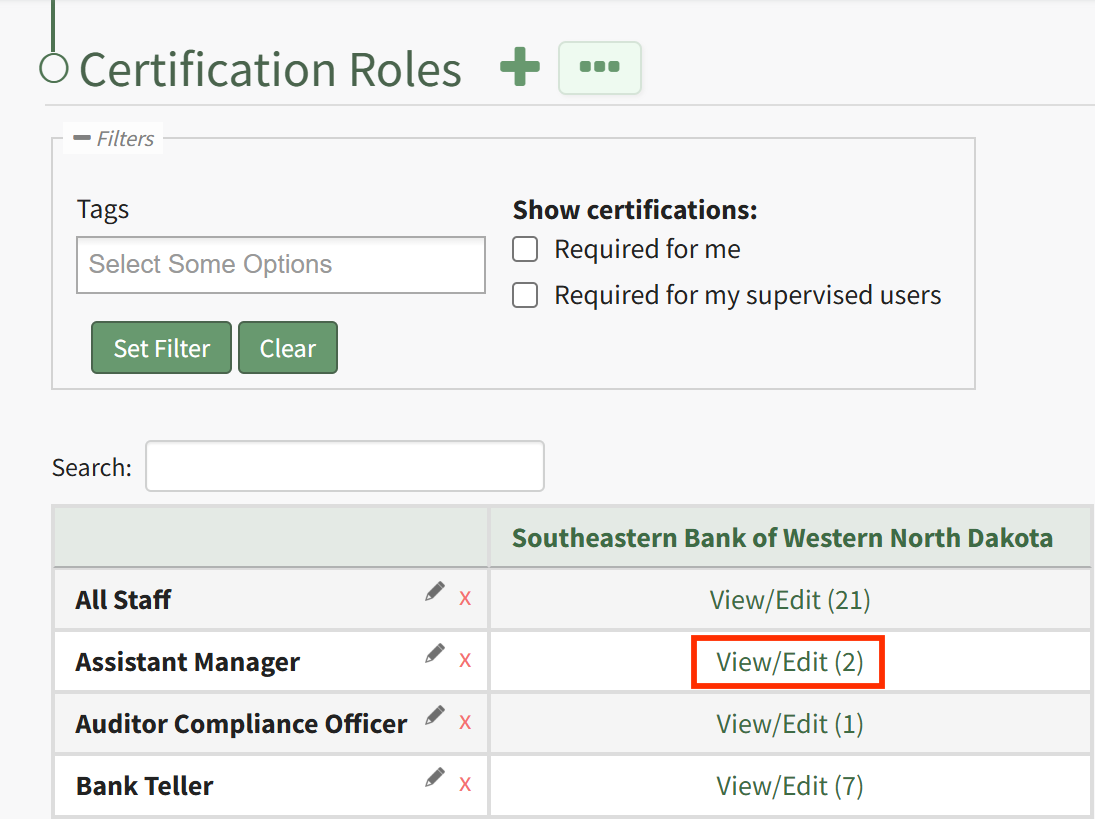
To do this, click the "View/Edit (#)" link for the particular Certification Role with Competency under its associated Company.
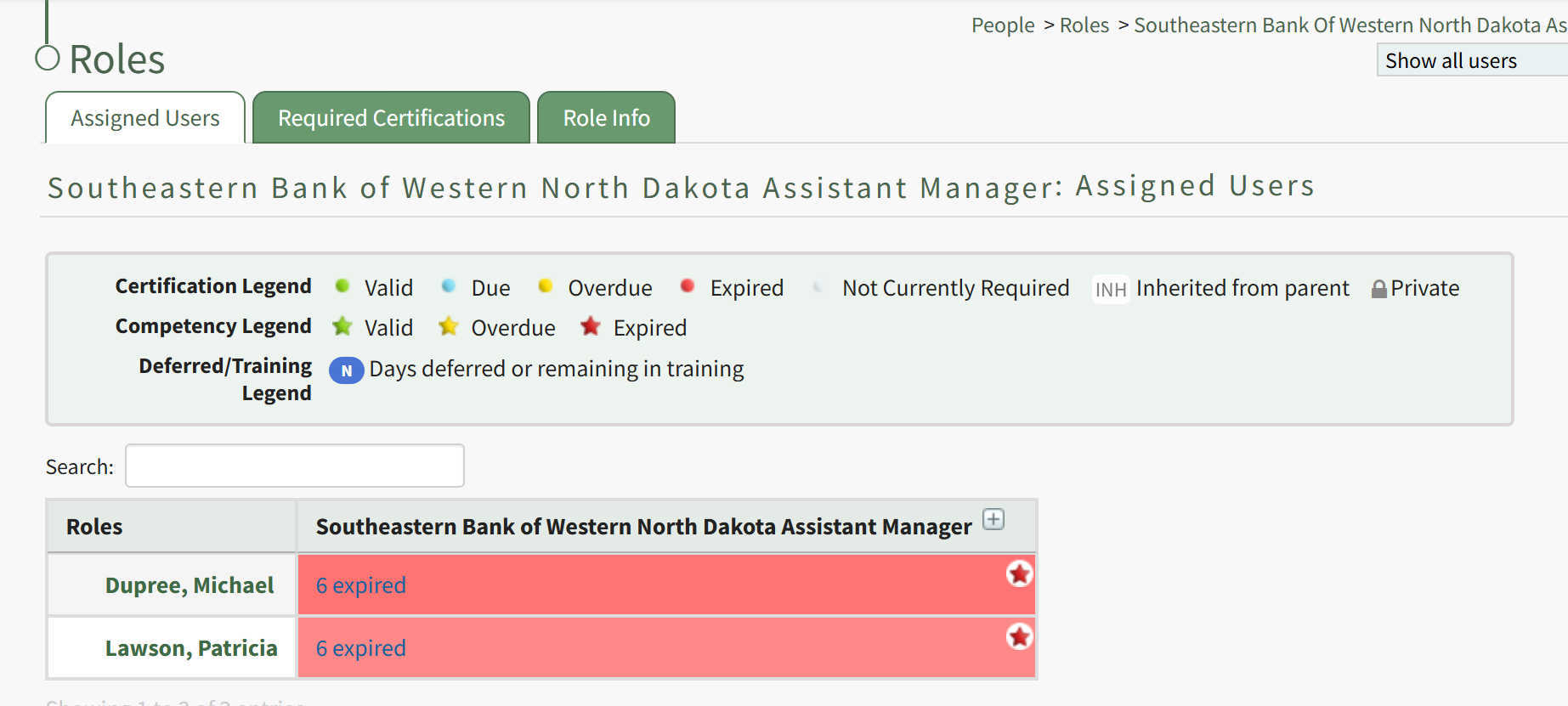
This launches the Roles page for this specific role. From the Assigned Users tab, locate the filtered matrix table of users assigned to this role. If Competency is required for this role, a star will be visible in the cell for users assigned a Competency requirement.
Click on the plus button next to the role name in the column heading for the matrix, or on a particular cell, to expand the table. When competency is enabled, the first column after assigned users' names will be a column for the Role's Competency, followed by columns for Certifications required by that Role. To record a new Competency Completion, click the cell for the user you wish to record Competency for.
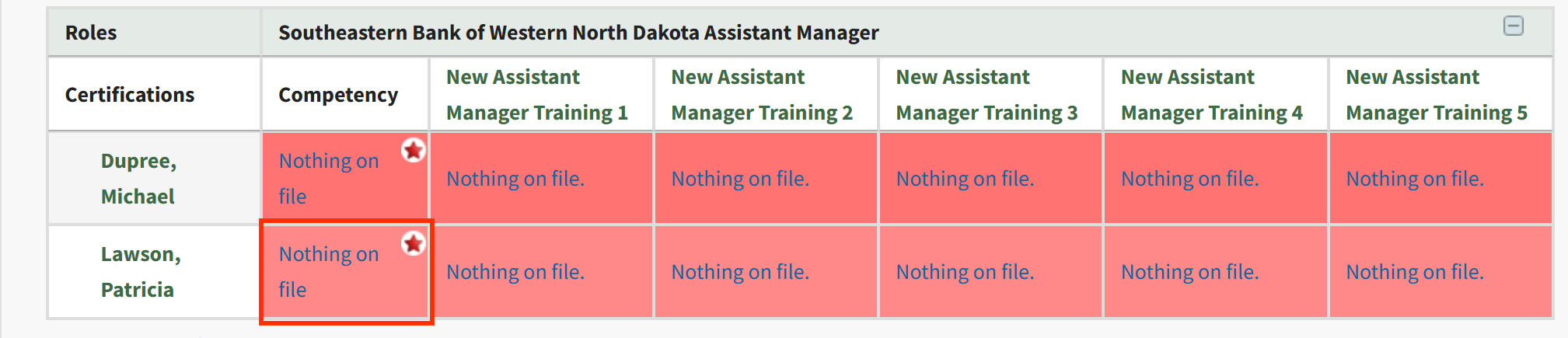
This will launch the Competency modal for this Assigned User. Click the Add Competency button to Add Competency as described in the section above.
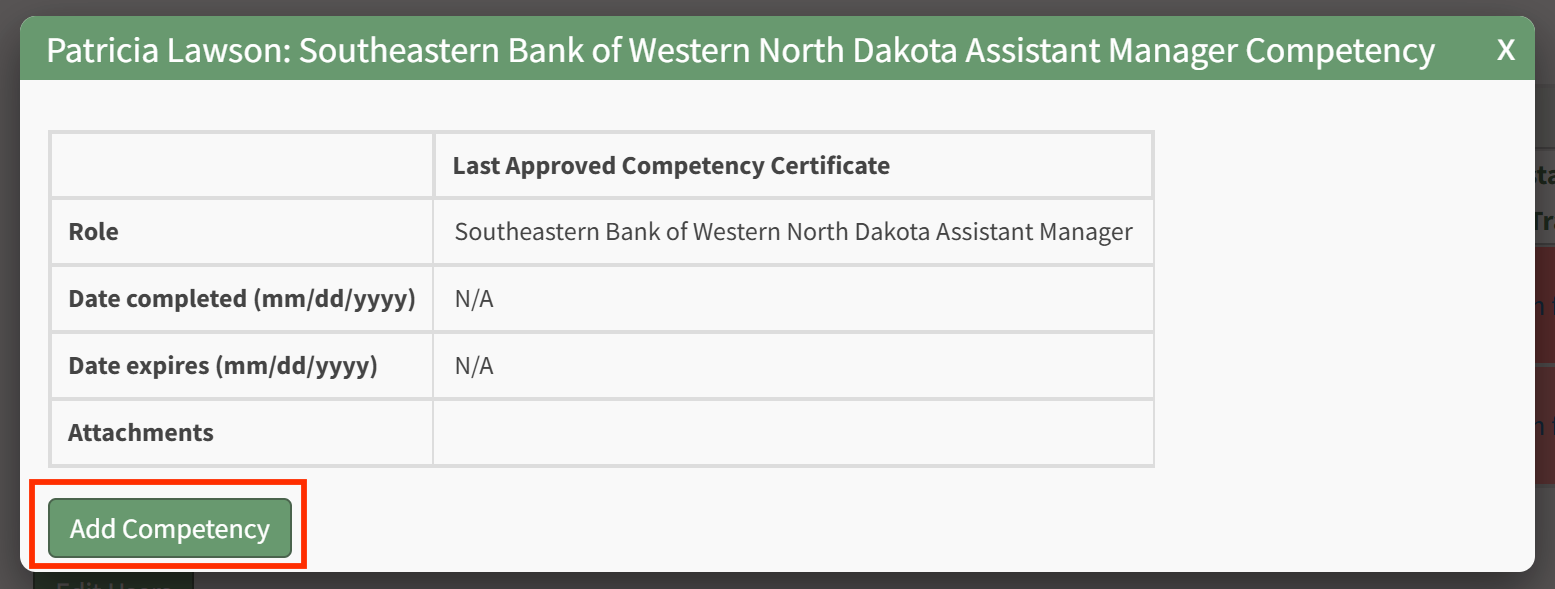
After completion has been submitted and approved, you will be redirected to the specific Role Page for this user, and show a summary of the Competency Completion submission.
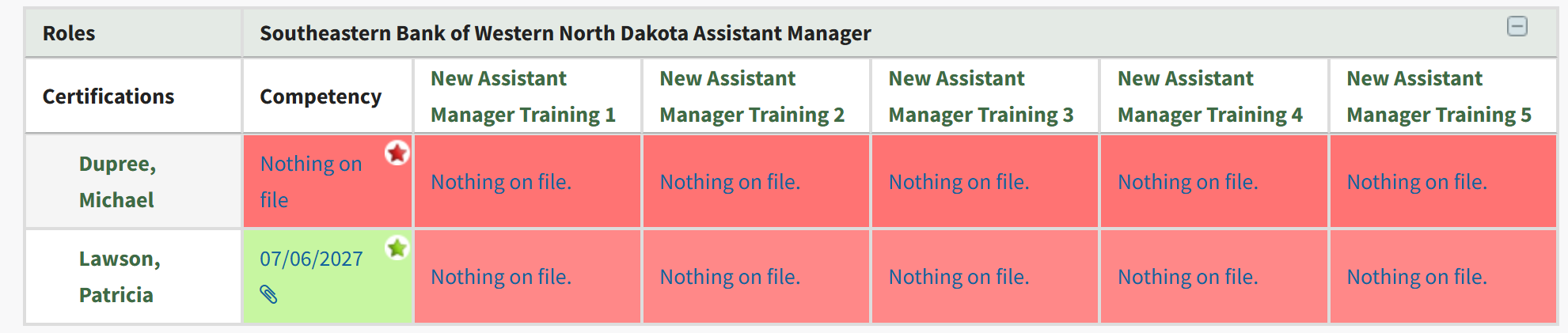
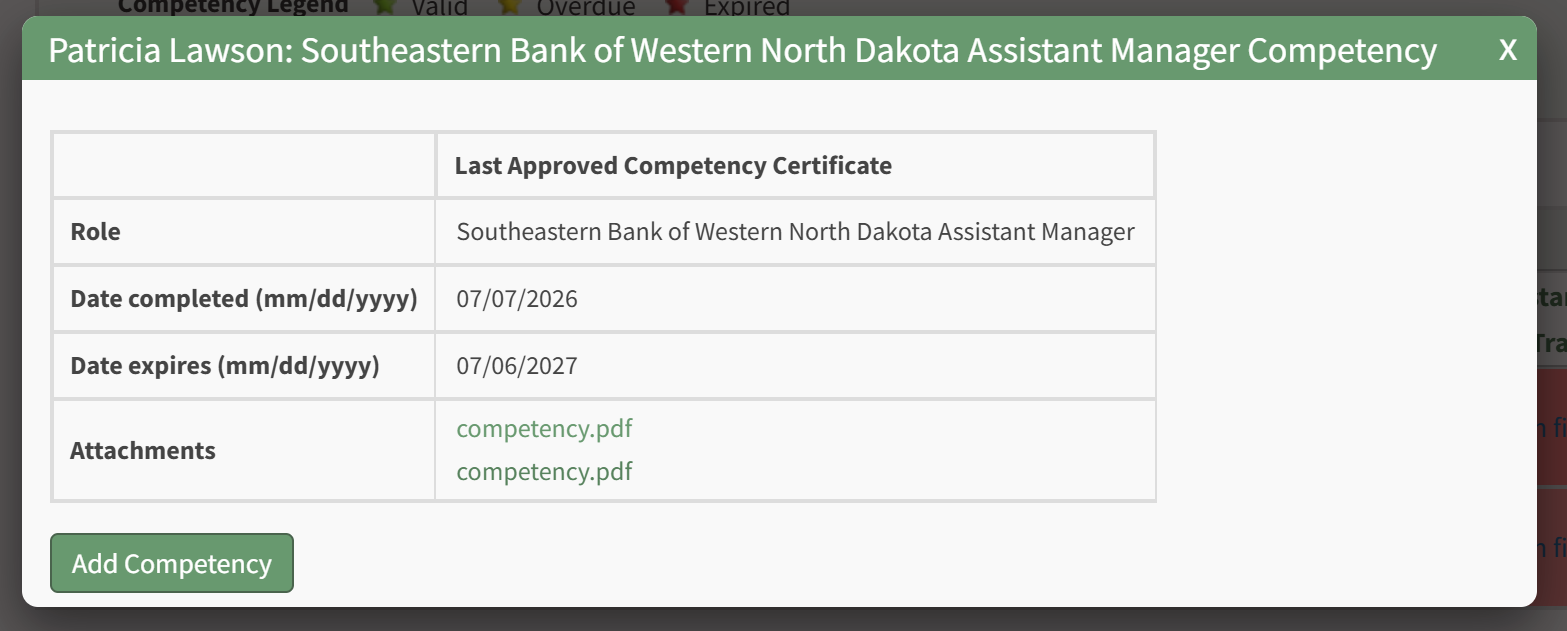
Recording Competency Certificates from the People Matrix
A Supervisor or site Admin can record Competency Certificates by visiting the Matrix page of the People Module.
This launches the Matrix page for all Certifications Roles and associated users. Locate the full matrix table of users and their associated Certification Roles. If Competency is required for a role, a star will be visible in the cell for users assigned a Competency requirement.
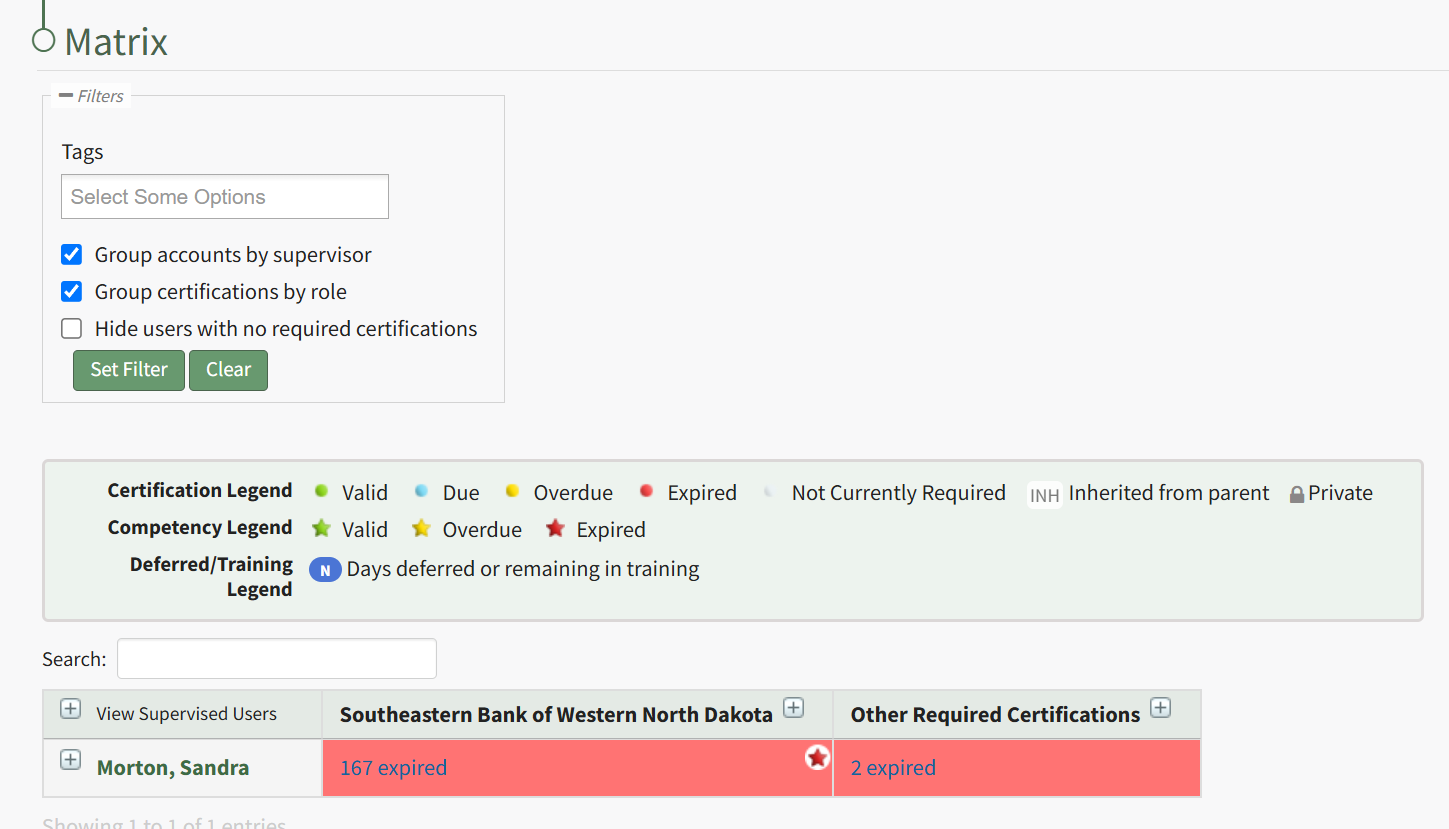
Click on the plus button next to the role name in the column heading for the matrix, or on a particular cell, to expand the table. When competency is enabled, the first sub-column under the Role Name heading will be for the Role's Competency, followed by columns for Certifications required by that Role. To record a new Competency Completion, click the cell for the user you wish to record Competency for.
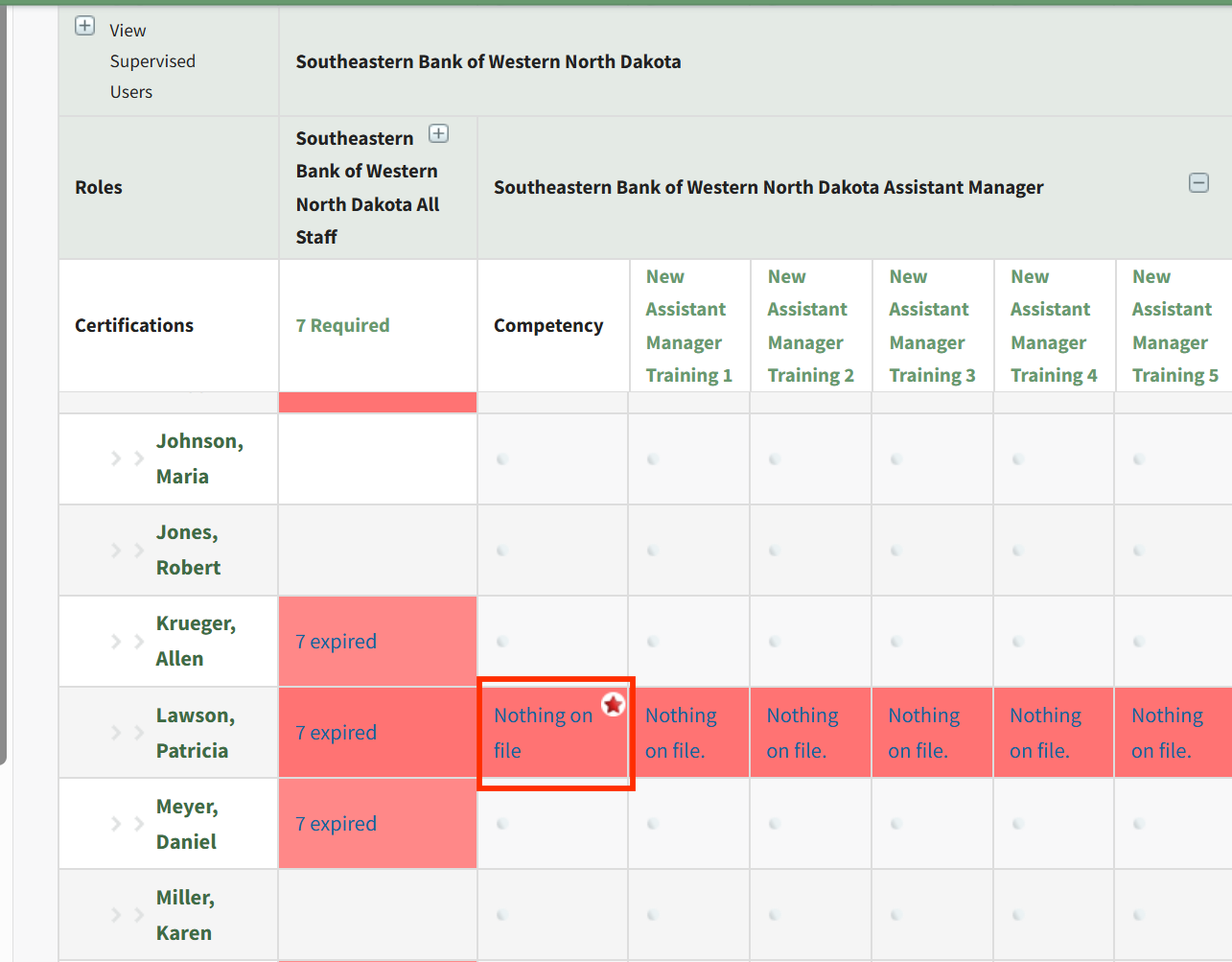
This will launch the Competency modal for this Assigned User. Click the Add Competency button to Add Competency as described in the section above.
After completion has been submitted and approved, you will be redirected to the specific Role Page for this user, and show a summary of the Competency Completion submission.
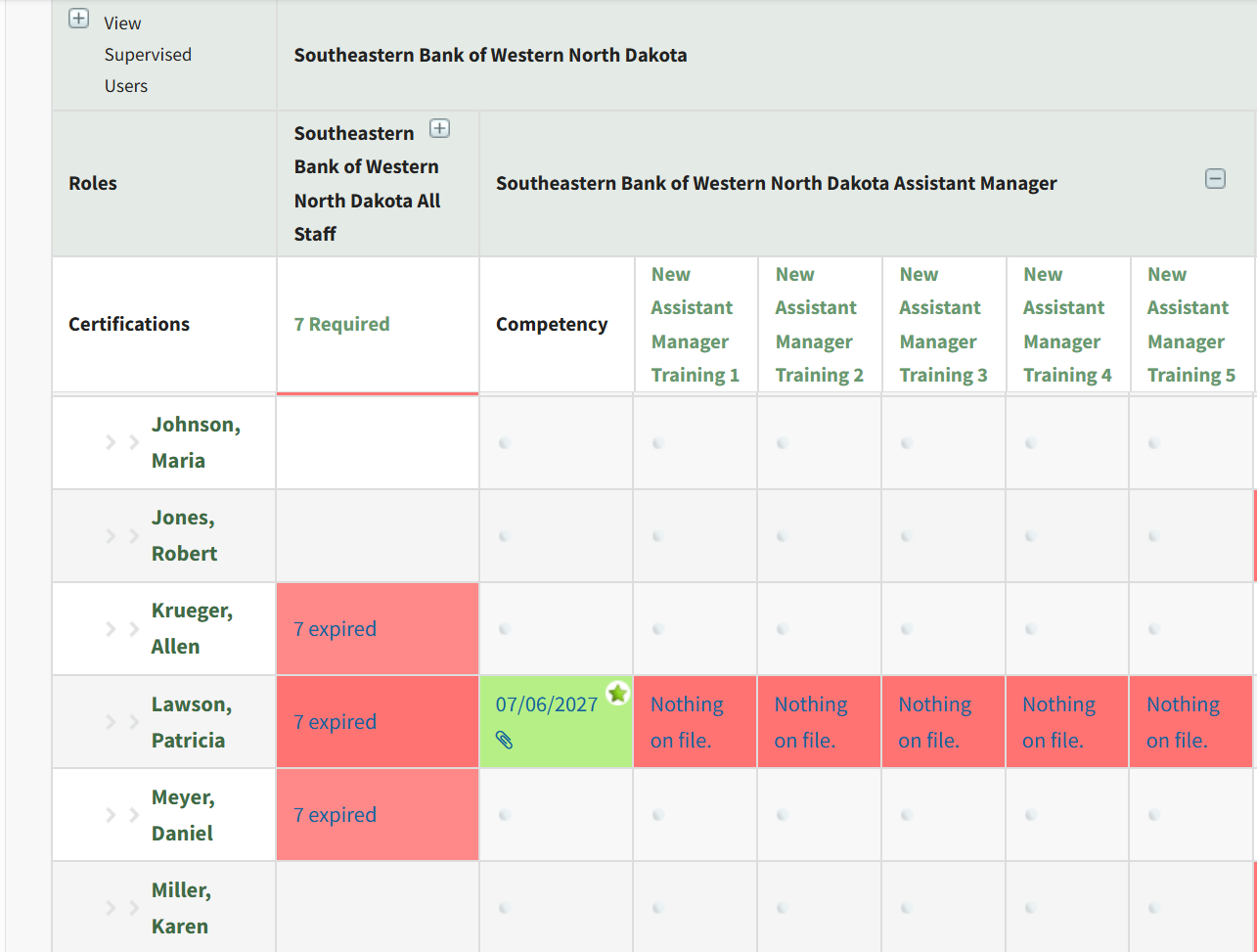
Once a Certification Role has Competency settings defined, there are three ways that the Competency can be marked complete for a user.
Recording Competency Certificates from an individual User's Page
Employees, their Supervisor(s), and site Admins can record Competency Certificates by visiting an individual User's page in the People Module.
For an Employee looking to record their own Competency Certificate, click on People, then My Account, then Certification Roles from the Main Menu to access the Manage Roles/Certifications tab of the User page.
For a Supervisor or Admin looking to record Competency for another user, click on People, then Users from the Main Menu, then click on the name of the user you wish to record Competency for.
Once on the Manage Roles/Certifications tab, you will see the Certification Roles and Other Required Certifications tables. If the user is assigned a Certification Role that has Competency required, this will be indicated in the Certification Roles table by a star icon next to the Certification Role's Name in the Required Role column. The Competency column of the table will show a status message, an Expiration Date will be provided in the Expiration Column (if an approved submission already exists), a Certificate Template can be printed from the Certificate column (this may take a few minutes), and you can record the new Competency Completion from the Submit Column. Thus, to record a new Competency Completion for the associated Role, click the Add Competency button in the Submit column.
Clicking Add Competency launches the Add Competency to Required Role page for the user. Fill in the fields on the page, including who has approved the completion and the Date Completed. If the competency expires, an expiration date will be filled in automatically for the user. If this expiration date is not acceptable, you can change it to a sufficient expiration date. If a Competency Certificate is required for completion, then select the Choose File button to upload the completed Certificate file.
Hit the Add Competency button, and the completion will be submitted. This will redirect to the specific Role Page for this user, and show a summary of the Competency Completion submission.
If submitted by an Admin or Supervisor, the Competency Completion will show as approved.
This is also reflected in the overall Certification Roles table for the user from the Manage Roles/Certifications tab.
If the Employee has submitted their own Competency Completion, the status will show as "Submitted for approval".
An Admin or Supervisor can then review the Competency Completion by going to People, then clicking Submissions, then Pending Approvals from the Main Menu. Competency Completions pending approval are shown in the bottom table, "Competency Certificates Submitted For Approval".
Click Approve to Approve the submission, or Decline if there are issues with the submission. If you select Decline, a modal appears allow for input of a message to the user of why the submission was declined.
The user will see this message in the specific role page associated with that Competency.
Recording Competency Certificates from the Roles Page
A Supervisor or site Admin can record Competency Certificates by visiting the Roles page of the People Module.
To do this, click the "View/Edit (#)" link for the particular Certification Role with Competency under its associated Company.
This launches the Roles page for this specific role. From the Assigned Users tab, locate the filtered matrix table of users assigned to this role. If Competency is required for this role, a star will be visible in the cell for users assigned a Competency requirement.
Click on the plus button next to the role name in the column heading for the matrix, or on a particular cell, to expand the table. When competency is enabled, the first column after assigned users' names will be a column for the Role's Competency, followed by columns for Certifications required by that Role. To record a new Competency Completion, click the cell for the user you wish to record Competency for.
This will launch the Competency modal for this Assigned User. Click the Add Competency button to Add Competency as described in the section above.
After completion has been submitted and approved, you will be redirected to the specific Role Page for this user, and show a summary of the Competency Completion submission.
Recording Competency Certificates from the People Matrix
A Supervisor or site Admin can record Competency Certificates by visiting the Matrix page of the People Module.
This launches the Matrix page for all Certifications Roles and associated users. Locate the full matrix table of users and their associated Certification Roles. If Competency is required for a role, a star will be visible in the cell for users assigned a Competency requirement.
Click on the plus button next to the role name in the column heading for the matrix, or on a particular cell, to expand the table. When competency is enabled, the first sub-column under the Role Name heading will be for the Role's Competency, followed by columns for Certifications required by that Role. To record a new Competency Completion, click the cell for the user you wish to record Competency for.
This will launch the Competency modal for this Assigned User. Click the Add Competency button to Add Competency as described in the section above.
After completion has been submitted and approved, you will be redirected to the specific Role Page for this user, and show a summary of the Competency Completion submission.
Each cell in the Certification Roles Table is a clickable link. If a certification role has not yet been defined for a company, the clickable link states Create. Selecting this open opens the Define Role Page for the specified certification role.
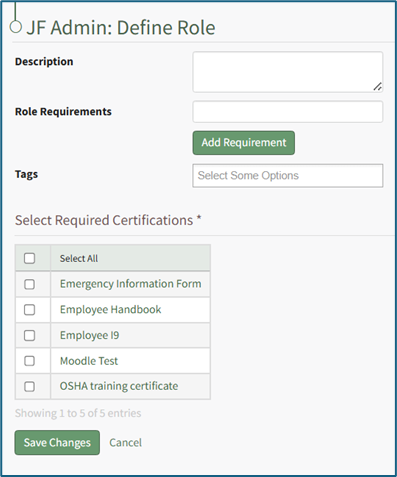
Once the role has been defined, the Certifications Role Table will display a clickable link to "View/Edit (#)". The number in parenthesis indicates the number of users that have been assigned to the specific certification role. When clicked, the system opens a specific certification role's Details Page. There are three tabs associated with a Role Details Page. Each are briefly explained in the table below.
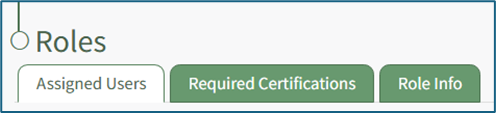
Roles Details Page Tab Summary Explanation | |
Tab | Explanation |
Assigned Users Tab | The Assigned Users Tab on the certification role's Details Page lists all users currently assigned to the certification role and displays their certification status. The view is filtered to this specific role. |
Required Certifications Tab | The Required Certifications Tab on the certification role's Details Page lists the required certifications associated with the specific certification role and allows an administrator to edit the list of required certifications. |
Role Info Tab | The Role Info Tab on the certification role's Details Page states the description, role requirements and tags associated with a certification role, as well as competency settings for the Certification Role (if competency tracking is enabled for your KAStrack installation and allows an administrator to edit this information |
Review the Certification Role Details Page in the User Manual for a more detailed explanation.