Use a Communications Template when Sending A System Message
To use a communications template, the template must first be created.
How To: Create New Communication Templates
To create a new communication template, go to the Communication Templates Tab on the Settings Page of the Communications Module.

Select the “New Communication Template” button opening the New Template Modal.

Input the Title for the Template.
Select Active / Inactive from the dropdown menu to indicate if the template is available for use.
Both individual people and certification roles can be selected as desired recipients via dropdown menu in the “Send To” line.
Include the subject line for communications, as well as a message.
An attachment can be uploaded from your personal device to be included in the template, or you have the option to select one or more files from KAStrack’s Document Module.
KAStrack documents that are tagged may limit visibility of this template. Specifically, if a template contains a tagged document you cannot see, you will be unable to see the template when sending a communication. Individuals with access to a Document that has visibility restrictions for others via Tags cannot use Send Communication to send that tagged Document to users that lack the authorization to see it.
Select “Save” and the New Communications Template will show in the Communications Template Table on the Settings Page.
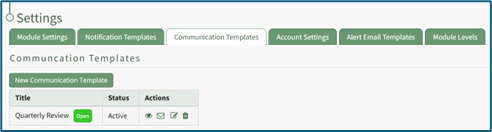
The template can now be applied as desired when sending communications in the system on the Send Communications Page. You can also click the closed envelope symbol in the Communication Templates table to go to the Send Communications page and pre-fill the chosen template.
To use a pre-existing communications template, go to the Send Communications Page in the Communications Module from the Main Menu.
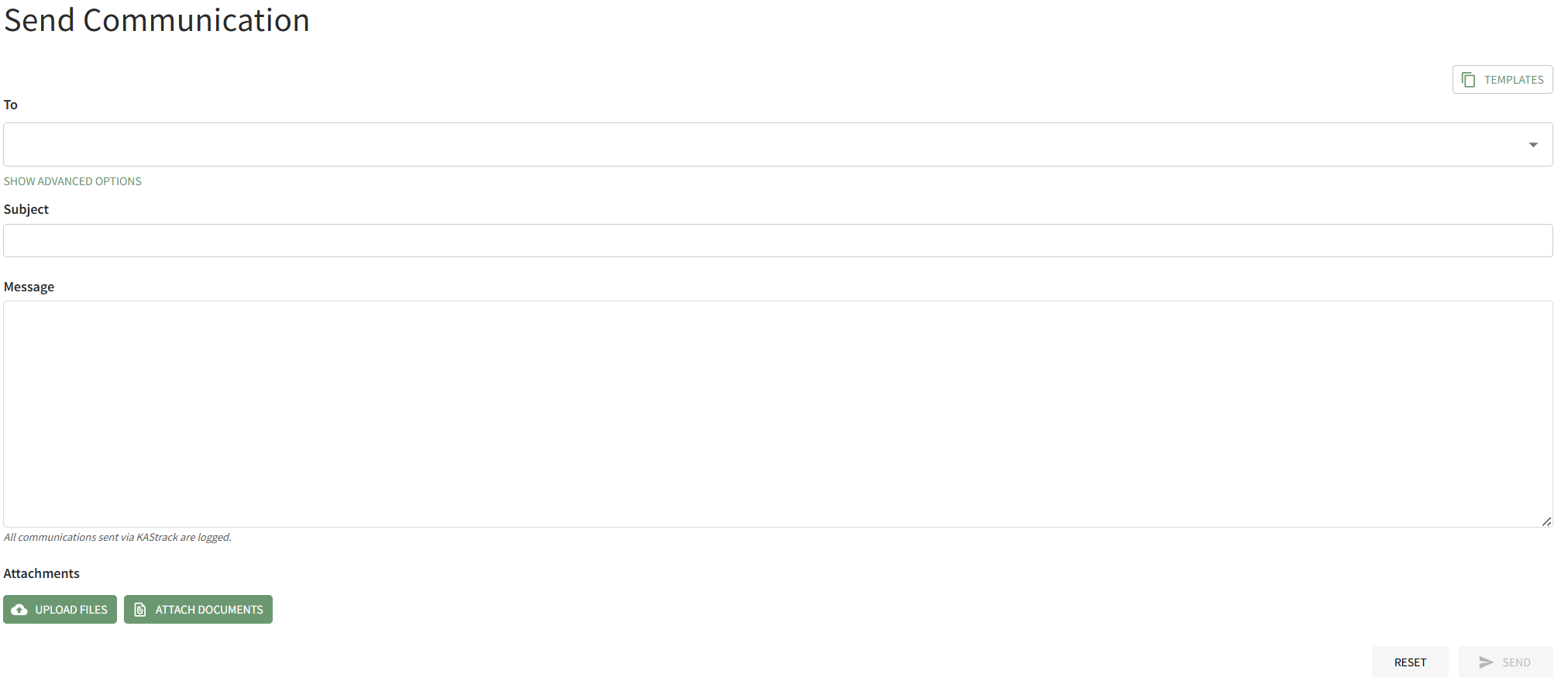
Select the Templates button on the right-hand side of the page above the To field. This opens the Templates Modal.
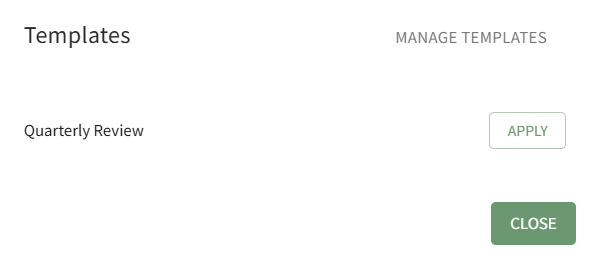
Click the Apply button to the right of the template you wish to use for the System Message.
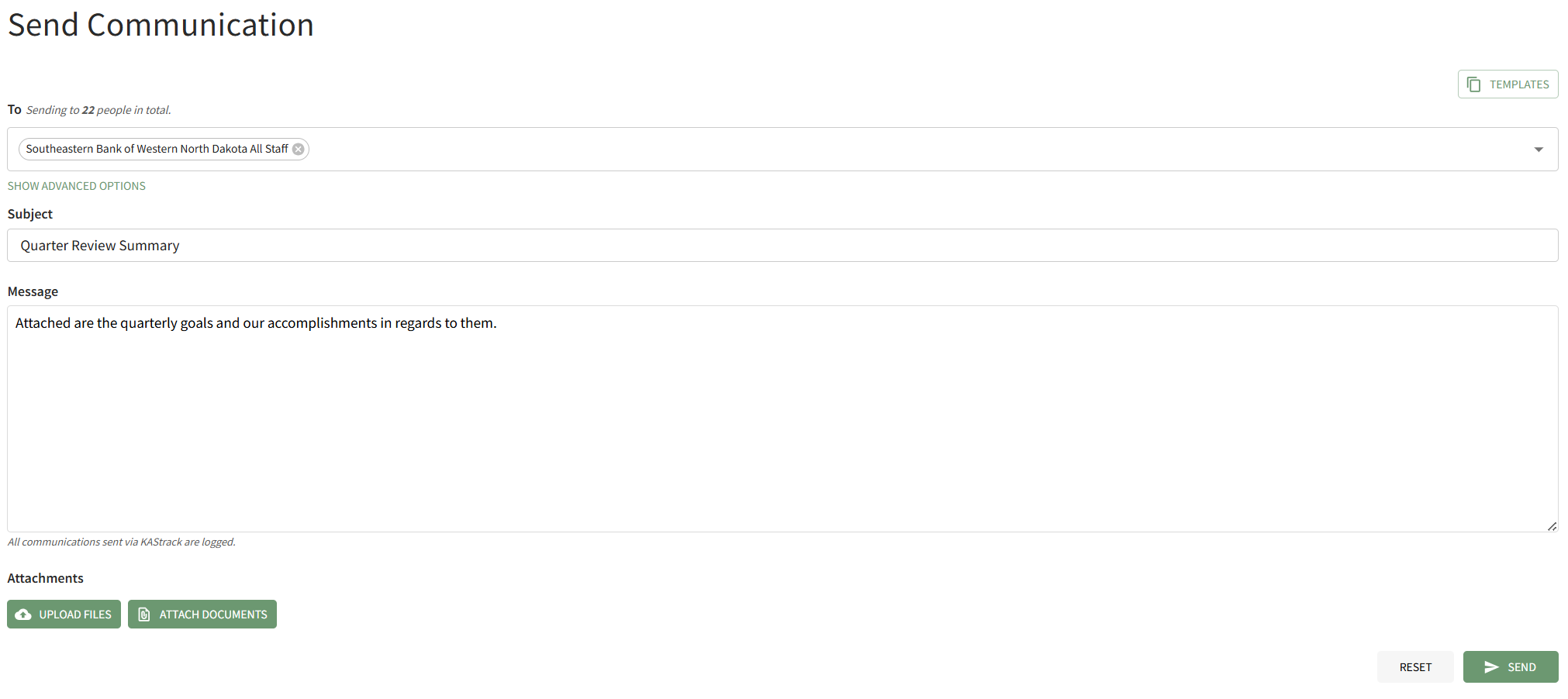
The Templates Modal automatically closes, and the selected template is applied to the Send Communications Page.