# Require Form Entry Approval

To require that form entries are approved, go to the Home Page of the Forms Module. Select the three-dot icon to the right of the specific form you want to require entry approvals for and select “Rules” from the context menu.

[![image.png](https://kaswiki.kastrack.com/uploads/images/gallery/2026-06/scaled-1680-/Hj6image.png)](https://kaswiki.kastrack.com/uploads/images/gallery/2026-06/Hj6image.png)

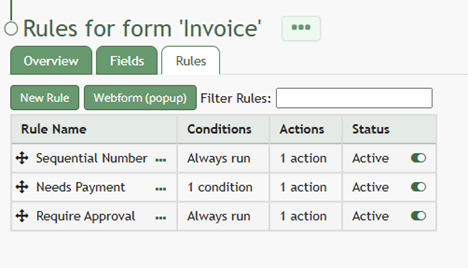
<span style="white-space: pre-wrap;"> This opens the form specific Rules Tab.</span>

[![image.png](https://kaswiki.kastrack.com/uploads/images/gallery/2026-01/scaled-1680-/mH1image.png)](https://kaswiki.kastrack.com/uploads/images/gallery/2026-01/mH1image.png)

Select “New Rule” opening the New Form Rule Modal.

[![image.png](https://kaswiki.kastrack.com/uploads/images/gallery/2026-01/scaled-1680-/PQMimage.png)](https://kaswiki.kastrack.com/uploads/images/gallery/2026-01/PQMimage.png)

Input the name of the new rule and set the status as “Active”. The rule can be conditional, or it can always be run for the specific form.

<span style="white-space: pre-wrap;">Click the plus icon to the right of action, expanding the modal. Select the Workflow Category option “Require Approval”. </span>

<p class="callout info">This rule will apply for the initial entry submission.</p>

<span style="white-space: pre-wrap;">Select who can grant approval: direct supervisors, all supervisors, or specific users. </span>

<p class="callout info">A form entry will be approved as soon as any individual who can approve it does. Only one individual needs to approve the entry pending approval.</p>

Requiring approval from an individual will give full access too all entries the individual needs to approve, even if the individual does not have access to the form itself.

Specify the number of days after a form entry is submitted when the pending approval will turn red.

Select “Save” to save the action, which will now show in the New Form Rule Modal.

[![image.png](https://kaswiki.kastrack.com/uploads/images/gallery/2026-01/scaled-1680-/kP5image.png)](https://kaswiki.kastrack.com/uploads/images/gallery/2026-01/kP5image.png)
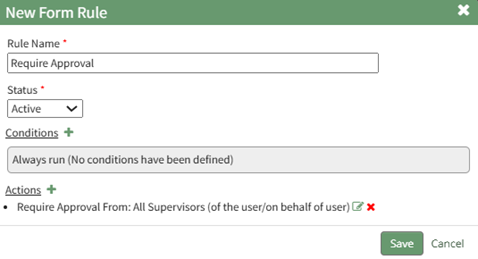
Select “Save” at the bottom of the modal and the rule to require approval for form entries will now be active and shows on the form specific Rules Tab.

[![image.png](https://kaswiki.kastrack.com/uploads/images/gallery/2026-01/scaled-1680-/MgJimage.png)](https://kaswiki.kastrack.com/uploads/images/gallery/2026-01/MgJimage.png)