# Edit the Status of a Form Rule

To change the status of a form rule, go to the Home Page in the Forms Module. Click the three dot icon to the right of the form title that you want to create a rule for opening the Form context menu. Select “Rules”.

[![image.png](https://kaswiki.kastrack.com/uploads/images/gallery/2026-06/scaled-1680-/Dvpimage.png)](https://kaswiki.kastrack.com/uploads/images/gallery/2026-06/Dvpimage.png)

<span style="white-space: pre-wrap;">This opens the Rules Tab containing the Rule Table. </span>

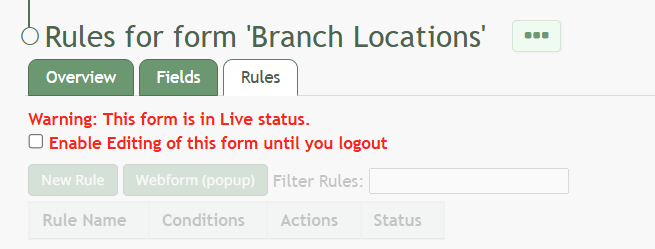
<p class="callout info">If your form is already live, you will be asked to enable editing before you can add a new rule to your form.</p>

[![image.png](https://kaswiki.kastrack.com/uploads/images/gallery/2026-06/scaled-1680-/Dx9image.png)](https://kaswiki.kastrack.com/uploads/images/gallery/2026-06/Dx9image.png)

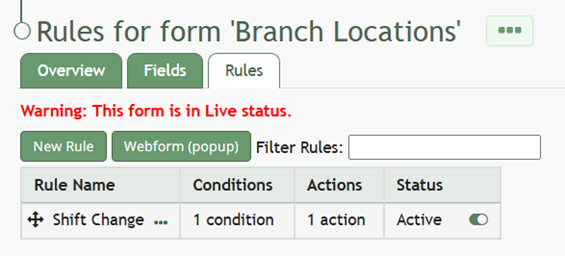
After enabling editing (if required), you will be able to change the status of the rule.

[![image.png](https://kaswiki.kastrack.com/uploads/images/gallery/2026-01/scaled-1680-/yhgimage.png)](https://kaswiki.kastrack.com/uploads/images/gallery/2026-01/yhgimage.png)
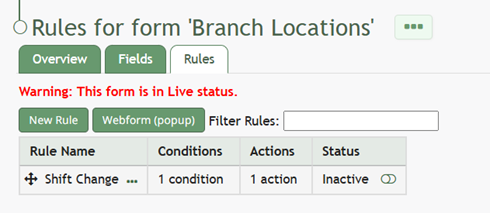
To the right of a rule’s status is an icon. Click the slider bar icon and it will change the inactive status to active (and vice versa).

[![image.png](https://kaswiki.kastrack.com/uploads/images/gallery/2026-01/scaled-1680-/RRpimage.png)](https://kaswiki.kastrack.com/uploads/images/gallery/2026-01/RRpimage.png)