Edit A Specific Page In A Course
To edit a specific page in a course, open the Courses Module Home Page from the Main Menu. Click the three-dot icon to the right of the course whose page you want to edit, opening the Course Context Menu.
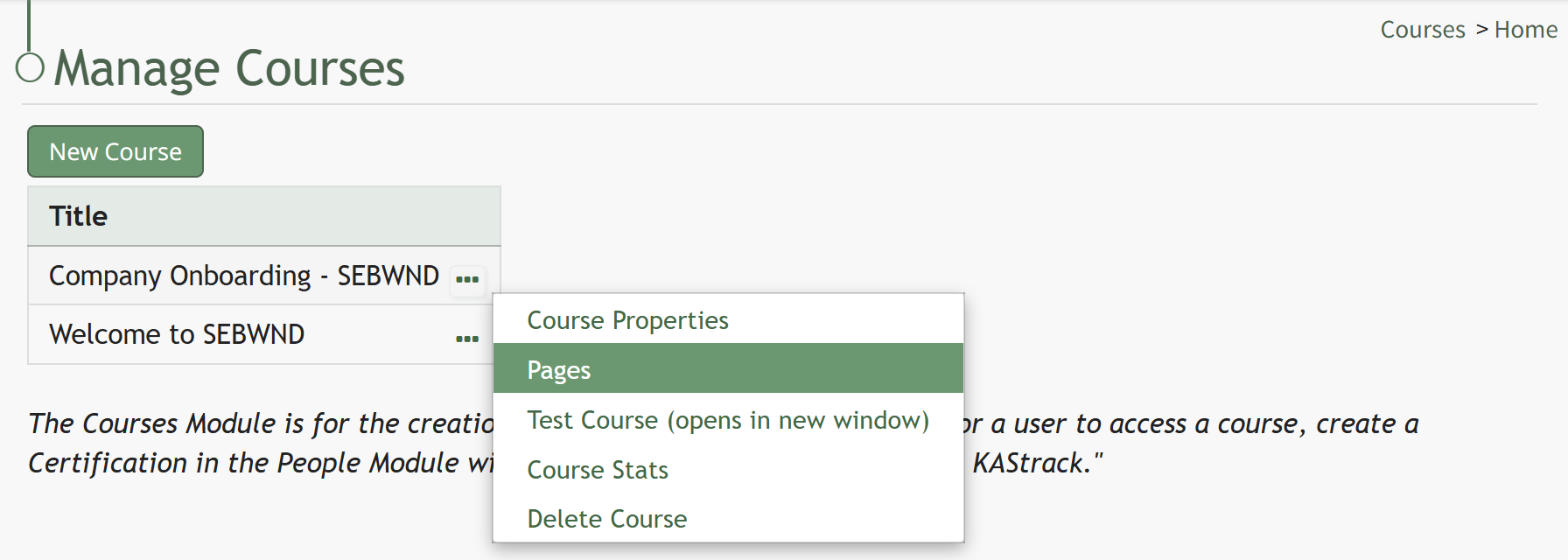
Select Pages, opening the Course Details Page.
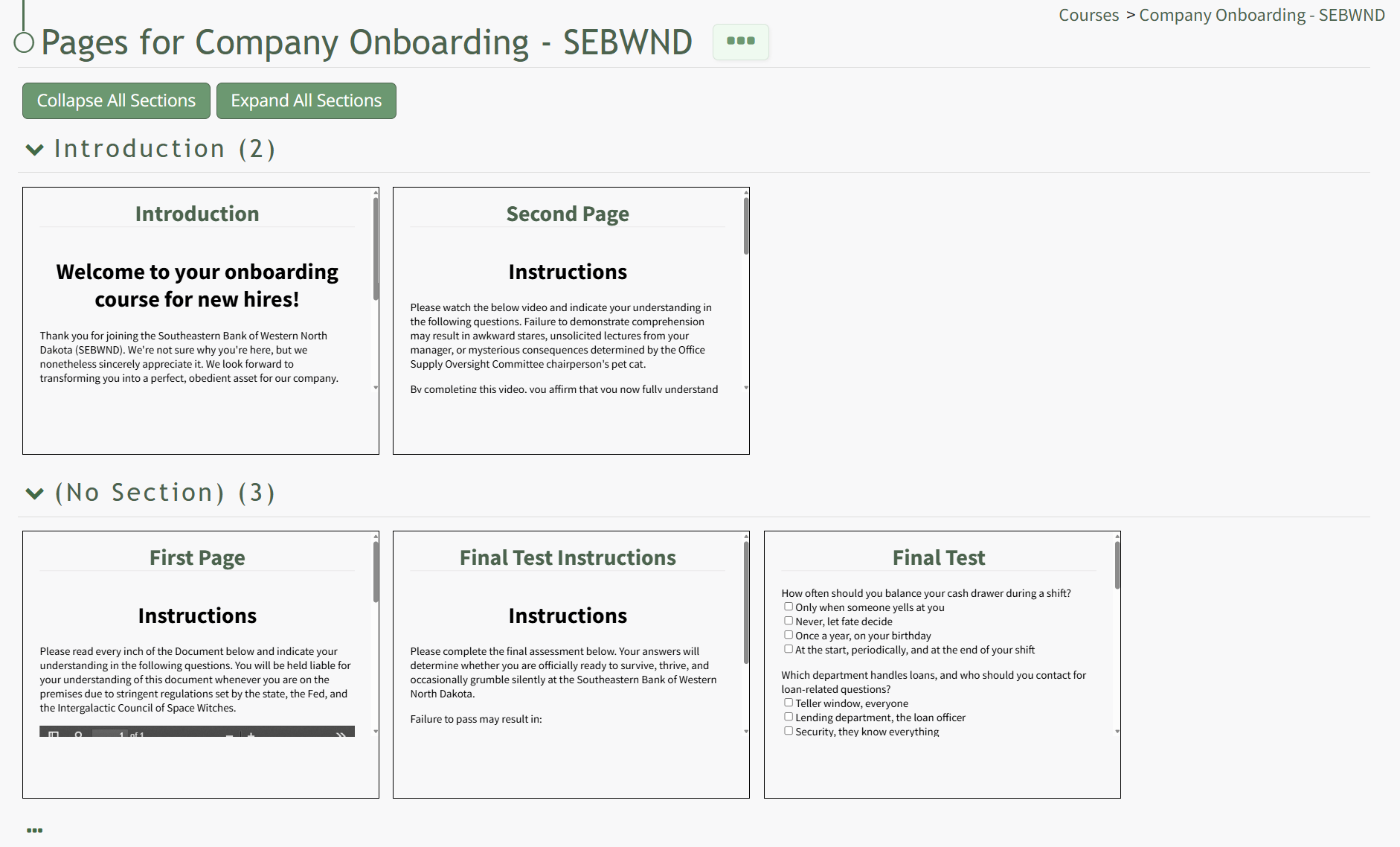
On the Course Details Page, all pages in the course are displayed. Hover the icon over the page you wish to edit to see the icons, then click the pencil and page icon. 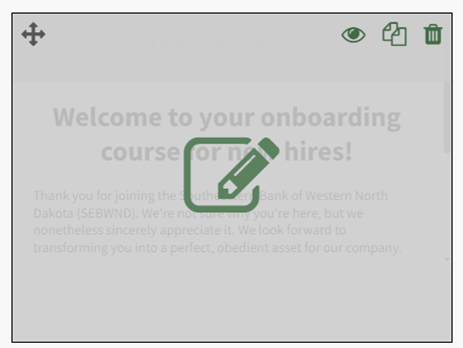
This opens the specific page and enables editing.
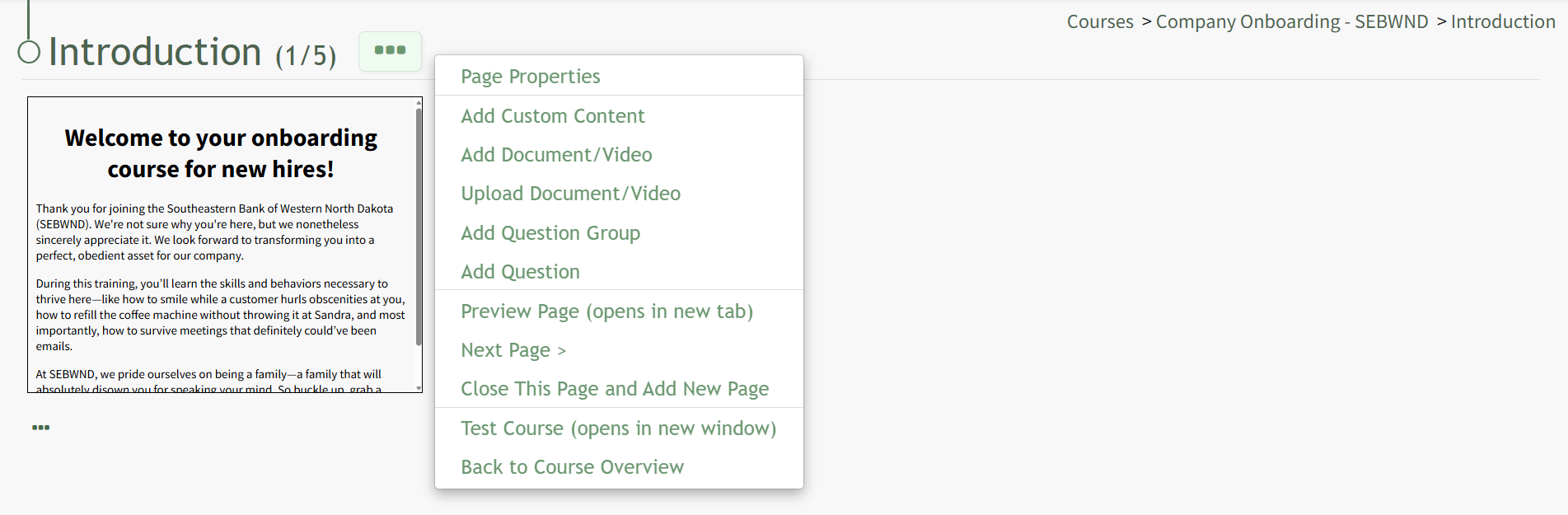
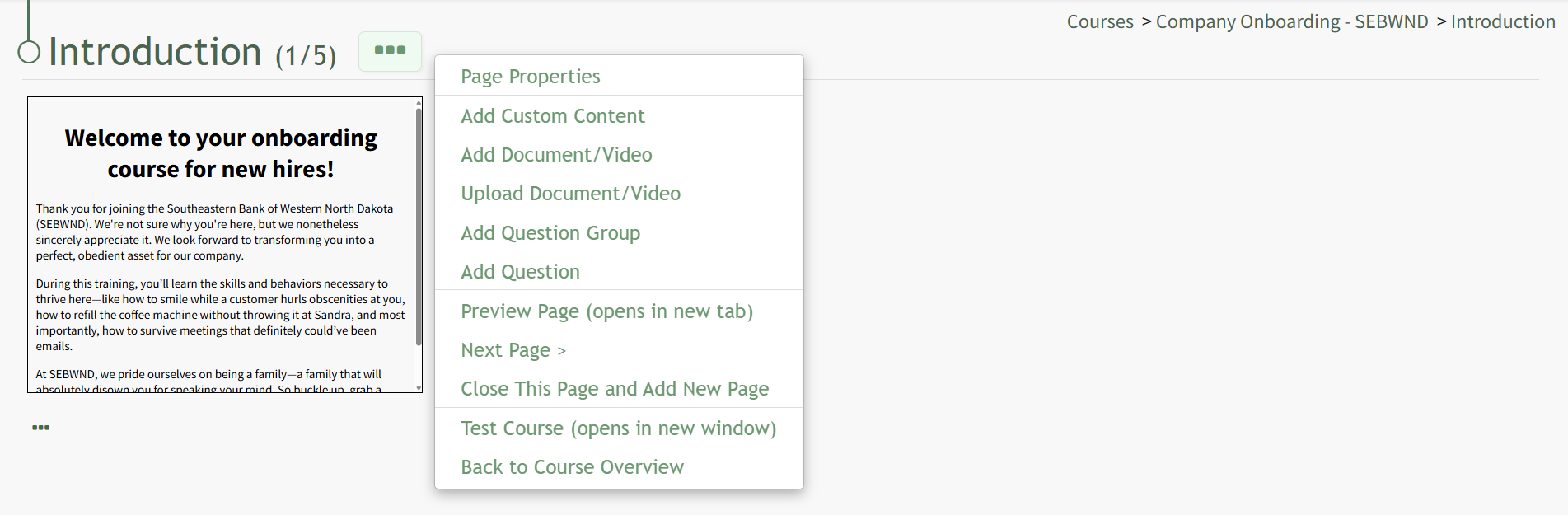
Click the three-dot icon to the right of the Page Title opening the Page Context Menu. Each of the options on the Page Context Menu are explained in the Page Context Menu Option Explanation Table below.
Page Context Menu Option Explanations | |
Page Properties | Selecting Page properties from the Content Menu |
Add Custom Content | Selecting Page properties from the Content Menu |
Add Docucment/Video | |
Upload Document/Video | |
Add Question Group | |
Add Question | |
Preview Page | |
< Previous Page | |
Next Page > | |
Close This Page and Add New Page | |
Test Course | |
Back to Course Overview | |
Click and drag the handle in the top left to move the page, click the trashcan on the top right to delete the page, or click the page and pencil icon to edit.
To edit a slide after it is created, simply click on the slide, and the “Edit Custom Content” page will re-open to permit this.
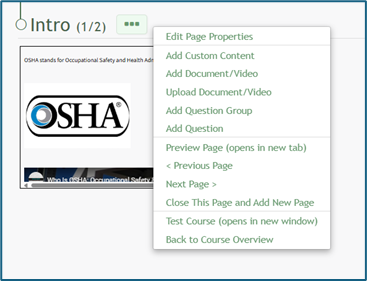
“Preview Page (opens in new tab)” allows the user to visually see how a specific page in the course will reappear.
“< Previous Page” and “Next Page >” allows the user to navigate between the pages of the course.
“Close This Page and Add New Page” closes the current page and opens the “New Page” modal to create a new page.
“Test Course (opens in new window)” allows the course creator to go through the course without it being attached to a certification and without impacting their course stats.
“Back to Course Overview” consolidates slides onto pages and redirects the user to the course homepage.
Click “Close This Page and Add New Page” will activate the “New Page” modal.