Edit A Page In A Course
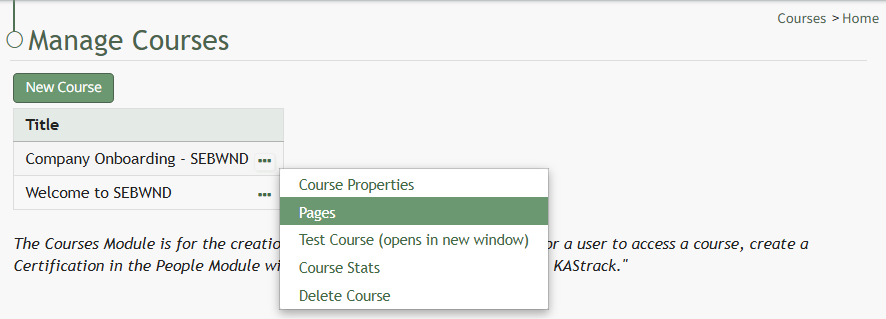
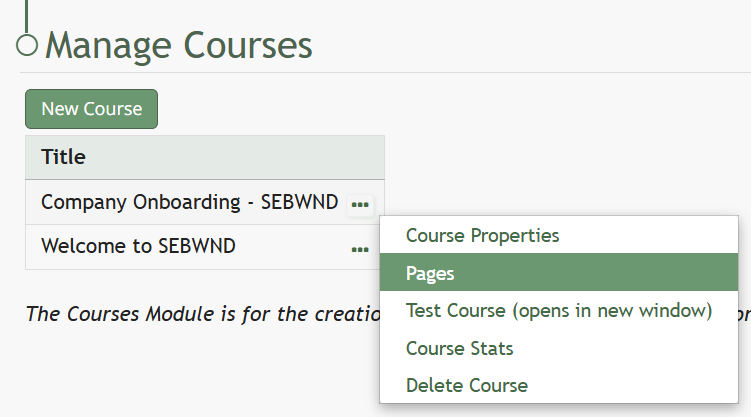
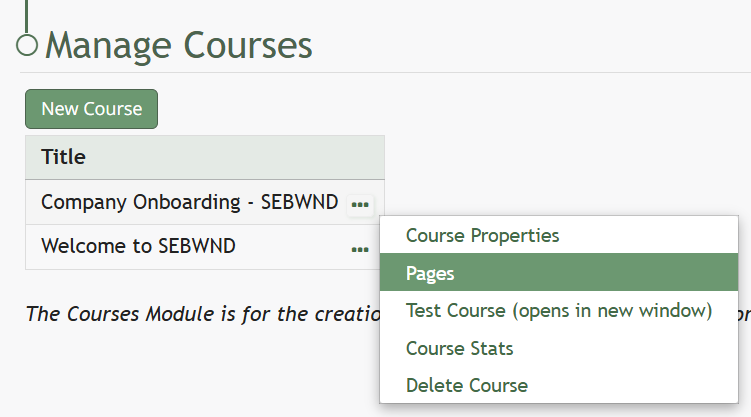
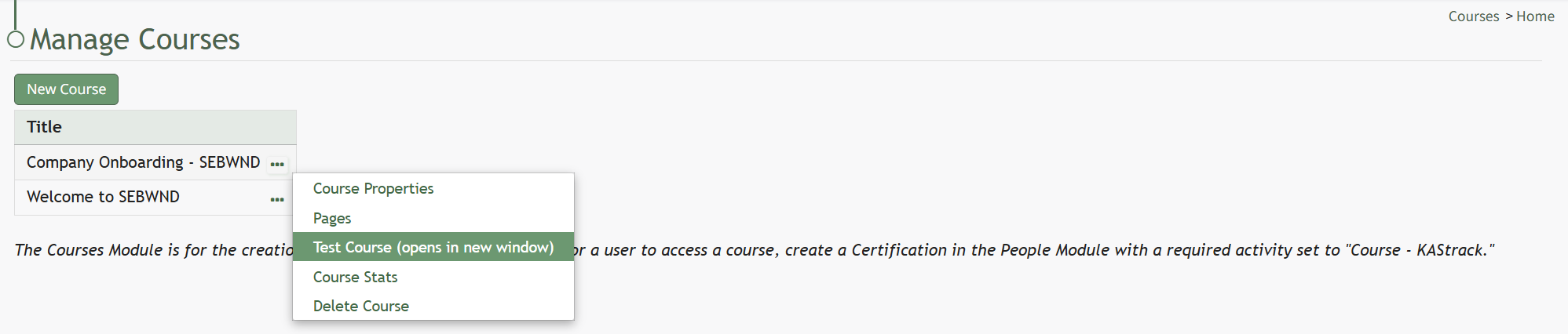
To edit a specific page in a course, open the Courses Module Home Page from the Main Menu. Click the three-dot icon to the right of the course whose page you want to edit, opening the Course Context Menu.
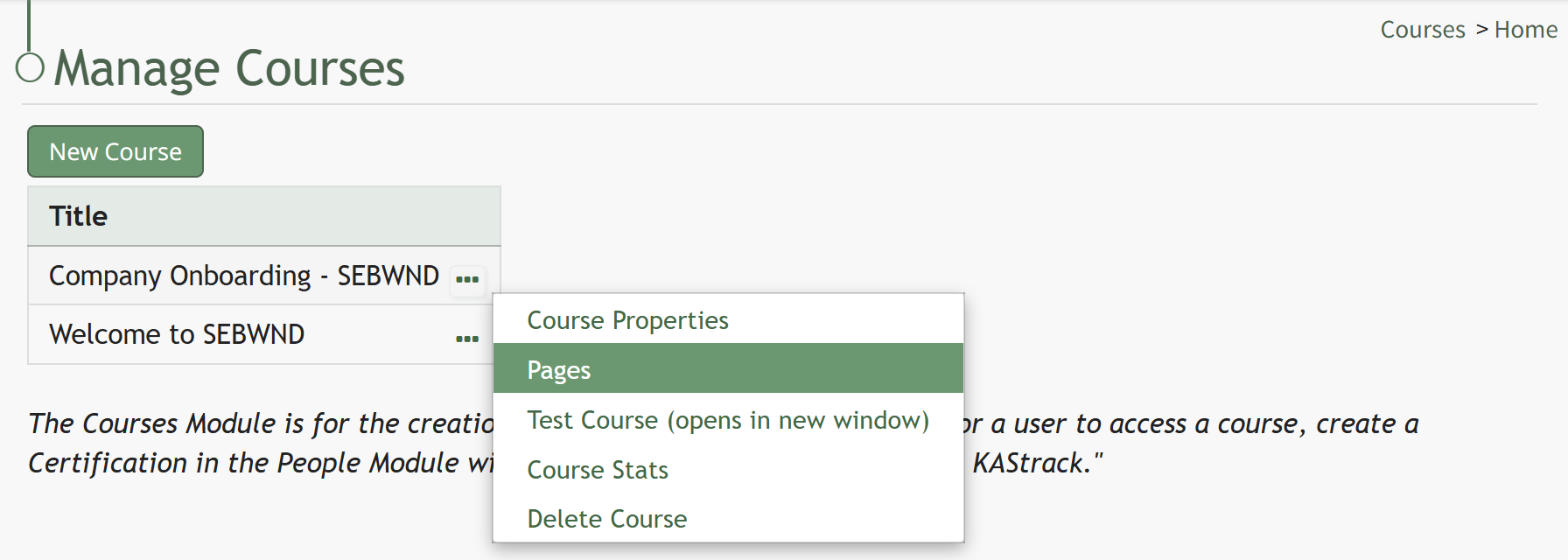
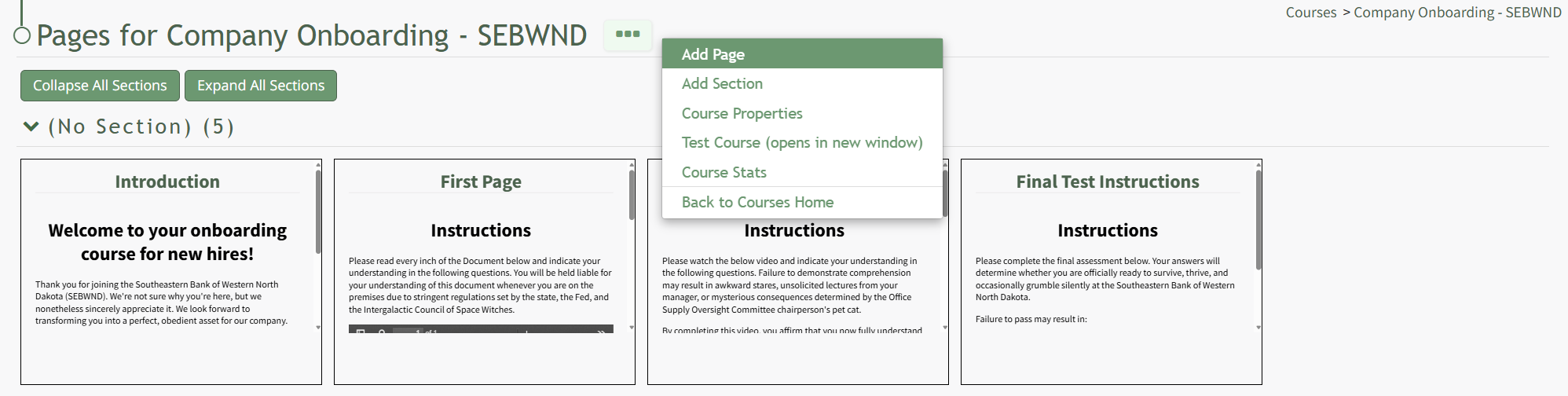
Select Pages, opening the Course Details Page.
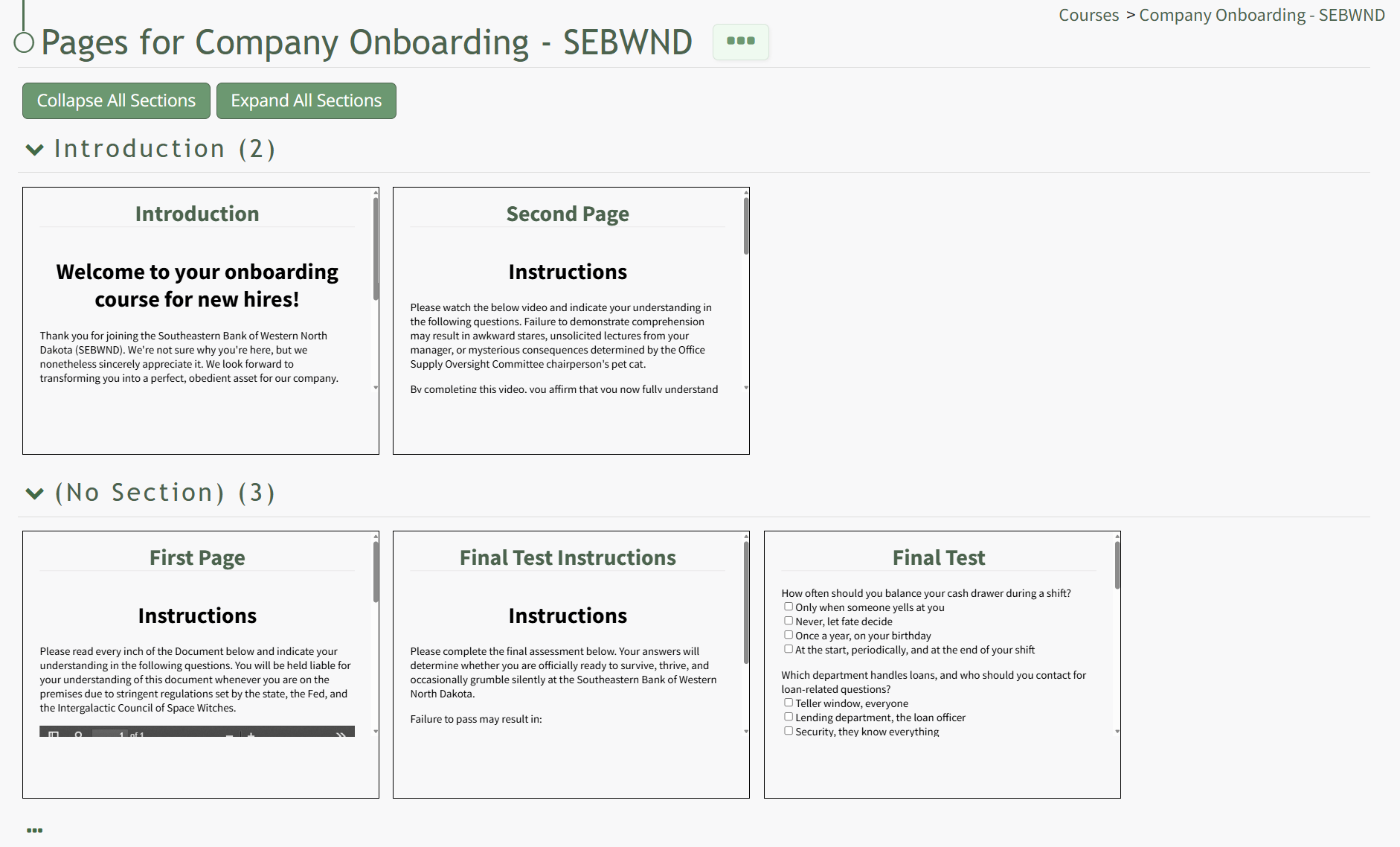
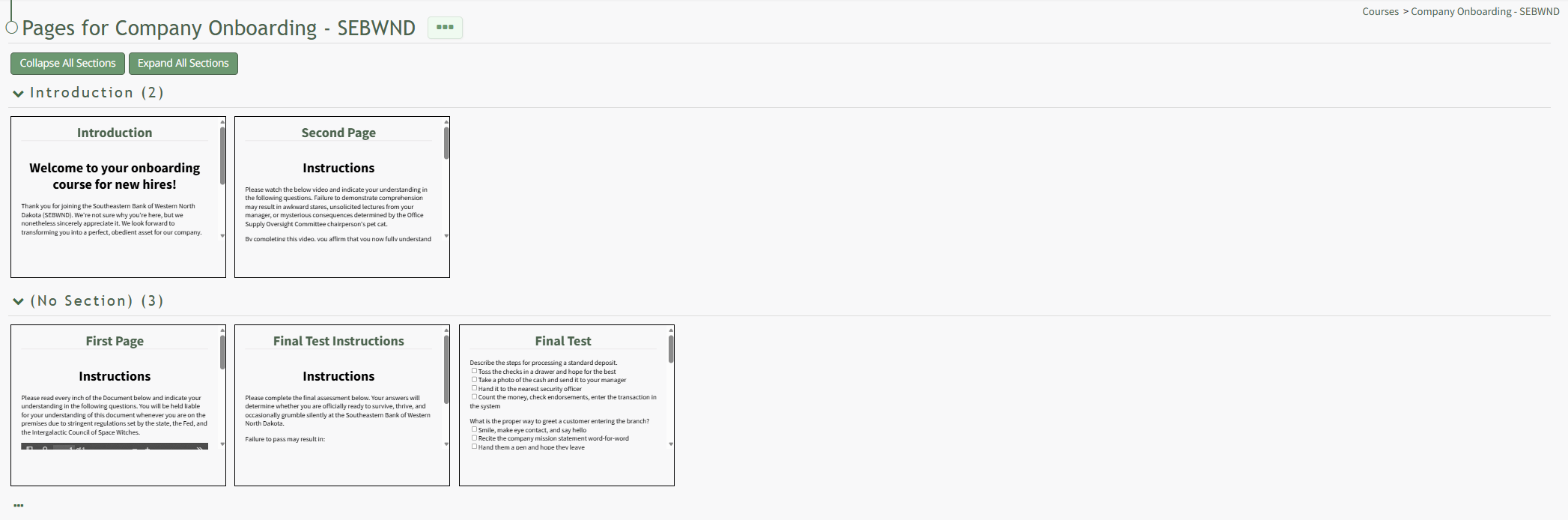
On the Course Details Page, all pages in the course are displayed. Hover the icon over the page you wish to edit to see the icons, then click the pencil and page icon. 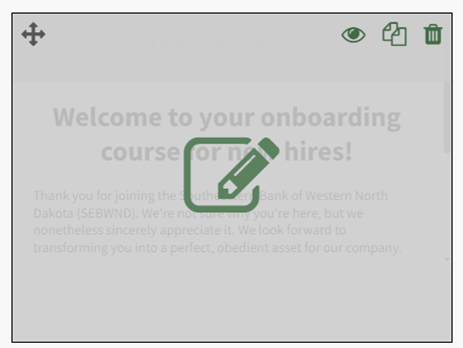
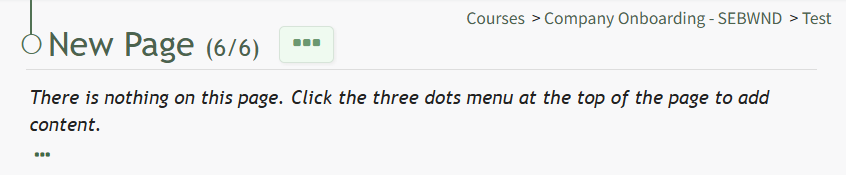
This opens the specific page and enables editing.
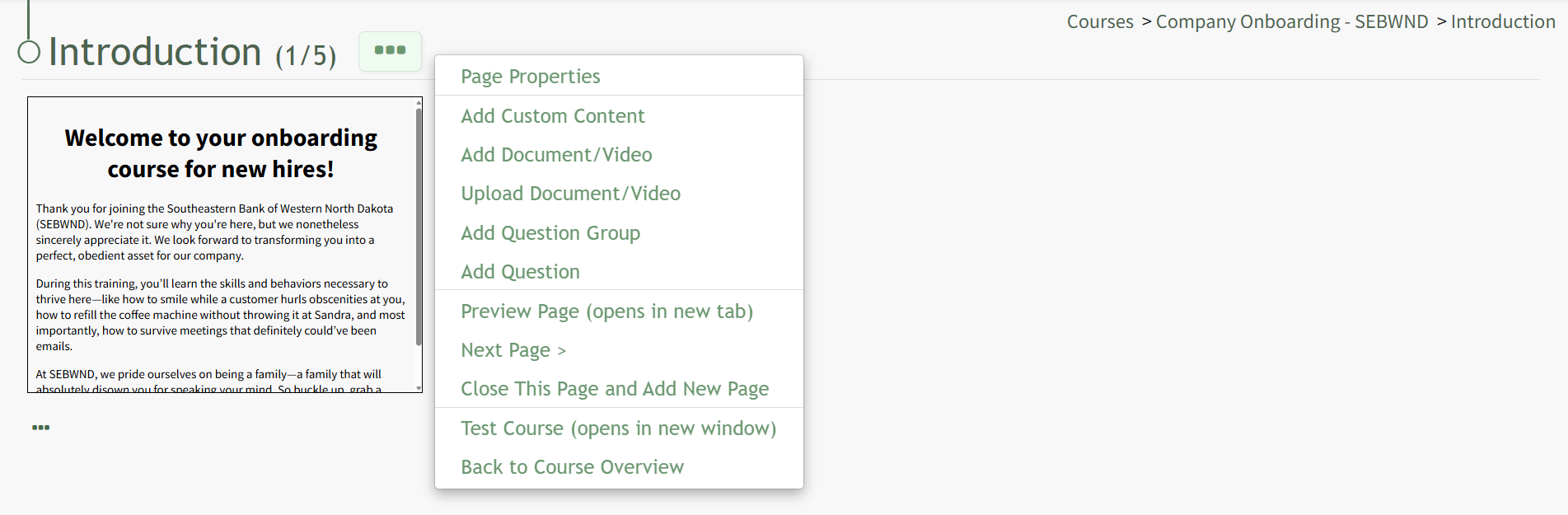
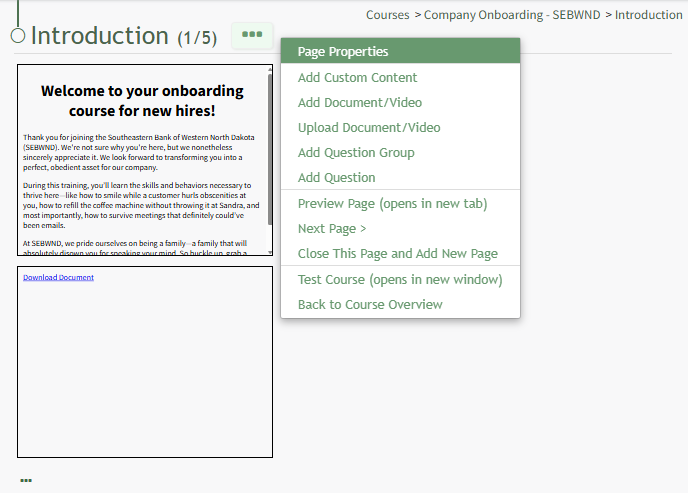
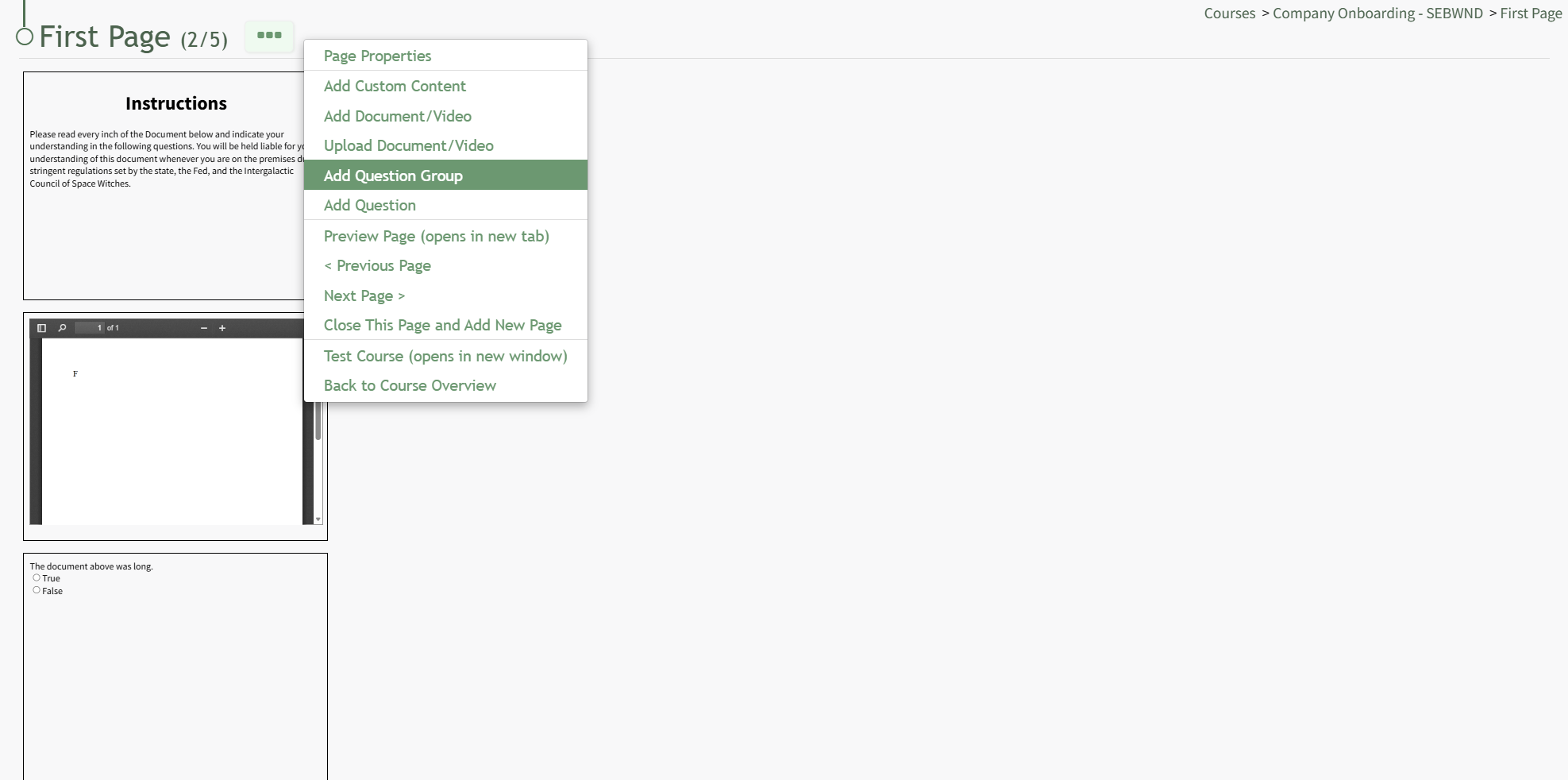
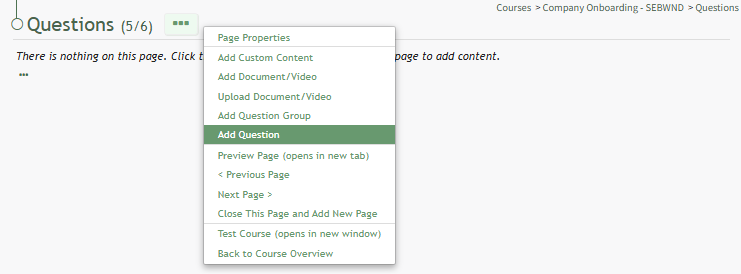
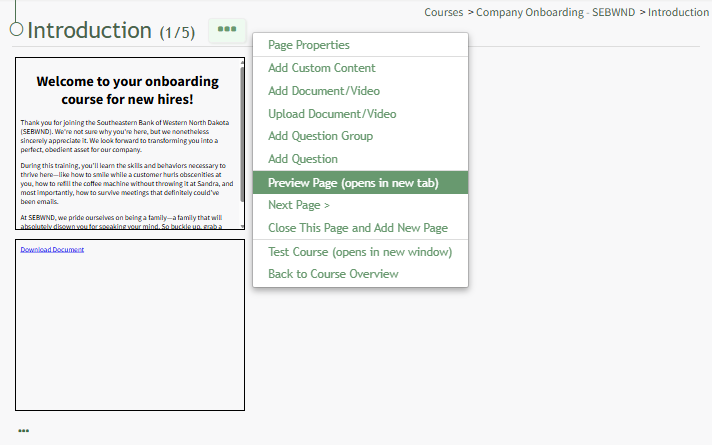
Click the three-dot icon to the right of the Page Title opening the Page Context Menu. Each of the options on the Page Context Menu are explained in the Page Context Menu Option Explanation Table below.
Page Context Menu Option Explanations | |||||||||||||||||||||||||||||||||||||||||||||||||||||||||||||||||||||||||||||||||||||||||||||||||||||||||||||||||||||||||||||||||||||||||||||||||||||||||||||||||||||||||||||||||||||||
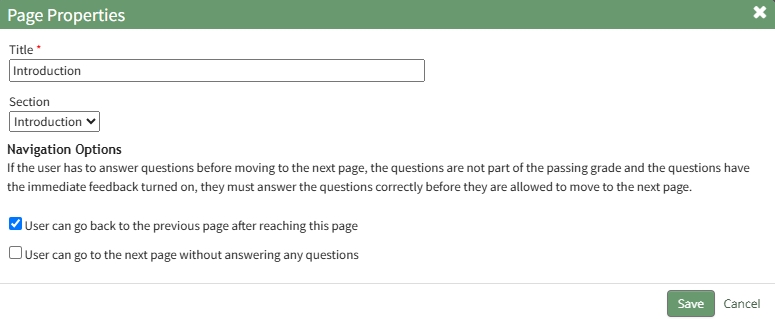
Page Properties | Selecting "Page Properties" from the Context Menu opens the Page Properties modal where users can edit the page title, section, and navigation options. Edit Page PropertiesTo edit the properties of a specific page in a course, you must be on a page within the course. An explanation of how to access a course page is provided in the How To below. How To: Access a Course PageTo access a specific page in a course, open the Courses Module Home Page and click the three-dot icon to the right of the course title to open the Course Context Menu.
Select Pages from the Context Menu.
This opens a course's Details Page. Click the page you want to edit to access the page in the course. Click the three-dot icon to the right of the page title opening the Page Context Menu.
Select "Page Properties" from the context menu, opening the Page Properties Modal.
From this modal, you can edit the page title, change the section, or edit the navigation options. Click "Save" in the bottom right-hand corner on the modal once all desired changes have been made. | ||||||||||||||||||||||||||||||||||||||||||||||||||||||||||||||||||||||||||||||||||||||||||||||||||||||||||||||||||||||||||||||||||||||||||||||||||||||||||||||||||||||||||||||||||||||
Add Custom Content | Selecting "Add Custom Content" from the Context Menu opens the Add Custom Content Modal enabling you to add or edit the custom content on a page in a course. How To: Add Custom ContentExisting courses are listed alphabetically in the table underneath the “New Course” button according to title on the Courses Module Home Page.
To manage a pre-existing course, select the three dot (…) icon to the right of the title and make a selection from the context menu.
Selecting “Pages” allows the course creator to see and modify the content of the course.
“Pages” brings the course creator to the course homepage, titled Pages for (Name of Course). The three dot (…) to the right of the header and at the bottom of the page are identical and permit the same selections. How To: Add Pages in a New / Existing CourseTo add pages to a course, open the Courses Module Home Page from the Main Menu. Click the three-dot icon to the right of the course you wish to add pages to opening the Course Context Menu and select “Pages”.
This opens the Course Overview Page Pages for Course Name Page. Selecting the three dot (…) icon to the right of the page header open a context menu. Selecting “Add Page” open the New Page modal.
Add a Title for the new page and select the desired navigation options.
If the course properties allow the user to navigate the course freely, in place of the checkbox options you will see “This course allows the user to navigate freely, so there are no per-page navigation options.” Select the “Save” button.
This opens the New Page. Click the three-dot icon to the right of the page header to open the Page Context Menu. For details on how to build out the course page, refer to "How To: Edit a Page in the Course" below. How To: Edit a Page in a CourseTo edit a specific page in a course, open the Courses Module Home Page from the Main Menu. Click the three-dot icon to the right of the course whose page you want to edit, opening the Course Context Menu.
Select Pages, opening the Course Details Page.
On the Course Details Page, all pages in the course are displayed. Hover the icon over the page you wish to edit to see the icons, then click the pencil and page icon. This opens the specific page and enables editing.
Click the three-dot icon to the right of the Page Title opening the Page Context Menu. Each of the options on the Page Context Menu are explained in the Page Context Menu Option Explanation Table below.
How To: Edit Existing PagesTo edit a specific page in a course, open the Courses Module Home Page from the Main Menu. Click the three-dot icon to the right of the course whose page you want to edit, opening the Course Context Menu.
Select Pages, opening the Course Details Page.
On the Course Details Page, all pages in the course are displayed. Hover the icon over the page you wish to edit to see the icons, then click the pencil and page icon. This opens the specific page and enables editing.
Click the three-dot icon to the right of the Page Title opening the Page Context Menu. Each of the options on the Page Context Menu are explained in the Page Context Menu Option Explanation Table below.
| ||||||||||||||||||||||||||||||||||||||||||||||||||||||||||||||||||||||||||||||||||||||||||||||||||||||||||||||||||||||||||||||||||||||||||||||||||||||||||||||||||||||||||||||||||||||
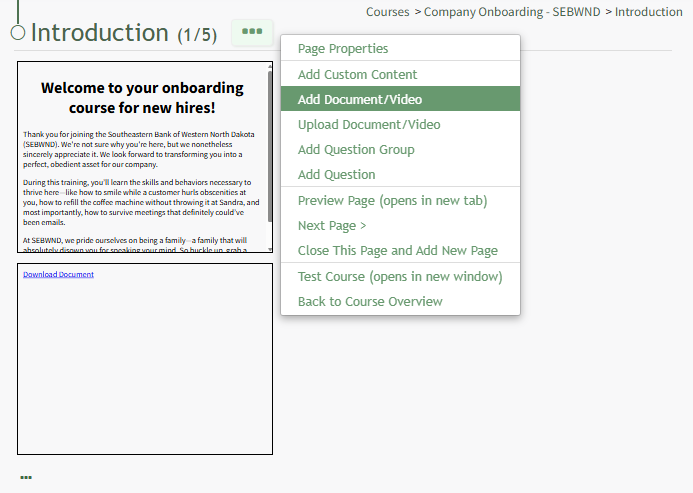
Add Docucment/Video | Selecting "Add Docucment/Video" from the Context Menu opens the Add Document / Video Modal enabling you to select the document / video you would like displayed on the page. To add a document/video to a course, it must be uploaded to KAStrack first. How To: Add Documents/Video to a Course PageTo edit the properties of a specific page in a course, you must be on a page within the course. An explanation of how to access a course page is provided in the How To below. How To: Access a Specific Page in a CourseTo access a specific page in a course, open the Courses Module Home Page and click the three-dot icon to the right of the course title to open the Course Context Menu.
Select Pages from the Context Menu.
This opens a course's Details Page. Click the page you want to edit to access the page in the course. Click the three-dot icon to the right of the page title opening the Page Context Menu and select the "Add Document/Video" option.
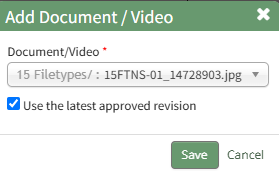
This opens the Add Document/Video Modal which allows the user to select a previously uploaded document or video from a dropdown menu that will show all documents or videos in the Documents Module that the user has access to.
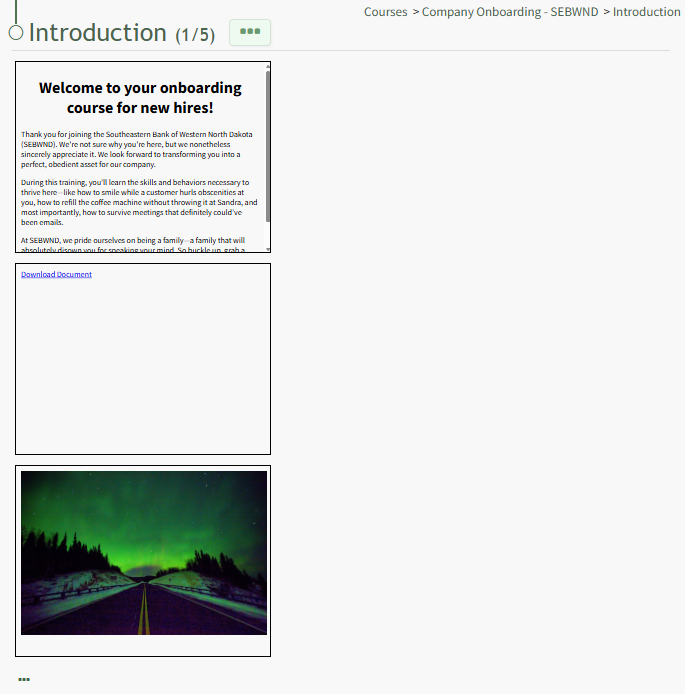
By default, the checkbox is selected telling the system to use the most recently approved version of the file. Click "Save" and the new document / video now shows on the page.
A document/video must be uploaded to KAStrack before it can be added to a course. How To: Upload a Video/Document in the Courses ModuleTo upload a video/document to be used in a course, you must be on a page within the course. An explanation of how to access a course page is provided in the How To below. How To: Access A Specific Page in a CourseTo access a specific page in a course, open the Courses Module Home Page and click the three-dot icon to the right of the course title to open the Course Context Menu.
Select Pages from the Context Menu.
This opens a course's Details Page. Click the page you want to edit to access the page in the course. Once you are on the specific page in the course, click the three-dot icon to the right of the page title opening the Page Context Menu.
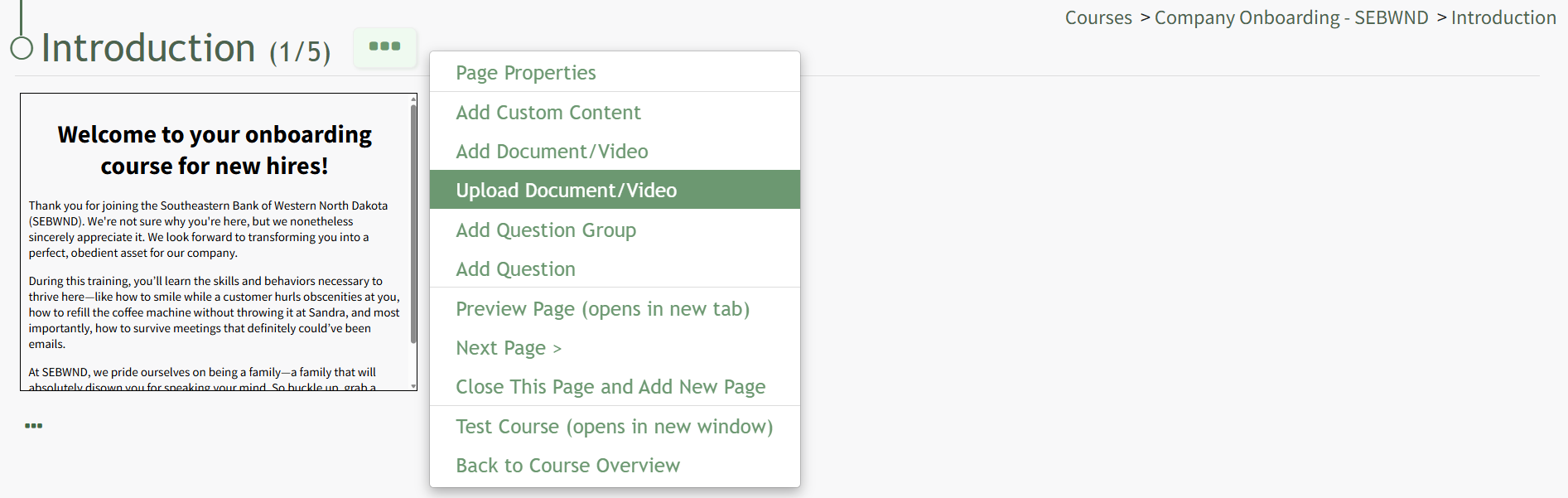
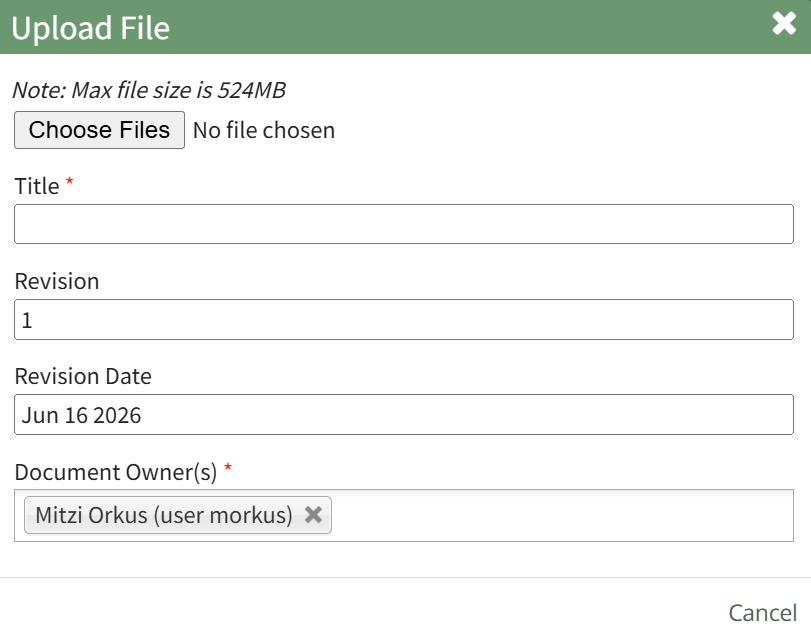
Select the option to "Upload Document/Video," opening the Upload File Modal.
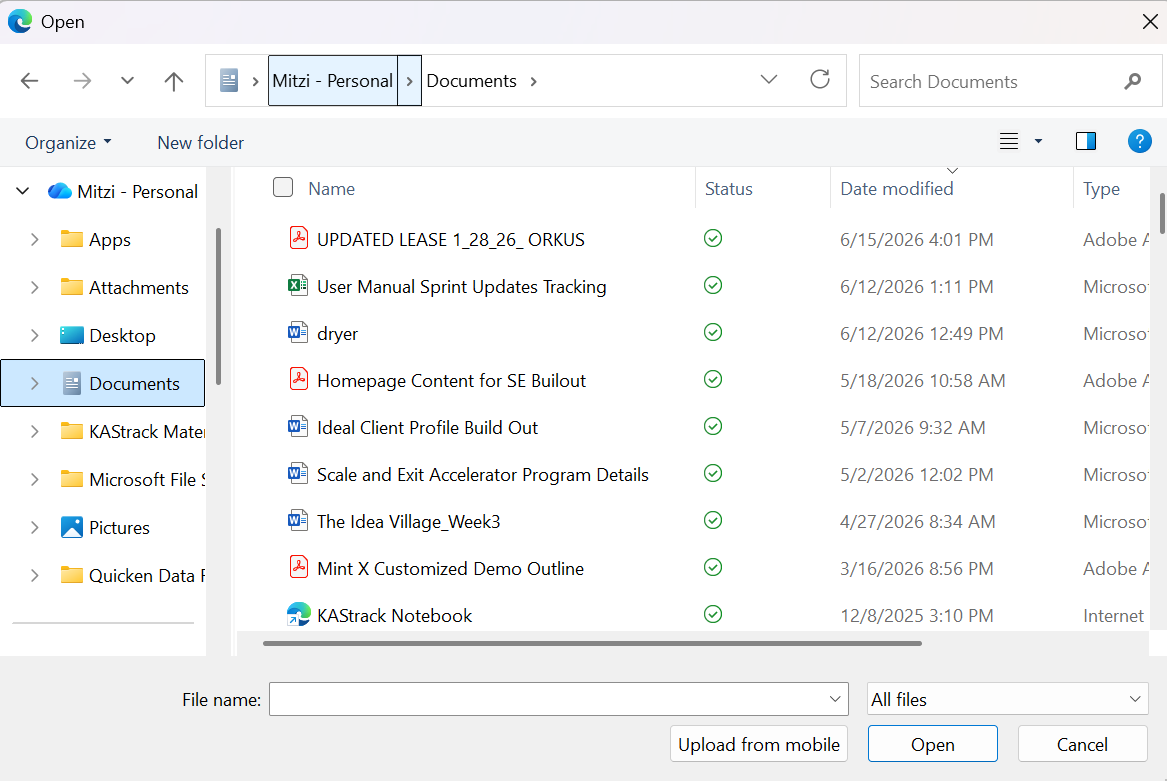
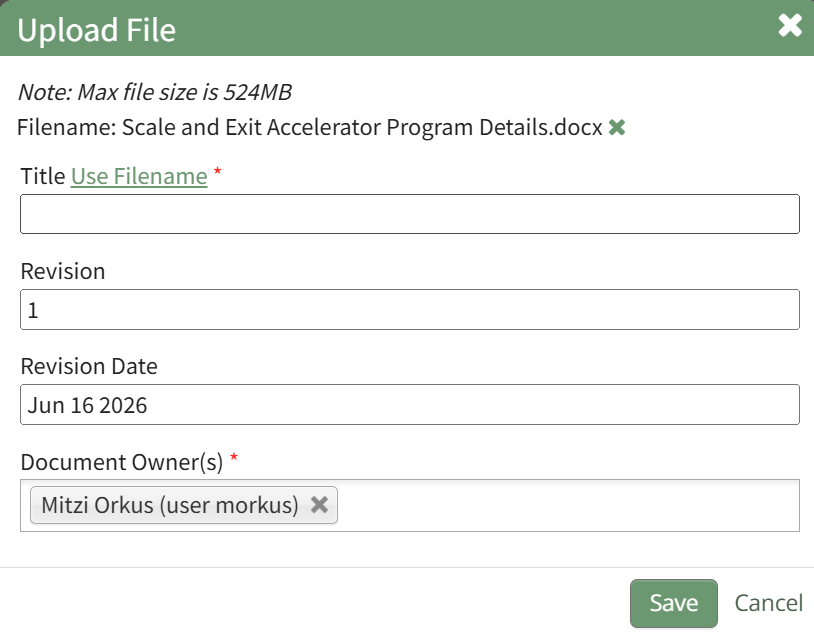
Select the File you want to upload from your personal device. Once it is uploaded, the file selected will show in the Upload File Modal.
Enter a new title for the file or click the "Use Filename" clickable link for the original filename to be saved. Indicate the revision number and revision date as well as the Document Owner(s). Select "Save".
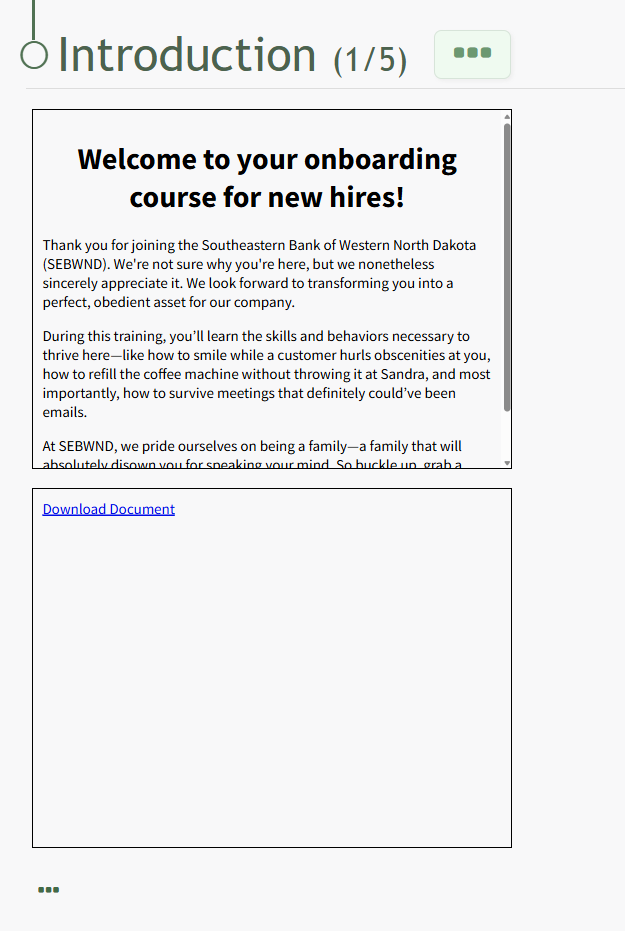
The uploaded file now shows on the page. | ||||||||||||||||||||||||||||||||||||||||||||||||||||||||||||||||||||||||||||||||||||||||||||||||||||||||||||||||||||||||||||||||||||||||||||||||||||||||||||||||||||||||||||||||||||||
Upload Document/Video | Selecting "Upload Document/Video" from the Context Menu opens the Upload File Modal. How To: Upload a Video/Document in the Courses ModuleTo upload a video/document to be used in a course, you must be on a page within the course. An explanation of how to access a course page is provided in the How To below. How To: Access A Specific Page in a CourseTo access a specific page in a course, open the Courses Module Home Page and click the three-dot icon to the right of the course title to open the Course Context Menu.
Select Pages from the Context Menu.
This opens a course's Details Page. Click the page you want to edit to access the page in the course. Once you are on the specific page in the course, click the three-dot icon to the right of the page title opening the Page Context Menu.
Select the option to "Upload Document/Video," opening the Upload File Modal.
Select the File you want to upload from your personal device. Once it is uploaded, the file selected will show in the Upload File Modal.
Enter a new title for the file or click the "Use Filename" clickable link for the original filename to be saved. Indicate the revision number and revision date as well as the Document Owner(s). Select "Save".
The uploaded file now shows on the page. | ||||||||||||||||||||||||||||||||||||||||||||||||||||||||||||||||||||||||||||||||||||||||||||||||||||||||||||||||||||||||||||||||||||||||||||||||||||||||||||||||||||||||||||||||||||||
Add Question Group | Selecting "Add Question Group" from the Context Menu opens the Add Question Group Modal. Question Groups must be created to pull a limited number of questions for a larger bank of possible questions or to add multiple questions to a course page. How To: Add Question Groups to a Course PageTo add a question group to a page in a course, you must be on a page within the course. An explanation of how to access a course page is provided in the How To below. How To: Access a Specific Page in a CourseTo access a specific page in a course, open the Courses Module Home Page and click the three-dot icon to the right of the course title to open the Course Context Menu.
Select Pages from the Context Menu.
This opens a course's Details Page. Click the page you want to edit to access the page in the course. Once you are on the page you want to add a question group to, click the three-dot icon to the right of the page title opening the context menu and select the option to "Add Question Group".
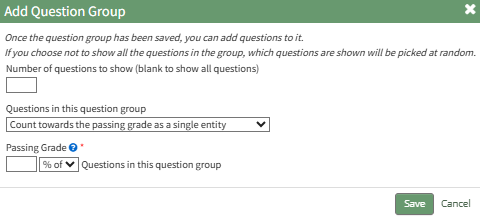
This opens the Add Question Group Modal.
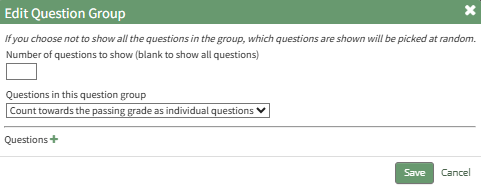
Once the question group has been created and saved, you will be able to add questions to it. If you choose not to show all the questions in the group, the questions that are shown will be picked at random. Indicate the number of questions to be shown from the question group. Leave this field blank if you would like to show all questions. From the dropdown menu, select if the questions in this question group "count towards the passing grade as a single entity," "count towards the passing grade as individual questions," or "do not count towards the passing grade". Click the "Save" button on the modal, which opens the Edit Question Group Modal.
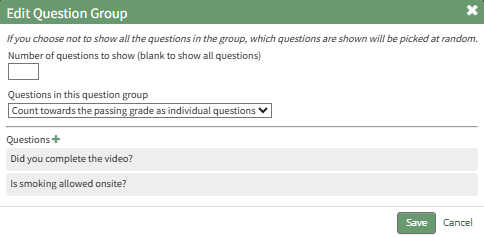
Click the plus sign icon to the right of "Questions", opening the Add Questions Modal. For a detailed explanation on the different types of questions (true/false, multiple choice, and free text) and how to add them refer to the How To below. How To: Add a Question to a Course PageTo add a singular question to a page in a course, you must be on a page within the course. An explanation of how to access a course page is provided in the How To below. How To: Access a Specific Page in a CourseTo access a specific page in a course, open the Courses Module Home Page and click the three-dot icon to the right of the course title to open the Course Context Menu.
Select Pages from the Context Menu.
This opens a course's Details Page. Click the page you want to edit to access the page in the course. Once you are on the page you wish to add a question to, click the three-dot icon to the right of the page title opening the Page Context menu and select the "Add Question" option.
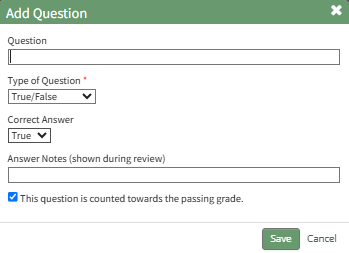
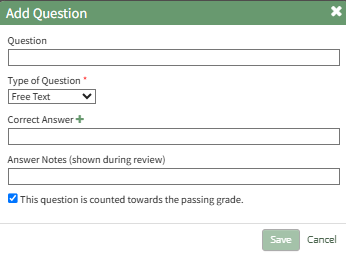
This opens the Add Question Modal. There are three possible types of questions in the Courses Modal. The fields in the Add Question Modal differ based on the question type selected. There are sections with images and an explanation of the unique fields for each question type below.. The checkbox for "This question is counted towards the passing grade." is selected by default for all question types. Answer Notes can be used to include extra information about an answer is correct or why certain answers are wrong. They are shown to users in the Course Review. After inputting the necessary information for the new question, select the "Save" button in the bottom right-hand corner of the modal. True/False Questions
Input your question into the Question Field and select "True/False" as the Type of Question from the dropdown menu. Indicate the correct answer by selecting True or False from the dropdown menu. Multiple Choice Questions
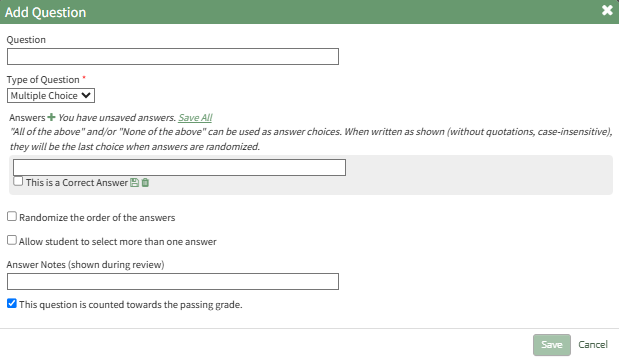
Input your question into the Question Field and select "Multiple Choice" as the Type of Question from the dropdown menu. Click the plus sign to the right of "Answers" and the modal expands to display a text box. Enter the answer. Repeat the process for each potential answer. Select the "This is a Correct Answer" checkbox when appropriate.
Each answer must be saved on the modal, either individually by clicking the disc icon below the answer or by clicking the "Save All" clickable link to the right of Answers and the plus sign icon. The modal will state if any answers are not saved. "All of the above" and/or "None of the above" can be used as answer choices. When written as shown (without quotations, case-insensitive), they will be the last choice when answers are randomized. Select the "Randomize the order of the answers" if you would like the system to randomly list the order of the answers for the multiple-choice questions. Select the "Allow student to select more than one answer" checkbox if there is more than one correct answer. Free Text Questions
Input your question into the Question Field and select "Free Text" as the Type of question from the dropdown menu. Select the plus sign icon to the right of Correct Answer if a second correct answer is desired. Correct answers for free text do not need to be saved.
Once all questions have been added to the question group, select Save at the bottom of the modal.
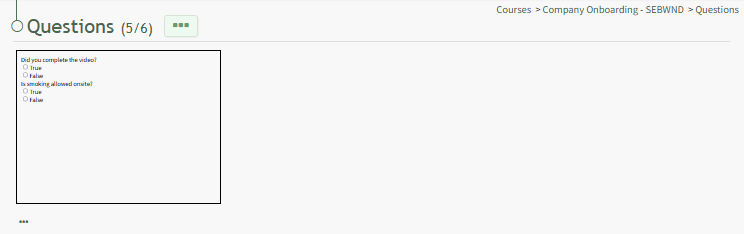
The question group now shows on the Course Page. | ||||||||||||||||||||||||||||||||||||||||||||||||||||||||||||||||||||||||||||||||||||||||||||||||||||||||||||||||||||||||||||||||||||||||||||||||||||||||||||||||||||||||||||||||||||||
Add Question | Selecting "Add Question" from the Context Menu opens the Add Question Modal, enabling an individual question to be added to a Course Page. How To: Add a Question to a Course PageTo add a singular question to a page in a course, you must be on a page within the course. An explanation of how to access a course page is provided in the How To below. How To: Access a Specific Page in a CourseTo access a specific page in a course, open the Courses Module Home Page and click the three-dot icon to the right of the course title to open the Course Context Menu.
Select Pages from the Context Menu.
This opens a course's Details Page. Click the page you want to edit to access the page in the course. Once you are on the page you wish to add a question to, click the three-dot icon to the right of the page title opening the Page Context menu and select the "Add Question" option.
This opens the Add Question Modal. There are three possible types of questions in the Courses Modal. The fields in the Add Question Modal differ based on the question type selected. There are sections with images and an explanation of the unique fields for each question type below.. The checkbox for "This question is counted towards the passing grade." is selected by default for all question types. Answer Notes can be used to include extra information about an answer is correct or why certain answers are wrong. They are shown to users in the Course Review. After inputting the necessary information for the new question, select the "Save" button in the bottom right-hand corner of the modal. True/False Questions
Input your question into the Question Field and select "True/False" as the Type of Question from the dropdown menu. Indicate the correct answer by selecting True or False from the dropdown menu. Multiple Choice Questions
Input your question into the Question Field and select "Multiple Choice" as the Type of Question from the dropdown menu. Click the plus sign to the right of "Answers" and the modal expands to display a text box. Enter the answer. Repeat the process for each potential answer. Select the "This is a Correct Answer" checkbox when appropriate.
Each answer must be saved on the modal, either individually by clicking the disc icon below the answer or by clicking the "Save All" clickable link to the right of Answers and the plus sign icon. The modal will state if any answers are not saved. "All of the above" and/or "None of the above" can be used as answer choices. When written as shown (without quotations, case-insensitive), they will be the last choice when answers are randomized. Select the "Randomize the order of the answers" if you would like the system to randomly list the order of the answers for the multiple-choice questions. Select the "Allow student to select more than one answer" checkbox if there is more than one correct answer. Free Text Questions
Input your question into the Question Field and select "Free Text" as the Type of question from the dropdown menu. Select the plus sign icon to the right of Correct Answer if a second correct answer is desired. Correct answers for free text do not need to be saved. | ||||||||||||||||||||||||||||||||||||||||||||||||||||||||||||||||||||||||||||||||||||||||||||||||||||||||||||||||||||||||||||||||||||||||||||||||||||||||||||||||||||||||||||||||||||||
Preview Page | Selecting "Preview Page" from the Context Menu opens an individual page in a course in preview mode. How To: Preview an Individual Page in a CourseTo preview an individual page in a course, you must be on the specific page in the course. An explanation of how to access a course page is provided in the How To below. How To: Access a Specific Page in a CourseTo access a specific page in a course, open the Courses Module Home Page and click the three-dot icon to the right of the course title to open the Course Context Menu.
Select Pages from the Context Menu.
This opens a course's Details Page. Click the page you want to edit to access the page in the course. Once you are on the desired course page, click the three-dot icon to the right of the page title opening the Page Context Menu.
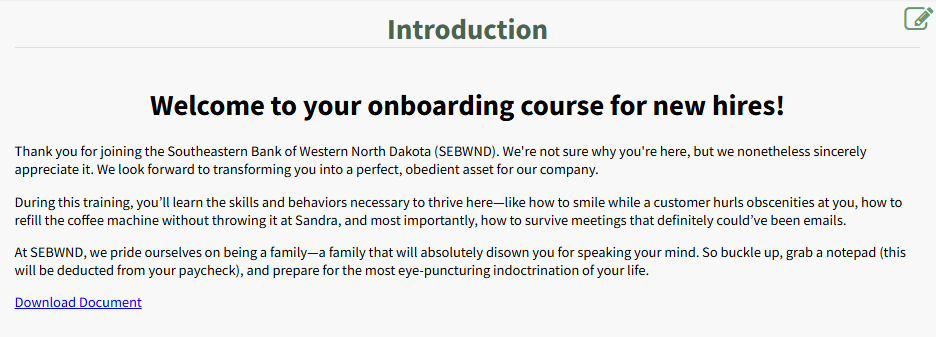
Select the "Page Preview" option, opening a preview of the course page in a new window.
All buttons on the page are disabled in Preview Mode. You cannot navigate pages. Clicking the paper and pencil icon in the top right corner will return you to the course page when you can continue editing. | ||||||||||||||||||||||||||||||||||||||||||||||||||||||||||||||||||||||||||||||||||||||||||||||||||||||||||||||||||||||||||||||||||||||||||||||||||||||||||||||||||||||||||||||||||||||
< Previous Page | Selecting "< Previous Page" from the Context Menu allows you to go to the previous page in the course without going back to the course's Details Page. | ||||||||||||||||||||||||||||||||||||||||||||||||||||||||||||||||||||||||||||||||||||||||||||||||||||||||||||||||||||||||||||||||||||||||||||||||||||||||||||||||||||||||||||||||||||||
Next Page > | Selecting "Next Page >" from the Context Menu allows you to go to the next page in the course without going back to the course's Details Page. | ||||||||||||||||||||||||||||||||||||||||||||||||||||||||||||||||||||||||||||||||||||||||||||||||||||||||||||||||||||||||||||||||||||||||||||||||||||||||||||||||||||||||||||||||||||||
Close This Page and Add New Page | Selecting "Close This Page and Add New Page" from the Context Menu opens the New Page Modal. | ||||||||||||||||||||||||||||||||||||||||||||||||||||||||||||||||||||||||||||||||||||||||||||||||||||||||||||||||||||||||||||||||||||||||||||||||||||||||||||||||||||||||||||||||||||||
Test Course | Selecting "Test Course" from the Context Menu opens the course in a new page in Test Mode. Results of the course viewed in Test Mode are not accounted for in the Course Stats. How To: Take a Course in Test ModeTo take a course in test mode, open the Courses Module Home Page from the Main Menu. Click the three-dot (…) icon to the right of the course title opening the course context menu. Select "Test Course".
The course opens in a new window.
The course is displayed from the user perspective, as if you were actually taking the course. When taking the course in Test Mode, results will not be recorded and will not impact course stats. | ||||||||||||||||||||||||||||||||||||||||||||||||||||||||||||||||||||||||||||||||||||||||||||||||||||||||||||||||||||||||||||||||||||||||||||||||||||||||||||||||||||||||||||||||||||||
Back to Course Overview | Selecting "Back to Course Overview" from the Context Menu opens the course's Details Page. | ||||||||||||||||||||||||||||||||||||||||||||||||||||||||||||||||||||||||||||||||||||||||||||||||||||||||||||||||||||||||||||||||||||||||||||||||||||||||||||||||||||||||||||||||||||||