# Delete a Shared Certifications Report
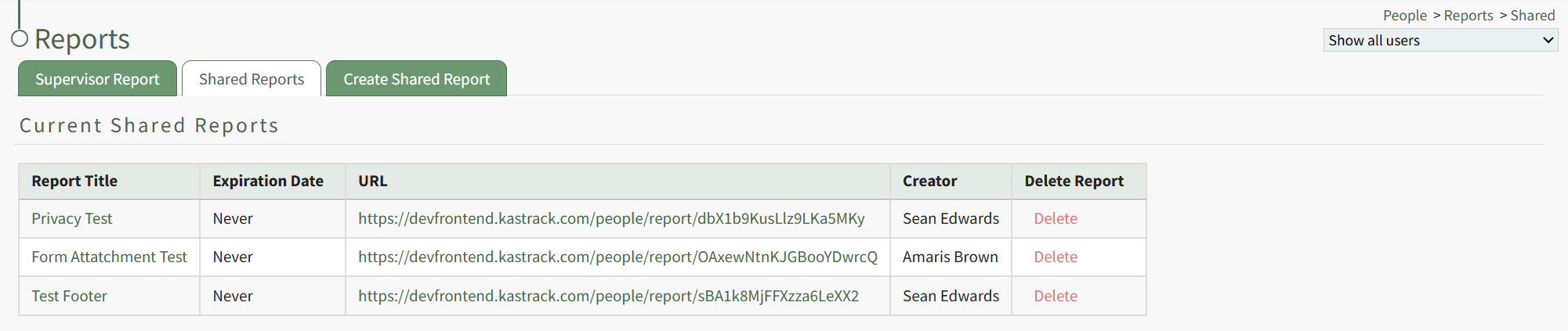
To delete a shared certification report in the Reports Module, open the Reports Page in the People Module on the Main Menu. Open the Shared Reports Tab.
[](https://kaswiki.kastrack.com/uploads/images/gallery/2026-01/LTqimage.png)
The Delete Report column of the Current Shared Reports Table houses a clickable red Delete link.
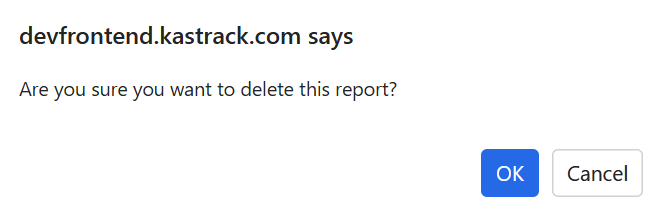
Click the link opening the Shared Report Deletion Confirmation Modal which states, "Are you sure you want to delete this report?"
[](https://kaswiki.kastrack.com/uploads/images/gallery/2026-01/YfIimage.png)
Click "OK" and the Shared Report is deleted and removed from the table.
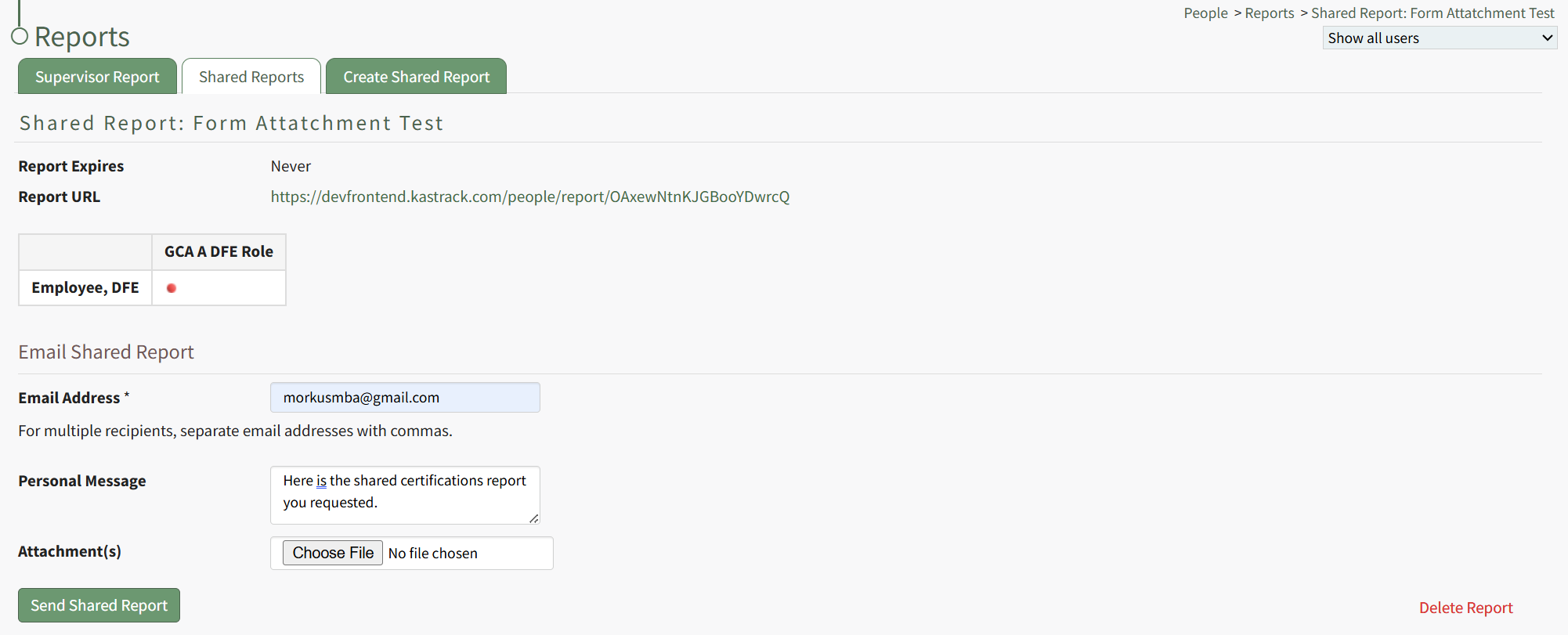
You can also delete a shared certification report directly from a specific shared report page.
[](https://kaswiki.kastrack.com/uploads/images/gallery/2026-01/OYIimage.png)
Click the red "Delete Report" link at the bottom left corner of any Shared Report Page opening the same Shared Report Deletion Confirmation Modal shown above.