The task status will switch from green (or yellow if a warning is set) to red when it is past due, one day after the calendar date selected.
Input a numerical value for “warn at \_\_\_\_ days left” to set the number of days before the task is due for a reminder. This turns a green current / up-to-date task status to a yellow warning. Click “Add Trigger” to save. ### Every (Strict) Period with a Usage Parameter Select Every (Strict) from the Period dropdown menu. Select the specific meter the task is associated with on the Parameter dropdown menu. [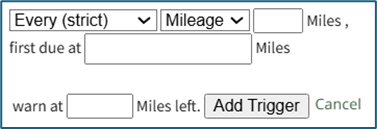](https://kaswiki.kastrack.com/uploads/images/gallery/2026-01/02Nimage.png) Input a numerical value for the usage recurrence interval in the first text box. Input a value for the meter that triggers the new task being due in the “first due at” textbox.The task status will switch from green (or yellow if a warning is set) to red after a “Log Asset Data” or “Update Meter Reading” records a usage value greater than the value entered here.
Input a numerical value for “warn at \_\_\_\_ left” to set meter reading that activates a reminder that the task is approaching.This turns a green current / up-to-date task status to a yellow warning.
[](https://kaswiki.kastrack.com/books/module-how-tos/page/customize-trigger-settings-with-one-time-period/edit?content-id=bkmrk-click-%E2%80%9Cadd-trigger%E2%80%9D--5&content-text=Click%20%E2%80%9CAdd%20Trigger%E2%80%9D%20to%20save. "Jump to section in editor") Click “Add Trigger” to save.