When you convert a database to a form, the database will no longer be available in the Database Module and cannot be converted back to its original database form.
[](https://kaswiki.kastrack.com/uploads/images/gallery/2026-01/sVximage.png) This will open the Convert Database to Form Modal. [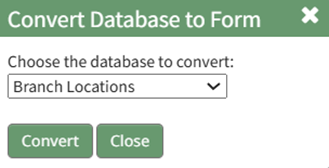](https://kaswiki.kastrack.com/uploads/images/gallery/2026-01/7k9image.png) All available databases will in a dropdown menu. Select the database you wish to convert to a form and click the “Convert” button. A confirmation modal will appear stating, “The database has been converted.” [](https://kaswiki.kastrack.com/uploads/images/gallery/2026-01/scpimage.png) The original database will now show as a form in the Forms Table on the Home Page. [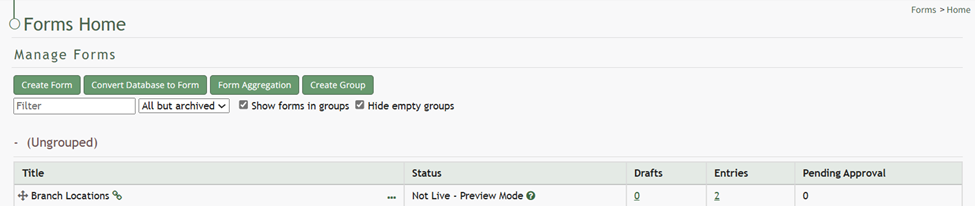](https://kaswiki.kastrack.com/uploads/images/gallery/2026-01/oB7image.png)