# Bulk Assign / Unassign Assets
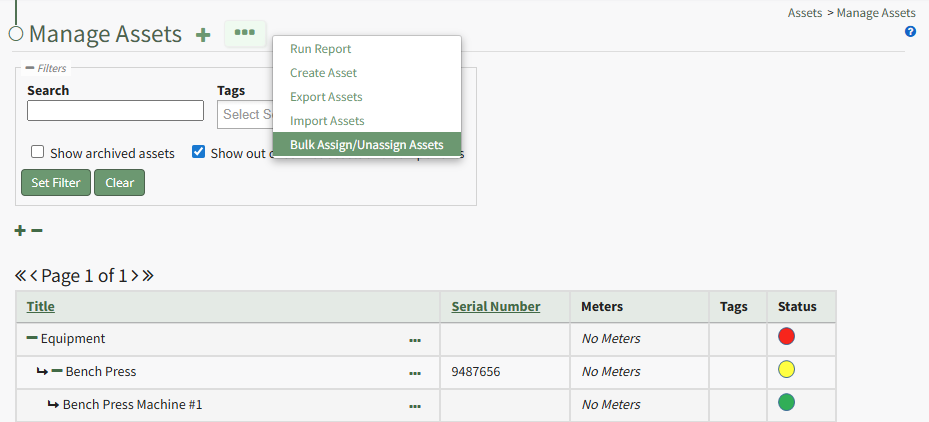
To bulk assign / unassign users to assets, open the Manage Asset Page in the Assets Module on the Main Menu. Click the three-dot icon to the right of the Manage Assets Page header opening the Manage Assets Page Context Menu.
[](https://kaswiki.kastrack.com/uploads/images/gallery/2026-01/Q4mimage.png)
[](https://kaswiki.kastrack.com/books/module-how-tos/page/run-an-asset-report/edit?content-id=bkmrk-select-%22run-report%22-&content-text=Select%20%22Run%20Report%22%20from%20the%20context%20menu%20opening%20 "Jump to section in editor")
Select “Bulk Assign/Unassign Assets” from the context menu to open the Bulk Assign/Unassign Page.
[](https://kaswiki.kastrack.com/uploads/images/gallery/2026-01/lFpimage.png)
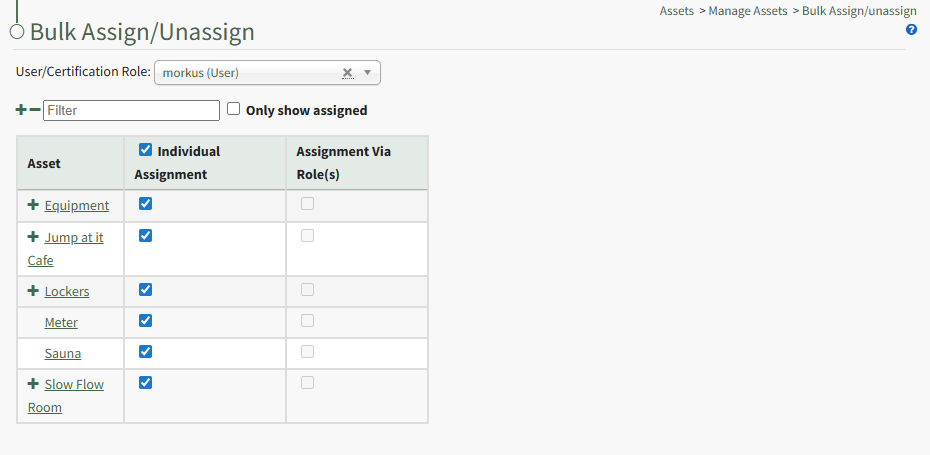
From the User/Certification Role dropdown menu, select the individual user or certification role that you wish assign/unassign assets to. The Bulk Assignment Table is now visible.
Selecting the plus or minus sign icon to the left of the filter box will expand/collapse the assets and their components in the table. Selecting the plus or minus sign icon to the left of the asset title in the table will expand/collapse the specified asset.
[](https://kaswiki.kastrack.com/uploads/images/gallery/2026-01/11Qimage.png)
Selecting the checkbox assigns the asset to the user/certification role.
Deselecting a checkbox unassigns the asset from the user/certification role.
Changes are automatic on the Bulk Assign/Unassign Page and do not need to be saved to be reflected in the system.