# Attach an Asset Library File to an Asset
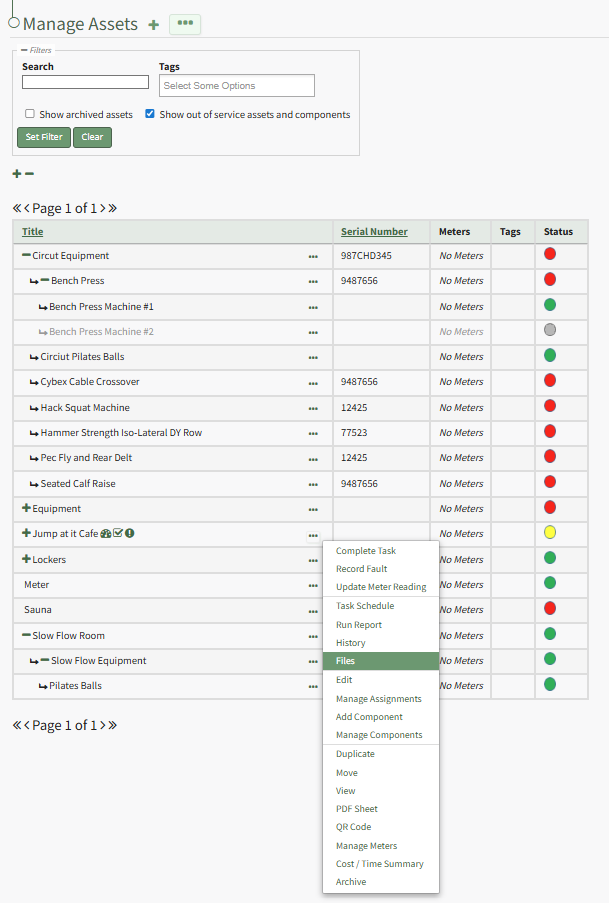
To attach an Asset Module library file to an asset, open the Manage Assets Page in the Assets Module on the Main Menu. Click the three-dot icon to the right of the asset title opening the Asset Management Context Menu.
[](https://kaswiki.kastrack.com/uploads/images/gallery/2026-01/lxFimage.png)
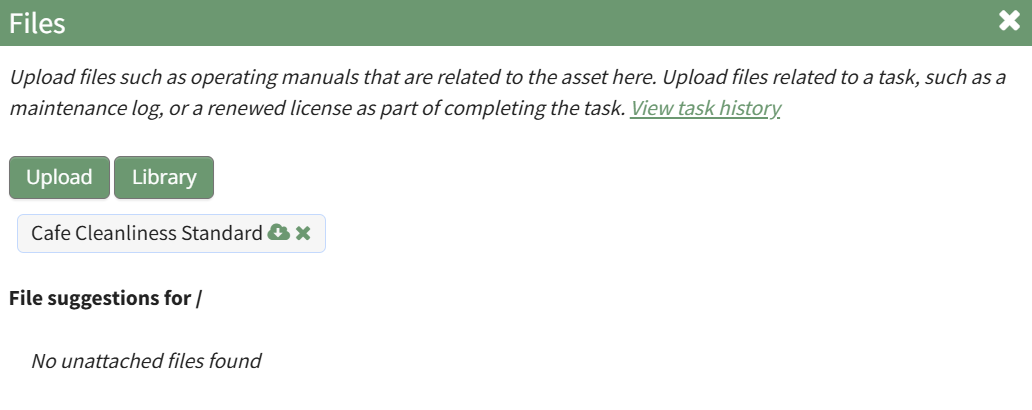
Select "Files" from the context menu opening the Asset Files Modal.
[](https://kaswiki.kastrack.com/uploads/images/gallery/2026-01/ZVkimage.png)
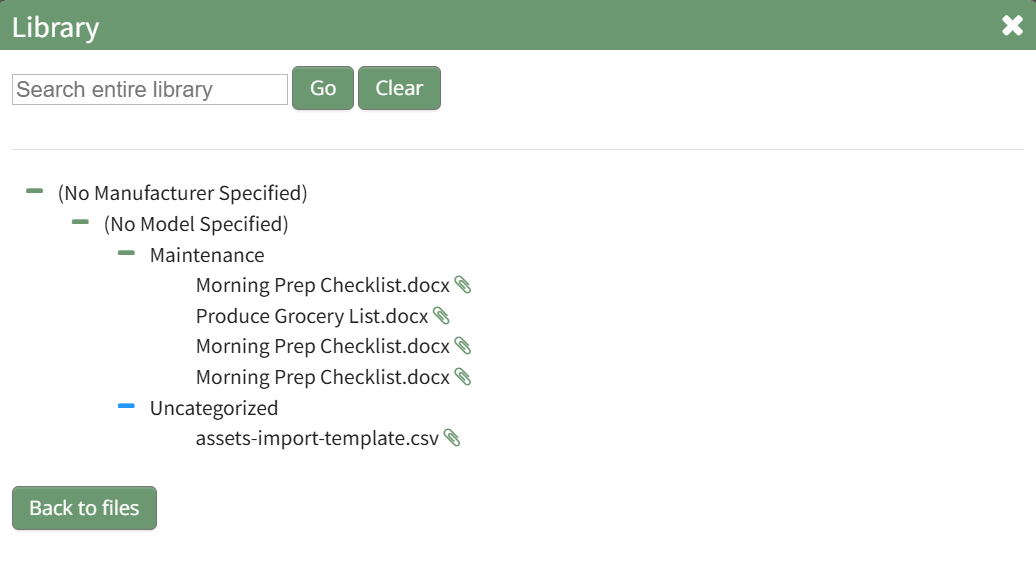
Select the “Library” button to open the Library Modal.
[](https://kaswiki.kastrack.com/uploads/images/gallery/2026-01/pnmimage.png)
Input the file name or a word in the title and press “Go” to search for the file. Use the plus and minus sign icons to expand and collapse the modal.
Click the paperclip icon to attach the file to the asset. The new file will now show in the asset's Files Modal.