# Add Meters to a Task Template
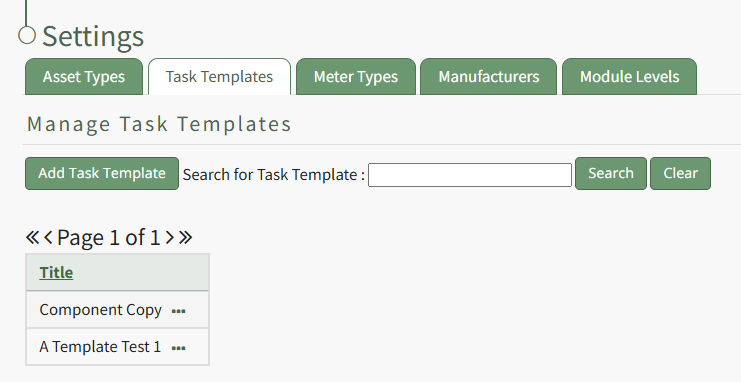
To add a meter to a task template, go the the Task Template Tab on the Settings Page of the Assets Module.
[](https://kaswiki.kastrack.com/uploads/images/gallery/2026-01/Vybimage.png)
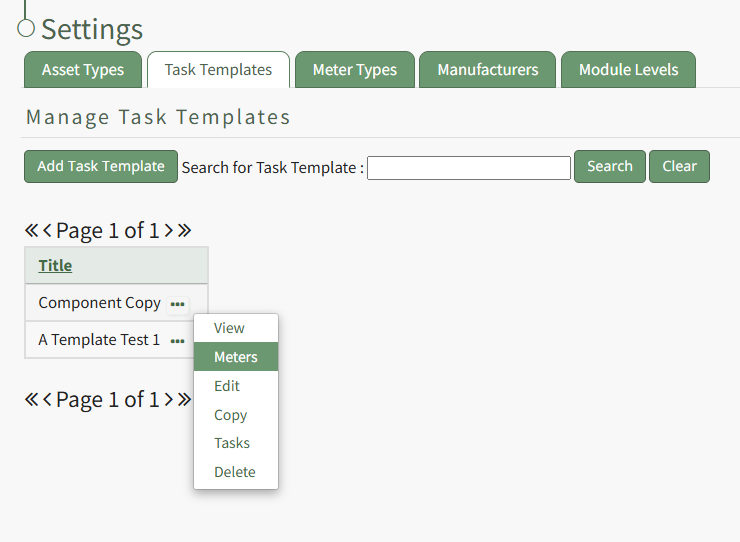
Select the three-dot icon to the right of the task template you wish to add a meter to, opening the task template context menu. Select "Meters".
[](https://kaswiki.kastrack.com/uploads/images/gallery/2026-01/aKFimage.png)
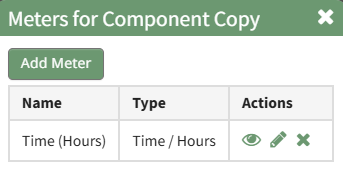
This opens the Meters for Task Templates Modal.
[](https://kaswiki.kastrack.com/uploads/images/gallery/2026-01/LvEimage.png)
Select the "Add Meter" button, opening the Add Meter Modal.
[](https://kaswiki.kastrack.com/uploads/images/gallery/2026-01/Urvimage.png)
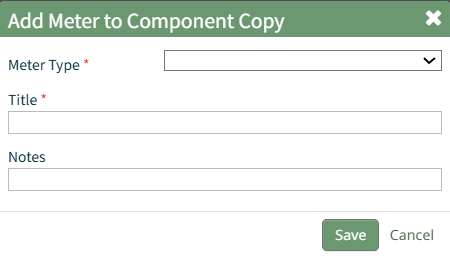
Specify the Meter Type and input a title and any relevant notes regarding the new meter for the task template.
The fields visible on the Add Meter Modal will vary based on the meter type selected.
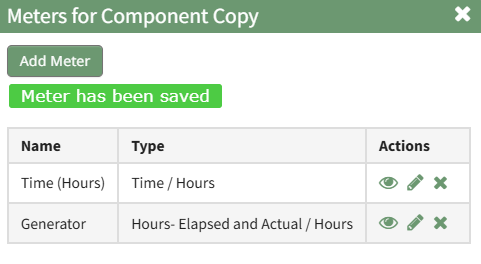
Select "Save" and the new meter will show on Meter Modal for the task template.
[](https://kaswiki.kastrack.com/uploads/images/gallery/2026-01/6PAimage.png)