# Add Dispatch Locations to the Locations Database Form
To add dispatch location entries to the locations database form in the Dispatch Module, open the specific dispatch you wish to. Go to the Dispatch Module Home Page and alter the filter view as needed. Click the Dispatch Number or Title to open the specific dispatch details page.
[](https://kaswiki.kastrack.com/uploads/images/gallery/2026-01/Mrgimage.png)
Assets can be added to a dispatch by selecting the plus sign icon to the right of the Assets column header.
[](https://kaswiki.kastrack.com/books/module-how-tos/page/add-assets-to-a-dispatch/edit?content-id=bkmrk--1&content-text= "Jump to section in editor")
[](https://kaswiki.kastrack.com/uploads/images/gallery/2026-01/rVWimage.png)
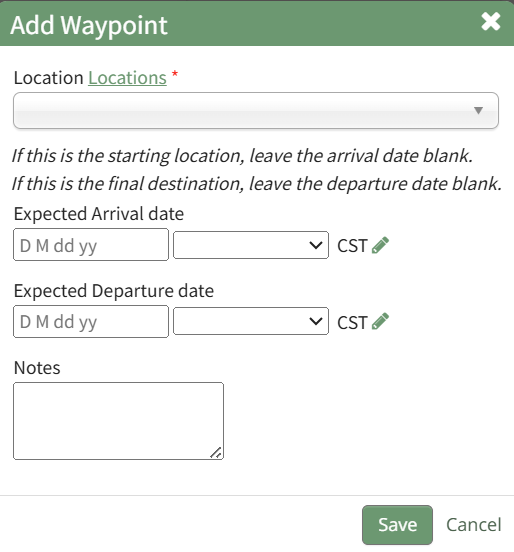
Click the geo tag icon to the right of the Itinerary section header opening the Add Waypoint Modal.
[](https://kaswiki.kastrack.com/uploads/images/gallery/2026-01/IaTimage.png)
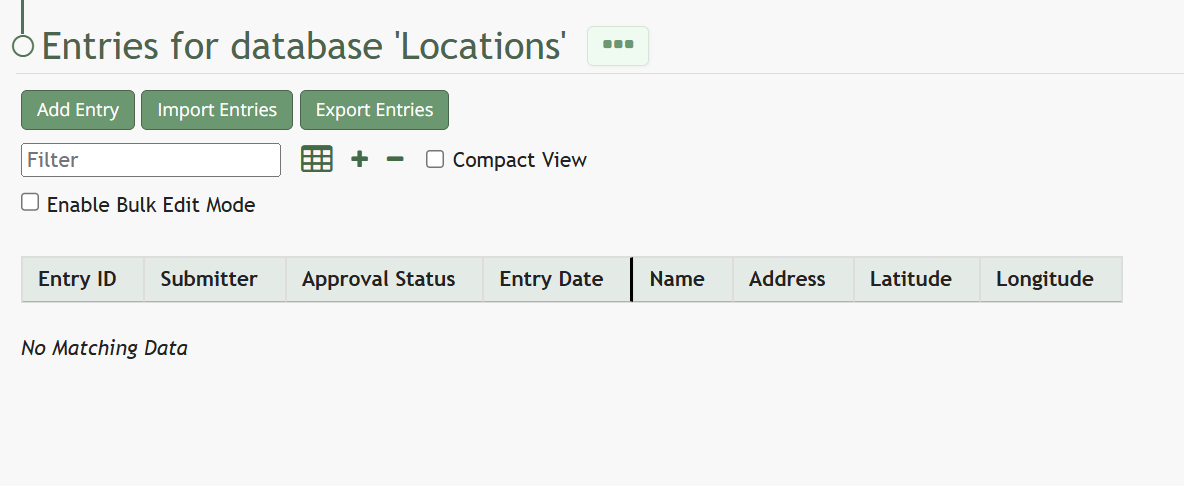
Select the green clickable "Locations" link to open the Locations Database Entries Page.
[](https://kaswiki.kastrack.com/uploads/images/gallery/2026-01/BHCimage.png)
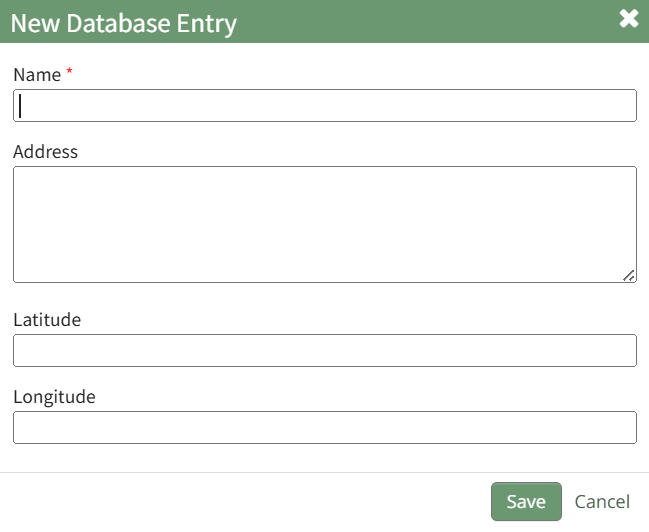
Click the Add Entry button beneath the page header opens the New Database Entry Modal.
[](https://kaswiki.kastrack.com/uploads/images/gallery/2026-01/hTUimage.png)
Input the name of the new location. The address, latitude and longitude are optional entries.
Database entries can also be imported into KAStrack via a CSV file.
How To: Import Database Entries from a CSV
{{@338}}