# Add Custom Course Content
Existing courses are listed alphabetically in the table underneath the “New Course” button according to title on the Courses Module Home Page.
[](https://kaswiki.kastrack.com/uploads/images/gallery/2026-06/sKAimage.png)
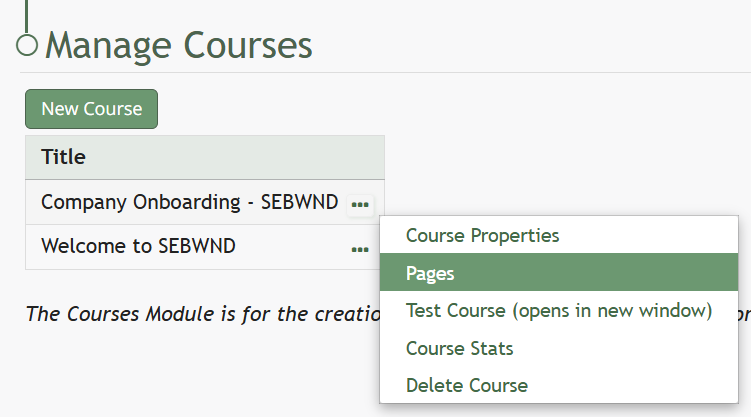
To manage a pre-existing course, select the three dot (…) icon to the right of the title and make a selection from the context menu.
[](https://kaswiki.kastrack.com/uploads/images/gallery/2026-06/Vcmimage.png)
Selecting “Pages” allows the course creator to see and modify the content of the course.
[](https://kaswiki.kastrack.com/uploads/images/gallery/2025-12/Wqkimage.png)
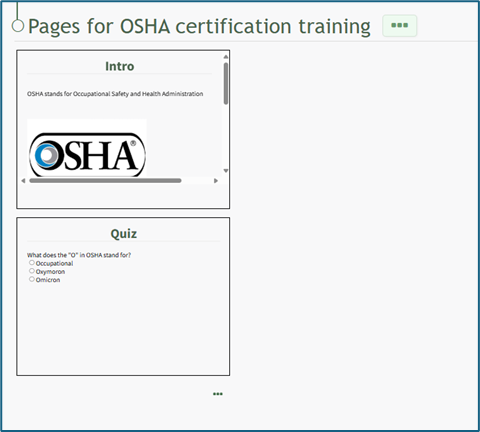
“Pages” brings the course creator to the course homepage, titled Pages for (Name of Course). The three dot (…) to the right of the header and at the bottom of the page are identical and permit the same selections.
How To: Add Pages in a New / Existing Course
{{@244}}
How To: Edit Existing Pages
{{@234}}