Before a stock item can be assigned its unique identifier, it must first be created as a stock item. Serial numbers or unique identifiers are applied to a stock item, making it unique.
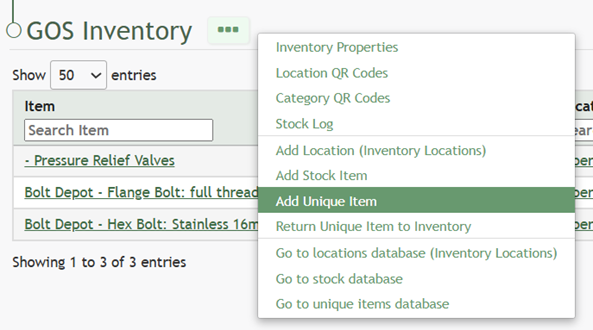
To add a unique item to the inventory, go to the Inventory Module Home Page. [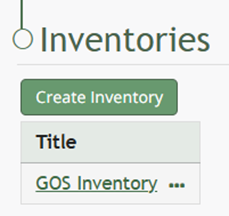](https://kaswiki.kastrack.com/uploads/images/gallery/2026-01/8J0image.png) Click on the name of the inventory you want to add a new stock item into. [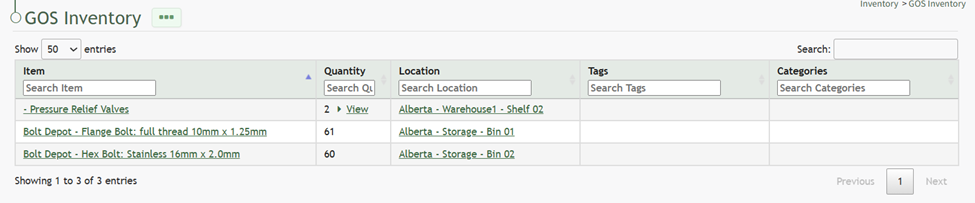](https://kaswiki.kastrack.com/uploads/images/gallery/2026-01/zcbimage.png) Click the three-dot icon to the right of the inventory name header opening the inventory context menu. [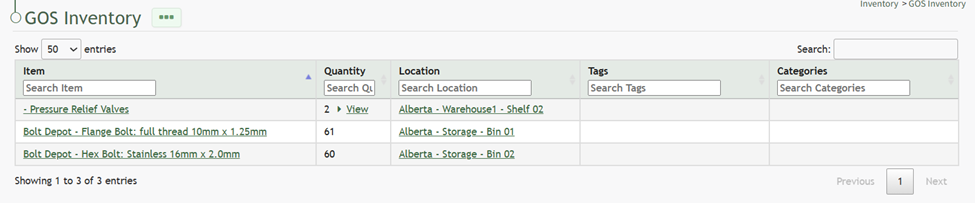](https://kaswiki.kastrack.com/uploads/images/gallery/2026-01/sFMimage.png) Select “Add Unique Item” opening the New Database Entry Modal.The data fields requested by this modal for a new stock item will vary based on the way the inventory was setup.
[](https://kaswiki.kastrack.com/uploads/images/gallery/2026-01/1TVimage.png) Select which inventory item is to be assigned a unique identifier from the Inventory Item dropdown menu. Input the information into the fields and select the “Save” button. The unique item will now show in the inventory.