# Activate Muster Mode for a Drill

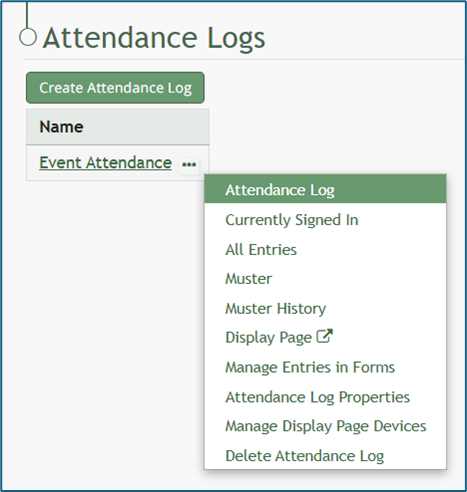
To activate muster mode for a Drill, open the attendance log you wish to activate muster mode for by going to the Home Page of the Attendance Module and clicking on the attendance log’s name, or clicking the three-dot icon to the right of the attendance log’s name, opening the context menu. Select “Attendance Log”.

<p class="callout info">If you select “Muster” from the context menu, you will not be able to run a muster mode drill. This option directs you to a muster mode emergency.</p>

[![image.png](https://kaswiki.kastrack.com/uploads/images/gallery/2026-01/scaled-1680-/tV7image.png)](https://kaswiki.kastrack.com/uploads/images/gallery/2026-01/tV7image.png)

This opens the attendance log’s Information Page.

[![image.png](https://kaswiki.kastrack.com/uploads/images/gallery/2026-01/scaled-1680-/qtbimage.png)](https://kaswiki.kastrack.com/uploads/images/gallery/2026-01/qtbimage.png)
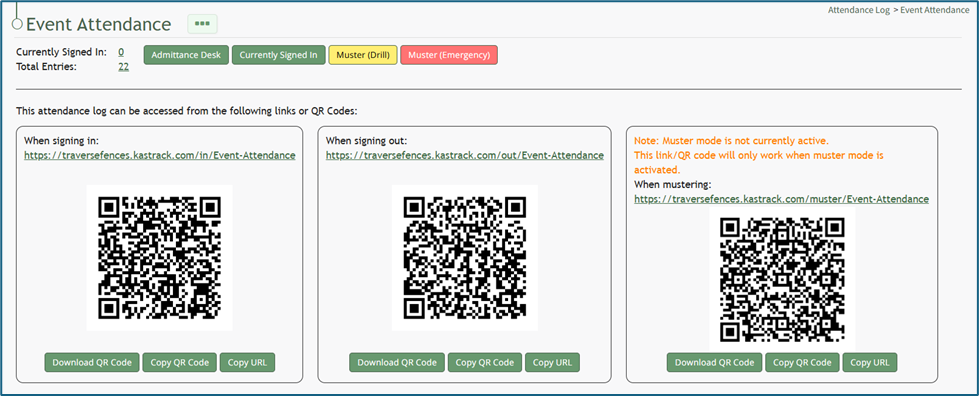
Select the yellow “Muster (Drill)” button at the top of the page. This opens the Muster Page, but muster mode is not yet activated.

[![image.png](https://kaswiki.kastrack.com/uploads/images/gallery/2026-01/scaled-1680-/8NMimage.png)](https://kaswiki.kastrack.com/uploads/images/gallery/2026-01/8NMimage.png)
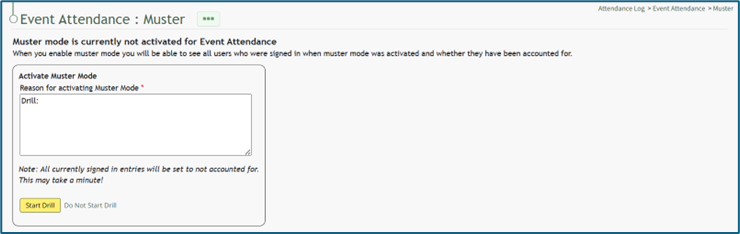
<span style="white-space: pre-wrap;">Input the appropriate notes for activating muster mode. The textbox for notes already indicates that this is a drill. Once including additional reasoning, select the yellow “Start Drill” button. The page being displayed changes, and the summary information at the top of the Muster Page indicates that Muster Mode has been initiated. </span>

<details id="bkmrk-how-to%3A-deactivate-m"><summary>How To: Deactivate Muster Mode</summary>

{{@507}}

</details>[![image.png](https://kaswiki.kastrack.com/uploads/images/gallery/2026-01/scaled-1680-/S9gimage.png)](https://kaswiki.kastrack.com/uploads/images/gallery/2026-01/S9gimage.png)