Access will only be given to users who have permission to view the file unless the document has been indicated as public.
Click the vertical three-dot icon to the far right of the file, opening the file's context menu. Select the QR Code/Link option. [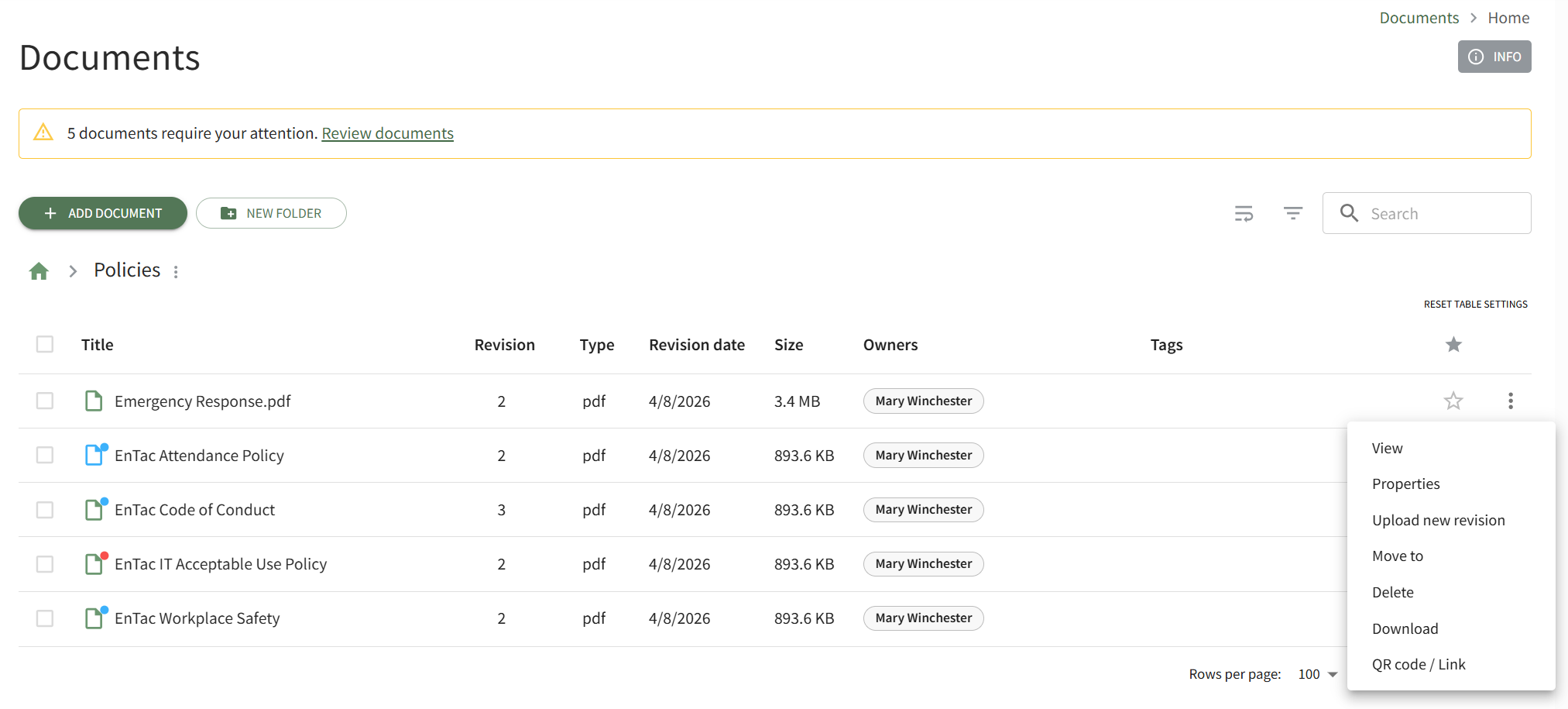](https://kaswiki.kastrack.com/uploads/images/gallery/2026-06/xmqimage.png) This opens the Direct Access Modal. [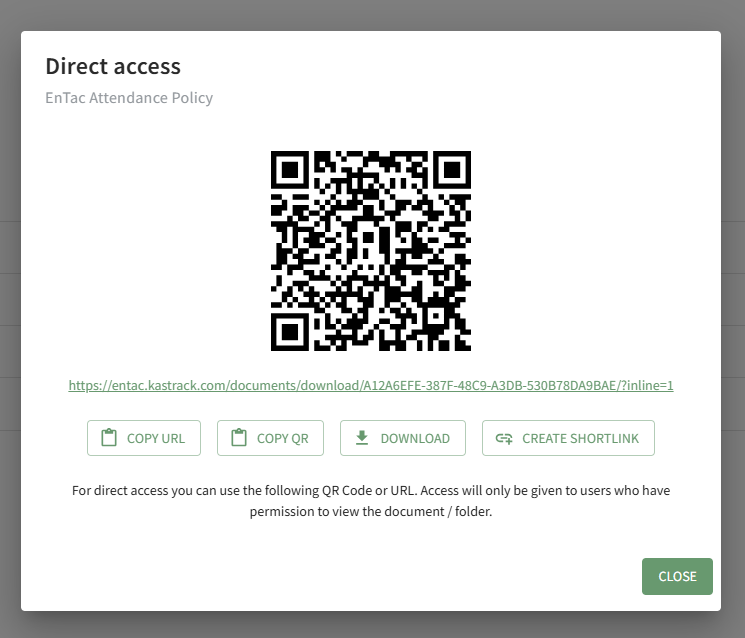](https://kaswiki.kastrack.com/uploads/images/gallery/2026-04/I0Timage.png) From this modal, you can copy the URL Link and/or copy the QR code.Clicking the Download button will automatically download the file to the user's personal device.
Clicking the Create Shortlink button will generate a shortened URL link for file and display it on the modal.