# Integrations Module How Tos (Advanced Suite)

# Integrations Module How Tos

<details id="bkmrk-how-to%3A-create-an-ex"><summary>How To: Create an External Link</summary>

{{@258}}

</details><details id="bkmrk-how-to%3A-delete-an-ex"><summary>How To: Delete an External Link</summary>

{{@260}}

</details><details id="bkmrk-how-to%3A-edit-an-exte"><summary>How To: Edit an External Link</summary>

{{@259}}

</details>

# Create an External Link within Integrations

To create a new external link, go to the Setup Page under External Links in the Integration Module. Select the “New External Link” button

[![image.png](https://kaswiki.kastrack.com/uploads/images/gallery/2025-12/scaled-1680-/KoYimage.png)](https://kaswiki.kastrack.com/uploads/images/gallery/2025-12/KoYimage.png)

This opens the Add Link Modal where the URL Link and External Link Title can be input. Both are required fields. Ensure that the full URL is input in the URL field, beginning with “https://”.

[![image.png](https://kaswiki.kastrack.com/uploads/images/gallery/2025-12/scaled-1680-/D6nimage.png)](https://kaswiki.kastrack.com/uploads/images/gallery/2025-12/D6nimage.png)

Select who can view the external link from the dropdown menu. Permission can be assigned to individuals, certification roles, access levels, or to Everyone. If a URL Link can be embedded within KAStrack, a preview will show in the Add Link Modal. If the URL Link cannot be embedded within KAStrack, the preview will show that there was an issue connecting.

[![image.png](https://kaswiki.kastrack.com/uploads/images/gallery/2025-12/scaled-1680-/Ywjimage.png)](https://kaswiki.kastrack.com/uploads/images/gallery/2025-12/Ywjimage.png)[![image.png](https://kaswiki.kastrack.com/uploads/images/gallery/2025-12/scaled-1680-/1nEimage.png)](https://kaswiki.kastrack.com/uploads/images/gallery/2025-12/1nEimage.png)

# Delete an External Link within Integrations

To delete an external link, go to the Setup Page under External Links in the Integration Module. Click the three-dot icon to the right of the external link title opening the external link context menu.

[![image.png](https://kaswiki.kastrack.com/uploads/images/gallery/2025-12/scaled-1680-/crpimage.png)](https://kaswiki.kastrack.com/uploads/images/gallery/2025-12/crpimage.png)

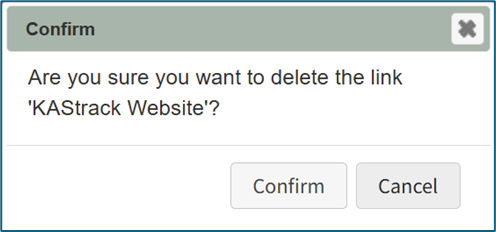
<span style="white-space: pre-wrap;">Select the option to “Delete Link” opening the Deletion Confirmation Modal which states, “Are you sure you want to delete the link ‘LinkName’? </span>

<p class="callout info">Deleting an external link will remove it from everyone who was granted visibility privileges.</p>

[![image.png](https://kaswiki.kastrack.com/uploads/images/gallery/2025-12/scaled-1680-/kC2image.png)](https://kaswiki.kastrack.com/uploads/images/gallery/2025-12/kC2image.png)

Select the “Confirm” button and a confirmation modal stating, “The link was deleted” will briefly show.

[![image.png](https://kaswiki.kastrack.com/uploads/images/gallery/2025-12/scaled-1680-/8kdimage.png)](https://kaswiki.kastrack.com/uploads/images/gallery/2025-12/8kdimage.png)

You will return to the External Links Setup Page, and the deleted external link will no longer show on the External Links Table.

# Edit an External Link within Integrations

To edit an external link, go to the Setup Page under External Links in the Integration Module. Click the three dot icon to the right of the external link title opening the external link context menu.

[![image.png](https://kaswiki.kastrack.com/uploads/images/gallery/2025-12/scaled-1680-/K20image.png)](https://kaswiki.kastrack.com/uploads/images/gallery/2025-12/K20image.png)
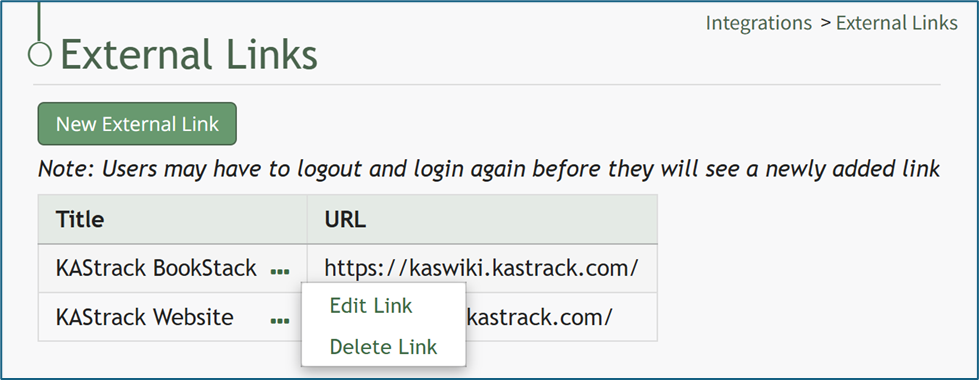
Select the option to “Edit Link” opening the Edit Link Modal

[![image.png](https://kaswiki.kastrack.com/uploads/images/gallery/2025-12/scaled-1680-/5G1image.png)](https://kaswiki.kastrack.com/uploads/images/gallery/2025-12/5G1image.png)
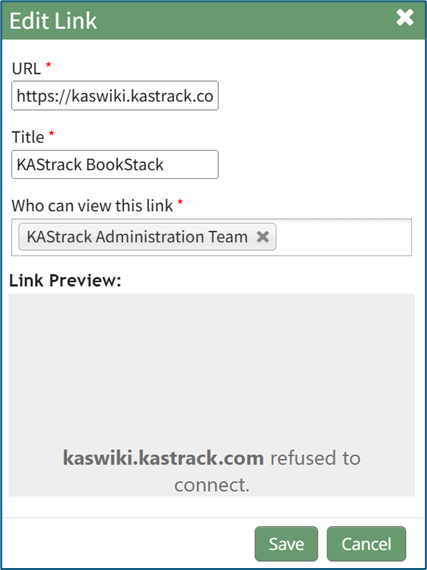
Make changes to the external link title, URL Link, or visibility permissions as desired.

Select the “Save” button, and your edits will now be reflected in the system.