Integrations: Module Pages
Home Page
The KAStrack Home Page shows a list of clickable links that will open any available integrations within your subdomain. The External Links option will take an individual to the external links page.
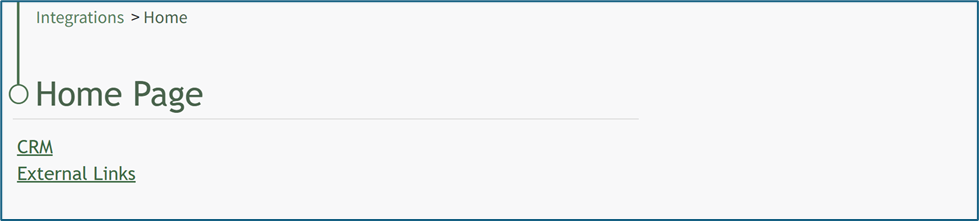
Clicking on the clickable link opens the integration, which will look different for every application. The CRM integration shown below is a custom-made CRM utility designed for a client.

External Links Page

External Links can be used to quickly access other webpages, primarily links outside of the KAStrack system. While Speed Dials on the Dashboard can be used to quickly access personalized external links, the External Links utility within the Integration Module allows for embedding the linked page’s content within KAStrack (if the external link allows), and visibility of the link can be optionally shared with other users, certification roles, and access levels.
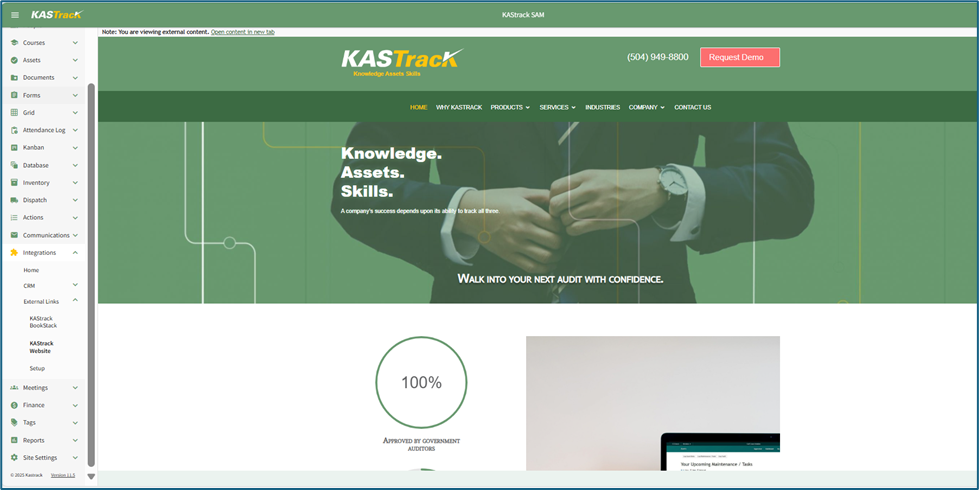
If an external link cannot be embedded, a link is provided so that a user can open the external link in a new tab
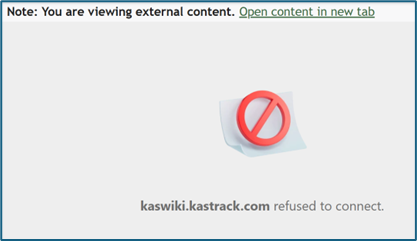
Whether or not an external link can be embedded is not within KAStrack’s control.
How To: Create an External Link
To create a new external link, go to the Setup Page under External Links in the Integration Module. Select the “New External Link” button

This opens the Add Link Modal where the URL Link and External Link Title can be input. Both are required fields. Ensure that the full URL is input in the URL field, beginning with “https://”.

Select who can view the external link from the dropdown menu. Permission can be assigned to individuals, certification roles, access levels, or to Everyone. If a URL Link can be embedded within KAStrack, a preview will show in the Add Link Modal. If the URL Link cannot be embedded within KAStrack, the preview will show that there was an issue connecting.


How To: Edit an External Link
To edit an external link, go to the Setup Page under External Links in the Integration Module. Click the three dot icon to the right of the external link title opening the external link context menu.

Select the option to “Edit Link” opening the Edit Link Modal

Make changes to the external link title, URL Link, or visibility permissions as desired.
Select the “Save” button, and your edits will now be reflected in the system.
How To: Delete an External Link
To delete an external link, go to the Setup Page under External Links in the Integration Module. Click the three-dot icon to the right of the external link title opening the external link context menu.

Select the option to “Delete Link” opening the Deletion Confirmation Modal which states, “Are you sure you want to delete the link ‘LinkName’?
Deleting an external link will remove it from everyone who was granted visibility privileges.

Select the “Confirm” button and a confirmation modal stating, “The link was deleted” will briefly show.

You will return to the External Links Setup Page, and the deleted external link will no longer show on the External Links Table.
Setup Page
The Setup Page is where new external links can be created, and existing links can be edited and deleted.
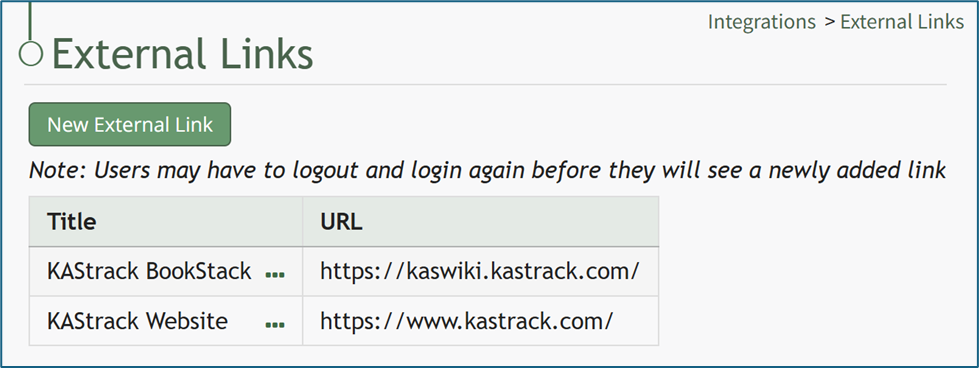
All external links will be shown in the External Links Table on the Setup Page. The three dot icon to the right of the external link title will open a context menu with options to Edit Link and Delete Link.
Any Admin users can create external links. Visibility permission can be granted by access level, certification role, individuals, or given to Everyone.