When a form is in Live status, you will be required to select a checkbox to enable editing of the form. You will not be able to access the Rules Tab and make changes until you do so.
[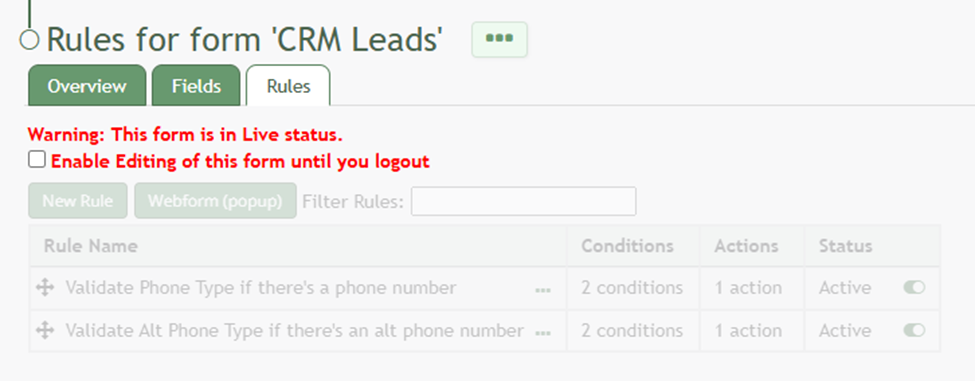](https://kaswiki.kastrack.com/uploads/images/gallery/2026-01/KGQimage.png) Selecting “Rules” from the Forms Table context menu will open a form’s Rules Tab that contains the Rules Table. The Rules Table shows the conditions, actions, and status of a rule. Rules can be filtered for efficient access. The Rules Tab is where new rules can be added to your Form. The three dot icon to the right of the Rules Page header opens a context menu with options to view the Webform, the Webform (popup), Edit Form, Overview, Fields, Rules, Drafts, and Manage Entries. [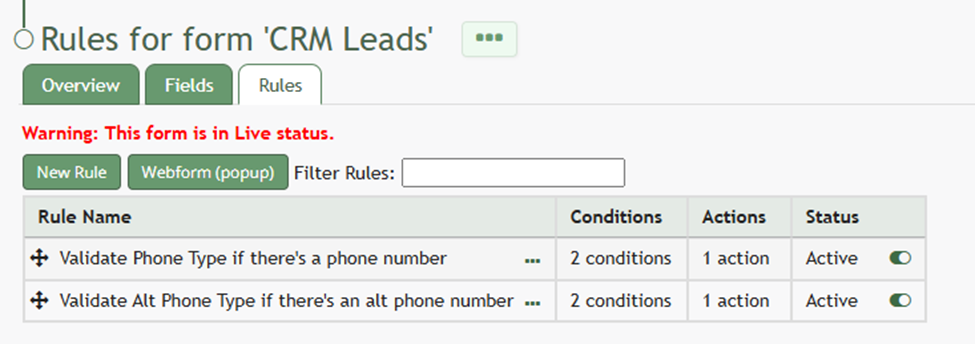](https://kaswiki.kastrack.com/uploads/images/gallery/2026-01/0Ynimage.png) In a form, fields are where individual pieces of data are stored. Form Rules define how each field behaves – the type of data it can hold, what is and is not allowed, as well as how it interacts with other fields. Within KAStrack, rules are required to have a Rule Name and Status (Active of Inactive). Conditions and Actions are optional fields in the New Forms Rule Modal. Multiple conditions and or actions as well as no conditions and / or actions can be used. ### Rule Conditions Conditions are what make field rules both powerful and flexible. They determine when, how, or if a rule applies. Conditions are what make field rules dynamic, allowing KAStrack to react to what a user enters or to what is stored in other fields. A condition is a logical statement that must be true in order for a field rule to activate. (You can think of it as “If X happens, then do Y.” When conditions are applied, rules will only be utilized if certain criteria are met. A conditional rule always has three parts, explained in the Structure of a Conditional Rule Table.| **The Structure of a Conditional Rule** | ||
| **Part** | **Description** | **Example** |
| Trigger | What the rule watches | Status |
| Condition | What must be true | = “Pending” |
| Action / Result | What happens if the condition is true | “Make Compliance Data field required” |
| **Conditional Triggers** | |||
| **Main Parameter** | **Modifier 1** | **Modifier 2** | **Condition** |
| Form Fields | General | Is Equal To | |
| Is Not Equal To | |||
| Matches Regular Expression | |||
| Does Not Match Regular Expression | |||
| Is Blank | |||
| Is Not Blank | |||
| Is Updated | |||
| Has Changed When Saving or This is a New Entry | |||
| Has Changed When Saving | |||
| Numeric | < | ||
| <= | |||
| > | |||
| >= | |||
| System | Current Time | Is Before | |
| Is After | |||
| User / On Behalf of User | Is a Member of Certification Role | ||
| Is not a member of Certification Role | |||
| Is valid in Certification Role | |||
| Is not valid in Certification Role | |||
| Has access level | |||
| Does not have access level | |||
| Is logged in | |||
| Is not logged in | |||
| Is supervised by (direct) | |||
| Is supervised by (all) | |||
| User/ On Behalf of User: Username User/ On Behalf of User: Full Name | General | Is Equal To | |
| Is Not Equal To | |||
| Matches Regular Expression | |||
| Does Not Match Regular Expression | |||
| Is Blank | |||
| Is Not Blank | |||
| Is Updated | |||
| Numeric | < | ||
| <= | |||
| > | |||
| >= | |||
| Logged In User | Is a Member of Certification Role | ||
| Is not a member of Certification Role | |||
| Is valid in Certification Role | |||
| Is not valid in Certification Role | |||
| Has access level | |||
| Does not have access level | |||
| Is logged in | |||
| Is not logged in | |||
| Is supervised by (direct) | |||
| Is supervised by (all) | |||
| Logged in User: Username Logged In User: Full Name | General | Is Equal To | |
| Is Not Equal To | |||
| Matches Regular Expression | |||
| Does Not Match Regular Expression | |||
| Is Blank | |||
| Is Not Blank | |||
| Is Updated | |||
| Numeric | < | ||
| <= | |||
| > | |||
| >= | |||
| Steps | No Step | Is the Current Step | |
| Is Not the Current Step | |||
| Submitted | Is the Current Step | ||
| Is Not the Current Step | |||
| **Forms Rules Actions** | |
| **Category** | **Available Rule Actions** |
| Field Management | Show / Hide Fields, Change Validation of Fields, Change the Value of Fields, Lock / Unlock Fields, Increment a Sequential Number Field, Add / Remove CSS Class, Configure a signature field |
| Workflow | Send an Alert, Require Approval, On Approval – Send to Communications, Show Save and Next button, Do Not Allow Submission, Do Not Allow Entry to be Approved, Do Not Allow Entry to be Rejected, Save Draft and Assign, Save Draft and Run Step, Create an Action Group from Template, Configure Submittal Message, Hide Draft Buttons |
Save Draft and Assign allows you to create a form that has to be completed by more than one person before it is submitted. Using Save Draft and Assign requires the use of steps. The Save Draft and Run Step Action is used in conjunction with Save Draft and Assign as needed. | |
| Account Management | Assign a Supervisor, Assign a Certification Role, Remove a Certification Role, Assign Other Required Certification, Remove Other Required Certification, Edit a Custom Account Field, Create a User |
| Other | Use An Alternate Filename For Entry PDF, Use an Alternative Entry PDF |
| Integrated Module | Assets – Create a Corrective Action, Assets – Update an Assets Type Field, Dispatch – Attach to a dispatch |
These options will only show if you have already configured the form to integrate with these modules. | |