Finance: Module Pages
- Budgets Page: Active / Closed / Archived Tabs
- Budgets Page: Reports Tab
- Budgets Page: Module Settings Tab
- Invoices Page
Budgets Page: Active / Closed / Archived Tabs
The Budgets Page of the Finance Module is comprised of five tabs: Active, Closed, Archived, Reports, and Settings. The active tab you’re on is designated by the white coloration.
The “Add New Budget” button will show to the right of the budget header, regardless of which tab is open.
How To: Add a New Budget
To create a new budget within the Finance Module, go to any tab on the Budgets Page and select the “Add New Budget” button.

This opens the Add New Budget Modal.

Input the budget name and a description.
Identify the individual to be listed as the account. Account refers to the individual whose account is linked to the budget as an owner.
You can only select one individual.
Include the budget amount.
If an individual is not associated with a budget as the account holder or an approver, they cannot be given visibility.
Click the “Create Budget” button and the newly created budget will show in the Active Budgets Table on the Active Tab of the Budgets Page.

All budgets are grouped as active, closed or archived, and are shown in budget tables on the different tabs. A budget is only visible to account users if they are listed as the account holder of the budget or if they are listed as an approver on the budget.
If an individual is not associated with a budget as the account holder or an approver, they cannot be given visibility.
An explanation of the budget table can be found under the Understanding Budgets and Budget Items of the User Manual.
To open a budget (regardless of its status), you can click directly on the budget name or click the eyeball icon in the action column of the table.
The actions available in the budget table vary by tab.
Actions Available in the Budget Table Based on Status | |
Tab | Actions Available |
Active | View Budget, Edit Budget, Add Budget Alert, Edit Approvers / Notifications, Close Budget, and Archive Budget |
Closed | View Budget, Make Budget Active, Archive Budget |
Archived | Make Budget Active, Delete Budget |
Budgets Page: Reports Tab
The Reports Tab highlights system reports from the Reports Module that are relevant to budgets. System Reports displayed on the Reports Tab include the Budget Summary Report, Pending Approvals Report, and Approval Status Report.
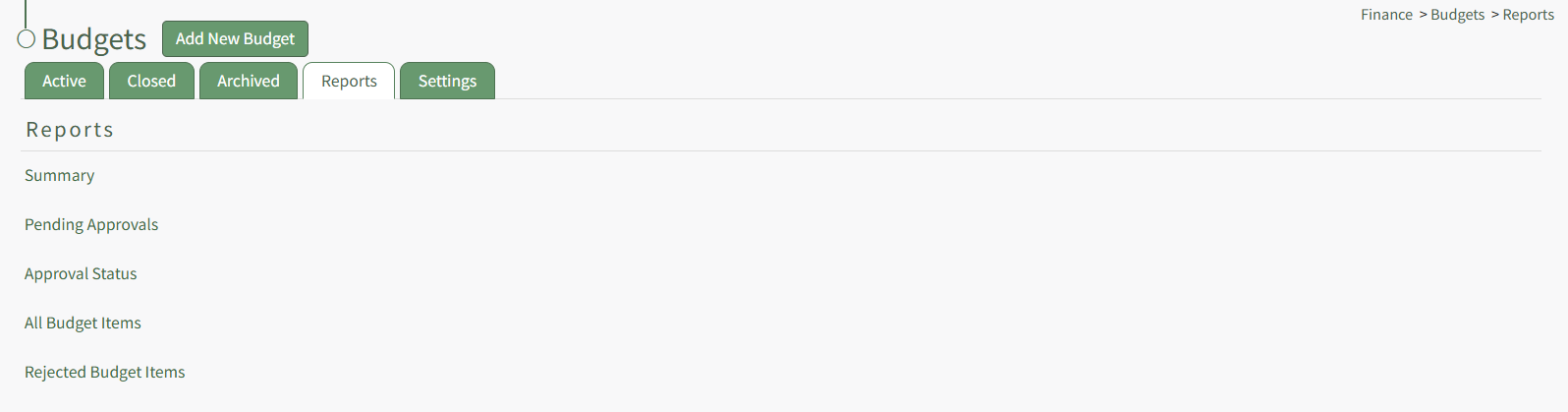
The System Budget Report Fields by Report Table below states each of the fields included in the report.
System Budget Report Fields by Report | |
Report Name | Report Fields |
Summary | Account, Budget Name, Amount Used, Total Budget, Percent Used |
Pending Approval | Account, Budget, Budget Item, Data, Invoice Number, Attachment(s), Amount, Approve / Reject |
Approval Status | Account, Student ID, Email, Budget, Budget Item, Date, Invoice Number, Attachment(s), Amount, Remaining Approvers |
All Budget Items | Account, Budget, Budget Item, Date, Invoice Number, Attachment(s), Amount, View Budget Item |
Rejected Budget Items | Account, Budget, Budget Item, Date, Invoice Number, Attachment(s), Amount, View Budget Item |
Each report listed is a clickable link that will open in the Reports Module. A details explanation of the Report Page can be found in the User Manual under the Reports Module.
Budgets Page: Module Settings Tab
The Module Settings Tab allows an individual to customize settings for archived budgets and settings for budget deletion.

Budgets will automatically be archived when the user account associated with the active budget is archived. Un-archiving a user will result in the automatically archived budgets to return to their previous state (active or closed). If the budget was manually archived before the user was archived, the budget will remain archived. You can deselect the “Archive budgets when associated user account is archived” checkbox if you do not want budgets to be archived when associated user accounts are archived.
Selecting the “Delete budgets when associated user account is deleted” checkbox will result in budgets being automatically deleted when the associated user account is deleted. When this budget setting is selected, an additional checkbox becomes available. If the “Only delete “empty” budgets with no recorded budget items” checkbox is selected, a budget will not be deleted if there are budget items recorded within the budget.
Changes must be saved by clicking the “Save” button in order for the settings modifications to be recorded by the system.
Invoices Page
The Invoices Page is populated with data from the FS Pro Integration that was built for and only accessible by a specific client’s servers and thus, is presently non-functional for other clients.