# Documents Module

# Documents: Introduction

# Documents Module Summary

The Documents Module is a repository where all company files can be uploaded, stored, and managed. This module can track a company’s workforce acknowledgement of documents for workforce assurance and automate acknowledgment management for revised document updates. Additionally, the documents module automates annual suitability reviews and management of change.

The following file types can be previewed directly within the module without needing to download them first: .jpg, .jpeg, .webp, .gif, .bmp, .svg, .png, .mp4, .webm, .ogg, and .pdf.

For .url files, KAStrack will display the hyperlink instead of a preview. The viewer is feature rich for PDFs.

All filetypes can be uploaded to KAStrack, but the ones listed above may be viewed without being downloaded.

<p class="callout info">Files associated with and uploaded within the following Modules are not automatically saved in the Documents Module, but they can be manually uploaded in both: Assets, Courses, Dispatch, Forms, and People. Files uploaded into the Grid Module will automatically be housed in Documents.</p>

[![image.png](https://kaswiki.kastrack.com/uploads/images/gallery/2026-04/scaled-1680-/image.png)](https://kaswiki.kastrack.com/uploads/images/gallery/2026-04/image.png)

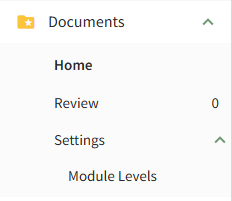
The table below provides a summary of each page in the Documents Module.

<table id="bkmrk-documents-module-mai"><colgroup><col style="width: 111px;"></col><col style="width: 739px;"></col></colgroup><tbody><tr><td colspan="2">**Documents Module Main Menu Page Summaries**

</td></tr><tr><td>**Page**

</td><td>**Explanation**

</td></tr><tr><td>Home

</td><td>The Home Page is the repository for all files and contains Folder/File List.

</td></tr><tr><td>Review

</td><td>The Review Page is comprised of three tabs: Review, Notifications, and Updates. The user can select between the three tabs below the Review Page header to manage file approvals, acknowledgements, and continued suitability, as well as monitor any pertinent file updates and notifications.

</td></tr><tr><td>Settings

</td><td>The Settings Page allows the user to customize and designate permissions for the Documents Module.

</td></tr></tbody></table>

The Documents Action Status Legend shown in the table below communicates the status of outstanding to dos in the module.

<table id="bkmrk-documents-module-act"><colgroup><col style="width: 111px;"></col><col style="width: 739px;"></col></colgroup><tbody><tr><td colspan="2">**Documents Module Action Status Legend**

</td></tr><tr><td>**Icon**

</td><td>**Explanation**

</td></tr><tr><td>[![image.png](https://kaswiki.kastrack.com/uploads/images/gallery/2026-04/scaled-1680-/Nhhimage.png)](https://kaswiki.kastrack.com/uploads/images/gallery/2026-04/Nhhimage.png)

</td><td>A red action status in the Documents Module indicates that a continued suitability review is overdue or that a document is waiting to be published.

</td></tr><tr><td>[![image.png](https://kaswiki.kastrack.com/uploads/images/gallery/2026-04/scaled-1680-/sTgimage.png)](https://kaswiki.kastrack.com/uploads/images/gallery/2026-04/sTgimage.png)

</td><td>A yellow action status in the Documents Module indicates there is a pending document approval.

</td></tr><tr><td>[![image.png](https://kaswiki.kastrack.com/uploads/images/gallery/2026-04/scaled-1680-/Ca0image.png)](https://kaswiki.kastrack.com/uploads/images/gallery/2026-04/Ca0image.png)

</td><td>The blue action status in the Documents Module indicates that a document acknowledgement/approval is required, a document is reviewed but not yet approved, or a notification of a new document revision.

</td></tr></tbody></table>

<p class="callout info">If there are multiple statuses relating to the same document, overdue (red) takes precendence over warnings (yellow) which takes precedence over being due (blue).</p>

<p class="callout success">The User Manual for the {{@951#bkmrk-documents-module-is-}}</p>

# Customizable Document Properties

Each file uploaded in the Documents Module has customizable properties that are designated when a new file is uploaded. An explanation of those properties are explained in the Basic Details and Advanced Options Tabs below.

### Basic Details

Under the Basic Details Tab, the user can input a title, description of the file, revision number and revision date. They can also designate any document owners (the uploader is initially included as an Owner by default) and tags.

[![image.png](https://kaswiki.kastrack.com/uploads/images/gallery/2025-12/scaled-1680-/G0uimage.png)](https://kaswiki.kastrack.com/uploads/images/gallery/2025-12/G0uimage.png)
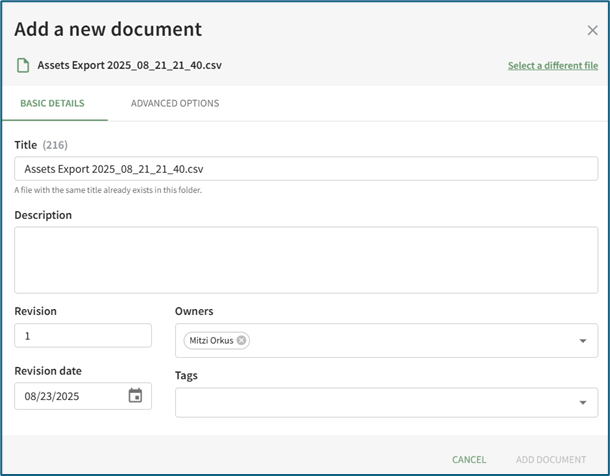
If the incorrect file was selected, the user can click “Select a different file” from the top right corner of the modal to exchange it with the correct file.

<span style="white-space: pre-wrap;">Document owner(s) can be selected from a dropdown list of users. </span>

<p class="callout info">Document owners have the ability to approve documents, which is relevant for companies who are required to attest an annual/periodic review for regulatory agencies or other governing bodies. Document owners are also notified any time a new comment is made on a file and are responsible for affirming continued suitability of the file if enabled under Advanced Options.</p>

### Advanced Options

Selecting the Advanced Options Tab allows the user to apply enhanced settings to the file. An explanation of each Advanced Options checkbox is included in the table below.

[![image.png](https://kaswiki.kastrack.com/uploads/images/gallery/2025-12/scaled-1680-/Mdaimage.png)](https://kaswiki.kastrack.com/uploads/images/gallery/2025-12/Mdaimage.png)
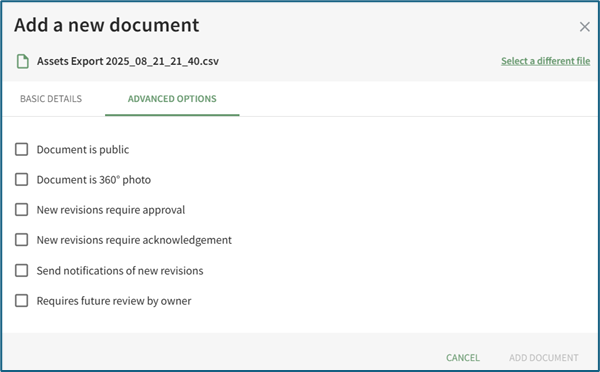
<table id="bkmrk-document-advanced-op"><colgroup><col style="width: 199px;"></col><col style="width: 903px;"></col></colgroup><tbody><tr><td colspan="2">**Document Advanced Options Explanations**

</td></tr><tr><td>**Checkbox**

</td><td>**Explanation**

</td></tr><tr><td>Document is Public

</td><td><span style="white-space: pre-wrap;">Selecting the “Document is public” checkbox allows individuals who are not users in the KAStrack system to view files. </span>

<p class="callout info">Users in KAStrack will need appropriate permissions to view the file regardless.</p>

<details><summary>How To: Designate a File is Public</summary>

{{@913}}

</details></td></tr><tr><td>Document is 360° Photo

</td><td>Selecting the “Document is a 360° photo” checkbox communicates to KAStrack that the file is intended for 360° viewing to ensure it shows correctly.

</td></tr><tr><td>New Revisions Require Approval

</td><td>Selecting the “New revisions require approval” checkbox opens a dropdown menu. Approval requirements for the file can be designed by Access Level, Certification Role, or specific individuals in the system. An additional checkbox can be selected if this revision requires approval.

[![image.png](https://kaswiki.kastrack.com/uploads/images/gallery/2025-12/scaled-1680-/4Jrimage.png)](https://kaswiki.kastrack.com/uploads/images/gallery/2025-12/4Jrimage.png)

<p class="callout info">Users view the files that require approval on the Documents Module Review Page.</p>

</td></tr><tr><td>New Revisions Require Acknowledgement

</td><td>Selecting the “New revisions require acknowledgement” checkbox allows acknowledgement requirement customization.

[![image.png](https://kaswiki.kastrack.com/uploads/images/gallery/2025-12/scaled-1680-/nx8image.png)](https://kaswiki.kastrack.com/uploads/images/gallery/2025-12/nx8image.png)
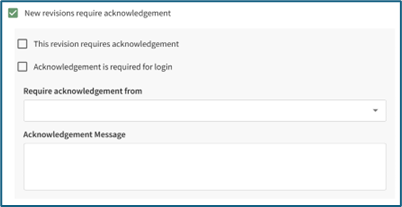
The “This revision requires acknowledgement” checkbox will notify the Access Levels, Certification Roles, or individuals selected of the new document. If “Acknowledgement is required for login” is selected, a user will not be able to access anything in KAStrack until the user acknowledges the revised document. A textbox allows the user to include a customized acknowledgement message that will be included in the automated message sent out to users by KAStrack.

<p class="callout info">Users view the files that require acknowledgement on the Documents Module Review Page, or just after signing in, when “Acknowledgement is required for login” is enabled.</p>

</td></tr><tr><td>Send Notifications of New Revisions

</td><td>Selecting the “Send notifications of new revisions” checkbox allows a user to customize (by Access Level, Certification Role, or individual) who receives an email notification that a new file revision has been updated in KAStrack. An additional checkbox can be selected if a notification is to be sent for this revision.

[![image.png](https://kaswiki.kastrack.com/uploads/images/gallery/2025-12/scaled-1680-/5ytimage.png)](https://kaswiki.kastrack.com/uploads/images/gallery/2025-12/5ytimage.png)

<p class="callout info">Users view the files they have received notification of on the Documents Module Review Page.</p>

</td></tr><tr><td>Requires Future Review by Owner

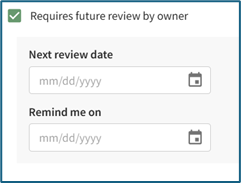
</td><td><span style="color: black;">Selecting the “Requires future review by owner” checkbox allows the user to schedule the next review date and set a reminder for the review deadline.</span>

[![image.png](https://kaswiki.kastrack.com/uploads/images/gallery/2025-12/scaled-1680-/ENOimage.png)](https://kaswiki.kastrack.com/uploads/images/gallery/2025-12/ENOimage.png)

<p class="callout info"><span style="color: black;">Users review files for continued suitability on the Documents Module Review Page.</span></p>

</td></tr></tbody></table>

# Folder and File Context Menu Explanations

Each folder and file within the Documents Module will have a context menu associated with it (accessed via the verticle three dot icon) that links to actions. The options available on a specified folder's context menu are explained in the table below.

<table id="bkmrk-folder-context-menu-"><colgroup><col style="width: 129px;"></col><col style="width: 723px;"></col></colgroup><tbody><tr><td colspan="2">**Folder Context Menu Option Explanations**

</td></tr><tr><td>**Option**

</td><td>**Explanation**

</td></tr><tr><td>Properties

</td><td>Selecting Properties from the context menu opens the Folder Properties Modal, allowing the user to update the folder title, tags, and establish if the folder should be set as pubic.

</td></tr><tr><td>Defaults

</td><td><span style="white-space: pre-wrap;">“Defaults” is a dropdown menu option for Folders only. Clicking “Defaults” will open the Defaults for New Documents Modal, which allows the user to make customized settings for bulk uploads. </span>

<p class="callout info">The user enters a title pre-fix instead of a title for bulk uploads.</p>

</td></tr><tr><td>Move To

</td><td>Selecting Move To from the context menu opens a modal that allows the user to move a folder from its current location to another.

<details><summary>How To: Move a File/Folder</summary>

{{@226}}

</details></td></tr><tr style="height: 10px;"><td>Delete

</td><td>Selecting Delete from the context menu opens a Delete Folder modal that will ask the user to confirm that they want to delete the folder, including all the files, folders, and subfolders stored in the parent folder.

<details><summary>How To: Delete a Folder</summary>

{{@895}}

</details></td></tr><tr><td>QR Code / Link

</td><td>Selecting “QR Code / Link” from the context menu opens the Direct Access Modal for individual folders.

[![image.png](https://kaswiki.kastrack.com/uploads/images/gallery/2025-12/scaled-1680-/VYHimage.png)](https://kaswiki.kastrack.com/uploads/images/gallery/2025-12/VYHimage.png)
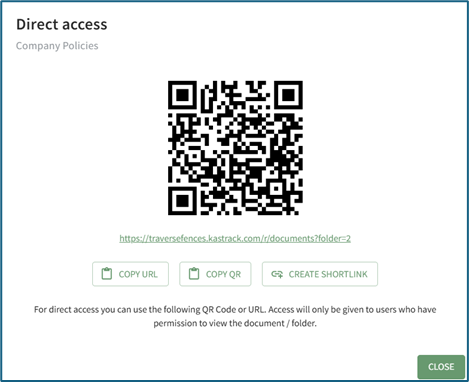
The user can use either the URL or QR Code to share access to the folders selected.

<p class="callout info">Access will be given to internal users who have permission to view the folder. Access will be given to external users if the folder is public.</p>

<details><summary>How To: Access A Folder's QR Code / Link</summary>

{{@889}}

</details></td></tr><tr><td>Download

</td><td>Selecting Download on the context menu opens the Download Modal, allowing the user to download all of the files located in the folder selected and the subfolders held within.

[![image.png](https://kaswiki.kastrack.com/uploads/images/gallery/2025-12/scaled-1680-/6Fdimage.png)](https://kaswiki.kastrack.com/uploads/images/gallery/2025-12/6Fdimage.png)
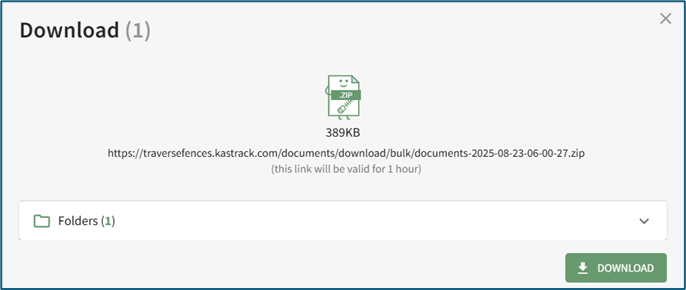
Selecting[![image.png](https://kaswiki.kastrack.com/uploads/images/gallery/2025-12/scaled-1680-/aCZimage.png)](https://kaswiki.kastrack.com/uploads/images/gallery/2025-12/aCZimage.png)<span style="white-space: pre-wrap;"> to the right of the folder opens a dropdown menu that shows all individual files being downloaded. </span>

<p class="callout info">The download is not accessible to those without permission to access it. Restrictive tags can also be used to limit access and cannot be bypassed by a user.</p>

<details><summary>How To: Download a Folder</summary>

{{@896}}

</details></td></tr></tbody></table>

The options available on a specified file's context menu are explained in the table below.

<table id="bkmrk-file-context-menu-op"><colgroup><col style="width: 125px;"></col><col style="width: 716px;"></col></colgroup><tbody><tr><td colspan="2">**File Context Menu Option Explanations**

</td></tr><tr><td>**Option**

</td><td>**Explanation**

</td></tr><tr><td>View

</td><td><span style="white-space: pre-wrap;">Selecting View from a file's context menu opens the document's Details Page. </span>

<details><summary>Understanding a file's Details Page</summary>

{{@887}}

</details></td></tr><tr><td>Properties

</td><td>Selecting Properties from a file's context menu opens the File Properties Modal, allowing the user to update the document parameters that were established when the new document was added.

<details><summary>Understanding Customizable Document Properties</summary>

{{@914}}

</details></td></tr><tr style="height: 10px;"><td>Upload New Revision

</td><td><span style="white-space: pre-wrap;">Selecting Upload New Revision from a file's context menu is used to upload a new revision of an existing file. </span>

<p class="callout info">You can also drag and drop a file from your computer onto the name of an existing file to upload a new revision.</p>

<details><summary>How To: Upload a Revised Version of an Existing File</summary>

{{@908}}

</details></td></tr><tr><td>Move To

</td><td>Selecting Move To from a file's context menu opens a modal that allows the user to move a file from its current folder to another.

<details><summary>How To: Move a File/Folder</summary>

{{@226}}

</details></td></tr><tr><td>Delete

</td><td>Selecting Delete from a file's context menu will open a Delete Document Modal that will ask the user to confirm that they want to delete the file before it is permanently deleted. Once a user selects “Delete” from the Delete Document Modal, the files have been removed.

<p class="callout info">When a file that originates in the Documents Module is later linked to another module, it needs to be disassociated before the file can be deleted. If this is the case, the deletion warning will identify where the file needs to be unlinked before deletion can occur.</p>

</td></tr><tr><td>Download

</td><td>Selecting “Download” from a file's context menu automatically downloads an individual file to your device. For the file to be shared with an external individual, the file must be designated as public.

<p class="callout info">The download is not accessible to those without permission to access it. Restrictive tags can also be used to limit access and cannot be bypassed by a user.</p>

</td></tr><tr><td>QR Code / Link

</td><td>Selecting “QR Code / Link” from a file's context menu opens the Direct Access Modal for individual files.

[![image.png](https://kaswiki.kastrack.com/uploads/images/gallery/2025-12/scaled-1680-/57Mimage.png)](https://kaswiki.kastrack.com/uploads/images/gallery/2025-12/57Mimage.png)
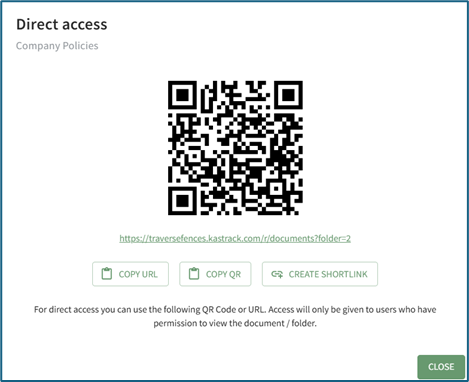
The user can use either the URL or QR Code to share access to the files selected.

<p class="callout info">Access will be given to internal users who have permission to view the folder. Access will be given to external users if the folder is public.</p>

<details><summary>How To: Access A File's QR Code / URL Link</summary>

{{@888}}

</details></td></tr></tbody></table>

# Public Files and Folders, and the Logged Out Documents Experience

When a file or folder in the Documents Module is marked as Public, its icon on the Documents Home Page will turn blue, indicating that the Document / Folder is publicly accessible for individuals that are not logged in or do not use KAStrack to View / Download the file(s) via a URL Link or QR Code.  
  
When using a URL Link to access a public document, the document can be viewed in your web browser and/or downloaded to your personal device.

<details id="bkmrk-how-to%3A-designate-a-"><summary>How To: Designate a File is Public</summary>

{{@913}}

</details><details id="bkmrk-how-to%3A-access-a-fil"><summary>How To: Access A File's QR Code / URL Link</summary>

{{@888}}

</details><span style="white-space: pre-wrap;">When using a URL Link to access a public folder, the individual will see a simplified view of the Documents Home Page, showing only the publicly available documents within the folder, as well as any other public folders (and their public contents) within this folder. </span>

<details id="bkmrk-how-to%3A-designate-a--1"><summary>How To: Designate a Folder is Public</summary>

{{@906}}

</details><details id="bkmrk-how-to%3A-access-a-fol"><summary>How To: Access A Folder's QR Code / Link</summary>

{{@889}}

</details><p class="callout info">The URL Link for a public folder only allows access to that Folder's contents and any public folder within its public contents - you cannot go up the folder hierarchy while logged out, the starting folder is the highest level of access you get.</p>

<p class="callout info">Making a folder public does not automatically make its contents public - documents that you wish to have publicly accessible will each need to be marked public.</p>

<p class="callout info">Public documents/folders containing a permissive/restrictive tag will not be accessible publicly, leading to a Not Authorized screen with an option to log in and view the document/folder (assuming the account you're logging into has access to the tag in question).</p>

# Documents: Module Pages

# A File's Details Page

<span style="white-space: pre-wrap;">Each file added to the Documents Module will have its own Details Page. The header of the file's Details Page displays the file title and the file's location in the documents module. </span>

[![image.png](https://kaswiki.kastrack.com/uploads/images/gallery/2026-04/scaled-1680-/mYAimage.png)](https://kaswiki.kastrack.com/uploads/images/gallery/2026-04/mYAimage.png)

A file's Details Page is comprised of five tabs: Preview, Actions, Details, Comments, and History. Each tab is explained in detail in the section below. The vertical three-dot icon opens the Details Page Context menu with options for quick actions.

## Preview Tab

A file's Details Page opens to the Preview Tab by default.

[![image.png](https://kaswiki.kastrack.com/uploads/images/gallery/2026-04/scaled-1680-/UmKimage.png)](https://kaswiki.kastrack.com/uploads/images/gallery/2026-04/UmKimage.png)
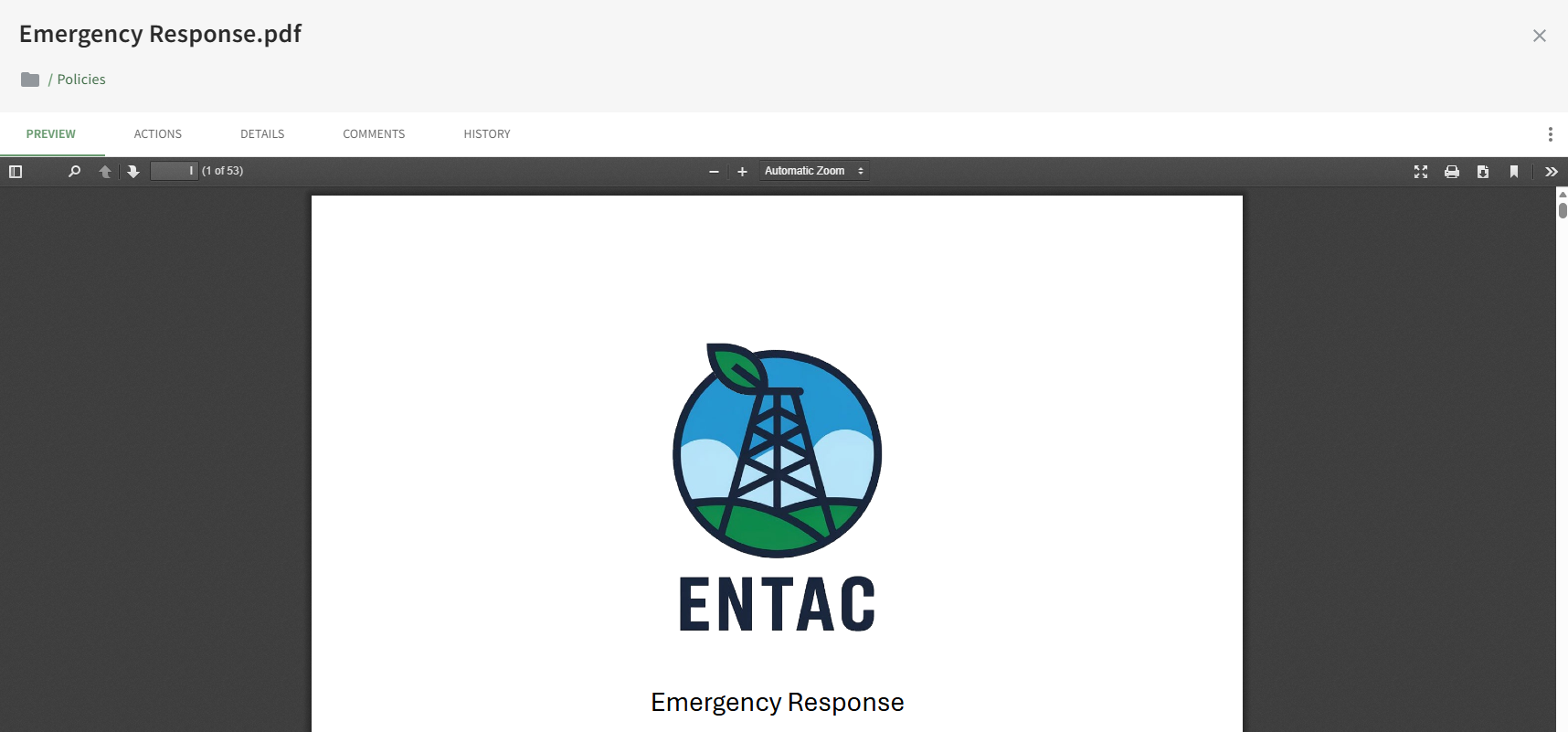
If the file type is supported by the document viewer, users will able to view, download or print the file directly from the preview tab.

## Actions Tab

<span style="white-space: pre-wrap;">There are four types of actions involving a document that can be displayed on the Actions Tab: Approvals, Publish, Acknowledgement, and Continued Suitability. A detailed explanation of each action can be found in the User Manual on the </span>[Documents Module Review Page: Actions Tab](https://kaswiki.kastrack.com/books/documents-module/page/review-page-actions-tab).

[![image.png](https://kaswiki.kastrack.com/uploads/images/gallery/2026-04/scaled-1680-/tcAimage.png)](https://kaswiki.kastrack.com/uploads/images/gallery/2026-04/tcAimage.png)
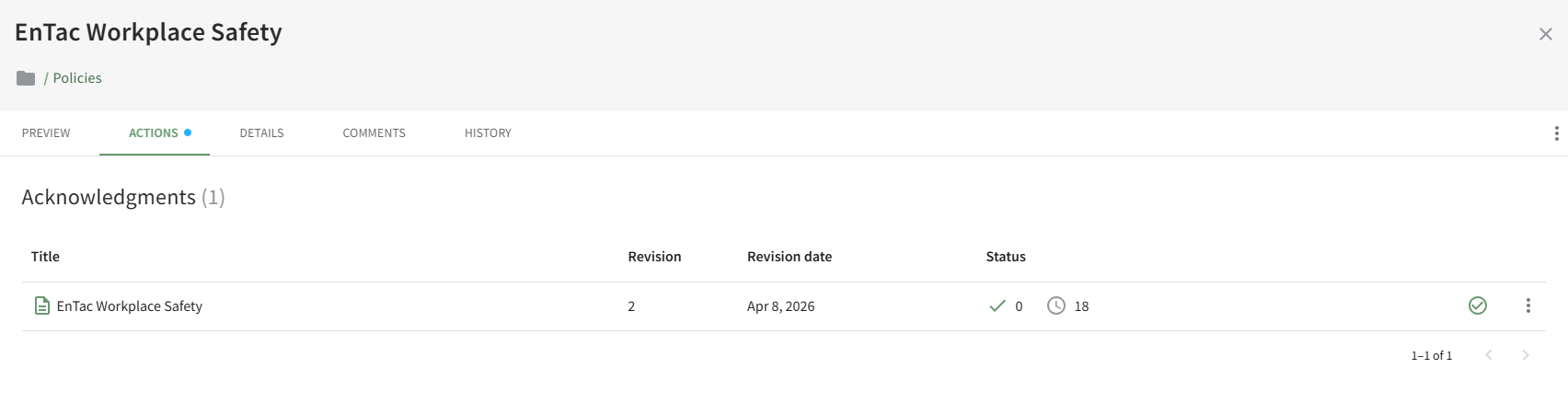
All outstanding actions associated with a document will show on the Actions Tab (to users with appropriate permissions).

## Details Tab

The Details Tab displays the file's information (size, description, tags, revision and publishing details) and displays the Document Owners, Approvers, or Acknowledgers.

[![image.png](https://kaswiki.kastrack.com/uploads/images/gallery/2026-04/scaled-1680-/dEPimage.png)](https://kaswiki.kastrack.com/uploads/images/gallery/2026-04/dEPimage.png)
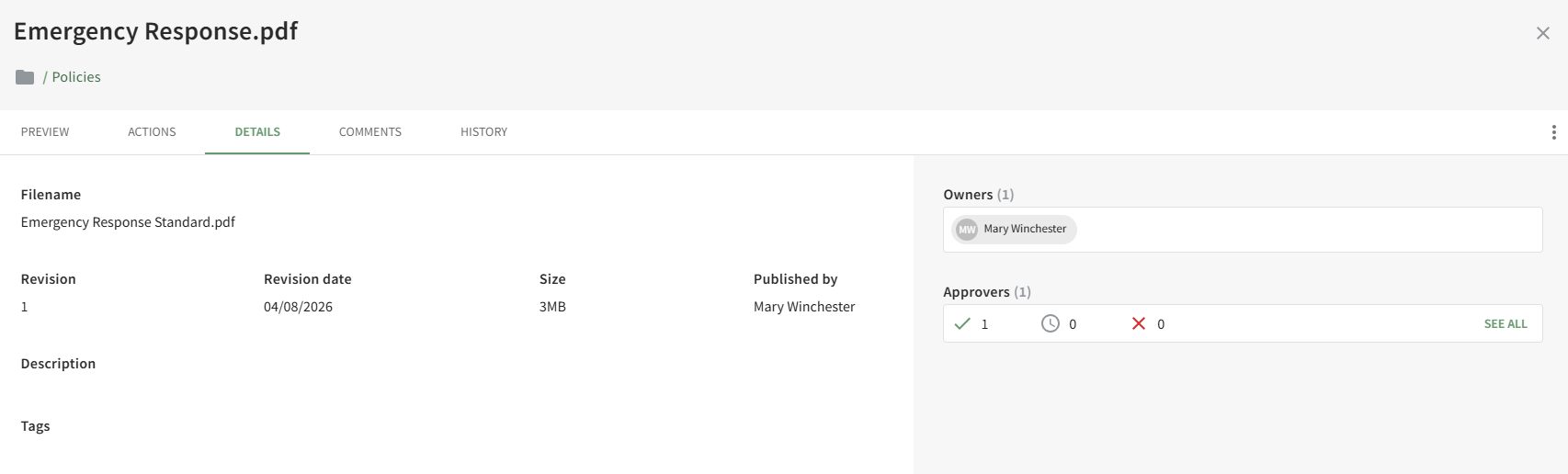
Users with permissions can send email alert reminders for acknowledgement from the Details Tab.

## Comments Tab

The Comments Tab on the Details Page allows users with access to the document to add, edit and delete comments relevant to the document revision.

[![image.png](https://kaswiki.kastrack.com/uploads/images/gallery/2026-04/scaled-1680-/RlTimage.png)](https://kaswiki.kastrack.com/uploads/images/gallery/2026-04/RlTimage.png)
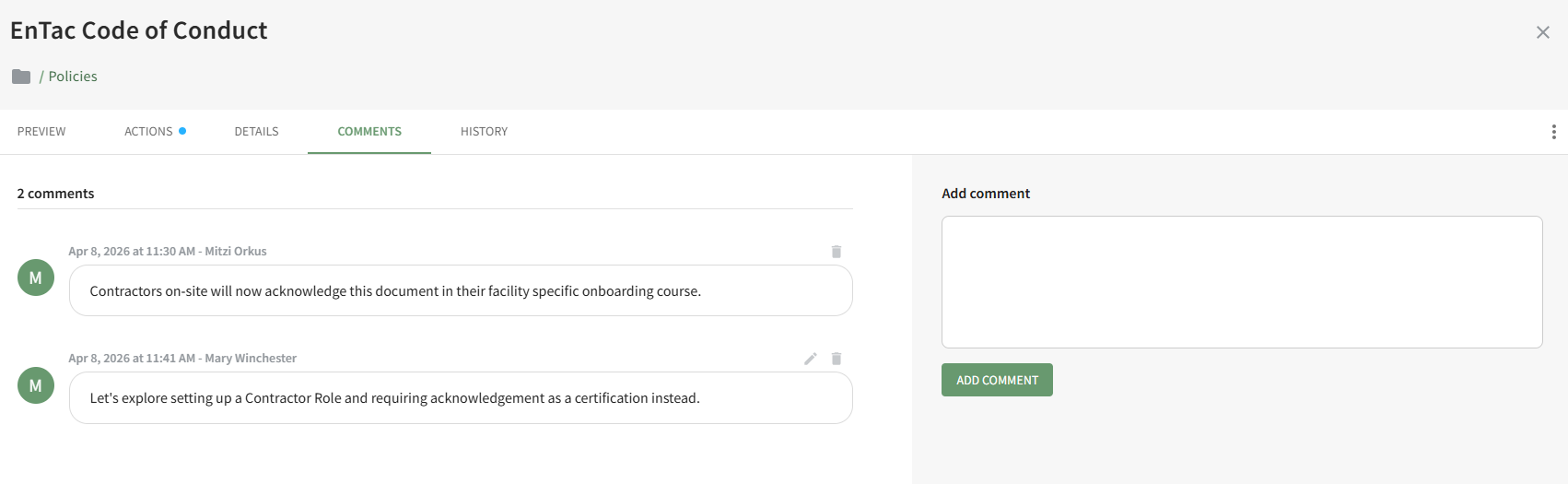
## History Tab

The History Tab on the Details Page displays any historical actions pertaining to the current and previous versions of a document.

[![image.png](https://kaswiki.kastrack.com/uploads/images/gallery/2026-04/scaled-1680-/b2vimage.png)](https://kaswiki.kastrack.com/uploads/images/gallery/2026-04/b2vimage.png)
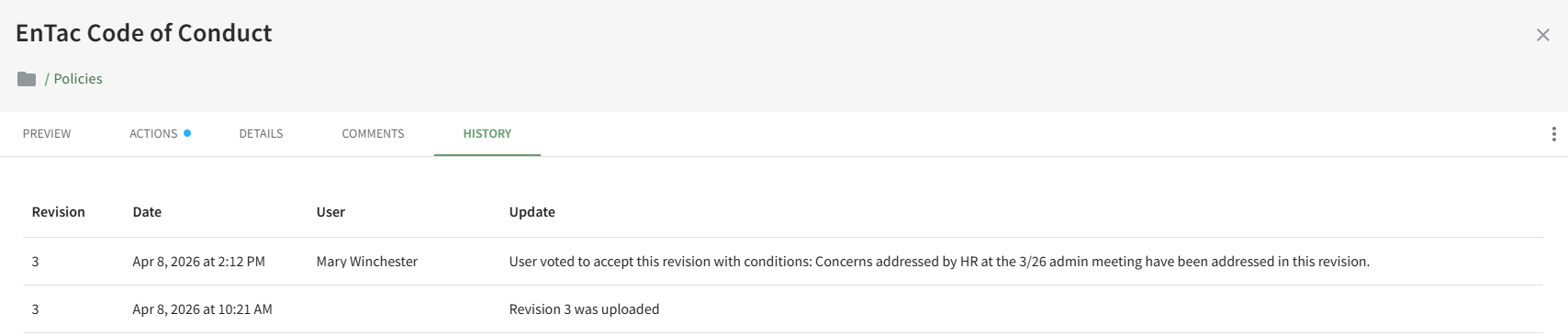
The file revision number, date and time of action, user, and summary update of the action are included.

# Documents Home Page

<span style="white-space: pre-wrap;">The Documents Module Home Page is an overview page for all the files stored in the Documents Module. </span>![image.png](https://kaswiki.kastrack.com/uploads/images/gallery/2026-04/scaled-1680-/bhGimage.png)  
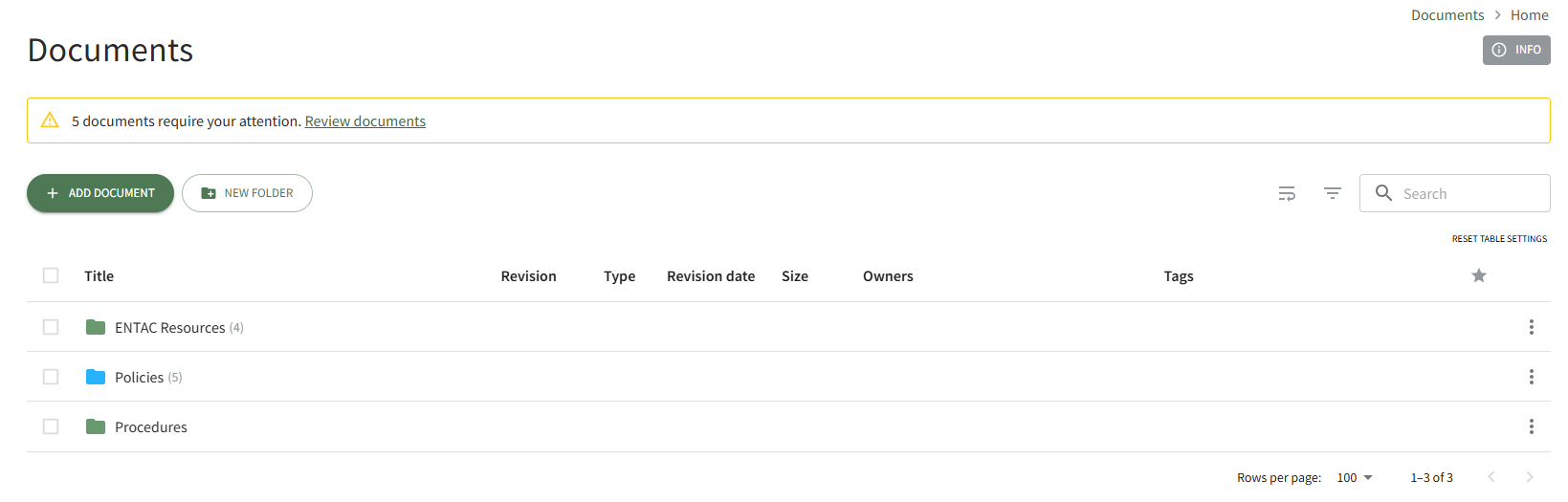
By default, the Folder/Files List on the home page shows all folders in alphabetical order followed by singular files in alphabetical order.

<table id="bkmrk-icons-used-on-the-do"><colgroup><col style="width: 104px;"></col><col style="width: 764px;"></col></colgroup><tbody><tr><td colspan="2">**Icons Used on the Documents Module Home Page**

</td></tr><tr style="height: 10px;"><td>**Icon**

</td><td>**Explanation**

</td></tr><tr><td>[![image.png](https://kaswiki.kastrack.com/uploads/images/gallery/2025-12/scaled-1680-/XqQimage.png)](https://kaswiki.kastrack.com/uploads/images/gallery/2025-12/XqQimage.png)

</td><td>The vertical three dot icon indicates there are context menu options available.

</td></tr><tr><td>[![image.png](https://kaswiki.kastrack.com/uploads/images/gallery/2025-12/scaled-1680-/B55image.png)](https://kaswiki.kastrack.com/uploads/images/gallery/2025-12/B55image.png)

</td><td>The expand icon will expand all file titles.

</td></tr><tr><td>[![image.png](https://kaswiki.kastrack.com/uploads/images/gallery/2025-12/scaled-1680-/maiimage.png)](https://kaswiki.kastrack.com/uploads/images/gallery/2025-12/maiimage.png)

</td><td><span style="white-space: pre-wrap;">The filter icon will open the “Filter by Tag” box, showing all available Tags below the Documents header. The user can filter files and folders by Tags or choose to see only favorited files and folders </span>

</td></tr><tr style="height: 10px;"><td>[![image.png](https://kaswiki.kastrack.com/uploads/images/gallery/2025-12/scaled-1680-/pYbimage.png)](https://kaswiki.kastrack.com/uploads/images/gallery/2025-12/pYbimage.png)

</td><td>The image icon indicates the file is one of the following image filetypes: .jpg , .jpeg , .webp , .gif , .bmp , .svg , or .png

</td></tr><tr><td>[![image.png](https://kaswiki.kastrack.com/uploads/images/gallery/2025-12/scaled-1680-/TIKimage.png)](https://kaswiki.kastrack.com/uploads/images/gallery/2025-12/TIKimage.png)

</td><td>The video icon indicates the file is one of the following filetypes: .mp4 , .webm , .ogg

</td></tr><tr><td>[![image.png](https://kaswiki.kastrack.com/uploads/images/gallery/2025-12/scaled-1680-/Jyvimage.png)](https://kaswiki.kastrack.com/uploads/images/gallery/2025-12/Jyvimage.png)

</td><td>The 3D icon indicates that the file is a 360° photo.

</td></tr><tr><td>[![image.png](https://kaswiki.kastrack.com/uploads/images/gallery/2025-12/scaled-1680-/uQpimage.png)](https://kaswiki.kastrack.com/uploads/images/gallery/2025-12/uQpimage.png)

</td><td>The link icon indicates a file is a url file.

</td></tr><tr><td>[![image.png](https://kaswiki.kastrack.com/uploads/images/gallery/2025-12/scaled-1680-/C6Eimage.png)](https://kaswiki.kastrack.com/uploads/images/gallery/2025-12/C6Eimage.png)

</td><td>The page icon is used for PDFs and any other filetypes that are not covered by the icons listed above.

</td></tr><tr><td>[![image.png](https://kaswiki.kastrack.com/uploads/images/gallery/2025-12/scaled-1680-/lXUimage.png)](https://kaswiki.kastrack.com/uploads/images/gallery/2025-12/lXUimage.png)

</td><td>The folder icon indicates a folder. The number in parentheses to the right of the folder title indicates the quantity of files and / or folders that are stored within. Click the folder name to display the contents.

</td></tr><tr><td>[![image.png](https://kaswiki.kastrack.com/uploads/images/gallery/2025-12/scaled-1680-/gedimage.png)](https://kaswiki.kastrack.com/uploads/images/gallery/2025-12/gedimage.png)

</td><td><span style="white-space: pre-wrap;">The folder with gear symbol icon indicates that default values have been set that will be applied to all files that are stored in the folder. </span>

<p class="callout info">Subfolders that are created within folders with default settings have the same defaults as the parent folder.</p>

</td></tr><tr><td>[![image.png](https://kaswiki.kastrack.com/uploads/images/gallery/2025-12/scaled-1680-/NsFimage.png)](https://kaswiki.kastrack.com/uploads/images/gallery/2025-12/NsFimage.png)

</td><td>A blue document icon indicates that the file has been designated as a public document.

</td></tr><tr><td>[![image.png](https://kaswiki.kastrack.com/uploads/images/gallery/2025-12/scaled-1680-/OsTimage.png)](https://kaswiki.kastrack.com/uploads/images/gallery/2025-12/OsTimage.png)

</td><td><span style="white-space: pre-wrap;">A blue folder icon indicates that the folder has been designated as public. </span>

<p class="callout info">Files/Folders that are not indicated as public can be placed in a public folder. The public folder does not change the permission of files stored in the folder.</p>

</td></tr><tr><td>[![image.png](https://kaswiki.kastrack.com/uploads/images/gallery/2025-12/scaled-1680-/d6Mimage.png)](https://kaswiki.kastrack.com/uploads/images/gallery/2025-12/d6Mimage.png)

</td><td>The star icon indicates that the document is a favorite, which is a default filter in the Documents Module.

</td></tr><tr><td>[![image.png](https://kaswiki.kastrack.com/uploads/images/gallery/2025-12/scaled-1680-/fVeimage.png)](https://kaswiki.kastrack.com/uploads/images/gallery/2025-12/fVeimage.png)

</td><td>The home icon returns the user to the Documents Module Home Page.

</td></tr></tbody></table>

The column headings above the Folders/Files List are Title, Revision, Type, Revision Date, Size, and Tags. Hovering the cursor over a column heading title will display a vertical triple dot icon that indicates a context menu is available.

On the Folder/File List, hovering your cursor over the column header displays a vertical three dot icon that when clicked, opens a context menu. The options available vary based on the column header. All are explained in the table below.

<table id="bkmrk-folder%2Ffile-list-col"><colgroup><col style="width: 146px;"></col><col style="width: 720px;"></col></colgroup><tbody><tr><td colspan="2">**Folder/File List Column Header Context Menu Option Explanation**

</td></tr><tr><td>**Option**

</td><td>**Explanation**

</td></tr><tr style="height: 10px;"><td>Sort by ASC

</td><td>Selecting “Sort by ASC” lists all folders A-Z and then all files A-Z.

</td></tr><tr><td>Sort by DESC

</td><td>Selecting “Sort by DESC” lists all folder Z-A and then all files Z-A.

</td></tr><tr><td>Unsort

</td><td>Selecting “Unsort” from the context menu removes all filters that have been applied and returns the column heading filter formatting to the default Document List settings.

</td></tr><tr><td>Filter

</td><td><span style="white-space: pre-wrap;">Selecting “Filter” opens a modal that allows the user to customize their Folder/Files List filters. </span>

[![image.png](https://kaswiki.kastrack.com/uploads/images/gallery/2025-12/scaled-1680-/EPbimage.png)](https://kaswiki.kastrack.com/uploads/images/gallery/2025-12/EPbimage.png)

A dropdown menu under Columns allows the user to select any of the Column Headings (title, revision, type, revision date, size, and favorites). A dropdown menu under operator allows the user to choose the preferred method of filtering and the user can enter the desired filter value in the Value field.

</td></tr><tr><td>Show Columns

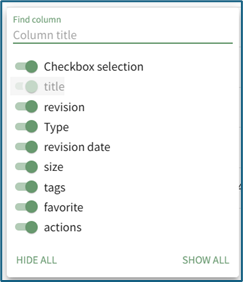
</td><td><span style="white-space: pre-wrap;">Selecting “Show Columns” from the context menu opens the Column Header modal. From this modal, the user has the ability to customize which column headers show on the Folders/Files List. </span>

<p class="callout info"><span style="white-space: pre-wrap;">The user’s customized selections will remain in place until they are manually changed again from the Column Header Modal. </span></p>

[![image.png](https://kaswiki.kastrack.com/uploads/images/gallery/2025-12/scaled-1680-/55Dimage.png)](https://kaswiki.kastrack.com/uploads/images/gallery/2025-12/55Dimage.png)

<p class="callout info">The “actions” option controls the visibility of the vertical dot icon that opens the context menu.</p>

</td></tr><tr><td>Hide

</td><td>Selecting "Hide" from the context menu is a quick link to remove the column header from the Folder/Files List without having to open the Column Header Modal.

</td></tr></tbody></table>

Below the search bar is a RESET TABLE SETTINGS link.

[![image.png](https://kaswiki.kastrack.com/uploads/images/gallery/2026-04/scaled-1680-/spaimage.png)](https://kaswiki.kastrack.com/uploads/images/gallery/2026-04/spaimage.png)

Clicking this link will reset the File/Folder List, making any hidden columns visible and removing any applied filters.

# Review Page: Actions Tab

The Review page allows the user to view any files that require action and/or have been flagged for their attention. It is comprised of three tabular subpages: Review, Notifications, and Updates. The Review tab on the Review Page categorizes the documents that need review into four groups: Approvals, Publish, Acknowledgements, and Continued Suitability. Each section of the Review Page: Actions Tab are explained in detail below.

### Approvals Section

<span style="white-space: pre-wrap;">When new documents or new document revisions are uploaded, the Advanced Settings Tab offers the ability to select the users, roles, and/or access levels that are required to approve new and future revisions of a specified document. Document approvers have the ability to preview the submitted document for content, quality, typos, etc. and approve or decline the document. When this feature is activated for new or revised documents, the requests for document approval will show on the Approvals List on the Actions Tab of the Review Page. The document approval function is, essentially, a voting system enabling individuals to vote to approve or decline the document and make notes of their reasoning. </span>

<p class="callout info">The Approval List for a specific file is also accessible on the Actions Tab of the file's Details Page.</p>

The user(s) listed as the owner(s) of a document requiring approval will see the file in the Approvals Section of the Review Page as a way to monitor the voting process for that document's revision.

[![image.png](https://kaswiki.kastrack.com/uploads/images/gallery/2026-04/scaled-1680-/DBnimage.png)](https://kaswiki.kastrack.com/uploads/images/gallery/2026-04/DBnimage.png)
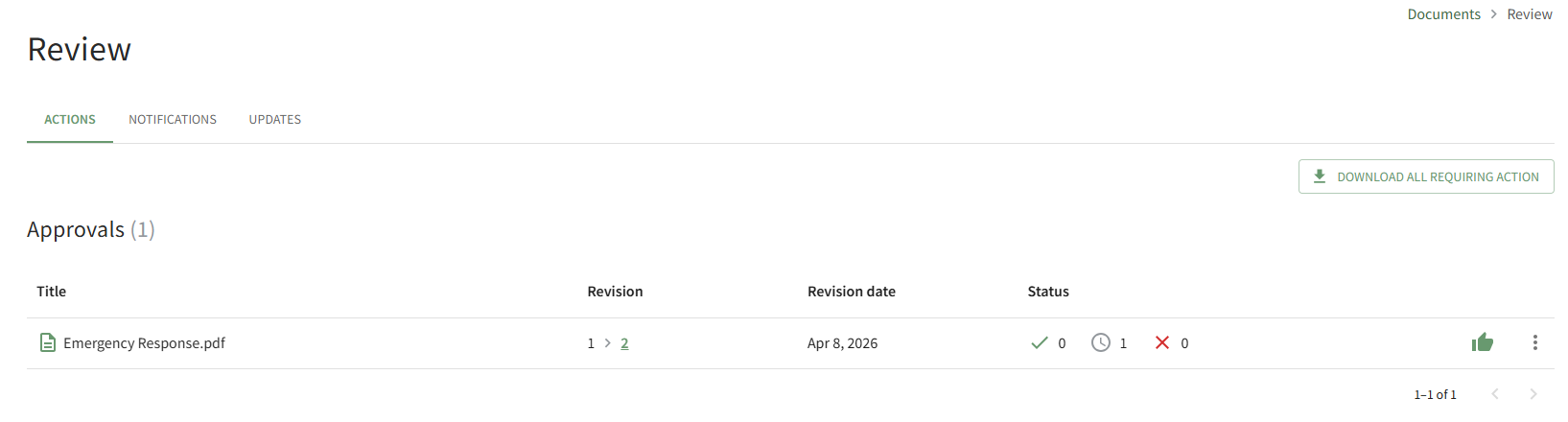
The icons used in the Approvals Section are explained in the table below.

<table id="bkmrk-approval-section-ico"><colgroup><col style="width: 47px;"></col><col style="width: 862px;"></col></colgroup><tbody><tr><td colspan="2">**Approval Section Icon Explanations**

</td></tr><tr><td>**Icon**

</td><td>**Explanation**

</td></tr><tr><td>[![image.png](https://kaswiki.kastrack.com/uploads/images/gallery/2025-12/scaled-1680-/XDzimage.png)](https://kaswiki.kastrack.com/uploads/images/gallery/2025-12/XDzimage.png)

</td><td>The check icon and number to the right identify the number of users that approved the file.

</td></tr><tr><td>[![image.png](https://kaswiki.kastrack.com/uploads/images/gallery/2025-12/scaled-1680-/eG9image.png)](https://kaswiki.kastrack.com/uploads/images/gallery/2025-12/eG9image.png)

</td><td>The clock icon and number to the right identify the number of users yet to approve to approve the file.

</td></tr><tr><td>[![image.png](https://kaswiki.kastrack.com/uploads/images/gallery/2025-12/scaled-1680-/IEYimage.png)](https://kaswiki.kastrack.com/uploads/images/gallery/2025-12/IEYimage.png)

</td><td>The X icon and number to the right identify the number of users that declined approval.

</td></tr><tr><td>[![image.png](https://kaswiki.kastrack.com/uploads/images/gallery/2025-12/scaled-1680-/glyimage.png)](https://kaswiki.kastrack.com/uploads/images/gallery/2025-12/glyimage.png)

</td><td>The thumbs up icon is used to approve the file.

</td></tr><tr><td>[![image.png](https://kaswiki.kastrack.com/uploads/images/gallery/2025-12/scaled-1680-/jluimage.png)](https://kaswiki.kastrack.com/uploads/images/gallery/2025-12/jluimage.png)

</td><td>The vertical three dot icon opens a context menu that is used to View Revision, Approve, View, Download, and Decline Approval.

</td></tr></tbody></table>

<details id="bkmrk-how-to%3A-approve-a-fi"><summary>How To: Approve a File Submitted for Review</summary>

{{@893}}

</details><details id="bkmrk-how-to%3A-decline-appr"><summary>How To: Decline Approval of a File Submitted for Review</summary>

{{@894}}

</details>### Publish Section

When a new document/revision is uploaded and requires approval, the users identified as the document owners will also see the file in their Publish Section. Document Owners can choose to publish or reject the revision at any point in time, once all approvers have reviewed the revision or earlier if desired.

Before a document is published, it is not visible to users. When a document is published, it goes live and is accessible to other users.

When a document owner elects to reject publishing, the document upload is cancelled. A document owner can make the required edits and upload the new revision for approval/publishing.

[![image.png](https://kaswiki.kastrack.com/uploads/images/gallery/2026-04/scaled-1680-/jTIimage.png)](https://kaswiki.kastrack.com/uploads/images/gallery/2026-04/jTIimage.png)

The icons used in the Publish Section are explained in the table below.

<table id="bkmrk-publish-section-icon"><colgroup><col style="width: 103px;"></col><col style="width: 747px;"></col></colgroup><tbody><tr><td colspan="2">**Publish Section Icon Explanations**

</td></tr><tr><td>**Icon**

</td><td>**Explanation**

</td></tr><tr><td>[![image.png](https://kaswiki.kastrack.com/uploads/images/gallery/2025-12/scaled-1680-/nK6image.png)](https://kaswiki.kastrack.com/uploads/images/gallery/2025-12/nK6image.png)

</td><td>The check icon and number to the right identify the number of users that have approved publishing the file.

</td></tr><tr><td>[![image.png](https://kaswiki.kastrack.com/uploads/images/gallery/2025-12/scaled-1680-/6Iaimage.png)](https://kaswiki.kastrack.com/uploads/images/gallery/2025-12/6Iaimage.png)

</td><td>The clock icon and number to the right identify the number of users yet to approve publishing the file.

</td></tr><tr><td>[![image.png](https://kaswiki.kastrack.com/uploads/images/gallery/2025-12/scaled-1680-/Vrwimage.png)](https://kaswiki.kastrack.com/uploads/images/gallery/2025-12/Vrwimage.png)

</td><td>The X icon and number to the right identify the number of users that declined publishing the file.

</td></tr><tr><td>[![image.png](https://kaswiki.kastrack.com/uploads/images/gallery/2025-12/scaled-1680-/Tezimage.png)](https://kaswiki.kastrack.com/uploads/images/gallery/2025-12/Tezimage.png)

</td><td>The publish icon publishes the document.

</td></tr><tr><td>[![image.png](https://kaswiki.kastrack.com/uploads/images/gallery/2025-12/scaled-1680-/OgPimage.png)](https://kaswiki.kastrack.com/uploads/images/gallery/2025-12/OgPimage.png)

</td><td>The vertical three dot icon is used to open a context menu allowing to View Revision, Publish, Reject and Download.

</td></tr></tbody></table>

<details id="bkmrk-how-to%3A-publish-a-do"><summary>How To: Publish a Document/File</summary>

{{@900}}

</details><details id="bkmrk-how-to%3A-reject-a-doc"><summary>How To: Reject a Document/File and Prevent Publishing</summary>

{{@901}}

</details>### Acknowledgements Section

When new documents or new document revisions are uploaded, the Advanced Settings Tab offers the ability to select the users, roles, and/or access levels that are required to acknowledge the new/revised document. When this feature is activated, the requests for document acknowledgement will show on the Acknowledgements List on the Actions Tab of the Review Page.

[![image.png](https://kaswiki.kastrack.com/uploads/images/gallery/2026-04/scaled-1680-/kA6image.png)](https://kaswiki.kastrack.com/uploads/images/gallery/2026-04/kA6image.png)

The icons used in the Acknowledgements Section are explained in the table below.

<table id="bkmrk-acknowledgement-sect"><colgroup><col style="width: 61px;"></col><col style="width: 713px;"></col></colgroup><tbody><tr><td colspan="2">**Acknowledgement Section Icon Explanations**

</td></tr><tr><td>**Icon**

</td><td>**Explanation**

</td></tr><tr style="height: 10px;"><td>[![image.png](https://kaswiki.kastrack.com/uploads/images/gallery/2025-12/scaled-1680-/Wv0image.png)](https://kaswiki.kastrack.com/uploads/images/gallery/2025-12/Wv0image.png)

</td><td>The check icon and number to the right identify the number of users that have acknowledged viewing the file.

</td></tr><tr><td>[![image.png](https://kaswiki.kastrack.com/uploads/images/gallery/2025-12/scaled-1680-/zBVimage.png)](https://kaswiki.kastrack.com/uploads/images/gallery/2025-12/zBVimage.png)

</td><td>The clock icon and number to the right identify the number of users yet to acknowledge they have seen the file.

</td></tr><tr><td>[![image.png](https://kaswiki.kastrack.com/uploads/images/gallery/2025-12/scaled-1680-/jKNimage.png)](https://kaswiki.kastrack.com/uploads/images/gallery/2025-12/jKNimage.png)

</td><td>The check within a circle icon allows the user to acknowledge the file.

</td></tr><tr><td>[![image.png](https://kaswiki.kastrack.com/uploads/images/gallery/2025-12/scaled-1680-/kL2image.png)](https://kaswiki.kastrack.com/uploads/images/gallery/2025-12/kL2image.png)

</td><td>The vertical three dot icon opens a context menu with the options to Acknowledge, View, and Download.

</td></tr></tbody></table>

<details id="bkmrk-how-to%3A-send-an-ackn"><summary>How To: Send an Acknowledgment Reminder Alert for a Document/File</summary>

{{@905}}

</details>### Continued Suitability Section

When new documents or new document revisions are uploaded, the Advanced Settings Tab offers the ability to require future review of the document by a document owner. When this feature is activated, the documents requiring review will show in the Continued Suitability List on the Actions Tab of the Review Page.

[![image.png](https://kaswiki.kastrack.com/uploads/images/gallery/2026-04/scaled-1680-/E3qimage.png)](https://kaswiki.kastrack.com/uploads/images/gallery/2026-04/E3qimage.png)

The icons used in the Continued Suitability Section are explained in the table below.

<table id="bkmrk-continued-suitabilit-1"><colgroup><col style="width: 53px;"></col><col style="width: 756px;"></col></colgroup><tbody><tr><td colspan="2">**Continued Suitability Category Icon Explanations**

</td></tr><tr><td>**Icon**

</td><td>**Explanation**

</td></tr><tr><td>[![image.png](https://kaswiki.kastrack.com/uploads/images/gallery/2025-12/scaled-1680-/7RGimage.png)](https://kaswiki.kastrack.com/uploads/images/gallery/2025-12/7RGimage.png)

</td><td>The check within the circle icon indicates that user affirms suitability.

</td></tr><tr><td>[![image.png](https://kaswiki.kastrack.com/uploads/images/gallery/2025-12/scaled-1680-/CZ8image.png)](https://kaswiki.kastrack.com/uploads/images/gallery/2025-12/CZ8image.png)

</td><td>The vertical three dot icon opens a context menu with the options to Affirm Suitability and Download.

</td></tr></tbody></table>

<details id="bkmrk-how-to%3A-affirm-a-doc"><summary>How To: Affirm a Document/File's Suitability</summary>

{{@892}}

</details>

# Review Page: Notifications Tab

The Notifications tab is connected to an advanced feature in the Documents Module. When the new document was added/revised, the Advanced Options Tab enables the ability to "Send Notifications of New Revisions" to the users, certification roles, or access levels indicated. When this feature is activated, the notifications (that do not require user action) are visible on the Notifications Tab of the Review Page.

[![image.png](https://kaswiki.kastrack.com/uploads/images/gallery/2026-04/scaled-1680-/jI4image.png)](https://kaswiki.kastrack.com/uploads/images/gallery/2026-04/jI4image.png)

Selecting the X icon to the right of the revision date will clear the file from the page.

<p class="callout info">Selecting the Clear All button beneath the file list will clear all files on the Notifications Tab.</p>

<details id="bkmrk-how-to%3A-specify-who-"><summary>How To: Specify Who Should Receive Notifications of New File Revisions</summary>

{{@907}}

</details>

# Review Page: Updates Tab

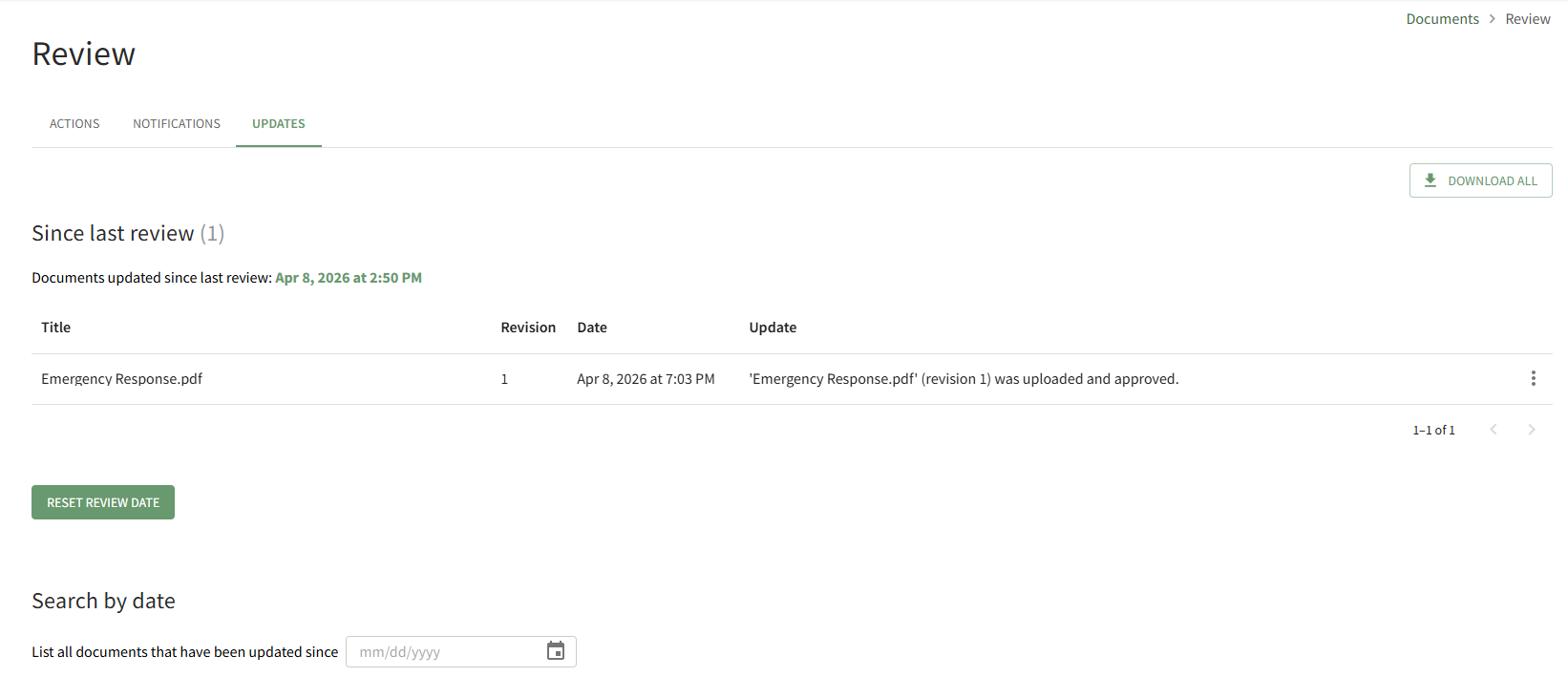
The Updates Tab on the Review Page allows the user to view any files that have been updated since the last review of new files or revisions. Any files that have been updated since the last review date will be shown here.

<p class="callout info">If the review date has never been reset, the default date will show as Dec 31, 1970 at 6:00 PM.</p>

[![image.png](https://kaswiki.kastrack.com/uploads/images/gallery/2026-04/scaled-1680-/mydimage.png)](https://kaswiki.kastrack.com/uploads/images/gallery/2026-04/mydimage.png)

The “Download All” button located at the far right enables downloading of all files that have had revisions made since the user’s last review.

<details id="bkmrk-how-to%3A-reset-the-si"><summary>How To: Reset the Since Last Review Document List</summary>

{{@902}}

</details><details id="bkmrk-how-to%3A-search-all-d"><summary>How To: Search all Documents Updated after a Selected Date</summary>

{{@904}}

</details>

# Settings Page

<span style="color: black;">The Module Levels Tab of Settings Page can be accessed from the Main Menu. The system default module levels for the module are visible in the Module Levels Table. New module levels with customizable permissions can be created and managed on this tab.</span>

[![image.png](https://kaswiki.kastrack.com/uploads/images/gallery/2026-06/scaled-1680-/PHiimage.png)](https://kaswiki.kastrack.com/uploads/images/gallery/2026-06/PHiimage.png)

<span style="color: black; white-space: pre-wrap;">There are four system default module levels associated with the Documents Module. An explanation of the permissions associated with each default module level are shown in the Documents Module Level Permissions Table below. </span>

<p class="callout info">System default module levels cannot be customized.</p>

<table id="bkmrk-documents-module---m"><colgroup><col style="width: 142px;"></col><col style="width: 736px;"></col></colgroup><tbody><tr><td colspan="2">**Documents Module - Module Level Permissions**

</td></tr><tr><td>**Module Level**

</td><td>**Permissions**

</td></tr><tr><td>Admin

</td><td>Manage users (view, edit, delete), Manage groups (add, view, edit, edit group defaults, delete), Manage roles (permissions, add, assign, unassign, view, edit, and delete), Download and view documents, can view documents from all modules, own-moc, Upload (new documents, revisions), View (deleted, rejected, abandoned, superseded, submitted, non-approved, pending documents), view document status and detailed document history, Edit (documents, document status, document approvers, document acknowledgers, document notifications, document review date, document owners, document acknowledgment message), Delete documents and approved documents, Distribute documents, Add/Delete/Edit Comments

</td></tr><tr><td>Guest

</td><td>Download documents, view documents, own-moc

</td></tr><tr style="height: 10px;"><td>Publisher

</td><td><span style="white-space: pre-wrap;">Download documents and old versions, view documents, own-moc, Manage groups (view, edit, edit group deafults, delete), Upload (new revisions, new documents), View (deleted, rejected, abandoned, superseded, submitted, non-approved, pending documents), view document status and detailed document history, Edit (documents, document status, document approvers, document acknowledgers, document notifications, document review date, document owners, document acknowledgment message), Delete documents and approved documents, Distribute documents, Add/Delete/Edit Comments </span>

</td></tr><tr><td>Staff

</td><td>Download documents, view documents, own-moc, Upload (new revisions, new documents), View (deleted, rejected, abandoned, superseded, submitted, non-approved, pending documents), View document status and detailed document history, Edit (documents, document approvers, document acknowledgers, document notifications, document review date, document owners, document acknowledgment message), Delete documents, approved documents, pending files, Add/Delete Comments

</td></tr></tbody></table>

New Module Levels can be created in order to customize module level permissions. An explanation of the icons associated with customized module levels have been provided in the table below.

<table id="bkmrk-module-level-customi" style="box-sizing: border-box; outline-color: rgb(32, 110, 167); outline-width: 1px; margin: 0.3em 0px 1.375em; padding: 0px; border: 0px; font-style: normal; font-variant-ligatures: normal; font-variant-caps: normal; font-variant-numeric: inherit; font-variant-east-asian: inherit; font-variant-alternates: inherit; font-variant-position: inherit; font-variant-emoji: inherit; font-weight: 400; font-stretch: inherit; font-size: 14px; line-height: inherit; font-family: -apple-system, BlinkMacSystemFont, "Segoe UI", Oxygen, Ubuntu, Roboto, Cantarell, "Fira Sans", "Droid Sans", "Helvetica Neue", sans-serif; font-optical-sizing: inherit; font-size-adjust: inherit; font-kerning: inherit; font-feature-settings: inherit; font-variation-settings: inherit; font-language-override: inherit; vertical-align: baseline; border-collapse: collapse; border-spacing: 0px; min-width: 100px; max-width: 100%; hyphens: auto; table-layout: fixed; color: rgb(68, 68, 68); letter-spacing: normal; orphans: 2; text-align: start; text-transform: none; widows: 2; word-spacing: 0px; -webkit-text-stroke-width: 0px; white-space: normal; background-color: rgb(255, 255, 255); text-decoration-thickness: initial; text-decoration-style: initial; text-decoration-color: initial;"><colgroup><col></col><col></col></colgroup><tbody><tr style="box-sizing: border-box; outline-color: rgb(32, 110, 167); outline-width: 1px; margin: 0px; padding: 0px; border: 0px; font: inherit; vertical-align: baseline;"><td colspan="2" style="box-sizing: border-box; outline-color: rgb(32, 110, 167); outline-width: 1px; margin: 0px; padding: 6px 8px; border: 1px solid rgb(221, 221, 221); font-style: inherit; font-variant: inherit; font-weight: inherit; font-stretch: inherit; font-size: inherit; line-height: 1.2; font-family: inherit; font-optical-sizing: inherit; font-size-adjust: inherit; font-kerning: inherit; font-feature-settings: inherit; font-variation-settings: inherit; font-language-override: inherit; vertical-align: top; min-width: 10px; overflow: auto; word-break: break-word;">**Module Level Customization Icons**

</td></tr><tr style="box-sizing: border-box; outline-color: rgb(32, 110, 167); outline-width: 1px; margin: 0px; padding: 0px; border: 0px; font: inherit; vertical-align: baseline;"><td style="box-sizing: border-box; outline-color: rgb(32, 110, 167); outline-width: 1px; margin: 0px; padding: 6px 8px; border: 1px solid rgb(221, 221, 221); font-style: inherit; font-variant: inherit; font-weight: inherit; font-stretch: inherit; font-size: inherit; line-height: 1.2; font-family: inherit; font-optical-sizing: inherit; font-size-adjust: inherit; font-kerning: inherit; font-feature-settings: inherit; font-variation-settings: inherit; font-language-override: inherit; vertical-align: top; min-width: 10px; overflow: auto; word-break: break-word;">**Icon**

</td><td style="box-sizing: border-box; outline-color: rgb(32, 110, 167); outline-width: 1px; margin: 0px; padding: 6px 8px; border: 1px solid rgb(221, 221, 221); font-style: inherit; font-variant: inherit; font-weight: inherit; font-stretch: inherit; font-size: inherit; line-height: 1.2; font-family: inherit; font-optical-sizing: inherit; font-size-adjust: inherit; font-kerning: inherit; font-feature-settings: inherit; font-variation-settings: inherit; font-language-override: inherit; vertical-align: top; min-width: 10px; overflow: auto; word-break: break-word;">**Explanation**

</td></tr><tr style="box-sizing: border-box; outline-color: rgb(32, 110, 167); outline-width: 1px; margin: 0px; padding: 0px; border: 0px; font: inherit; vertical-align: baseline;"><td style="box-sizing: border-box; outline-color: rgb(32, 110, 167); outline-width: 1px; margin: 0px; padding: 6px 8px; border: 1px solid rgb(221, 221, 221); font-style: inherit; font-variant: inherit; font-weight: inherit; font-stretch: inherit; font-size: inherit; line-height: 1.2; font-family: inherit; font-optical-sizing: inherit; font-size-adjust: inherit; font-kerning: inherit; font-feature-settings: inherit; font-variation-settings: inherit; font-language-override: inherit; vertical-align: top; min-width: 10px; overflow: auto; word-break: break-word;">[![image.png](https://kaswiki.kastrack.com/uploads/images/gallery/2025-12/scaled-1680-/OQrimage.png)](https://kaswiki.kastrack.com/uploads/images/gallery/2025-12/OQrimage.png)

</td><td style="box-sizing: border-box; outline-color: rgb(32, 110, 167); outline-width: 1px; margin: 0px; padding: 6px 8px; border: 1px solid rgb(221, 221, 221); font-style: inherit; font-variant: inherit; font-weight: inherit; font-stretch: inherit; font-size: inherit; line-height: 1.2; font-family: inherit; font-optical-sizing: inherit; font-size-adjust: inherit; font-kerning: inherit; font-feature-settings: inherit; font-variation-settings: inherit; font-language-override: inherit; vertical-align: top; min-width: 10px; overflow: auto; word-break: break-word;">The eyeball icon allows you to view users assigned to the module level as well as the permissions assigned to them.

</td></tr><tr style="box-sizing: border-box; outline-color: rgb(32, 110, 167); outline-width: 1px; margin: 0px; padding: 0px; border: 0px; font: inherit; vertical-align: baseline;"><td style="box-sizing: border-box; outline-color: rgb(32, 110, 167); outline-width: 1px; margin: 0px; padding: 6px 8px; border: 1px solid rgb(221, 221, 221); font-style: inherit; font-variant: inherit; font-weight: inherit; font-stretch: inherit; font-size: inherit; line-height: 1.2; font-family: inherit; font-optical-sizing: inherit; font-size-adjust: inherit; font-kerning: inherit; font-feature-settings: inherit; font-variation-settings: inherit; font-language-override: inherit; vertical-align: top; min-width: 10px; overflow: auto; word-break: break-word;">[![image.png](https://kaswiki.kastrack.com/uploads/images/gallery/2025-12/scaled-1680-/Bbrimage.png)](https://kaswiki.kastrack.com/uploads/images/gallery/2025-12/Bbrimage.png)

</td><td style="box-sizing: border-box; outline-color: rgb(32, 110, 167); outline-width: 1px; margin: 0px; padding: 6px 8px; border: 1px solid rgb(221, 221, 221); font-style: inherit; font-variant: inherit; font-weight: inherit; font-stretch: inherit; font-size: inherit; line-height: 1.2; font-family: inherit; font-optical-sizing: inherit; font-size-adjust: inherit; font-kerning: inherit; font-feature-settings: inherit; font-variation-settings: inherit; font-language-override: inherit; vertical-align: top; min-width: 10px; overflow: auto; word-break: break-word;">The bulleted list icon allows you to assign permissions to customized module levels.

</td></tr><tr style="box-sizing: border-box; outline-color: rgb(32, 110, 167); outline-width: 1px; margin: 0px; padding: 0px; border: 0px; font: inherit; vertical-align: baseline;"><td style="box-sizing: border-box; outline-color: rgb(32, 110, 167); outline-width: 1px; margin: 0px; padding: 6px 8px; border: 1px solid rgb(221, 221, 221); font-style: inherit; font-variant: inherit; font-weight: inherit; font-stretch: inherit; font-size: inherit; line-height: 1.2; font-family: inherit; font-optical-sizing: inherit; font-size-adjust: inherit; font-kerning: inherit; font-feature-settings: inherit; font-variation-settings: inherit; font-language-override: inherit; vertical-align: top; min-width: 10px; overflow: auto; word-break: break-word;">[![image.png](https://kaswiki.kastrack.com/uploads/images/gallery/2025-12/scaled-1680-/ELJimage.png)](https://kaswiki.kastrack.com/uploads/images/gallery/2025-12/ELJimage.png)

</td><td style="box-sizing: border-box; outline-color: rgb(32, 110, 167); outline-width: 1px; margin: 0px; padding: 6px 8px; border: 1px solid rgb(221, 221, 221); font-style: inherit; font-variant: inherit; font-weight: inherit; font-stretch: inherit; font-size: inherit; line-height: 1.2; font-family: inherit; font-optical-sizing: inherit; font-size-adjust: inherit; font-kerning: inherit; font-feature-settings: inherit; font-variation-settings: inherit; font-language-override: inherit; vertical-align: top; min-width: 10px; overflow: auto; word-break: break-word;">The pencil icon opens the Edit Module Level Modal.

</td></tr><tr style="box-sizing: border-box; outline-color: rgb(32, 110, 167); outline-width: 1px; margin: 0px; padding: 0px; border: 0px; font: inherit; vertical-align: baseline;"><td style="box-sizing: border-box; outline-color: rgb(32, 110, 167); outline-width: 1px; margin: 0px; padding: 6px 8px; border: 1px solid rgb(221, 221, 221); font-style: inherit; font-variant: inherit; font-weight: inherit; font-stretch: inherit; font-size: inherit; line-height: 1.2; font-family: inherit; font-optical-sizing: inherit; font-size-adjust: inherit; font-kerning: inherit; font-feature-settings: inherit; font-variation-settings: inherit; font-language-override: inherit; vertical-align: top; min-width: 10px; overflow: auto; word-break: break-word;">[![image.png](https://kaswiki.kastrack.com/uploads/images/gallery/2025-12/scaled-1680-/Uwlimage.png)](https://kaswiki.kastrack.com/uploads/images/gallery/2025-12/Uwlimage.png)

</td><td style="box-sizing: border-box; outline-color: rgb(32, 110, 167); outline-width: 1px; margin: 0px; padding: 6px 8px; border: 1px solid rgb(221, 221, 221); font-style: inherit; font-variant: inherit; font-weight: inherit; font-stretch: inherit; font-size: inherit; line-height: 1.2; font-family: inherit; font-optical-sizing: inherit; font-size-adjust: inherit; font-kerning: inherit; font-feature-settings: inherit; font-variation-settings: inherit; font-language-override: inherit; vertical-align: top; min-width: 10px; overflow: auto; word-break: break-word;">The trashcan icon opens the Delete Module Level Confirmation Modal.

</td></tr></tbody></table>

<details id="bkmrk-how-to%3A-create-a-new"><summary>How To: Create a New Module Level (Documents)</summary>

{{@227}}

</details>A complete list of all permissions associated with the Documents Module have been provided below.

[![image.png](https://kaswiki.kastrack.com/uploads/images/gallery/2026-06/scaled-1680-/Hdrimage.png)](https://kaswiki.kastrack.com/uploads/images/gallery/2026-06/Hdrimage.png)

# Documents: Supplemental Resources

# Documents Module Email Alert Summary

<span style="color: rgb(68, 68, 68); background-color: rgb(255, 255, 255); white-space: pre-wrap;">Users can enable and set their own notifications preferences for system emails on the Notifications Tab of the My Accounts Page in the Accounts Module. </span>

<details id="bkmrk-how-to%3A-edit-email-r"><summary>How To: Edit Email Report / Alert Notification Settings for Existing Accounts</summary>

<span style="color: rgb(68, 68, 68);">{{@110}}</span>

</details><table class="align-center" id="bkmrk-documents-module-ema"><colgroup><col style="width: 299px;"></col><col style="width: 308px;"></col></colgroup><tbody><tr><td colspan="2">**Documents Module Email Alerts Summary**

</td></tr><tr style="height: 10px;"><td class="align-center">**Email Alert**

</td><td class="align-center">**Digestible**

</td></tr><tr><td>Acknowledgement Reminder

</td><td>Can be sent via digest

</td></tr><tr><td>Acknowledgement Required

</td><td>Can be sent via digest

</td></tr><tr><td>Approval Required

</td><td>Can be sent via digest

</td></tr><tr><td>Comment Added

</td><td>Can be sent via digest

</td></tr><tr><td>Continued Suitability Review

</td><td>Can be sent via digest

</td></tr><tr><td>Continued Suitability Review Warning

</td><td>Can be sent via digest

</td></tr><tr><td>Notification of New Revision

</td><td>Can be sent via digest

</td></tr></tbody></table>

<p class="callout info">Administrators can update the system default settings (including whether they are sent in real-time or digestible) for alert emails on the Settings Page of the Communications Module.</p>

# Complete List of Documents Module How Tos

{{@213}}