Documents: Module Pages
- A File's Details Page
- Documents Home Page
- Review Page: Actions Tab
- Review Page: Notifications Tab
- Review Page: Updates Tab
- Settings Page
A File's Details Page
Each file added to the Documents Module will have its own Details Page. The header of the file's Details Page displays the file title and the file's location in the documents module.

A file's Details Page is comprised of five tabs: Preview, Actions, Details, Comments, and History. Each tab is explained in detail in the section below. The vertical three-dot icon opens the Details Page Context menu with options for quick actions.
Preview Tab
A file's Details Page opens to the Preview Tab by default.
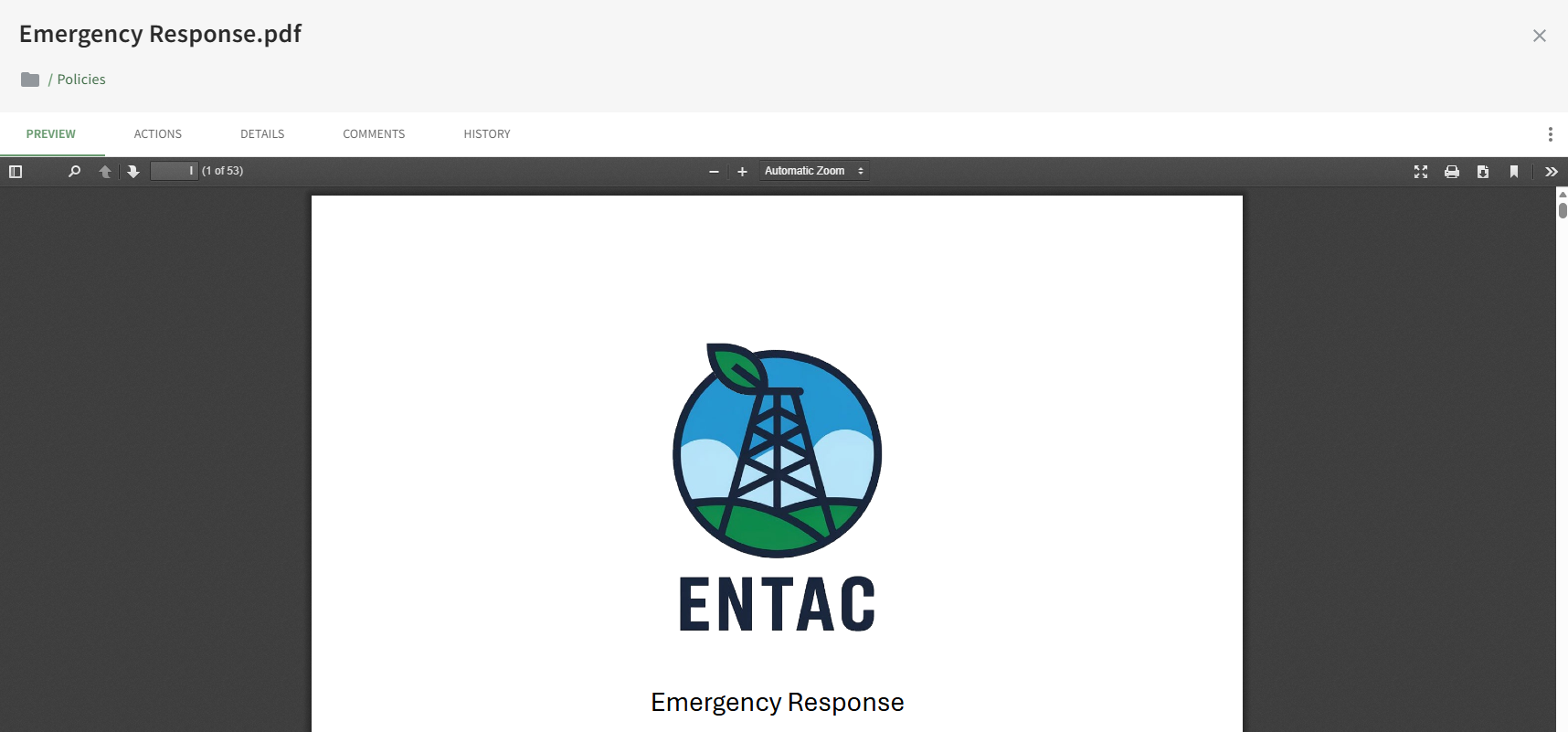
If the file type is supported by the document viewer, users will able to view, download or print the file directly from the preview tab.
Actions Tab
There are four types of actions involving a document that can be displayed on the Actions Tab: Approvals, Publish, Acknowledgement, and Continued Suitability. A detailed explanation of each action can be found in the User Manual on the Documents Module Review Page: Actions Tab.
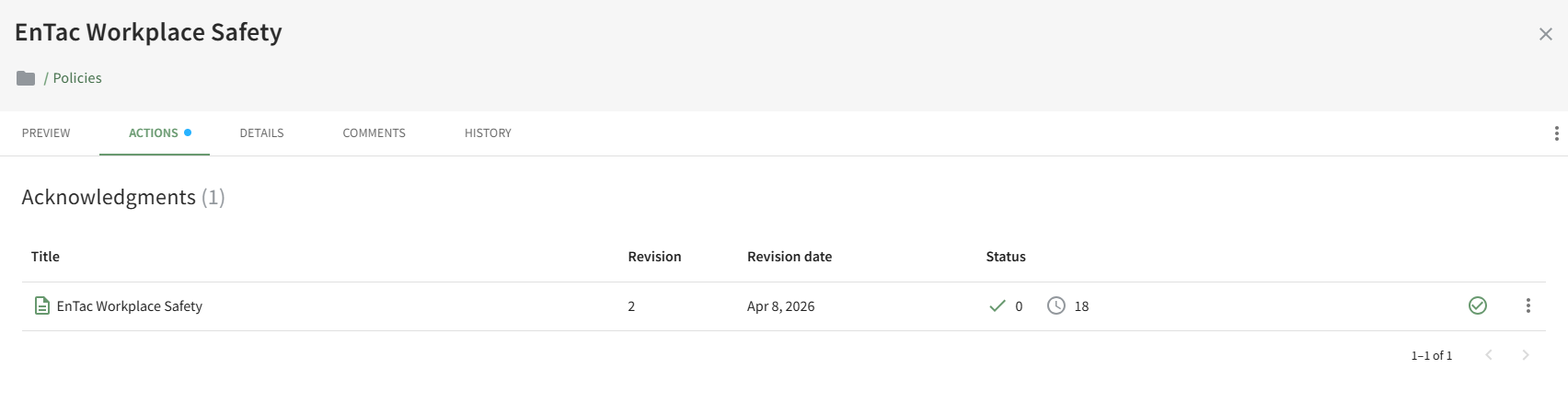
All outstanding actions associated with a document will show on the Actions Tab (to users with appropriate permissions).
Details Tab
The Details Tab displays the file's information (size, description, tags, revision and publishing details) and displays the Document Owners, Approvers, or Acknowledgers.
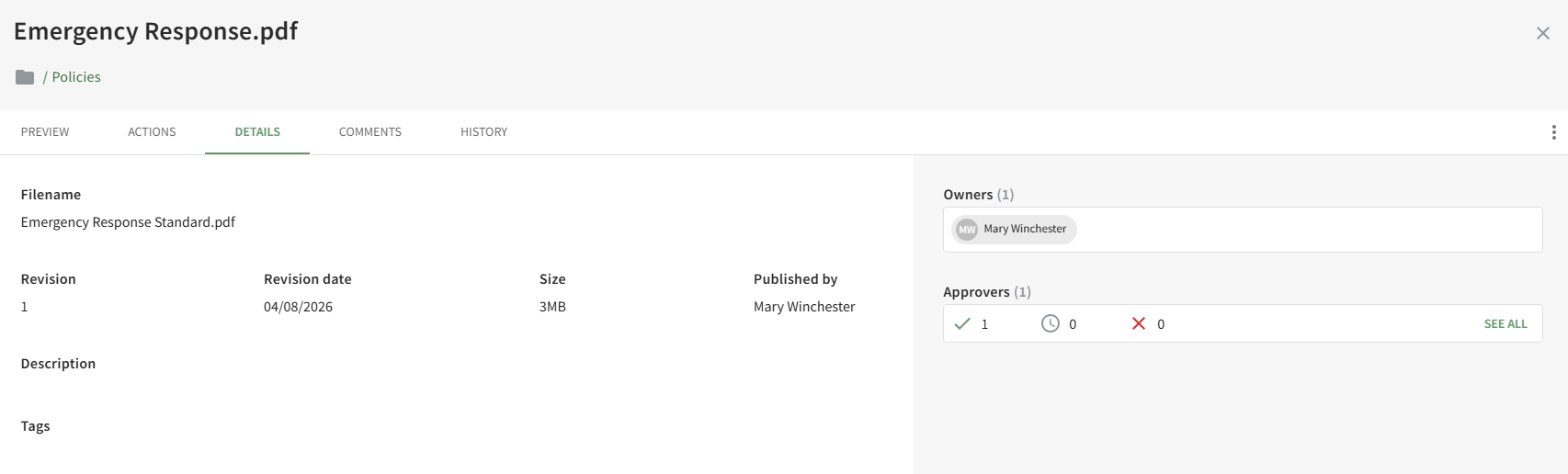
Users with permissions can send email alert reminders for acknowledgement from the Details Tab.
Comments Tab
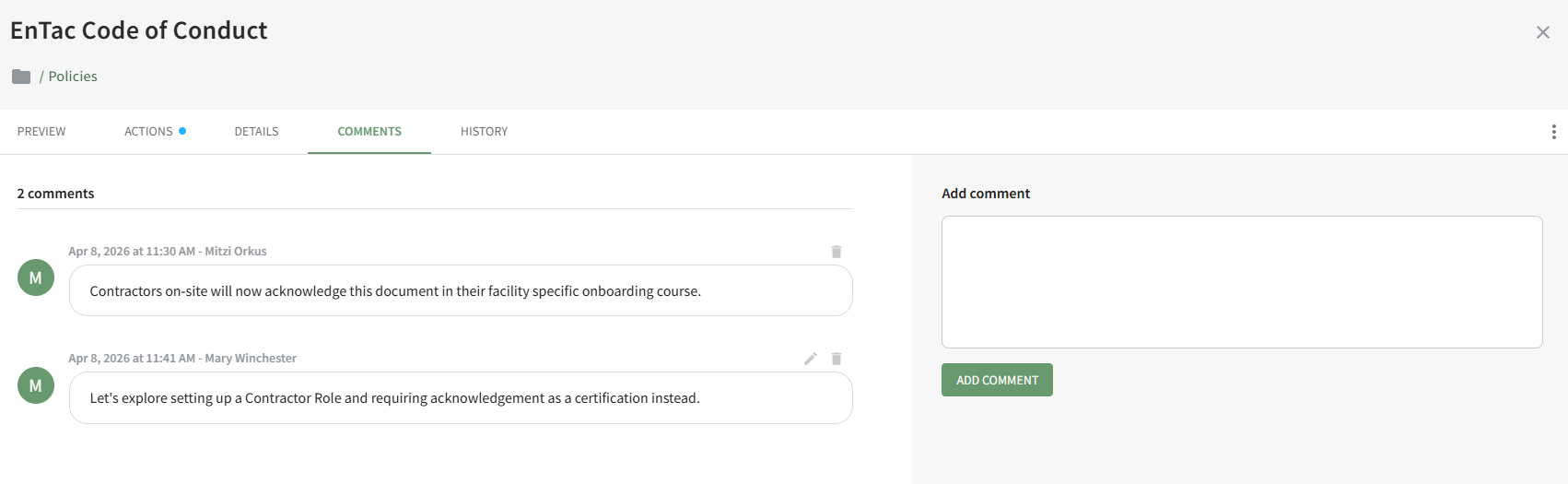
The Comments Tab on the Details Page allows users with access to the document to add, edit and delete comments relevant to the document revision.
History Tab
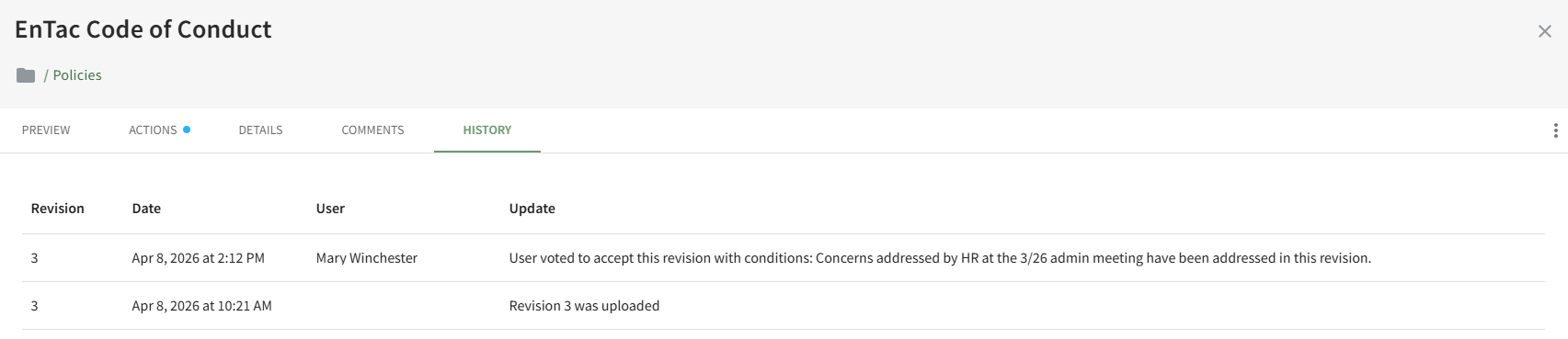
The History Tab on the Details Page displays any historical actions pertaining to the current and previous versions of a document.
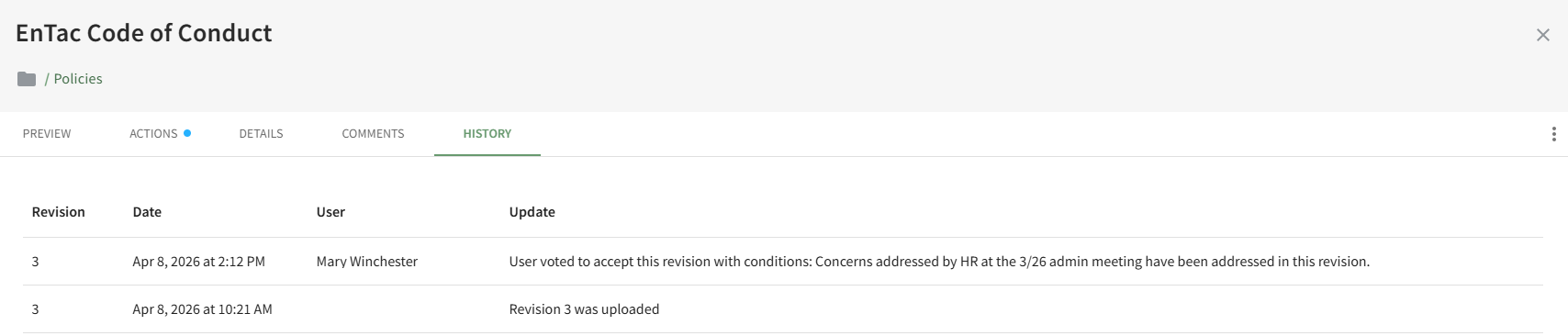
The file revision number, date and time of action, user, and summary update of the action are included.
Documents Home Page
The Documents Module Home Page is an overview page for all the files stored in the Documents Module. 
By default, the Folder/Files List on the home page shows all folders in alphabetical order followed by singular files in alphabetical order.
Icons Used on the Documents Module Home Page | |
Icon | Explanation |
| The vertical three dot icon indicates there are context menu options available. |
| The expand icon will expand all file titles. |
| The filter icon will open the “Filter by Tag” box, showing all available Tags below the Documents header. The user can filter files and folders by Tags or choose to see only favorited files and folders |
| The image icon indicates the file is one of the following image filetypes: .jpg , .jpeg , .webp , .gif , .bmp , .svg , or .png |
| The video icon indicates the file is one of the following filetypes: .mp4 , .webm , .ogg |
| The 3D icon indicates that the file is a 360° photo. |
| The link icon indicates a file is a url file. |
| The page icon is used for PDFs and any other filetypes that are not covered by the icons listed above. |
| The folder icon indicates a folder. The number in parentheses to the right of the folder title indicates the quantity of files and / or folders that are stored within. Click the folder name to display the contents. |
| The folder with gear symbol icon indicates that default values have been set that will be applied to all files that are stored in the folder. Subfolders that are created within folders with default settings have the same defaults as the parent folder. |
| A blue document icon indicates that the file has been designated as a public document. |
| A blue folder icon indicates that the folder has been designated as public. Files/Folders that are not indicated as public can be placed in a public folder. The public folder does not change the permission of files stored in the folder. |
| The star icon indicates that the document is a favorite, which is a default filter in the Documents Module. |
| The home icon returns the user to the Documents Module Home Page. |


The column headings above the Folders/Files List are Title, Revision, Type, Revision Date, Size, and Tags. Hovering the cursor over a column heading title will display a vertical triple dot icon that indicates a context menu is available.
On the Folder/File List, hovering your cursor over the column header displays a vertical three dot icon that when clicked, opens a context menu. The options available vary based on the column header. All are explained in the table below.
Folder/File List Column Header Context Menu Option Explanation | |
Option | Explanation |
Sort by ASC | Selecting “Sort by ASC” lists all folders A-Z and then all files A-Z. |
Sort by DESC | Selecting “Sort by DESC” lists all folder Z-A and then all files Z-A. |
Unsort | Selecting “Unsort” from the context menu removes all filters that have been applied and returns the column heading filter formatting to the default Document List settings. |
Filter | Selecting “Filter” opens a modal that allows the user to customize their Folder/Files List filters.
A dropdown menu under Columns allows the user to select any of the Column Headings (title, revision, type, revision date, size, and favorites). A dropdown menu under operator allows the user to choose the preferred method of filtering and the user can enter the desired filter value in the Value field. |
Show Columns | Selecting “Show Columns” from the context menu opens the Column Header modal. From this modal, the user has the ability to customize which column headers show on the Folders/Files List. The user’s customized selections will remain in place until they are manually changed again from the Column Header Modal.
The “actions” option controls the visibility of the vertical dot icon that opens the context menu. |
Hide | Selecting "Hide" from the context menu is a quick link to remove the column header from the Folder/Files List without having to open the Column Header Modal. |


Below the search bar is a RESET TABLE SETTINGS link.
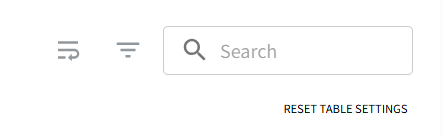
Clicking this link will reset the File/Folder List, making any hidden columns visible and removing any applied filters.
Review Page: Actions Tab
The Review page allows the user to view any files that require action and/or have been flagged for their attention. It is comprised of three tabular subpages: Review, Notifications, and Updates. The Review tab on the Review Page categorizes the documents that need review into four groups: Approvals, Publish, Acknowledgements, and Continued Suitability. Each section of the Review Page: Actions Tab are explained in detail below.
Approvals Section
When new documents or new document revisions are uploaded, the Advanced Settings Tab offers the ability to select the users, roles, and/or access levels that are required to approve new and future revisions of a specified document. Document approvers have the ability to preview the submitted document for content, quality, typos, etc. and approve or decline the document. When this feature is activated for new or revised documents, the requests for document approval will show on the Approvals List on the Actions Tab of the Review Page. The document approval function is, essentially, a voting system enabling individuals to vote to approve or decline the document and make notes of their reasoning.
The Approval List for a specific file is also accessible on the Actions Tab of the file's Details Page.
The user(s) listed as the owner(s) of a document requiring approval will see the file in the Approvals Section of the Review Page as a way to monitor the voting process for that document's revision.
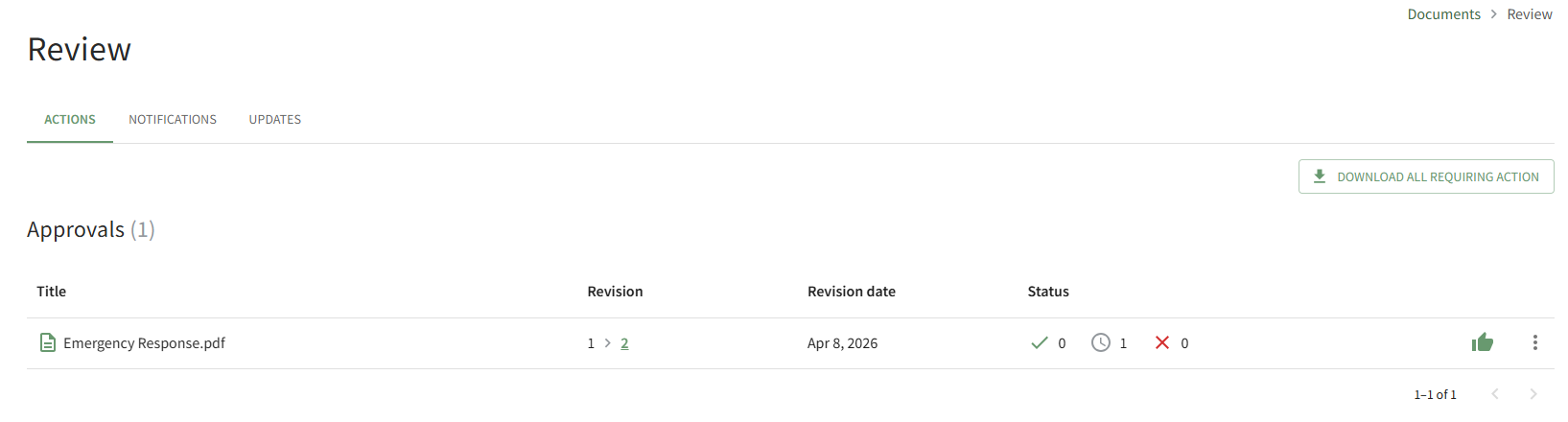
The icons used in the Approvals Section are explained in the table below.
Approval Section Icon Explanations | |
Icon | Explanation |
| The check icon and number to the right identify the number of users that approved the file. |
| The clock icon and number to the right identify the number of users yet to approve to approve the file. |
| The X icon and number to the right identify the number of users that declined approval. |
| The thumbs up icon is used to approve the file. |
| The vertical three dot icon opens a context menu that is used to View Revision, Approve, View, Download, and Decline Approval. |


How To: Approve a File Submitted for Review
To approve a file that was submitted for approval, open the Actions Tab on the Review Page in the Documents Module from the Main Menu and click the vertical three-dot icon to the right of the file submitted for approval opening the Approvals Context Menu.
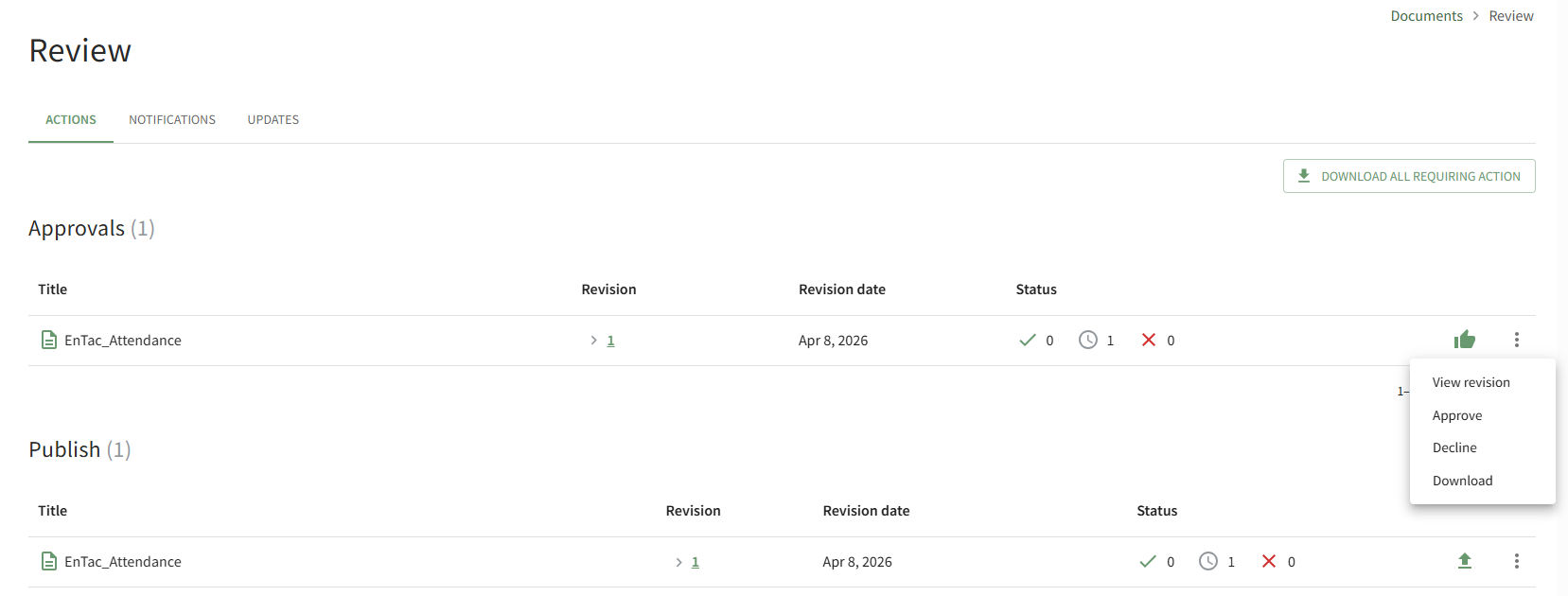
Select the Approve option, opening the Accept Revision Modal.
Clicking the thumbs up icon will also open the Accept Revision Modal.
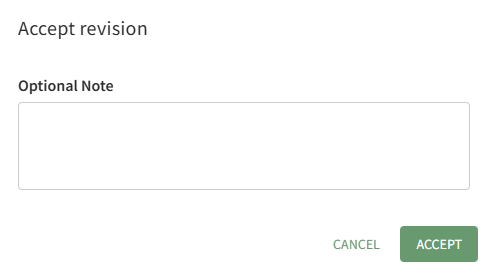
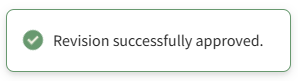
You have the option to include a note regarding the revision being approved. Click the Accept button and a pop-up confirms that the revision was successfully approved.
Notes made when the file was approved are visible on the History Tab of the document's Details Page.
How To: Decline Approval of a File Submitted for Review
To decline a file that was submitted for approval, open the Actions Tab on the Review Page in the Documents Module from the Main Menu and click the vertical three-dot icon to the right of the file submitted for approval opening the Approvals Context Menu.
Select the Decline option, opening the Decline Revision Modal.
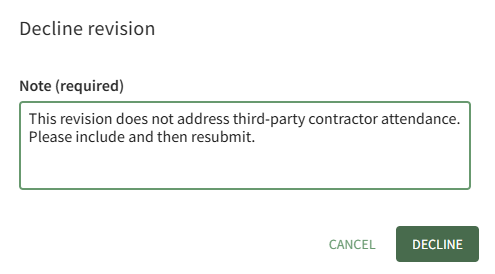
You are required to enter a note in the modal. Click the Decline button.
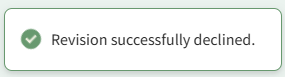
A pop-up in the footer confirms that the revision was successfully declined.
Publish Section
When a new document/revision is uploaded and requires approval, the users identified as the document owners will also see the file in their Publish Section. Document Owners can choose to publish or reject the revision at any point in time, once all approvers have reviewed the revision or earlier if desired.
Before a document is published, it is not visible to users. When a document is published, it goes live and is accessible to other users.
When a document owner elects to reject publishing, the document upload is cancelled. A document owner can make the required edits and upload the new revision for approval/publishing.

The icons used in the Publish Section are explained in the table below.
Publish Section Icon Explanations | |
Icon | Explanation |
| The check icon and number to the right identify the number of users that have approved publishing the file. |
| The clock icon and number to the right identify the number of users yet to approve publishing the file. |
| The X icon and number to the right identify the number of users that declined publishing the file. |
| The publish icon publishes the document. |
| The vertical three dot icon is used to open a context menu allowing to View Revision, Publish, Reject and Download. |


How To: Publish a Document/File
To publish a file submitted for approval and make is visible to others in your organization, go to the Review Page in the Documents Module from the Main Menu. Scroll down (if needed) to the Publish Section on the Actions Tab.
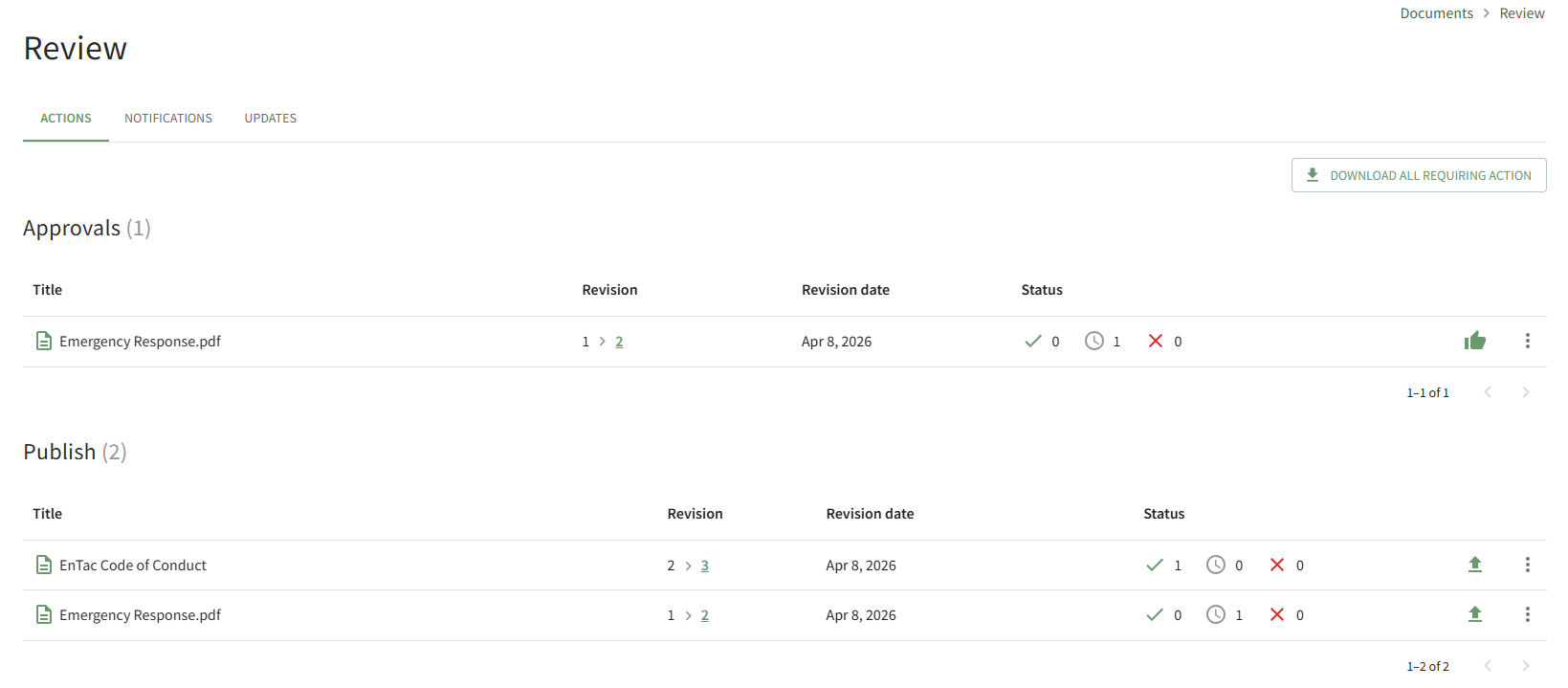
Click the Upload Icon to publish the document or select the Publish option on the context menu made visible by clicking the file's vertical three-dot icon.
This opens the Publish Revision Modal, which allows you to include an optional note that will be visible on the History Tab of a document's Details Page.
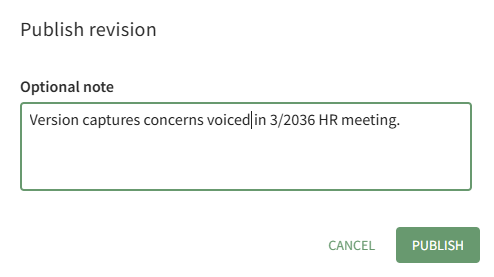
After adding any relevant notes, select the Publish button.
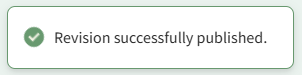
A pop-up confirms that the revision was successfully published.
How To: Reject a Document/File and Prevent Publishing
To reject a document/file that has been submitted for publishing and cancel its upload to KAStrack, open the Actions Tab on the Review Page of the Documents Module from the Main Menu. Click the vertical three-dot icon to the right of the file you want to decline, opening the Publish Context Menu.
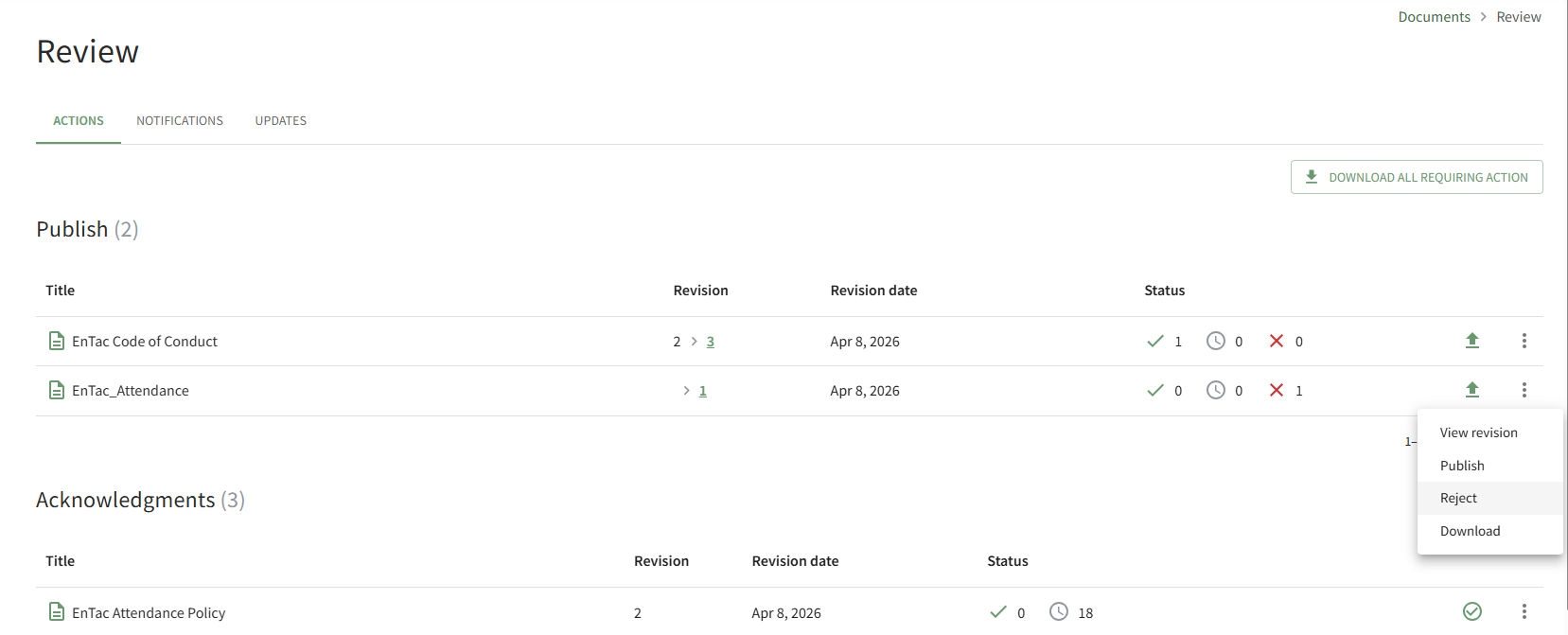
Select the Reject option, opening the Reject Revision Modal.
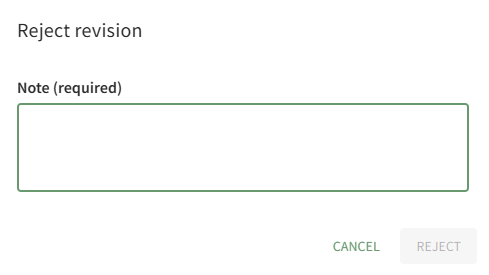
A note regarding the rejection is required. After including your note, select the Reject button.
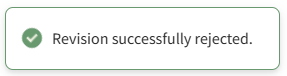
A pop-up confirms that the revision was successfully rejected.
The notes regarding the rejection are visible on the History Tab of the document's Details Page.
Acknowledgements Section
When new documents or new document revisions are uploaded, the Advanced Settings Tab offers the ability to select the users, roles, and/or access levels that are required to acknowledge the new/revised document. When this feature is activated, the requests for document acknowledgement will show on the Acknowledgements List on the Actions Tab of the Review Page.
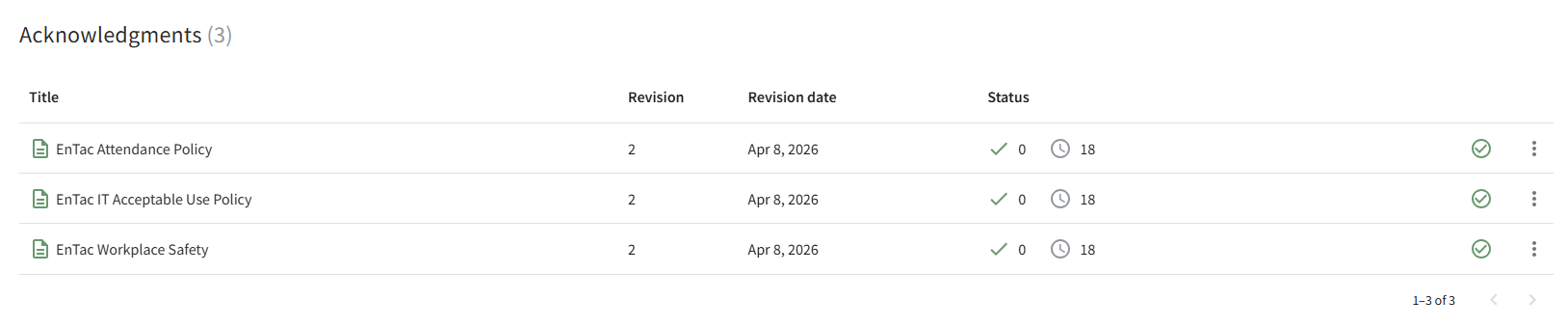
The icons used in the Acknowledgements Section are explained in the table below.
Acknowledgement Section Icon Explanations | |
Icon | Explanation |
| The check icon and number to the right identify the number of users that have acknowledged viewing the file. |
| The clock icon and number to the right identify the number of users yet to acknowledge they have seen the file. |
| The check within a circle icon allows the user to acknowledge the file. |
| The vertical three dot icon opens a context menu with the options to Acknowledge, View, and Download. |


How To: Send an Acknowledgment Reminder Alert for a Document/File
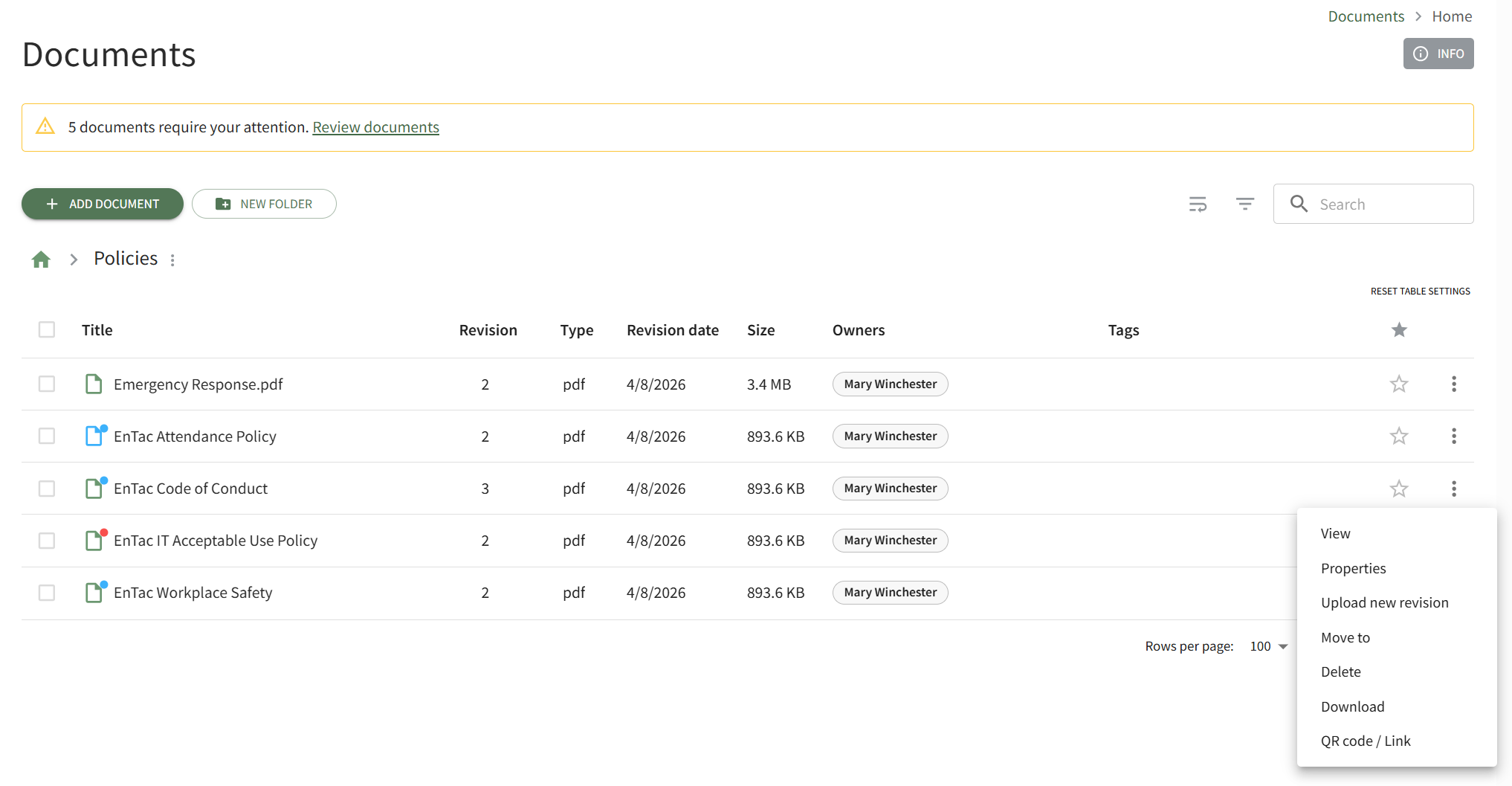
To send an acknowledgement reminder alert for a specific document, open the Home Page in the Documents Module on the Main Menu and navigate the repository to find the document you want to send an acknowledgement reminder for. Click the vertical three-dot icon to the right of the file opening the file's context menu and select View.
This opens the file's Details Page. Open the Details Tab.
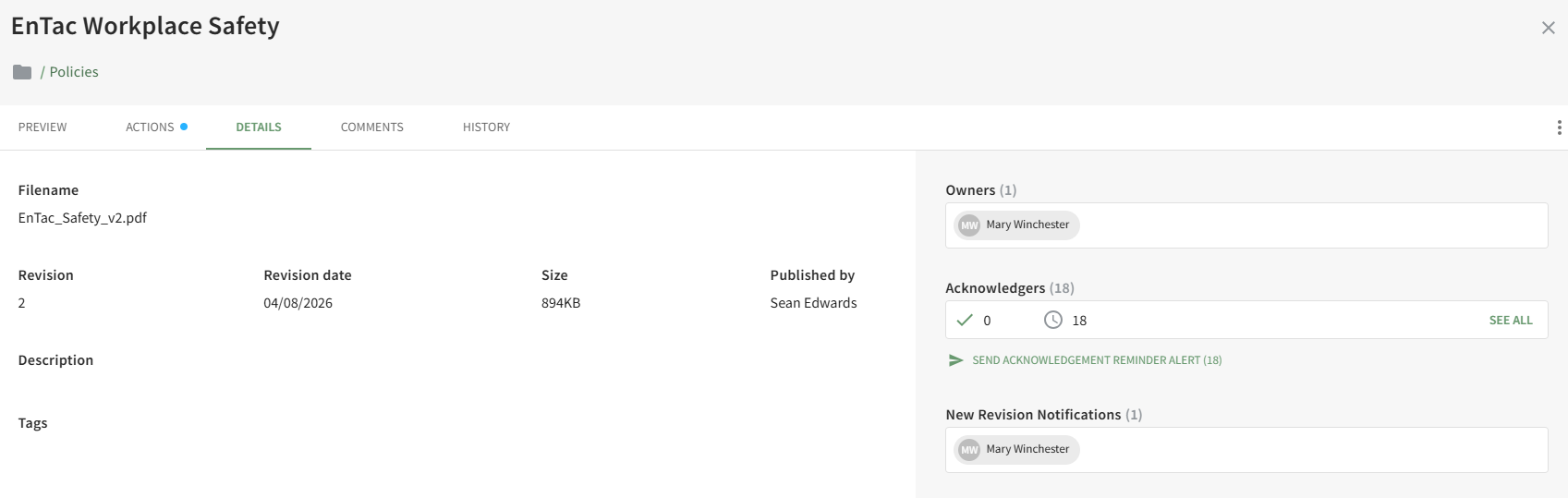
Click the Send Acknowledgement Reminder Alert link in the Acknowledgers Section opening the Send Reminder Alert Modal.
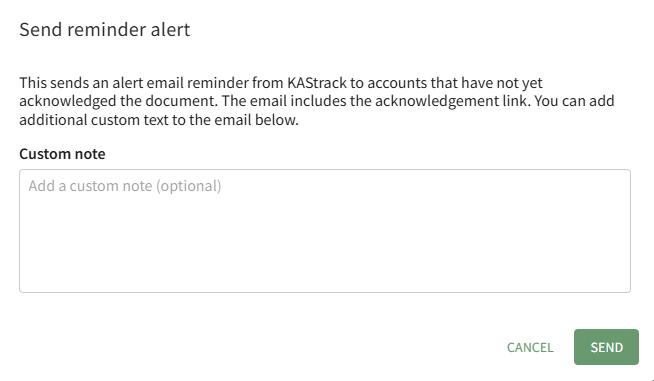
You have the option to add a custom note to the email alert reminder that will be sent to all accounts that have not yet acknowledged the document.
The email alert being sent will include a link that can be utilized to acknowledge the document.
Continued Suitability Section
When new documents or new document revisions are uploaded, the Advanced Settings Tab offers the ability to require future review of the document by a document owner. When this feature is activated, the documents requiring review will show in the Continued Suitability List on the Actions Tab of the Review Page.

The icons used in the Continued Suitability Section are explained in the table below.
Continued Suitability Category Icon Explanations | |
Icon | Explanation |
| The check within the circle icon indicates that user affirms suitability. |
| The vertical three dot icon opens a context menu with the options to Affirm Suitability and Download. |


How To: Affirm a Document/File's Suitability
To affirm a document/file for Continued Suitability, open the Actions Tab on the Review Page in the Documents Module from the Main Menu.
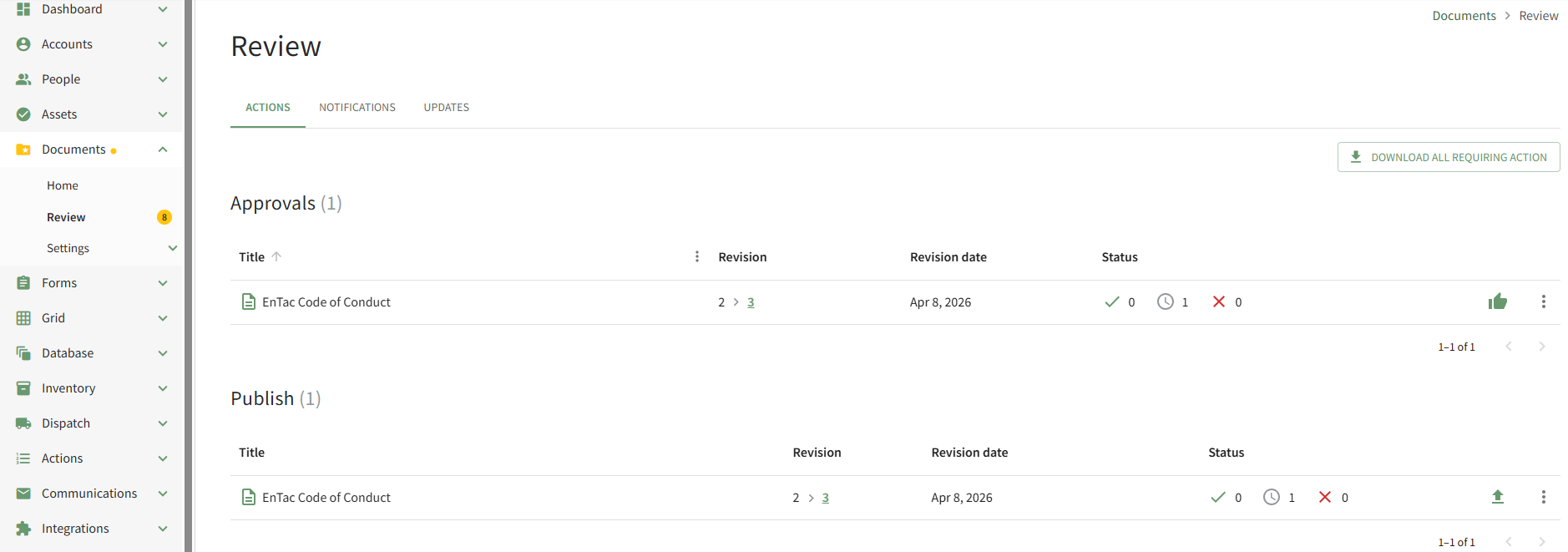
Scroll down to the Continued Suitability of the Actions Tab. Click the vertical three-dot icon to the right of the file to open the Continued Suitability Context Menu and select the Affirm Suitability option.
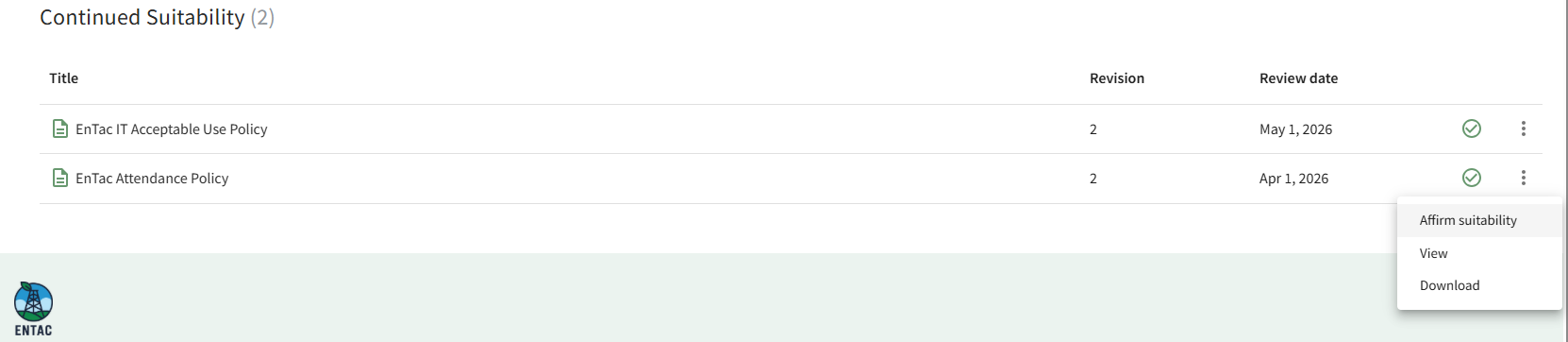
This opens the Affirm Suitability Modal which asks the user to confirm that the document continues to be suitable purpose.
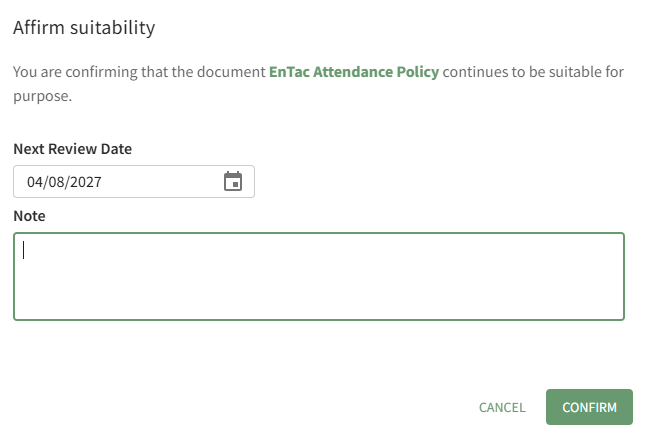
The Next Review Date is stated and can be edited from the modal. Comments can be entered in the Notes textbox.
Select the Confirm button.
The comments made when the document is affirmed can be seen on the History Tab of the file's Details Page.

Review Page: Notifications Tab
The Notifications tab is connected to an advanced feature in the Documents Module. When the new document was added/revised, the Advanced Options Tab enables the ability to "Send Notifications of New Revisions" to the users, certification roles, or access levels indicated. When this feature is activated, the notifications (that do not require user action) are visible on the Notifications Tab of the Review Page.
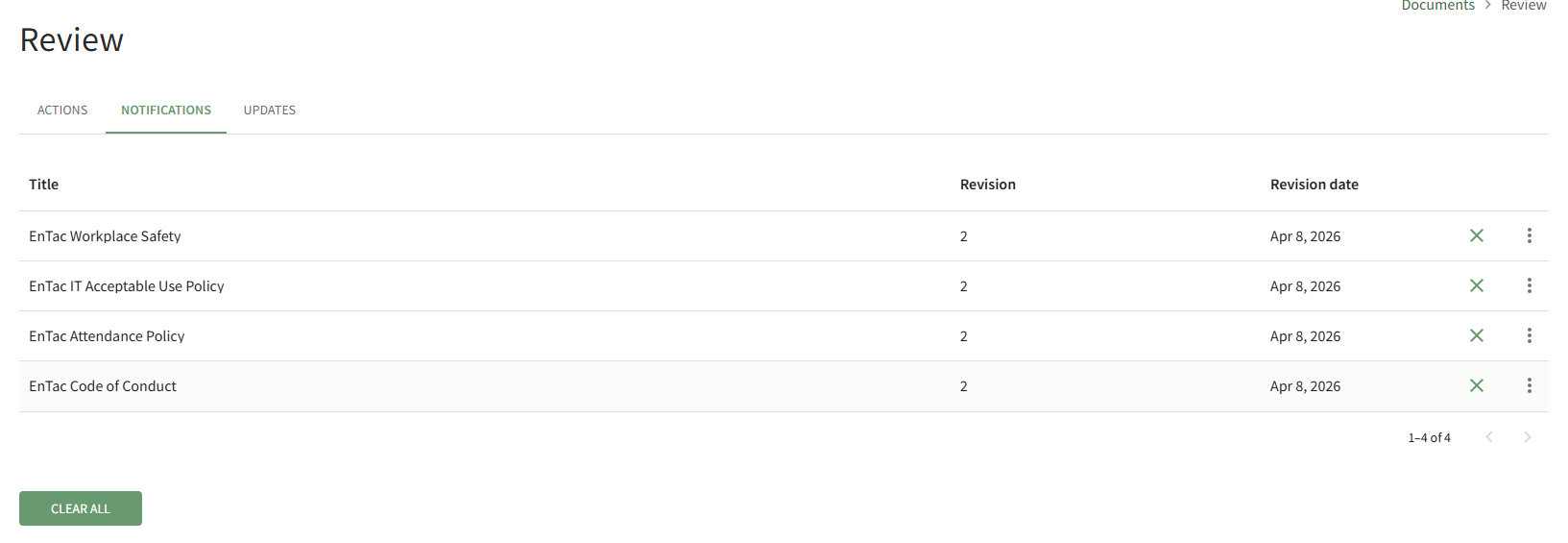
Selecting the X icon to the right of the revision date will clear the file from the page.
Selecting the Clear All button beneath the file list will clear all files on the Notifications Tab.
How To: Specify Who Should Receive Notifications of New File Revisions
Review Page: Updates Tab
The Updates Tab on the Review Page allows the user to view any files that have been updated since the last review of new files or revisions. Any files that have been updated since the last review date will be shown here.
If the review date has never been reset, the default date will show as Dec 31, 1970 at 6:00 PM.
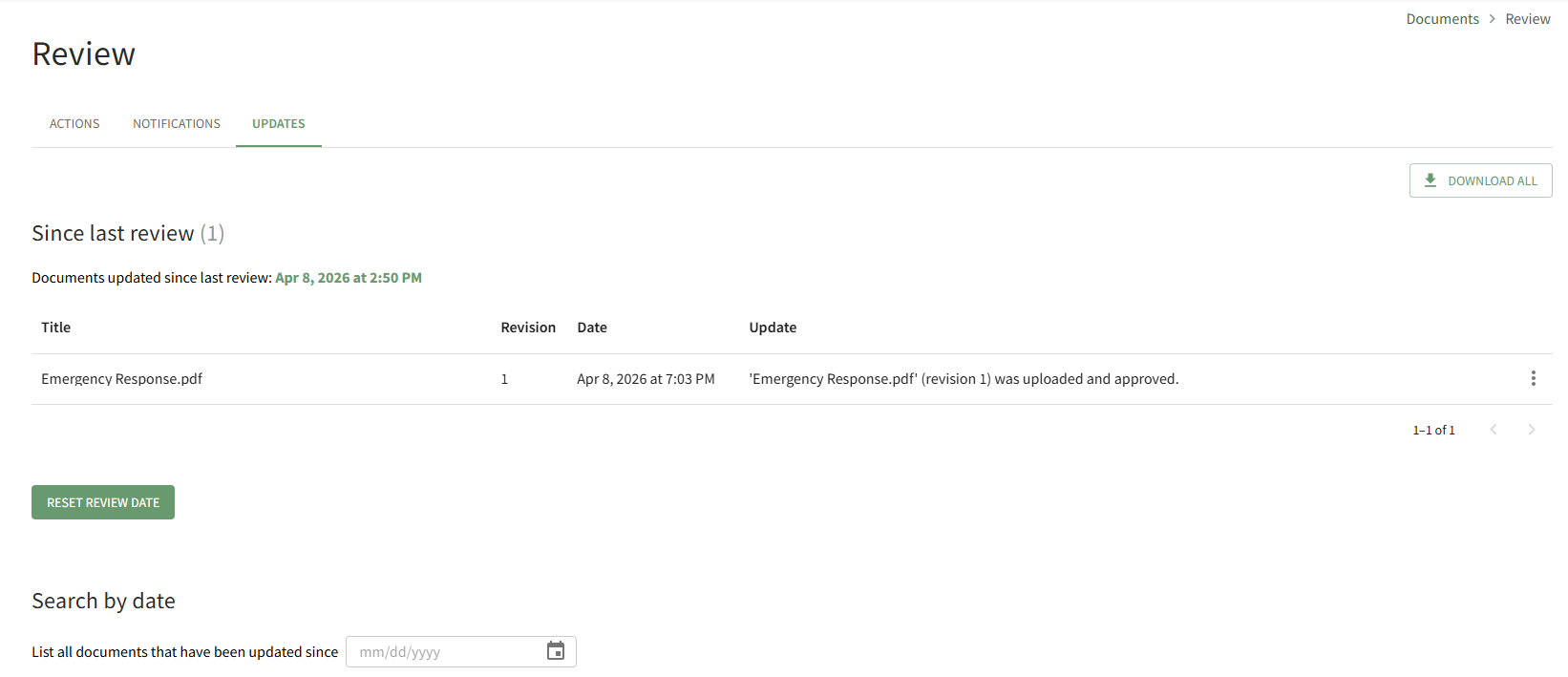
The “Download All” button located at the far right enables downloading of all files that have had revisions made since the user’s last review.
How To: Reset the Since Last Review Document List
To reset the Since Last Review Document List, open the Review Page in the Documents Module from the Main Menu and open the Updates Tab.
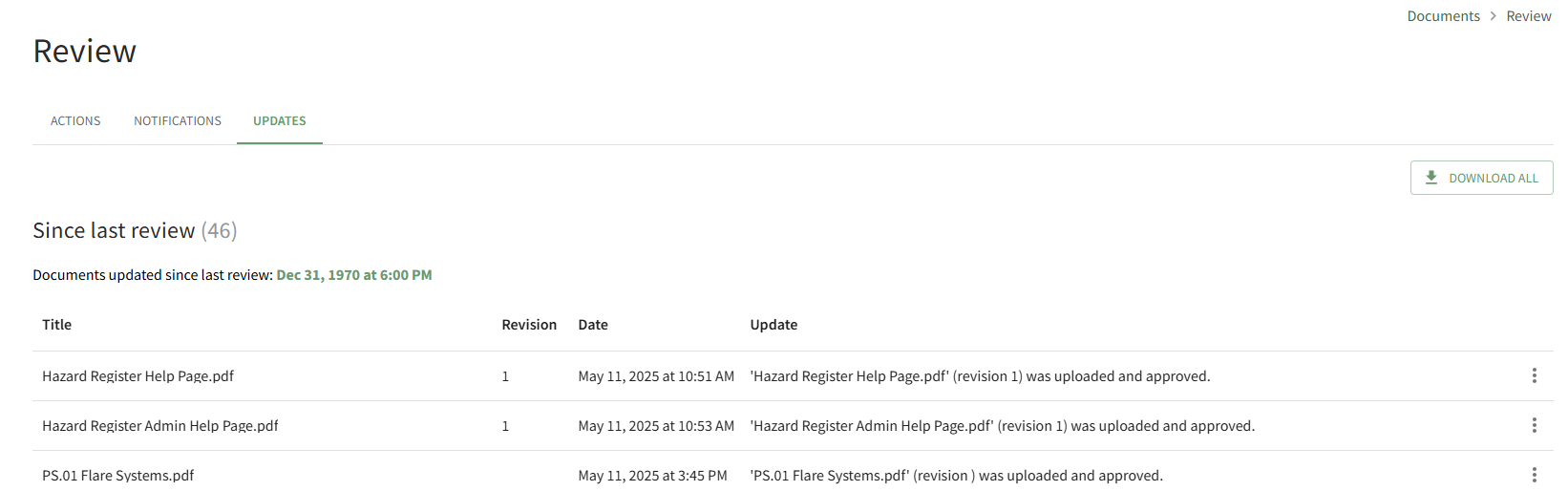
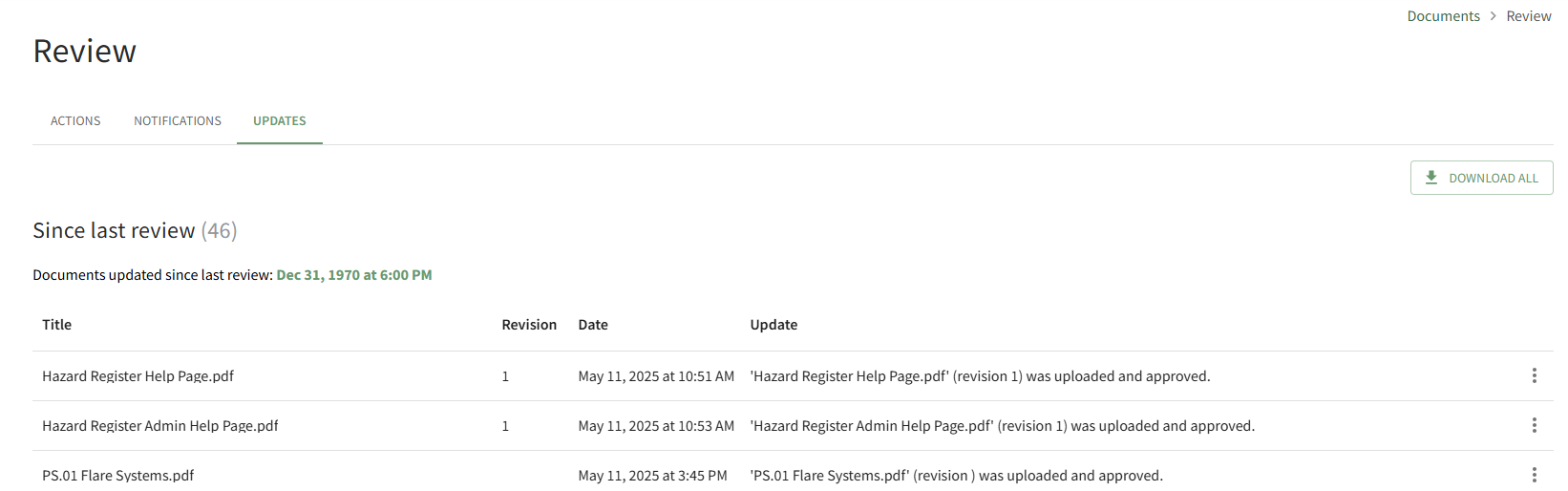
All documents that have been uploaded/updated in module since the last review are visible. The number of files is indicated in parenthesis to the right of the section header. Scroll to the bottom of the Since Last Review List.

Click the Reset Review Date button.
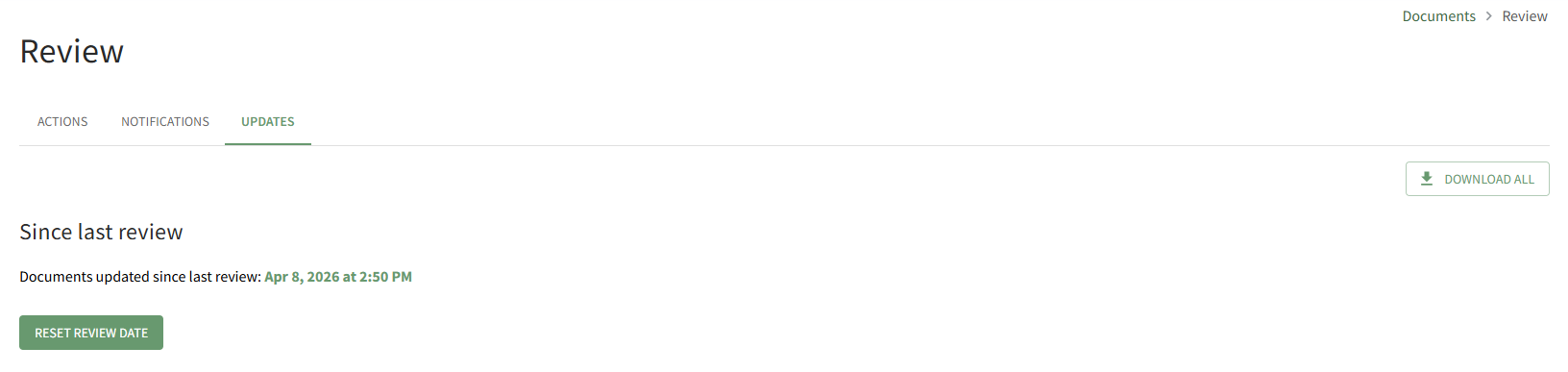
The system records the date and time that the list was reviewed.
How To: Search all Documents Updated after a Selected Date
To search all documents uploaded/updated in the Documents Module after a specified date, open the Review Page in Documents Module from the Main Menu and open the Updates Tab.
Scroll to the Search By Date Section at the bottom of the tab.
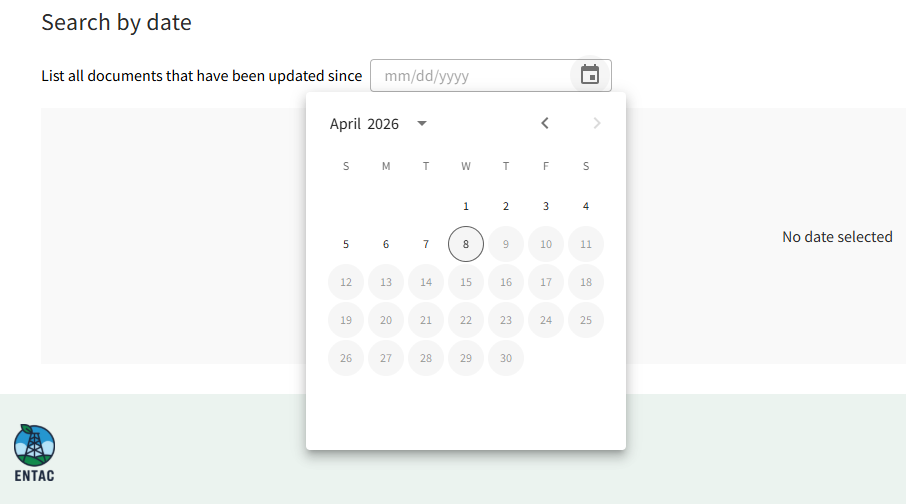
Click in the date field to open the calendar and select the desired date.
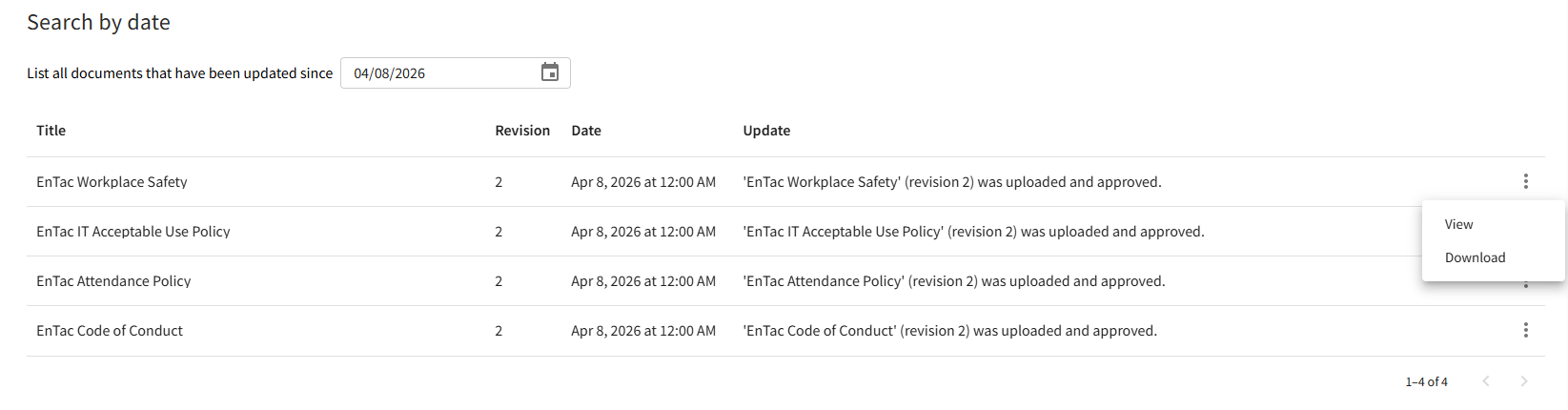
All files updated since the specified date will now show below.
Clicking on the three-icon to the right of the file will allow you to view the file's Details Page or Download the file to your personal device.
Settings Page
The Module Levels Tab of Settings Page can be accessed from the Main Menu. The system default module levels for the module are visible in the Module Levels Table. New module levels with customizable permissions can be created and managed on this tab.
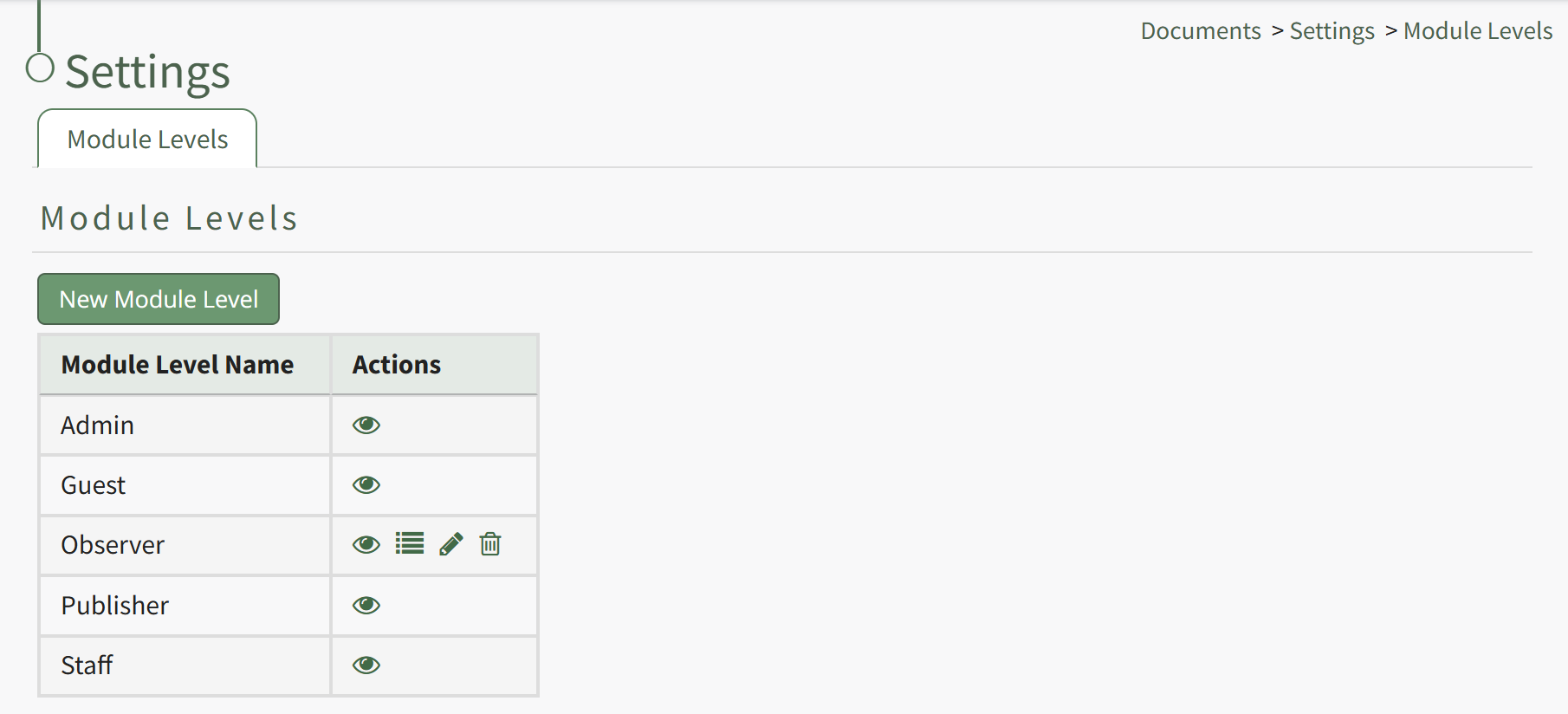
There are four system default module levels associated with the Documents Module. An explanation of the permissions associated with each default module level are shown in the Documents Module Level Permissions Table below.
System default module levels cannot be customized.
Documents Module - Module Level Permissions | |
Module Level | Permissions |
Admin | Manage users (view, edit, delete), Manage groups (add, view, edit, edit group defaults, delete), Manage roles (permissions, add, assign, unassign, view, edit, and delete), Download and view documents, can view documents from all modules, own-moc, Upload (new documents, revisions), View (deleted, rejected, abandoned, superseded, submitted, non-approved, pending documents), view document status and detailed document history, Edit (documents, document status, document approvers, document acknowledgers, document notifications, document review date, document owners, document acknowledgment message), Delete documents and approved documents, Distribute documents, Add/Delete/Edit Comments |
Guest | Download documents, view documents, own-moc |
Publisher | Download documents and old versions, view documents, own-moc, Manage groups (view, edit, edit group deafults, delete), Upload (new revisions, new documents), View (deleted, rejected, abandoned, superseded, submitted, non-approved, pending documents), view document status and detailed document history, Edit (documents, document status, document approvers, document acknowledgers, document notifications, document review date, document owners, document acknowledgment message), Delete documents and approved documents, Distribute documents, Add/Delete/Edit Comments |
Staff | Download documents, view documents, own-moc, Upload (new revisions, new documents), View (deleted, rejected, abandoned, superseded, submitted, non-approved, pending documents), View document status and detailed document history, Edit (documents, document approvers, document acknowledgers, document notifications, document review date, document owners, document acknowledgment message), Delete documents, approved documents, pending files, Add/Delete Comments |
New Module Levels can be created in order to customize module level permissions. An explanation of the icons associated with customized module levels have been provided in the table below.
Module Level Customization Icons | |
Icon | Explanation |
| The eyeball icon allows you to view users assigned to the module level as well as the permissions assigned to them. |
| The bulleted list icon allows you to assign permissions to customized module levels. |
| The pencil icon opens the Edit Module Level Modal. |
| The trashcan icon opens the Delete Module Level Confirmation Modal. |


How To: Create a New Module Level (Documents)
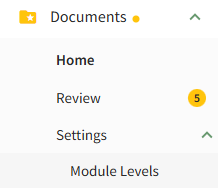
To create a new Module Level with customized permissions in the Documents Module, select Module Levels under Settings in the Documents Module on the Main Menu, opening the Settings Page to the Module Level Tab.
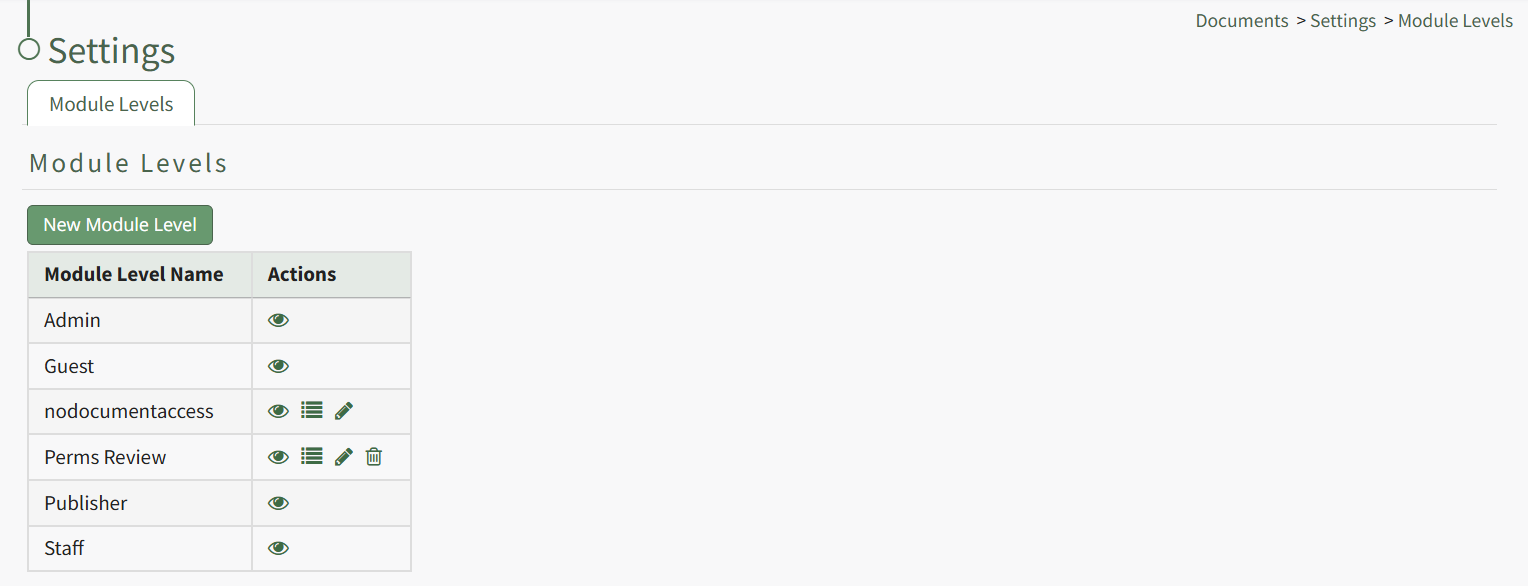
System default module levels cannot be customized. Module levels that are specific to your organization have additional actions to enable customization.
To create a new module level, select the New Module Level button opening the New Module Level Modal.
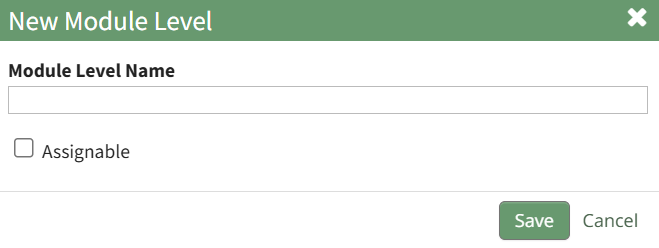
Input the name of the customized module level.
Check the box for Assignable to give permission for the new module level to be assigned to users if desired and click the Save button. Module levels will be listed alphabetically in the Module Level Table.
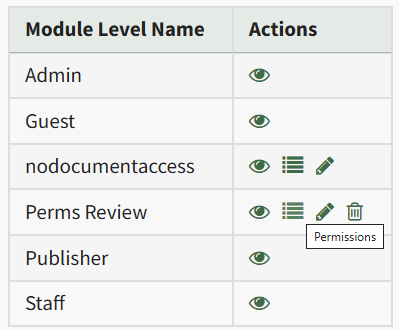
Select the Permissions icon (the bullet point list to the right of the eye) in order to assign the customized permissions to the new Module Level. Click the checkbox to the left of the permissions you want to assign.
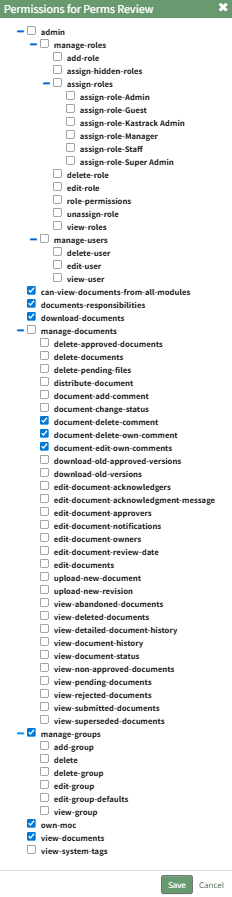
Select the Save button.

A pop-up confirms that the permissions were saved.
Access levels for all modules can also be managed in the Site Settings Module on the Access Levels Tab.
A complete list of all permissions associated with the Documents Module have been provided below.
