Files associated with and uploaded within the following Modules are not automatically saved in the Documents Module, but they can be manually uploaded in both: Assets, Courses, Dispatch, Forms, and People. Files uploaded into the Grid Module will automatically be housed in Documents.
[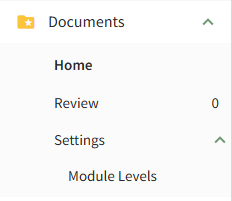](https://kaswiki.kastrack.com/uploads/images/gallery/2026-04/image.png) The table below provides a summary of each page in the Documents Module.| **Documents Module Main Menu Page Summaries** | |
| **Page** | **Explanation** |
| Home | The Home Page is the repository for all files and contains Folder/File List. |
| Review | The Review Page is comprised of three tabs: Review, Notifications, and Updates. The user can select between the three tabs below the Review Page header to manage file approvals, acknowledgements, and continued suitability, as well as monitor any pertinent file updates and notifications. |
| Settings | The Settings Page allows the user to customize and designate permissions for the Documents Module. |
| **Documents Module Action Status Legend** | |
| **Icon** | **Explanation** |
| [](https://kaswiki.kastrack.com/uploads/images/gallery/2026-04/Nhhimage.png) | A red action status in the Documents Module indicates that a continued suitability review is overdue or that a document is waiting to be published. |
| [](https://kaswiki.kastrack.com/uploads/images/gallery/2026-04/sTgimage.png) | A yellow action status in the Documents Module indicates there is a pending document approval. |
| [](https://kaswiki.kastrack.com/uploads/images/gallery/2026-04/Ca0image.png) | The blue action status in the Documents Module indicates that a document acknowledgement/approval is required, a document is reviewed but not yet approved, or a notification of a new document revision. |
If there are multiple statuses relating to the same document, overdue (red) takes precendence over warnings (yellow) which takes precedence over being due (blue).
The User Manual for the {{@951#bkmrk-documents-module-is-}}
# Customizable Document Properties Each file uploaded in the Documents Module has customizable properties that are designated when a new file is uploaded. An explanation of those properties are explained in the Basic Details and Advanced Options Tabs below. ### Basic Details Under the Basic Details Tab, the user can input a title, description of the file, revision number and revision date. They can also designate any document owners (the uploader is initially included as an Owner by default) and tags. [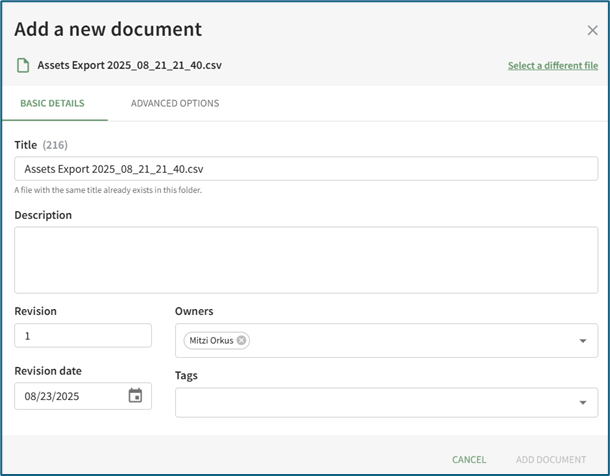](https://kaswiki.kastrack.com/uploads/images/gallery/2025-12/G0uimage.png) If the incorrect file was selected, the user can click “Select a different file” from the top right corner of the modal to exchange it with the correct file. Document owner(s) can be selected from a dropdown list of users.Document owners have the ability to approve documents, which is relevant for companies who are required to attest an annual/periodic review for regulatory agencies or other governing bodies. Document owners are also notified any time a new comment is made on a file and are responsible for affirming continued suitability of the file if enabled under Advanced Options.
### Advanced Options Selecting the Advanced Options Tab allows the user to apply enhanced settings to the file. An explanation of each Advanced Options checkbox is included in the table below. [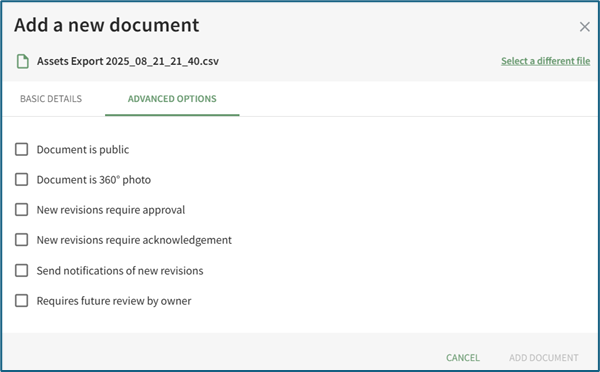](https://kaswiki.kastrack.com/uploads/images/gallery/2025-12/Mdaimage.png)| **Document Advanced Options Explanations** | |
| **Checkbox** | **Explanation** |
| Document is Public | Selecting the “Document is public” checkbox allows individuals who are not users in the KAStrack system to view files.
Users in KAStrack will need appropriate permissions to view the file regardless. How To: Designate a File is Public{{@913}} |
| Document is 360° Photo | Selecting the “Document is a 360° photo” checkbox communicates to KAStrack that the file is intended for 360° viewing to ensure it shows correctly. |
| New Revisions Require Approval | Selecting the “New revisions require approval” checkbox opens a dropdown menu. Approval requirements for the file can be designed by Access Level, Certification Role, or specific individuals in the system. An additional checkbox can be selected if this revision requires approval.
[](https://kaswiki.kastrack.com/uploads/images/gallery/2025-12/4Jrimage.png)
Users view the files that require approval on the Documents Module Review Page. |
| New Revisions Require Acknowledgement | Selecting the “New revisions require acknowledgement” checkbox allows acknowledgement requirement customization.
[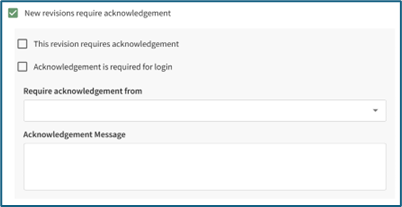](https://kaswiki.kastrack.com/uploads/images/gallery/2025-12/nx8image.png)
The “This revision requires acknowledgement” checkbox will notify the Access Levels, Certification Roles, or individuals selected of the new document. If “Acknowledgement is required for login” is selected, a user will not be able to access anything in KAStrack until the user acknowledges the revised document. A textbox allows the user to include a customized acknowledgement message that will be included in the automated message sent out to users by KAStrack.
Users view the files that require acknowledgement on the Documents Module Review Page, or just after signing in, when “Acknowledgement is required for login” is enabled. |
| Send Notifications of New Revisions | Selecting the “Send notifications of new revisions” checkbox allows a user to customize (by Access Level, Certification Role, or individual) who receives an email notification that a new file revision has been updated in KAStrack. An additional checkbox can be selected if a notification is to be sent for this revision.
[](https://kaswiki.kastrack.com/uploads/images/gallery/2025-12/5ytimage.png)
Users view the files they have received notification of on the Documents Module Review Page. |
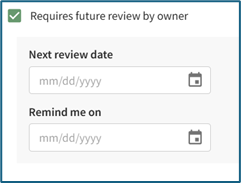
| Requires Future Review by Owner | Selecting the “Requires future review by owner” checkbox allows the user to schedule the next review date and set a reminder for the review deadline.
[](https://kaswiki.kastrack.com/uploads/images/gallery/2025-12/ENOimage.png)
Users review files for continued suitability on the Documents Module Review Page. |
| **Folder Context Menu Option Explanations** | |
| **Option** | **Explanation** |
| Properties | Selecting Properties from the context menu opens the Folder Properties Modal, allowing the user to update the folder title, tags, and establish if the folder should be set as pubic. |
| Defaults | “Defaults” is a dropdown menu option for Folders only. Clicking “Defaults” will open the Defaults for New Documents Modal, which allows the user to make customized settings for bulk uploads.
The user enters a title pre-fix instead of a title for bulk uploads. |
| Move To | Selecting Move To from the context menu opens a modal that allows the user to move a folder from its current location to another.
How To: Move a File/Folder{{@226}} |
| Delete | Selecting Delete from the context menu opens a Delete Folder modal that will ask the user to confirm that they want to delete the folder, including all the files, folders, and subfolders stored in the parent folder.
How To: Delete a Folder{{@895}} |
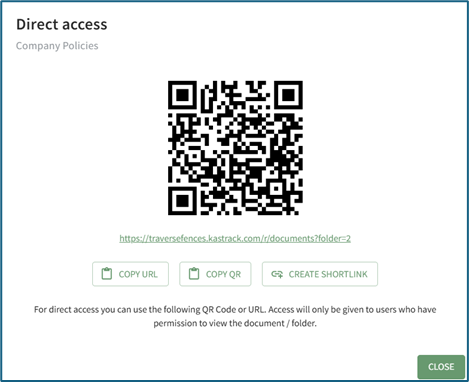
| QR Code / Link | Selecting “QR Code / Link” from the context menu opens the Direct Access Modal for individual folders.
[](https://kaswiki.kastrack.com/uploads/images/gallery/2025-12/VYHimage.png)
The user can use either the URL or QR Code to share access to the folders selected.
Access will be given to internal users who have permission to view the folder. Access will be given to external users if the folder is public. How To: Access A Folder's QR Code / Link{{@889}} |
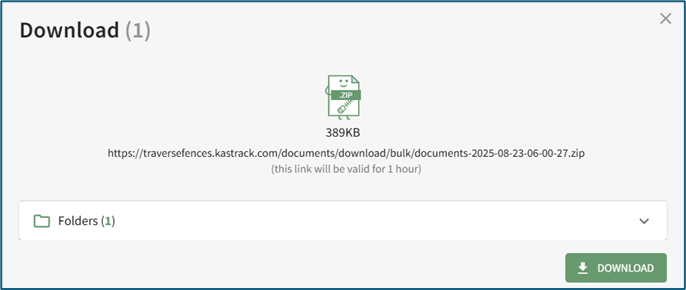
| Download | Selecting Download on the context menu opens the Download Modal, allowing the user to download all of the files located in the folder selected and the subfolders held within.
[](https://kaswiki.kastrack.com/uploads/images/gallery/2025-12/6Fdimage.png)
Selecting[](https://kaswiki.kastrack.com/uploads/images/gallery/2025-12/aCZimage.png) to the right of the folder opens a dropdown menu that shows all individual files being downloaded.
The download is not accessible to those without permission to access it. Restrictive tags can also be used to limit access and cannot be bypassed by a user. How To: Download a Folder{{@896}} |
| **File Context Menu Option Explanations** | |
| **Option** | **Explanation** |
| View | Selecting View from a file's context menu opens the document's Details Page.
Understanding a file's Details Page{{@887}} |
| Properties | Selecting Properties from a file's context menu opens the File Properties Modal, allowing the user to update the document parameters that were established when the new document was added.
Understanding Customizable Document Properties{{@914}} |
| Upload New Revision | Selecting Upload New Revision from a file's context menu is used to upload a new revision of an existing file.
You can also drag and drop a file from your computer onto the name of an existing file to upload a new revision. How To: Upload a Revised Version of an Existing File{{@908}} |
| Move To | Selecting Move To from a file's context menu opens a modal that allows the user to move a file from its current folder to another.
How To: Move a File/Folder{{@226}} |
| Delete | Selecting Delete from a file's context menu will open a Delete Document Modal that will ask the user to confirm that they want to delete the file before it is permanently deleted. Once a user selects “Delete” from the Delete Document Modal, the files have been removed.
When a file that originates in the Documents Module is later linked to another module, it needs to be disassociated before the file can be deleted. If this is the case, the deletion warning will identify where the file needs to be unlinked before deletion can occur. |
| Download | Selecting “Download” from a file's context menu automatically downloads an individual file to your device. For the file to be shared with an external individual, the file must be designated as public.
The download is not accessible to those without permission to access it. Restrictive tags can also be used to limit access and cannot be bypassed by a user. |
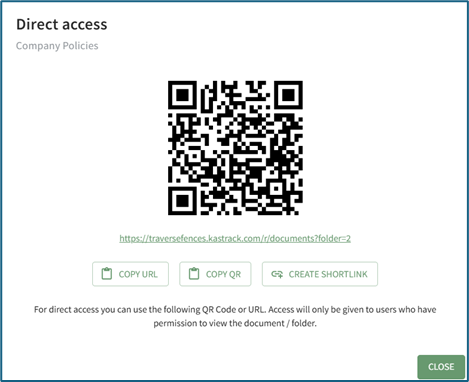
| QR Code / Link | Selecting “QR Code / Link” from a file's context menu opens the Direct Access Modal for individual files.
[](https://kaswiki.kastrack.com/uploads/images/gallery/2025-12/57Mimage.png)
The user can use either the URL or QR Code to share access to the files selected.
Access will be given to internal users who have permission to view the folder. Access will be given to external users if the folder is public. How To: Access A File's QR Code / URL Link{{@888}} |
The URL Link for a public folder only allows access to that Folder's contents and any public folder within its public contents - you cannot go up the folder hierarchy while logged out, the starting folder is the highest level of access you get.
Making a folder public does not automatically make its contents public - documents that you wish to have publicly accessible will each need to be marked public.
Public documents/folders containing a permissive/restrictive tag will not be accessible publicly, leading to a Not Authorized screen with an option to log in and view the document/folder (assuming the account you're logging into has access to the tag in question).