Understanding Form Fields and Rules
- Understanding Database Fields: Form, Formatting, and Utility Field Explanations
- Database Fields Tab
- Database Rules Tab
Understanding Database Fields: Form, Formatting, and Utility Field Explanations
Fields are the individual data elements that makeup databases. You can think of them as a container for a type of information. They are the building blocks the Database Module uses to collect, store, and process data in a structured way.
In a database table, fields are the columns that define what find of information each record (row) will store.
Every field has properties (or metadata) that define it: a Name/Identifier (what the field is called internally), the Data Type (what kind of data it can hold), Constraints (the rules that limit what data is valid), Default Value (what to use if no data is entered), and Validation Rules (checks to ensure the input meets expectations, e.g., email format, numeric range).
In KAStrack, individuals with Admin permissions for the database can define custom fields that appear as form or database inputs that can be utilized in structured formats. There are three field types utilized in the database module: form fields, formatting fields, and utility fields. Users can also reference data from another database in a field.
A database field can only have one field type. If you need to utilize another (e.g., for formatting purposes), you can set the displayed label to be same but the field label must be unique.
If no fields have been entered into a database, they can be created by importing a CSV File.
How To: Import Fields from a CSV File Into a Database
To import database entries from a CSV, database fields must already have been created.
How To: Add a Database Field
To create a database field, go to the Home Page of the Database Module.
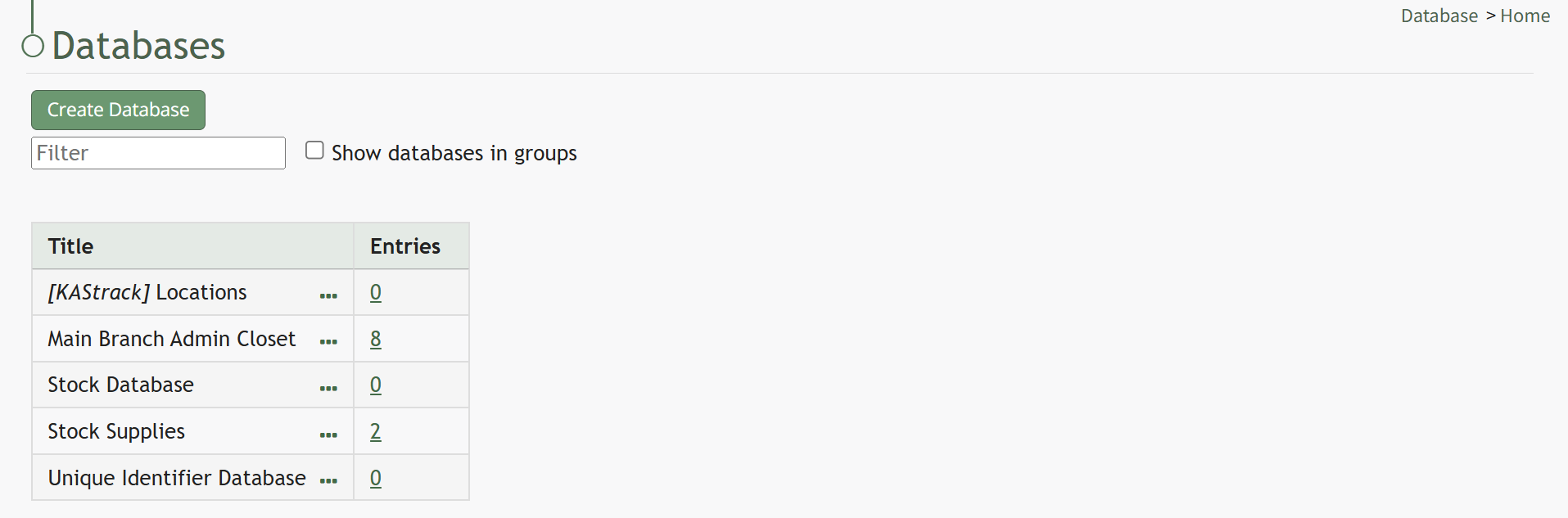
Click the three dot (…) icon to open the context menu of the database you wish to enter fields for.
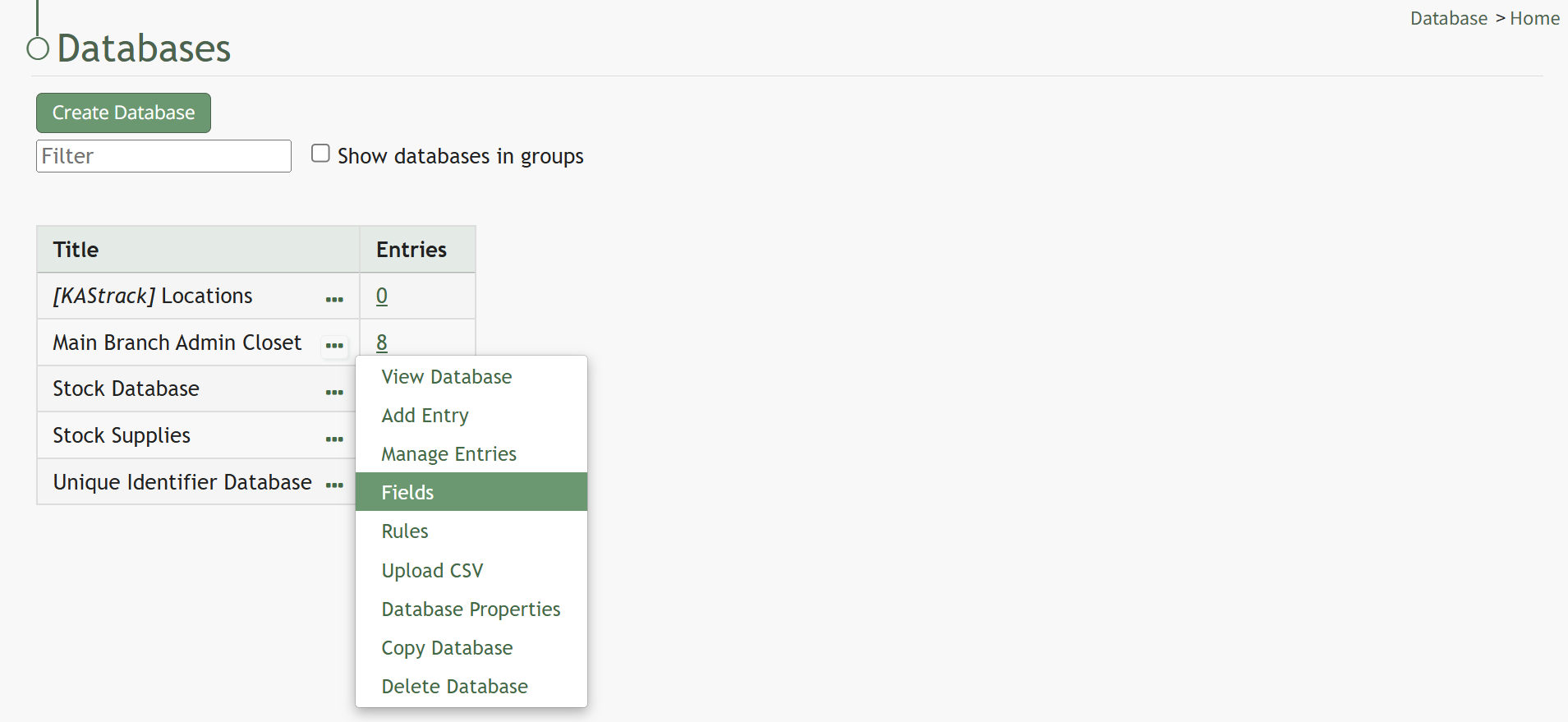
Select “Fields” opening the Fields for database (DatabaseName) Page.
There are two ways to add a field to the Field Table. Click the “New Field” button above the Field Table or click the three dot (…) icon to the right of the page header opening the context menu and select “Add Entry”.

This opens the New Database Field Modal.
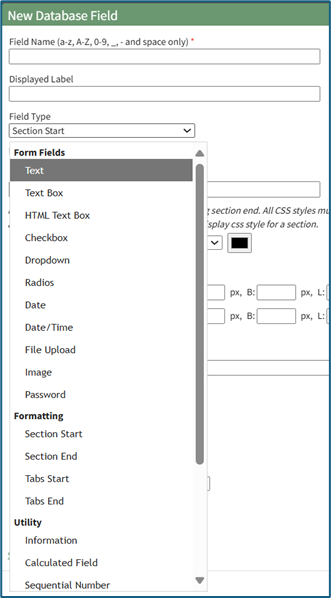
The creation of a new field will always require you to enter a field name. Include an input for the displayed label and select the field type from a dropdown menu. The inputs on the New Database Field Modal will vary based on the Field Type.
Possible field types in the database module include Form Fields, Formatting Fields, Utility Fields, or a Reference to Another Database.
A database field can only have one field type. If you need to utilize another (e.g., for formatting purposes), you can set the displayed label to be same, but the field label must be unique.
For an explanation of field types and the formatting choices associated with each one, reference the Understanding Fields Section of the Database Module in the User Manual.
Once you are finished inputting the information for the new field, select “Save” and the new database field will show in the Field Table.
Fields can also be imported in bulk into a Database from a CSV.
How To: Import Fields from a PDF Field Import
This method of importing Fields from a PDF requires access to Adobe Acrobat Pro.
If a field has already been added to a database, you are no longer able to bulk import database field names from a PDF Field Import. You are now required to enter each field name individually.
How To: Add a Database Field
{{@321}}
To import field names in bulk from a CSV file, go to the Home Page of the Database Module. Click the three dot (…) icon to open the context menu of the database you wish to enter fields for.
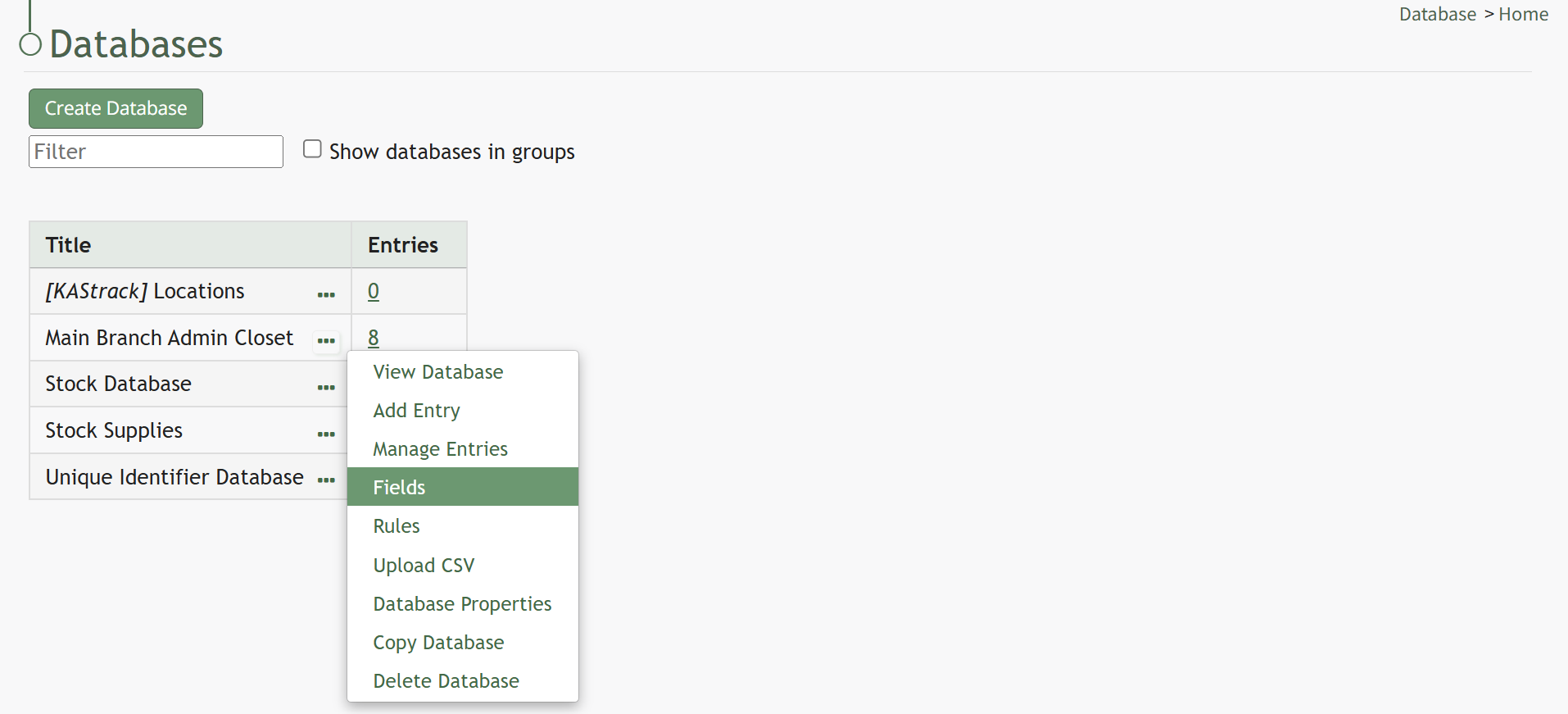
Select “Fields” opening the Fields for database (DatabaseName) Page.
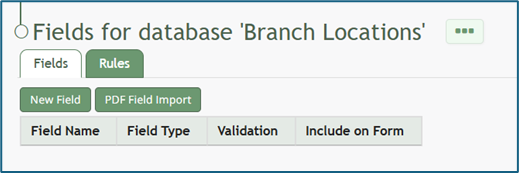
Click the “PDF Field Import” button opening the PDF Field Import Modal.
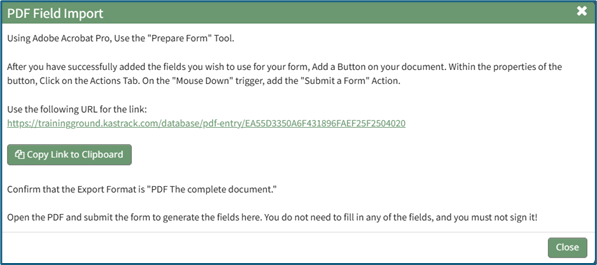
To import fields using a PDF, use the “Prepare Form” tool in Adobe Acrobat Pro. Add the fields you wish to use for your form. Add a button on your document.
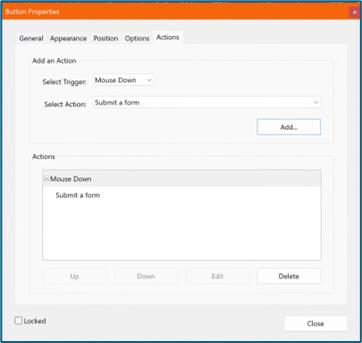
Use the URL link provided on the PDF Field Import Modal in KAStrack.
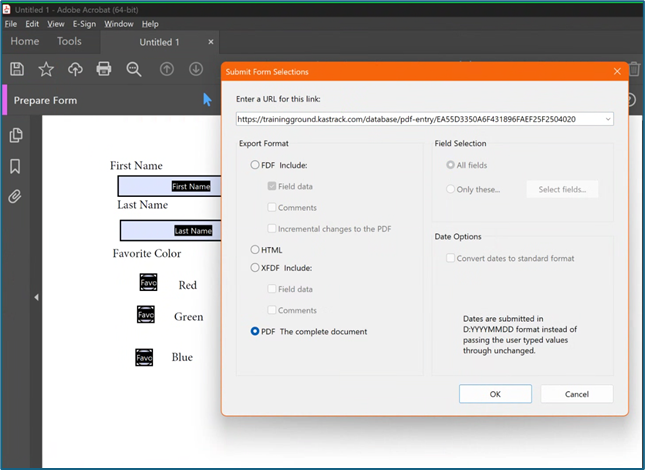
Confirm that the Export Format is “PDF The complete document”.
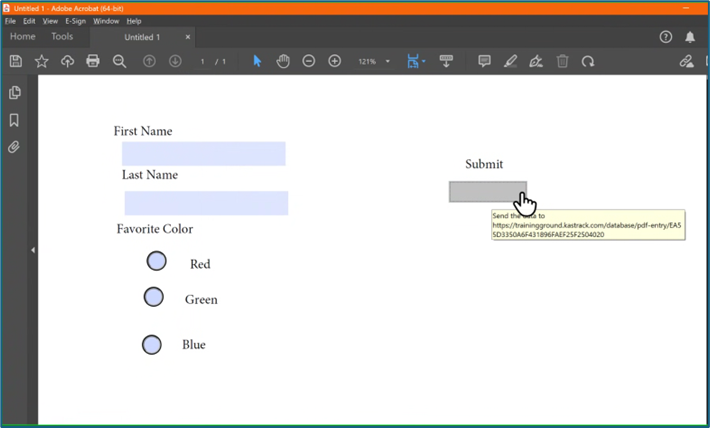
Open the PDF and submit the form to generate the fields here.
You do not need to fill in any of the fields, and you must not sign it.
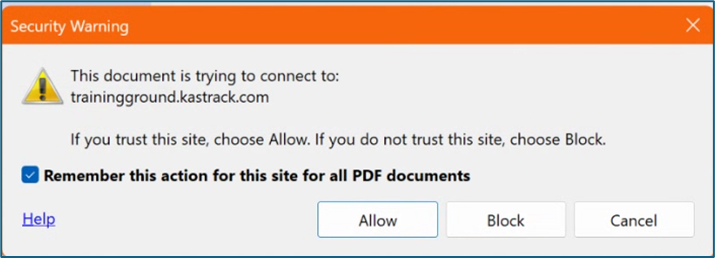
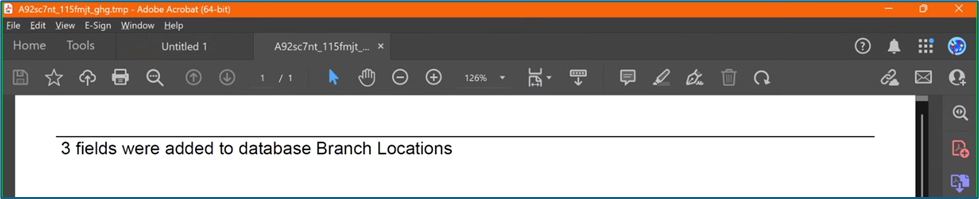
Select “Allow” and the PDF will confirm that the fields were added to the database.
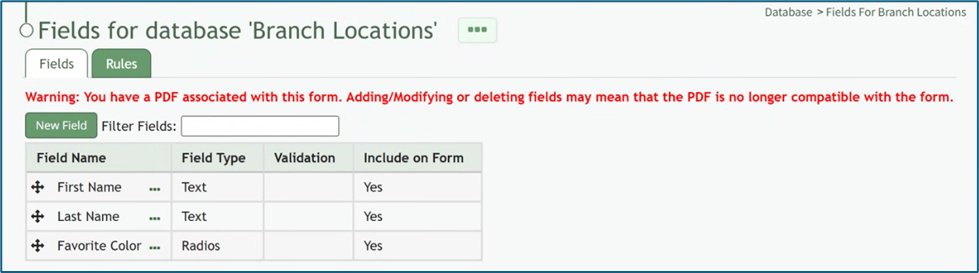
Go to the Fields Table in the database Monday, and a warning now states that a PDF is associated with the form and that adding/editing or deleting fields may result in the PDF no longer being compatible.
How To: Import Fields from a CSV File Into a Database
If a field has already been added to a database, you are no longer able to bulk import database field names from a CSV file. You are now required to enter each field name individually.
How To: Add a Database Field
To create a database field, go to the Home Page of the Database Module.
Click the three dot (…) icon to open the context menu of the database you wish to enter fields for.
Select “Fields” opening the Fields for database (DatabaseName) Page.
There are two ways to add a field to the Field Table. Click the “New Field” button above the Field Table or click the three dot (…) icon to the right of the page header opening the context menu and select “Add Entry”.
This opens the New Database Field Modal.
The creation of a new field will always require you to enter a field name. Include an input for the displayed label and select the field type from a dropdown menu. The inputs on the New Database Field Modal will vary based on the Field Type.
Possible field types in the database module include Form Fields, Formatting Fields, Utility Fields, or a Reference to Another Database.
A database field can only have one field type. If you need to utilize another (e.g., for formatting purposes), you can set the displayed label to be same, but the field label must be unique.
For an explanation of field types and the formatting choices associated with each one, reference the Understanding Fields Section of the Database Module in the User Manual.
Once you are finished inputting the information for the new field, select “Save” and the new database field will show in the Field Table.
Fields can also be imported in bulk into a Database from a CSV.
How To: Import Fields from a PDF Field Import
{{@340}}
To import database field names from a CSV file, go to the Home Page of the Database Module. Click the three dot (…) icon to open the context menu of the database you wish to enter fields for.
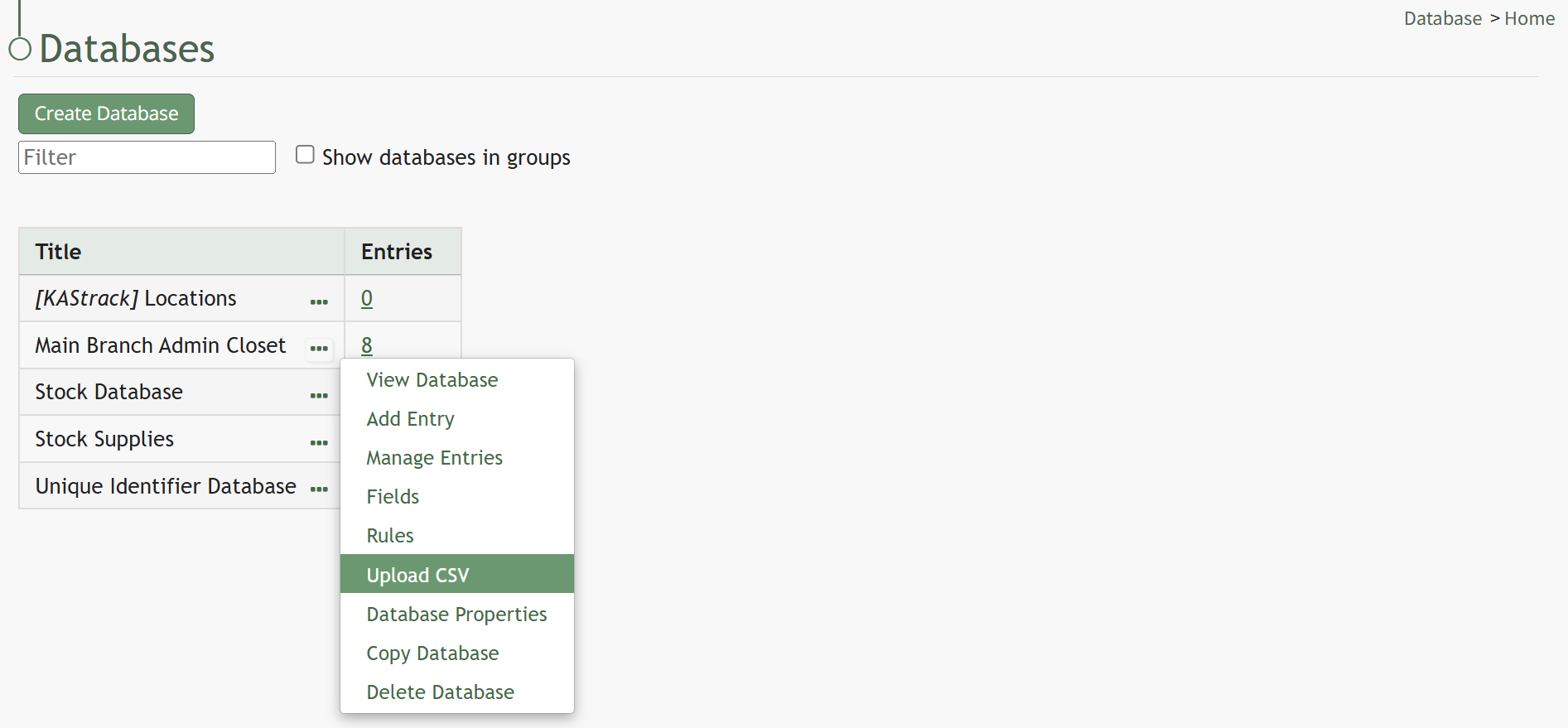
Select “Upload CSV” opening the Upload CSV for (DatabaseName) Modal.
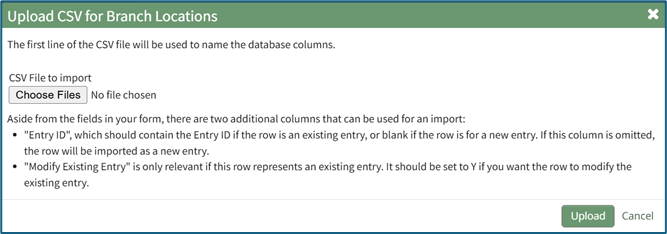
When creating your CSV file, the first row of the CSV file is used. Each individual cell in that row will be a database field used as columns for data entry. When importing bulk field names, the notes in the Upload CSV Modal on “Entry ID” and “Modify Entry ID” are not relevant.

After creating your Database Fields CSV File, save it as a CSV UTF-8 for importing.
Click the “Choose File” button and open the relevant file from your personal device.

Confirm that the correct CSV file now shows in the Upload CSV Modal.
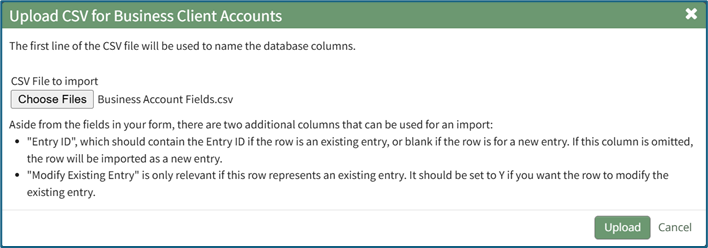
Select the “Upload” button.
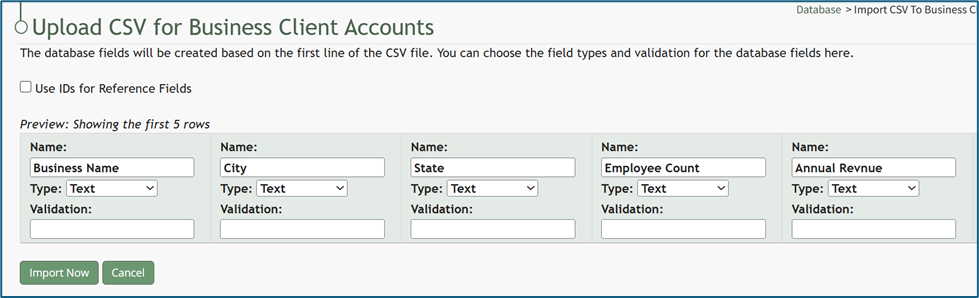
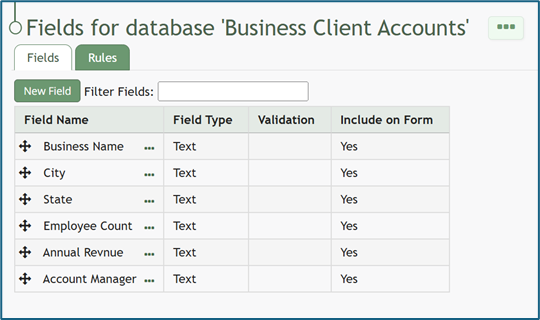
Configure each database field as desired. Field types shown on the dropdown menu include form fields: Text, Text Box, Checkbox, Dropdown, Radios, Data, and Data/Time.
Select “Import Now” and a summary of the import with show on the CSV Upload Page.
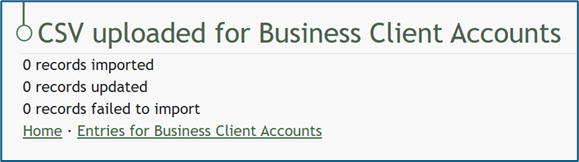
All imported field will now show on the Fields for database (DatabaseName) Page in the Fields Table.
How To: Import Fields from a PDF Field Import
This method of importing Fields from a PDF requires access to Adobe Acrobat Pro.
If a field has already been added to a database, you are no longer able to bulk import database field names from a PDF Field Import. You are now required to enter each field name individually.
How To: Add a Database Field
To create a database field, go to the Home Page of the Database Module.
Click the three dot (…) icon to open the context menu of the database you wish to enter fields for.
Select “Fields” opening the Fields for database (DatabaseName) Page.
There are two ways to add a field to the Field Table. Click the “New Field” button above the Field Table or click the three dot (…) icon to the right of the page header opening the context menu and select “Add Entry”.
This opens the New Database Field Modal.
The creation of a new field will always require you to enter a field name. Include an input for the displayed label and select the field type from a dropdown menu. The inputs on the New Database Field Modal will vary based on the Field Type.
Possible field types in the database module include Form Fields, Formatting Fields, Utility Fields, or a Reference to Another Database.
A database field can only have one field type. If you need to utilize another (e.g., for formatting purposes), you can set the displayed label to be same, but the field label must be unique.
For an explanation of field types and the formatting choices associated with each one, reference the Understanding Fields Section of the Database Module in the User Manual.
Once you are finished inputting the information for the new field, select “Save” and the new database field will show in the Field Table.
Fields can also be imported in bulk into a Database from a CSV.
How To: Import Fields from a PDF Field Import
{{@340}}
To import field names in bulk from a CSV file, go to the Home Page of the Database Module. Click the three dot (…) icon to open the context menu of the database you wish to enter fields for.
Select “Fields” opening the Fields for database (DatabaseName) Page.
Click the “PDF Field Import” button opening the PDF Field Import Modal.
To import fields using a PDF, use the “Prepare Form” tool in Adobe Acrobat Pro. Add the fields you wish to use for your form. Add a button on your document.
Use the URL link provided on the PDF Field Import Modal in KAStrack.
Confirm that the Export Format is “PDF The complete document”.
Open the PDF and submit the form to generate the fields here.
You do not need to fill in any of the fields, and you must not sign it.
Select “Allow” and the PDF will confirm that the fields were added to the database.
Go to the Fields Table in the database Monday, and a warning now states that a PDF is associated with the form and that adding/editing or deleting fields may result in the PDF no longer being compatible.
To import database entries from a CSV, go to the Home Page of the Database Module and click the three dot menu to the right of the database you wish to import entries into.
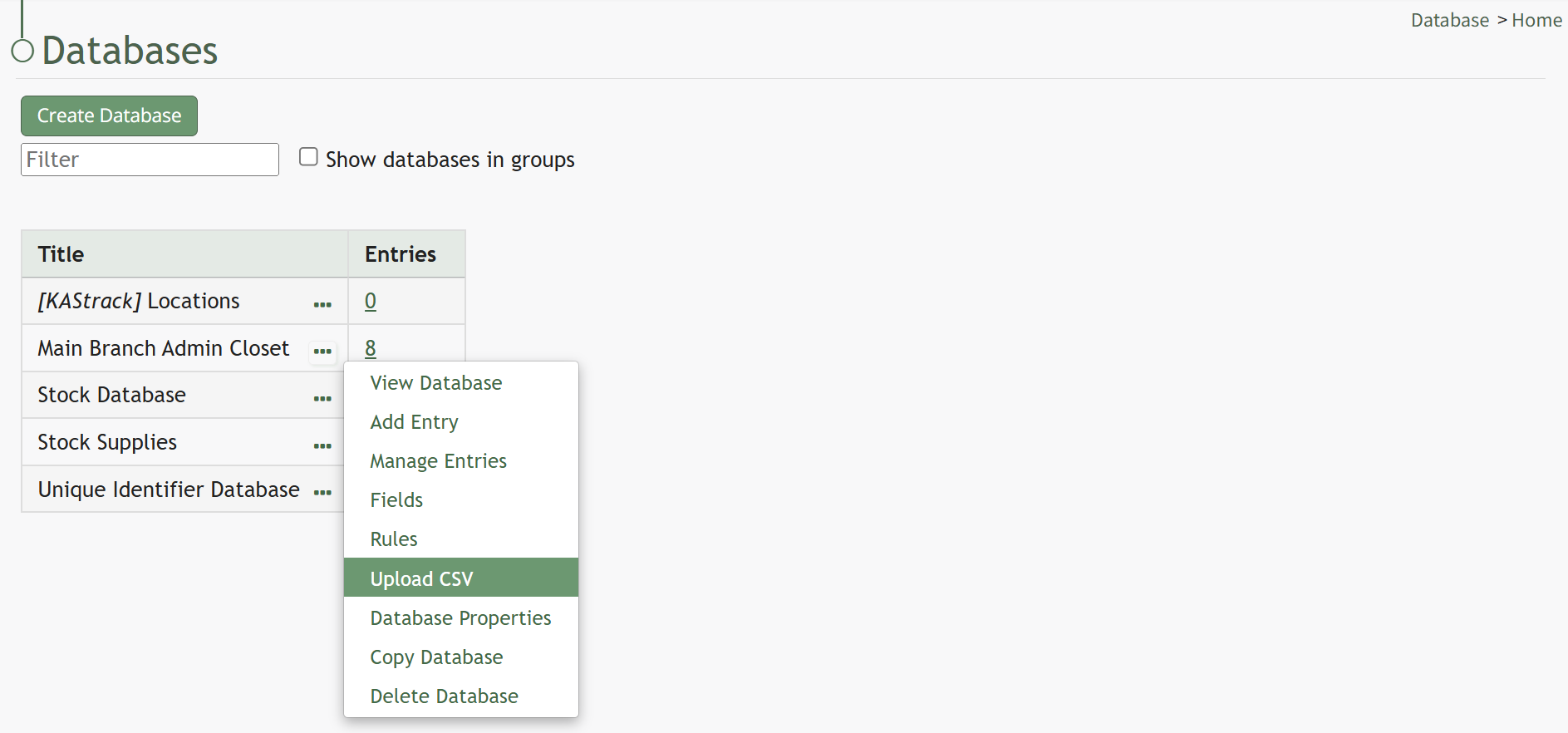
Select “Upload CSV” opening the Upload CSV for (DatabaseName) Modal.
You can also import entries by selecting “Manage Entries” from the context menu and selecting the “Import Entries” button underneath the Database Entries Page header, which opens the same Upload CSV Modal.
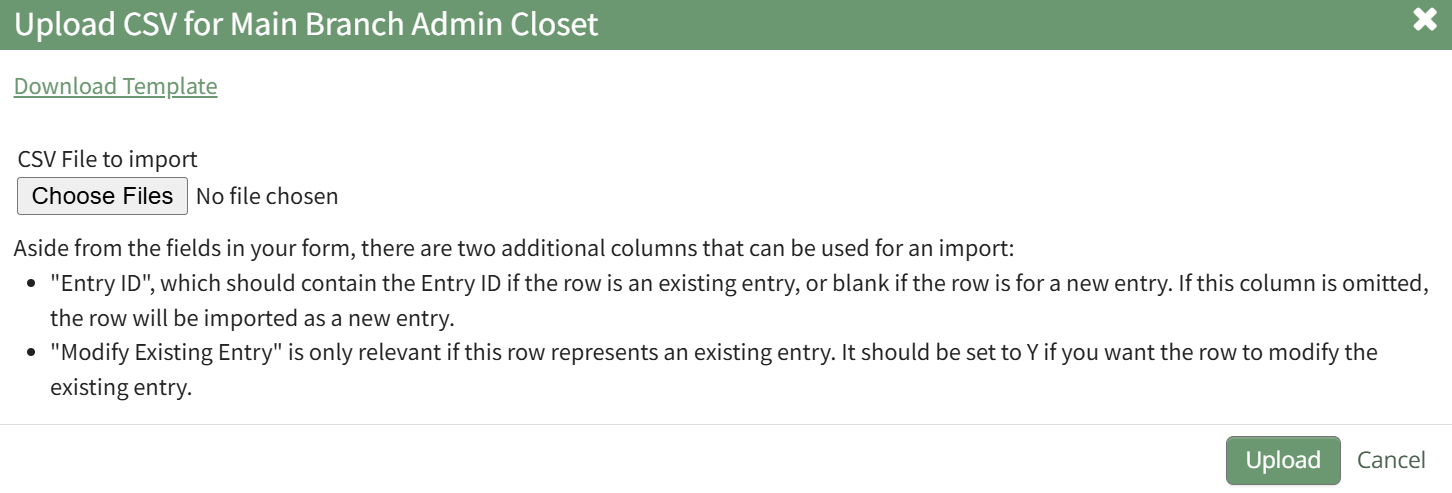
Click the “Download Template” link at the top of the modal and a CSV file will be downloaded to your personal device. See Notes on the Download Template before uploading your CSV file to ensure it is done correctly.
Notes Regarding the Downloadable Template for Uploading CSV Files
The first row of the CSV file is for each of the database fields. If you download a CSV Template from the Upload CSV Modal, two additional column headers will show that are not database fields: Entry ID and Modify Existing Entry.
If you are importing database entries and no entries have been added to the database yet, leave these columns blank in your upload.
If database entries already exist in the database, the Entry ID column will contain the unique system generated ID for each pre-existing database entry. Leave this column blank if the row is to be imported as a new entry. The second column, Modify Existing Entry, should have a “Y” input if the existing entry is being modified and an “N” input if it has not been modified. Leave it blank if the entry is new.

After creating your Database Fields CSV File, save it as a CSV UTF-8 for importing.
Click the “Choose File” button and open the relevant file from your personal device.

Confirm that the correct CSV file now shows in the Upload CSV Modal.
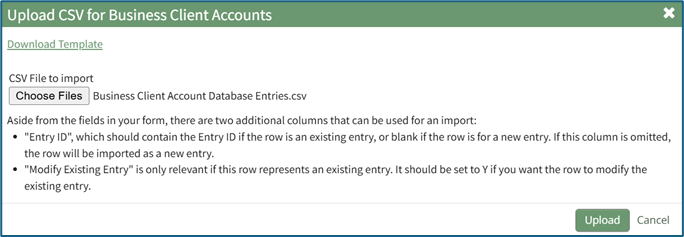
Select the “Upload” button.
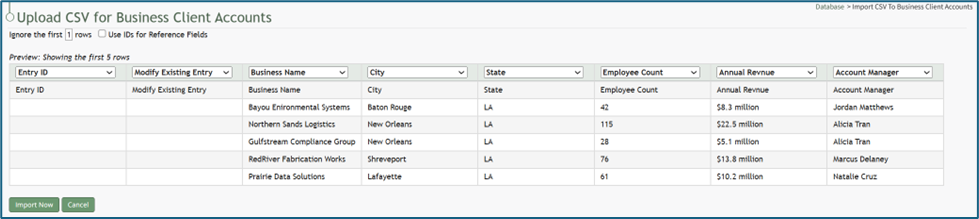
The entries imported from the CSV file will now show on the Upload CSV for (DatabaseName) Page.
The system automatically indicates to ignore the first row. Click “Import Now” if there are no errors.
A summary of the import will now show on the CSV Upload Page.
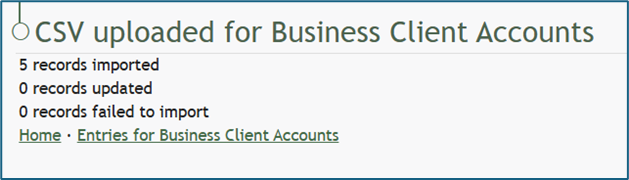
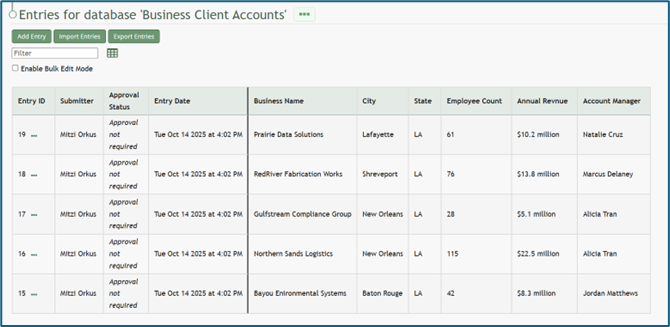
Click the “Entries for (DatabaseName)” link to see all imported entries in the Manage Entry Table.
All fields created via an import start as field type of "Text" and must be manually configured.
Once a field has been added to the database, no additional fields can be imported via CSV file. They must be added individually from the Fields page.
How To: Add a Database Field
To create a database field, go to the Home Page of the Database Module.
Click the three dot (…) icon to open the context menu of the database you wish to enter fields for.
Select “Fields” opening the Fields for database (DatabaseName) Page.
There are two ways to add a field to the Field Table. Click the “New Field” button above the Field Table or click the three dot (…) icon to the right of the page header opening the context menu and select “Add Entry”.
This opens the New Database Field Modal.
The creation of a new field will always require you to enter a field name. Include an input for the displayed label and select the field type from a dropdown menu. The inputs on the New Database Field Modal will vary based on the Field Type.
Possible field types in the database module include Form Fields, Formatting Fields, Utility Fields, or a Reference to Another Database.
A database field can only have one field type. If you need to utilize another (e.g., for formatting purposes), you can set the displayed label to be same, but the field label must be unique.
For an explanation of field types and the formatting choices associated with each one, reference the Understanding Fields Section of the Database Module in the User Manual.
Once you are finished inputting the information for the new field, select “Save” and the new database field will show in the Field Table.
Fields can also be imported in bulk into a Database from a CSV.
How To: Import Fields from a PDF Field Import
This method of importing Fields from a PDF requires access to Adobe Acrobat Pro.
If a field has already been added to a database, you are no longer able to bulk import database field names from a PDF Field Import. You are now required to enter each field name individually.
How To: Add a Database Field
To create a database field, go to the Home Page of the Database Module.
Click the three dot (…) icon to open the context menu of the database you wish to enter fields for.
Select “Fields” opening the Fields for database (DatabaseName) Page.
There are two ways to add a field to the Field Table. Click the “New Field” button above the Field Table or click the three dot (…) icon to the right of the page header opening the context menu and select “Add Entry”.
This opens the New Database Field Modal.
The creation of a new field will always require you to enter a field name. Include an input for the displayed label and select the field type from a dropdown menu. The inputs on the New Database Field Modal will vary based on the Field Type.
Possible field types in the database module include Form Fields, Formatting Fields, Utility Fields, or a Reference to Another Database.
A database field can only have one field type. If you need to utilize another (e.g., for formatting purposes), you can set the displayed label to be same, but the field label must be unique.
For an explanation of field types and the formatting choices associated with each one, reference the Understanding Fields Section of the Database Module in the User Manual.
Once you are finished inputting the information for the new field, select “Save” and the new database field will show in the Field Table.
Fields can also be imported in bulk into a Database from a CSV.
How To: Import Fields from a PDF Field Import
{{@340}}
To import field names in bulk from a CSV file, go to the Home Page of the Database Module. Click the three dot (…) icon to open the context menu of the database you wish to enter fields for.
Select “Fields” opening the Fields for database (DatabaseName) Page.
Click the “PDF Field Import” button opening the PDF Field Import Modal.
To import fields using a PDF, use the “Prepare Form” tool in Adobe Acrobat Pro. Add the fields you wish to use for your form. Add a button on your document.
Use the URL link provided on the PDF Field Import Modal in KAStrack.
Confirm that the Export Format is “PDF The complete document”.
Open the PDF and submit the form to generate the fields here.
You do not need to fill in any of the fields, and you must not sign it.
Select “Allow” and the PDF will confirm that the fields were added to the database.
Go to the Fields Table in the database Monday, and a warning now states that a PDF is associated with the form and that adding/editing or deleting fields may result in the PDF no longer being compatible.
Form Fields
A form field is an individual input element within a digital form that allows a user to enter, select, or submit data. Each form field captures a specific piece of information and sends it to a database after the form (or modal) is submitted.
The table below shows the type of form fields (field that indicate the type of data/information to be input) utilized in the Database Module and the customizable choices associated with them.
Form Field Type Choice Explanations | |||
Form Field Type | Customizable Choices | Comments | |
Text | Start Hidden | If selected, the field will be hidden when the modal first loads. | |
Show in View / Manage Entries | Selected by default; Deselect if the field is being used for data acquisition and you do not want it to be visible. | ||
Force Capitalization | Selecting “Force Capitalization” converts inputted text to all capitalized letters. | ||
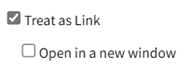
Treat As Link |
| When selected, the input becomes a clickable link. A checkbox selection forces the link to open in a new tab. | |
Text Box | Start Hidden | If selected, the field will be hidden when the modal first loads. | |
Show in View / Manage Entries | Selected by default; Deselect if the field is ?maybe a NOT should be here? being used for data acquisition and you do not want it to be visible. RDC Thinks that this may not be true - i.e. the data may NOT get saved at all. not sure - apply to all these below if so. | ||
Force Capitalization | Selecting “Force Capitalization” converts inputted text to all capitalized letters. | ||
HTML Text Box | Start Hidden | If selected, the field will be hidden when the modal first loads. | |
Show in View / Manage Entries | Selected by default; Deselect if the field is being used for data acquisition and you do not want it to be visible. | ||
Checkbox | Start Hidden | If selected, the field will be hidden when the modal first loads. | |
Show in View / Manage Entries | Selected by default; Deselect if the field is being used for data acquisition and you do not want it to be visible. | ||
Checked By Default | If selected, the checkbox field created will be selected by default. | ||
Dropdown | Start Hidden | If selected, the field will be hidden when the modal first loads. | |
Show in View / Manage Entries | Selected by default; Deselect if the field is being used for data acquisition and you do not want it to be visible. | ||
Add Blank |
Select the plus sign icon to add additional entries. Textboxes must be saved individually through the disc icon or by the clickable “Save All” link. | ||
Add "Other" Option | If selected, “Other” will be included as a checkbox that when selected, opens a textbox for data input. | ||
Multiple | If selected, allows a user to pick more than one item from the dropdown menu. | ||
Options |
Select the plus sign icon to add additional entries. Textboxes must be saved individually through the disc icon or by the clickable “Save All” link. | ||
Radios | Start Hidden | If selected, the field will be hidden when the modal first loads. | |
Show in View / Manage Entries | Selected by default; Deselect if the field is being used for data acquisition and you do not want it to be visible. | ||
Options |
Select the plus sign icon to add additional entries. Textboxes must be saved individually through the disc icon or by the clickable “Save All” link. | ||
Date | Start Hidden | If selected, the field will be hidden when the modal first loads. | |
Show in View / Manage Entries | Selected by default; Deselect if the field is being used for data acquisition and you do not want it to be visible. | ||
Date / Time | Start Hidden | If selected, the field will be hidden when the modal first loads. | |
Show in View / Manage Entries | Selected by default; Deselect if the field is being used for data acquisition and you do not want it to be visible. | ||
File Upload | Start Hidden | If selected, the field will be hidden when the modal first loads. | |
Show in View / Manage Entries | Selected by default; Deselect if the field is being used for data acquisition and you do not want it to be visible. | ||
Max File Size | If left blank, the maximum upload file size is 500 MB. | ||
Allowed Extensions | Any extension | Allow anything to be uploaded. | |
Images | .jpg, .jpeg, .png, .gif, .bmp, .svg | ||
Documents | .doc, .docx, .odt, .pdf | ||
MS Word Document | .doc, .docx | ||
Spreadsheets | .xls, .xlsx, .csv | ||
MS Excel Spreadsheet | .xls, .xlsx | ||
MS Powerpoint Presentation | .ppt, .pptx | ||
Custom | Allows the form creator to specify what can be uploaded | ||
Allow Multiple Files | If selected, multiple files can be uploaded. | ||
Mandatory | If selected, a file upload will be required. | ||
Image | Start Hidden | If selected, the field will be hidden when the modal first loads. | |
Show in View / Manage Entries | Selected by default; Deselect if the field is being used for data acquisition and you do not want it to be visible. | ||
Max File Size | If left blank, the maximum upload file size is 500 MB. | ||
Allow Multiple Files | If selected, multiple images can be uploaded. | ||
Mandatory | If selected, an image will be required. | ||
Password | Start Hidden | If selected, the field will be hidden when the modal first loads. | |
Show in View / Manage Entries | Selected by default; Deselect if the field is being used for data acquisition and you do not want it to be visible. | ||



The following information can also be used when creating a form field.
Form Field Creation Inputs | |
Field | Explanation |
Default | Whatever is input as the default will automatically be input in the field. The default can be replaced by the individual adding the entry. |
Placeholder Text | The Placeholder Text textbox can be used to input greyed out text in a textbox that can be used as a hint in the field. It can be a maximum of 25 characters and will disappear when information is entered. |
Context Sensitive Help | Context Sensitive Help will be visible when the blue question mark icon is clicked. Utilize this to include additional information needed to aid in completion of the field. |
Field Validation | Field validation is the process of checking that the data entered into a form field meets specific rules or criteria before it is accepted or saved and is used to prevent typos, formatting errors, and missing information from entering the database. The Validation dropdown menu allows a user to select between Optional and Mandatory validation with specific formatting requirements, or a Custom Regular Expression. Selecting Mandatory from the dropdown menu requires that there is content in the field and that it fits a specific format. |
Validation Help | Validation help (similar to context sensitive help) allows for a customized message to explain what/how something needs to be entered for field validation. |
CSS is a standardized system used to determine how web pages look. CSS classes are groupings of various styles (e.g. border, font color and size), and can be defined in KAStrack forms with whatever styles you like. When you assign a CSS Class to a form field, the field inherits all the styling associated with that class. | |
Formatting Fields
A formatting field refers to a field or placeholder in a form, database, or document template. Formatting fields apply style, structure, or output rules to data, controlling how data is displayed, structured, and presented rather than what the data actually is. When a formatting field is used in a database, it is defining the visual output.
Withing KAStrack’s Database Module, there are four formatting fields: Start Section, End Section, Tabs Start, Tabs End.
Formatting Fields Explanations | |
Field | Explanation |
Section Start | The Section Start formatting field is a control used in a database to signal the beginning of a new logical or visual section. It groups related fields on the same page and adds structure. |
If the start hidden checkbox is selected, the section formatting will be hidden when the field first loads. Note: If you select the start hidden checkbox, you will not be able to use a display CSS style for a section. | |
Formatting options for the new section include: border, border radius, padding, margin, background color, background image URL, background image position, background image size, background image repeat, font, text color, and rotation. | |
Clicking “Show/hide advanced” opens a CSS Styling textbox. Note: All CSS styles must be valid CSS Styles. | |
All Section Start Fields must have a corresponding Section End Field. | |
Section End | The Section End Formatting Field marks the end of a formatted section that started with a Section Start formatting field. It communicates to the system “Stop applying the formatting or logic that began at the Section Start.” |
All Section End Fields must be used with a corresponding Section Start Field. | |
Tab Start | A tab start formatting field indicates the beginning of a new tab container or page in a multi-section form or document. Tab start creates separate pages or panels within a single form and improves navigation and organization. When you add a tab start field, it creates a new tab header and defines where the content of that tab begins. When another tab start field is used, a new tab is created by the system. |
All Tab Start Fields must have a corresponding Tab End field. Between the two, you are required to have a section that contains fields. | |
Tab End | A Tab End formatting field indicates the end of the active tab container that began with a Tab Start formatting field. |
All Tab Start Fields must have a corresponding Tab End field. Between the two, you are required to have a section that contains fields. | |
Utility Fields
A utility field is a system-level field that performs a technical or aesthetic function such as instructions, spacing, visibility control, conditional logic, calculations, or layout consistency, but does not represent a data element. Think of it as a helper field that manages how information looks or functions.
Utility Field Explanations Table | |||
Field Type | Meaning / Purpose | How It Works | Field Creation Notes |
Information | Displays non-editable text, notes, or instructions to guide the user | Does not store data; it’s purely for communication or context within a form | Add descriptive text or HTML formatting |
Not linked to a database column | |||
Excluded from exports | |||
Can include hyperlinks or help icons | |||
Calculated | Automatically computes a value based on formulas or other field inputs | Performs calculations dynamically when the form loads or data changes | Define a formula |
Ensure source field exist and have proper data types | |||
Set decimal precision or rounding rules | |||
Can be updated automatically or when saved | |||
Sequential Number | Generates a unique, automatically incrementing number | Each new record triggers a sequence increment | Define state number and increment step |
Option to include prefixes (e.g. INV-01) | |||
Ensures prevention of duplicates | |||
Read-only to users | |||
Hidden Field | Stores data that is not visible to the user but is used by the system or workflows | Data may be filled automatically by logic, user ID, timestamp, or lookup. | Hidden from the user interface |
Used for internal references | |||
Ensures security | |||
Read Only | Displays data that the user can see but not change | Pulls values from the database or calculated results but locks editing | Mark as non-editable |
Useful for summary or verification data | |||
Can still be exported | |||
Mail Merge | Acts as a placeholder in document templates that pulls live data into generated files | Replaces tags with actual field values during document generation | Must match database field names |
Verify formatting (dates, currency, capitalization) | |||
Used in templates for Word, PDF, or HTML | |||
Ensures privacy when merging client data | |||
Copy Previous Entry | Automatically fills a field with the value entered in the previous record | When creating a new record, the system retrieves the last entered value for that field | Choose which fields allow copying |
Ensure users can overwrite if needed | |||
Often used for reoccurring data | |||
Improves speed and data consistency | |||
Database Fields Tab
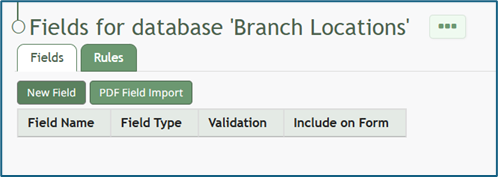
Selecting “Fields” from the Database Table Context Menu will open a form’s Field Tab that contains the Fields Table. The Fields Table shows existing fields in the Form. Fields can be filtered for efficient access.
The Fields Tab is where new fields can be added to your Form.
How To: Add a Database Field
To create a database field, go to the Home Page of the Database Module.
Click the three dot (…) icon to open the context menu of the database you wish to enter fields for.
Select “Fields” opening the Fields for database (DatabaseName) Page.
There are two ways to add a field to the Field Table. Click the “New Field” button above the Field Table or click the three dot (…) icon to the right of the page header opening the context menu and select “Add Entry”.
This opens the New Database Field Modal.
The creation of a new field will always require you to enter a field name. Include an input for the displayed label and select the field type from a dropdown menu. The inputs on the New Database Field Modal will vary based on the Field Type.
Possible field types in the database module include Form Fields, Formatting Fields, Utility Fields, or a Reference to Another Database.
A database field can only have one field type. If you need to utilize another (e.g., for formatting purposes), you can set the displayed label to be same, but the field label must be unique.
For an explanation of field types and the formatting choices associated with each one, reference the Understanding Fields Section of the Database Module in the User Manual.
Once you are finished inputting the information for the new field, select “Save” and the new database field will show in the Field Table.
Fields can also be imported in bulk into a Database from a CSV.
How To: Import Fields from a PDF Field Import
This method of importing Fields from a PDF requires access to Adobe Acrobat Pro.
If a field has already been added to a database, you are no longer able to bulk import database field names from a PDF Field Import. You are now required to enter each field name individually.
How To: Add a Database Field
To create a database field, go to the Home Page of the Database Module.
Click the three dot (…) icon to open the context menu of the database you wish to enter fields for.
Select “Fields” opening the Fields for database (DatabaseName) Page.
There are two ways to add a field to the Field Table. Click the “New Field” button above the Field Table or click the three dot (…) icon to the right of the page header opening the context menu and select “Add Entry”.
This opens the New Database Field Modal.
The creation of a new field will always require you to enter a field name. Include an input for the displayed label and select the field type from a dropdown menu. The inputs on the New Database Field Modal will vary based on the Field Type.
Possible field types in the database module include Form Fields, Formatting Fields, Utility Fields, or a Reference to Another Database.
A database field can only have one field type. If you need to utilize another (e.g., for formatting purposes), you can set the displayed label to be same, but the field label must be unique.
For an explanation of field types and the formatting choices associated with each one, reference the Understanding Fields Section of the Database Module in the User Manual.
Once you are finished inputting the information for the new field, select “Save” and the new database field will show in the Field Table.
Fields can also be imported in bulk into a Database from a CSV.
How To: Import Fields from a PDF Field Import
{{@340}}
To import field names in bulk from a CSV file, go to the Home Page of the Database Module. Click the three dot (…) icon to open the context menu of the database you wish to enter fields for.
Select “Fields” opening the Fields for database (DatabaseName) Page.
Click the “PDF Field Import” button opening the PDF Field Import Modal.
To import fields using a PDF, use the “Prepare Form” tool in Adobe Acrobat Pro. Add the fields you wish to use for your form. Add a button on your document.
Use the URL link provided on the PDF Field Import Modal in KAStrack.
Confirm that the Export Format is “PDF The complete document”.
Open the PDF and submit the form to generate the fields here.
You do not need to fill in any of the fields, and you must not sign it.
Select “Allow” and the PDF will confirm that the fields were added to the database.
Go to the Fields Table in the database Monday, and a warning now states that a PDF is associated with the form and that adding/editing or deleting fields may result in the PDF no longer being compatible.

The three dot (…) icon to the right of the Entries for Database (DatabaseName) header opens a context menu with the options that are explained in the table below.
Fields / Rules Page Context Menu Option Explanation | |||
Option | Explanation | ||
Add Entry | Selecting “Add Entry” on the context menu opens a New Database Entry Modal. The modal that appears for a new database entry has already been customized for that specific database and will vary significantly based on its purpose and design.
How To: Add an Individual Database EntryTo add a database entry, go to the Home Page of the Database Module. Click the three dot (…) icon to the right of the database you wish to add an entry to opening the context menu. Select “Add Entry”. You can select “Add Entry” from any context menu in the Database Modal without returning to the Home Page.
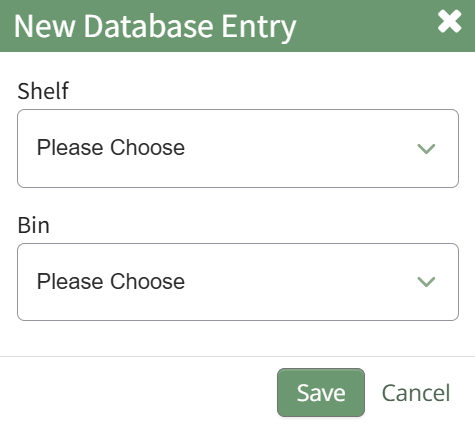
Selecting “Add Entry” opens the New Database Entry modal. Two visual examples of this modal have been included below. The New Database Entry Modal will vary for every database, based on the fields that have been created for it.
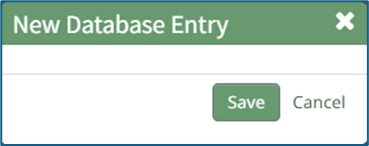
Input the entry data into the modal. Select “Save” for the new entry to be added to the database. If no fields have been created for the database, the New Database Entry Modal will show without any fields as seen below.
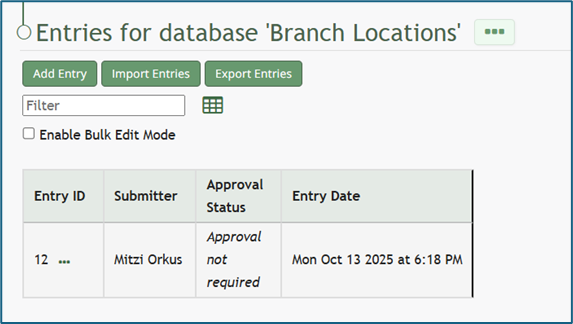
If you select to “Save” a database entry prior to the creation of database fields, an entry will be assigned an Entry ID by the system and will show in the Entries Table. The submitter, approval status, and entry date will be logged.
| ||
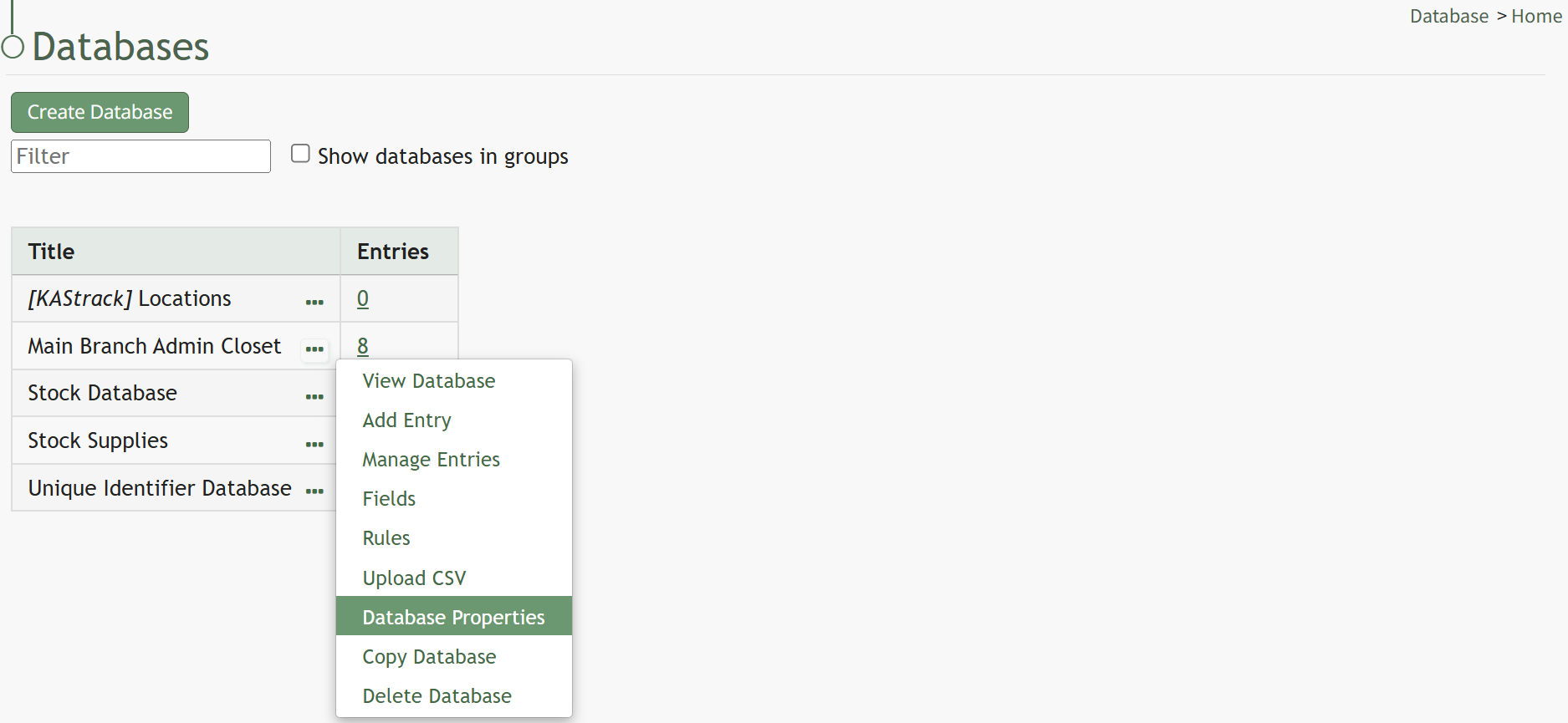
Database Properties | Selecting “Database Properties” on the context menu opens the Database Properties Modal, allowing an individual to edit the specific permissions established when the database was created. How To: Edit a DatabaseTo edit a database, go to the Home Page in the Database Module.
Click the three dot (…) icon to the right of the database you want to edit to open the context menu. Select “Database Properties” opening the Database Properties Modal.
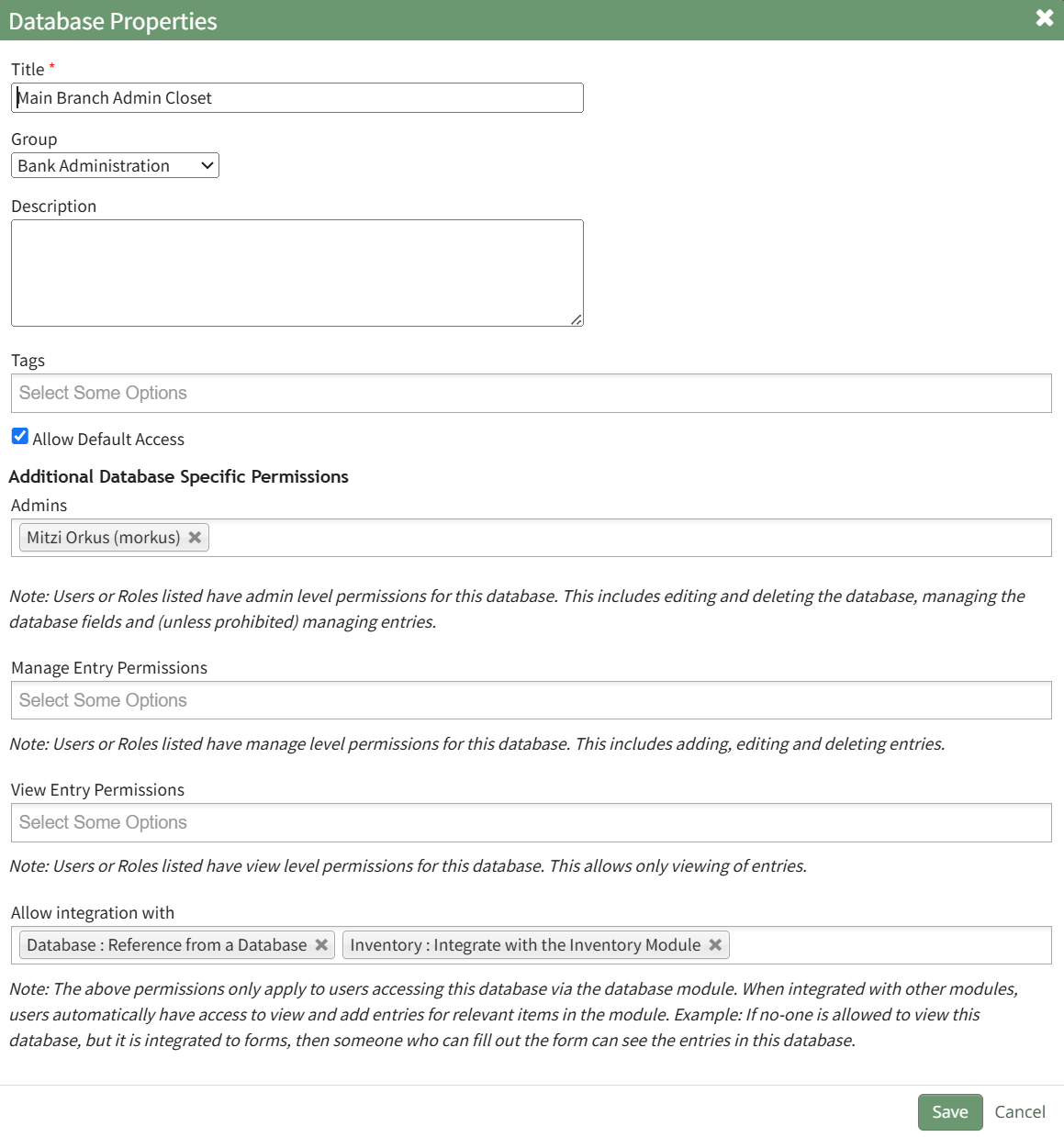
The title, groups, tags, or database description can be altered from the modal, as well as the additional database specific permissions established when the database was created. How To: Create a DatabaseTo create a new database, go to the Home Page of the Database Module.
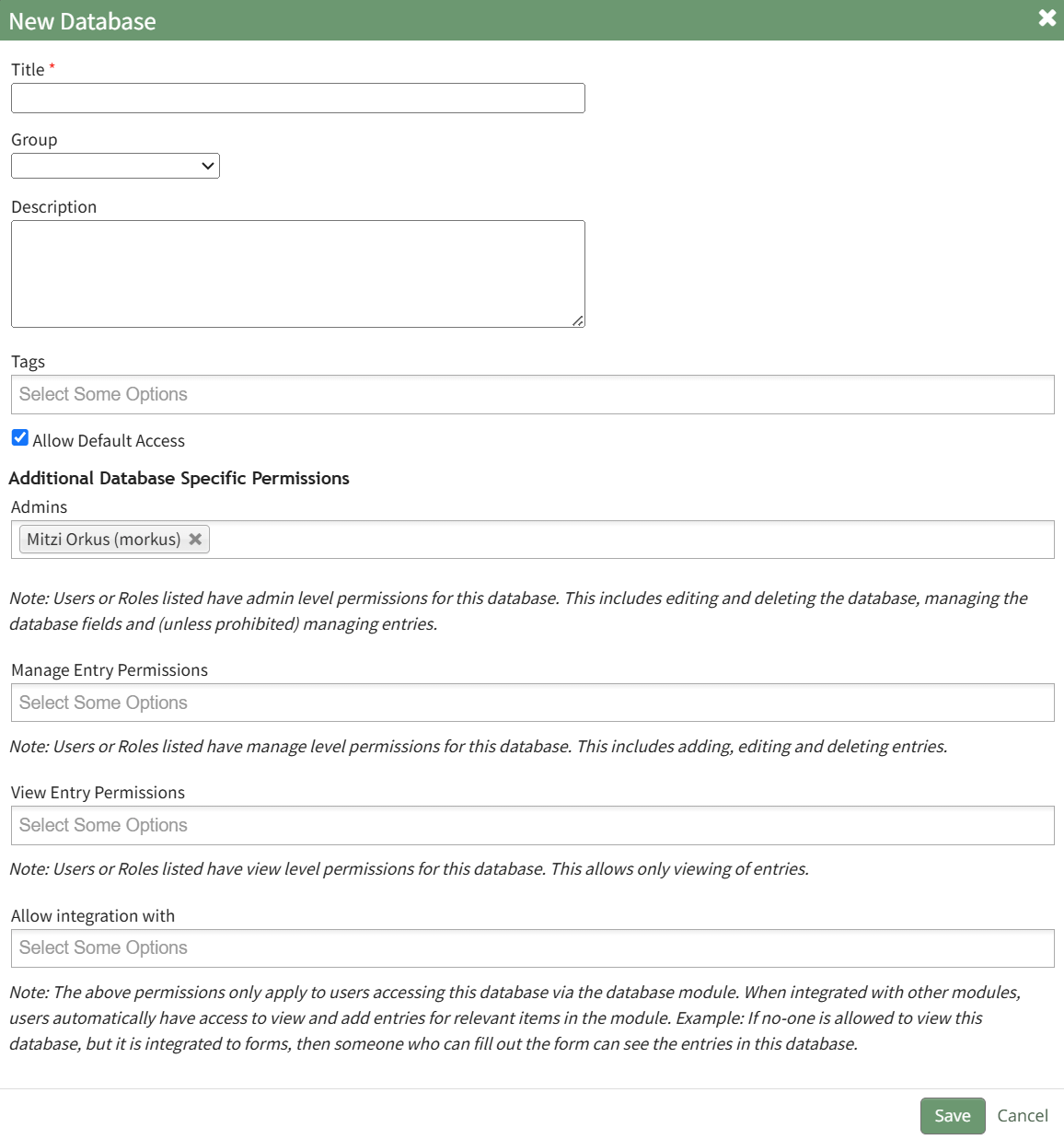
Click the “Create Database” button, opening the New Database Modal.
Input a Title for the new database. Select any groups the database should be associated with. Provide a description of the database and its purpose in the textbox provide. Select any tags desired. Select the “Allow Default Access” checkbox to indicate that the database should follow the defaults established by module and access levels. If this checkbox is not selected, you will be required to establish user specific access based on individual or certification roles.
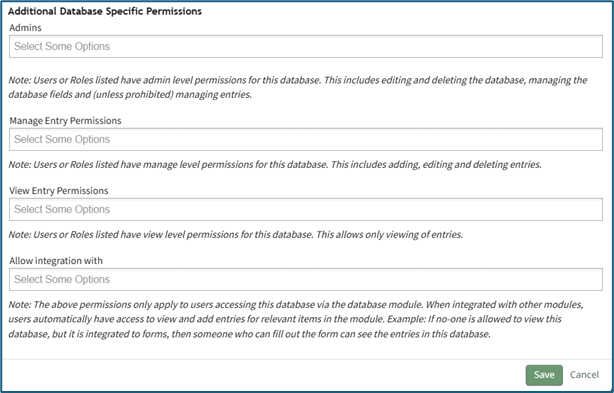
The following database specific permissions are selected via drop down menu lists that include all individuals and certification roles that can be assigned permission. The Admins field allows users or role to have admin module level permissions for this particular database. A list of all admin module level permissions are shown in the table below.
Manage Entry Permissions gives the indicated users permission to view, add, edit, and delete database entries. View Entry Permissions gives the indicated users permission to view database entries. Allow Integration With denotes which other modules can link with and integrate with this database or forms for reference. The Database Module can be integrated with the following modules:
Click “Cancel” and return to the Database Module Home Page without any changes being made. Select “Save” to create the new database and you will be directed to the Fields Table for your newly copied database.
Once a database has been created, you can enter database fields into it. How To: Import Fields from a CSV File Into a DatabaseTo import database entries from a CSV, database fields must already have been created. How To: Add a Database Field{{@321}} How To: Import Fields from a CSV File Into a Database{{@339}} How To: Import Fields from a PDF Field Import{{@340}} To import database entries from a CSV, go to the Home Page of the Database Module and click the three dot menu to the right of the database you wish to import entries into.
Select “Upload CSV” opening the Upload CSV for (DatabaseName) Modal. You can also import entries by selecting “Manage Entries” from the context menu and selecting the “Import Entries” button underneath the Database Entries Page header, which opens the same Upload CSV Modal.
Click the “Download Template” link at the top of the modal and a CSV file will be downloaded to your personal device. See Notes on the Download Template before uploading your CSV file to ensure it is done correctly. Notes Regarding the Downloadable Template for Uploading CSV FilesThe first row of the CSV file is for each of the database fields. If you download a CSV Template from the Upload CSV Modal, two additional column headers will show that are not database fields: Entry ID and Modify Existing Entry. If you are importing database entries and no entries have been added to the database yet, leave these columns blank in your upload. If database entries already exist in the database, the Entry ID column will contain the unique system generated ID for each pre-existing database entry. Leave this column blank if the row is to be imported as a new entry. The second column, Modify Existing Entry, should have a “Y” input if the existing entry is being modified and an “N” input if it has not been modified. Leave it blank if the entry is new.
After creating your Database Fields CSV File, save it as a CSV UTF-8 for importing. Click the “Choose File” button and open the relevant file from your personal device.
Confirm that the correct CSV file now shows in the Upload CSV Modal.
Select the “Upload” button.
The entries imported from the CSV file will now show on the Upload CSV for (DatabaseName) Page. The system automatically indicates to ignore the first row. Click “Import Now” if there are no errors. A summary of the import will now show on the CSV Upload Page.
Click the “Entries for (DatabaseName)” link to see all imported entries in the Manage Entry Table.
How To: Import Fields from a PDF Field ImportThis method of importing Fields from a PDF requires access to Adobe Acrobat Pro. If a field has already been added to a database, you are no longer able to bulk import database field names from a PDF Field Import. You are now required to enter each field name individually. How To: Add a Database Field{{@321}} To import field names in bulk from a CSV file, go to the Home Page of the Database Module. Click the three dot (…) icon to open the context menu of the database you wish to enter fields for.
Select “Fields” opening the Fields for database (DatabaseName) Page.
Click the “PDF Field Import” button opening the PDF Field Import Modal.
To import fields using a PDF, use the “Prepare Form” tool in Adobe Acrobat Pro. Add the fields you wish to use for your form. Add a button on your document.
Use the URL link provided on the PDF Field Import Modal in KAStrack.
Confirm that the Export Format is “PDF The complete document”.
Open the PDF and submit the form to generate the fields here. You do not need to fill in any of the fields, and you must not sign it.
Select “Allow” and the PDF will confirm that the fields were added to the database.
Go to the Fields Table in the database Monday, and a warning now states that a PDF is associated with the form and that adding/editing or deleting fields may result in the PDF no longer being compatible.
How To: Add a Database FieldTo create a database field, go to the Home Page of the Database Module.
Click the three dot (…) icon to open the context menu of the database you wish to enter fields for.
Select “Fields” opening the Fields for database (DatabaseName) Page. There are two ways to add a field to the Field Table. Click the “New Field” button above the Field Table or click the three dot (…) icon to the right of the page header opening the context menu and select “Add Entry”.
This opens the New Database Field Modal. The creation of a new field will always require you to enter a field name. Include an input for the displayed label and select the field type from a dropdown menu. The inputs on the New Database Field Modal will vary based on the Field Type. Possible field types in the database module include Form Fields, Formatting Fields, Utility Fields, or a Reference to Another Database. A database field can only have one field type. If you need to utilize another (e.g., for formatting purposes), you can set the displayed label to be same, but the field label must be unique. For an explanation of field types and the formatting choices associated with each one, reference the Understanding Fields Section of the Database Module in the User Manual.
Once you are finished inputting the information for the new field, select “Save” and the new database field will show in the Field Table. Fields can also be imported in bulk into a Database from a CSV. How To: Import Fields from a PDF Field Import{{@340}} Once you have entered database fields, you can add database entries into it. How To: Add an Individual Database EntryTo add a database entry, go to the Home Page of the Database Module. Click the three dot (…) icon to the right of the database you wish to add an entry to opening the context menu. Select “Add Entry”. You can select “Add Entry” from any context menu in the Database Modal without returning to the Home Page.
Selecting “Add Entry” opens the New Database Entry modal. Two visual examples of this modal have been included below. The New Database Entry Modal will vary for every database, based on the fields that have been created for it.
Input the entry data into the modal. Select “Save” for the new entry to be added to the database. If no fields have been created for the database, the New Database Entry Modal will show without any fields as seen below.
If you select to “Save” a database entry prior to the creation of database fields, an entry will be assigned an Entry ID by the system and will show in the Entries Table. The submitter, approval status, and entry date will be logged.
How To: Import Database Entries from a CSVTo import database entries from a CSV, database fields must already have been created. How To: Add a Database Field{{@321}} How To: Import Fields from a CSV File Into a Database{{@339}} How To: Import Fields from a PDF Field Import{{@340}} To import database entries from a CSV, go to the Home Page of the Database Module and click the three dot menu to the right of the database you wish to import entries into.
Select “Upload CSV” opening the Upload CSV for (DatabaseName) Modal. You can also import entries by selecting “Manage Entries” from the context menu and selecting the “Import Entries” button underneath the Database Entries Page header, which opens the same Upload CSV Modal.
Click the “Download Template” link at the top of the modal and a CSV file will be downloaded to your personal device. See Notes on the Download Template before uploading your CSV file to ensure it is done correctly. Notes Regarding the Downloadable Template for Uploading CSV FilesThe first row of the CSV file is for each of the database fields. If you download a CSV Template from the Upload CSV Modal, two additional column headers will show that are not database fields: Entry ID and Modify Existing Entry. If you are importing database entries and no entries have been added to the database yet, leave these columns blank in your upload. If database entries already exist in the database, the Entry ID column will contain the unique system generated ID for each pre-existing database entry. Leave this column blank if the row is to be imported as a new entry. The second column, Modify Existing Entry, should have a “Y” input if the existing entry is being modified and an “N” input if it has not been modified. Leave it blank if the entry is new.
After creating your Database Fields CSV File, save it as a CSV UTF-8 for importing. Click the “Choose File” button and open the relevant file from your personal device.
Confirm that the correct CSV file now shows in the Upload CSV Modal.
Select the “Upload” button.
The entries imported from the CSV file will now show on the Upload CSV for (DatabaseName) Page. The system automatically indicates to ignore the first row. Click “Import Now” if there are no errors. A summary of the import will now show on the CSV Upload Page.
Click the “Entries for (DatabaseName)” link to see all imported entries in the Manage Entry Table.
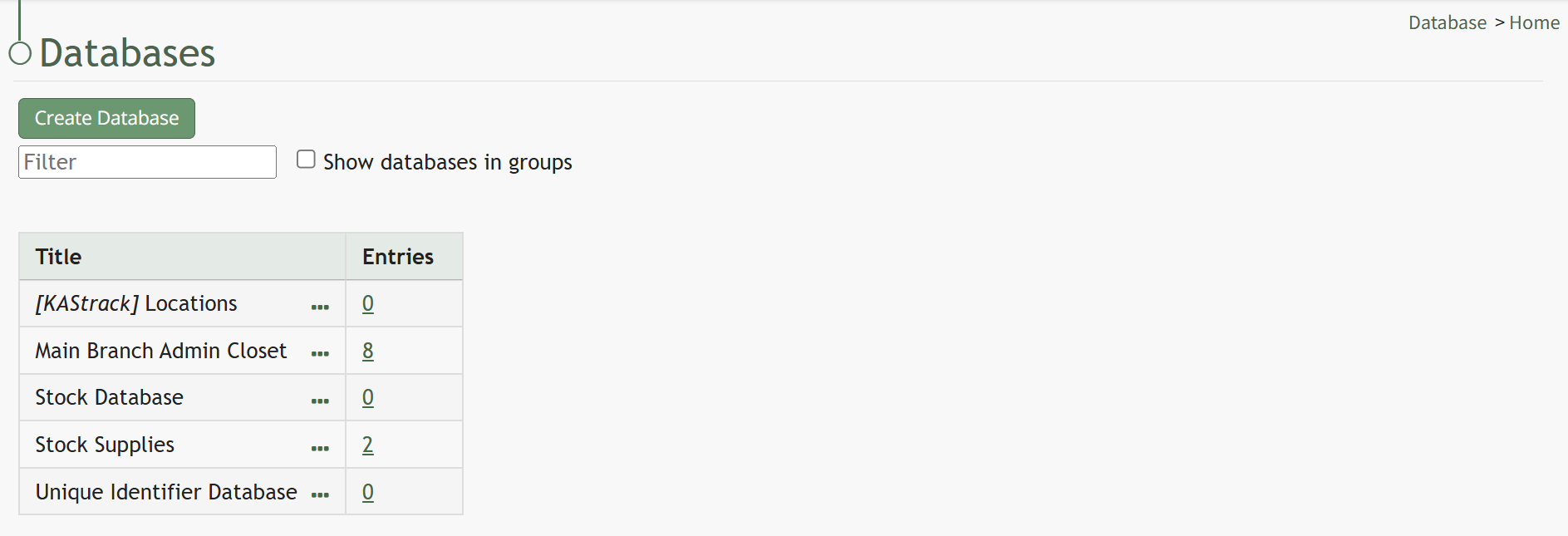
Confirm you wish to edit the database by clicking the “Save” button. Selecting “Cancel” will return you to the Databases Home Page without any alterations being made. | ||
Field | Selecting “Fields” on the context menu opens the Fields for database (DatabaseName) Page on the Fields Tab which shows the Fields Table. New fields can be added to the database from this tab. How To: Add a Database FieldTo create a database field, go to the Home Page of the Database Module.
Click the three dot (…) icon to open the context menu of the database you wish to enter fields for.
Select “Fields” opening the Fields for database (DatabaseName) Page. There are two ways to add a field to the Field Table. Click the “New Field” button above the Field Table or click the three dot (…) icon to the right of the page header opening the context menu and select “Add Entry”.
This opens the New Database Field Modal. The creation of a new field will always require you to enter a field name. Include an input for the displayed label and select the field type from a dropdown menu. The inputs on the New Database Field Modal will vary based on the Field Type. Possible field types in the database module include Form Fields, Formatting Fields, Utility Fields, or a Reference to Another Database. A database field can only have one field type. If you need to utilize another (e.g., for formatting purposes), you can set the displayed label to be same, but the field label must be unique. For an explanation of field types and the formatting choices associated with each one, reference the Understanding Fields Section of the Database Module in the User Manual.
Once you are finished inputting the information for the new field, select “Save” and the new database field will show in the Field Table. Fields can also be imported in bulk into a Database from a CSV. How To: Import Fields from a PDF Field ImportThis method of importing Fields from a PDF requires access to Adobe Acrobat Pro. If a field has already been added to a database, you are no longer able to bulk import database field names from a PDF Field Import. You are now required to enter each field name individually. How To: Add a Database FieldTo create a database field, go to the Home Page of the Database Module.
Click the three dot (…) icon to open the context menu of the database you wish to enter fields for.
Select “Fields” opening the Fields for database (DatabaseName) Page. There are two ways to add a field to the Field Table. Click the “New Field” button above the Field Table or click the three dot (…) icon to the right of the page header opening the context menu and select “Add Entry”.
This opens the New Database Field Modal. The creation of a new field will always require you to enter a field name. Include an input for the displayed label and select the field type from a dropdown menu. The inputs on the New Database Field Modal will vary based on the Field Type. Possible field types in the database module include Form Fields, Formatting Fields, Utility Fields, or a Reference to Another Database. A database field can only have one field type. If you need to utilize another (e.g., for formatting purposes), you can set the displayed label to be same, but the field label must be unique. For an explanation of field types and the formatting choices associated with each one, reference the Understanding Fields Section of the Database Module in the User Manual.
Once you are finished inputting the information for the new field, select “Save” and the new database field will show in the Field Table. Fields can also be imported in bulk into a Database from a CSV. How To: Import Fields from a PDF Field Import{{@340}} To import field names in bulk from a CSV file, go to the Home Page of the Database Module. Click the three dot (…) icon to open the context menu of the database you wish to enter fields for.
Select “Fields” opening the Fields for database (DatabaseName) Page.
Click the “PDF Field Import” button opening the PDF Field Import Modal.
To import fields using a PDF, use the “Prepare Form” tool in Adobe Acrobat Pro. Add the fields you wish to use for your form. Add a button on your document.
Use the URL link provided on the PDF Field Import Modal in KAStrack.
Confirm that the Export Format is “PDF The complete document”.
Open the PDF and submit the form to generate the fields here. You do not need to fill in any of the fields, and you must not sign it.
Select “Allow” and the PDF will confirm that the fields were added to the database.
Go to the Fields Table in the database Monday, and a warning now states that a PDF is associated with the form and that adding/editing or deleting fields may result in the PDF no longer being compatible.
| ||
Rules | Selecting “Rules” on the context menu opens the Rules for database (DatabaseName) Page on the Rules Tab which shows the Rules Table. New rules can be added to the database from this tab. How To: Add a Database RuleTo add a database rule, go to the Home Page in the Database Module.
Click the three dot (…) icon to the right of the database you want to edit to open the context menu. Select “Rules” opening the Rules Tab that contains the Rules Table. Before any rules are created, the Rules Table will show the fields rule name, conditions, actions and status with no entries.
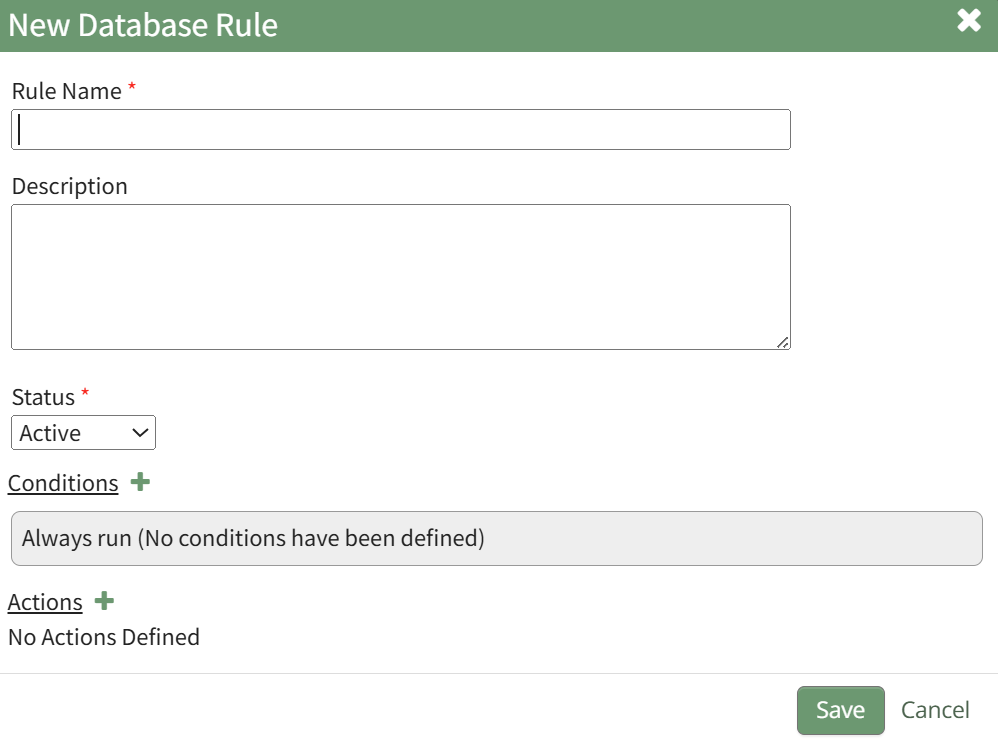
Select the “New Rule” button opening the New Database Rule Modal.
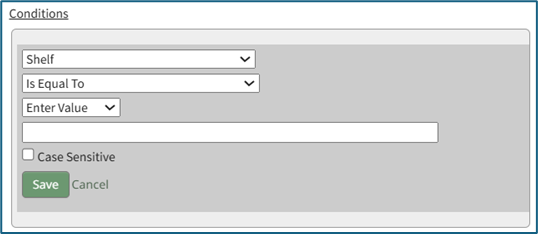
Input a Rule Name, a required field. Select a status from the dropdown menu: Active or Inactive. This is a required field. Click the plus icon to the right of Conditions to add a condition to the rule, expanding the section for the input of the trigger, what must be true, and what happens if it is true.
Once the condition has been entered, select “Save” to return to the New Database Rule Modal.
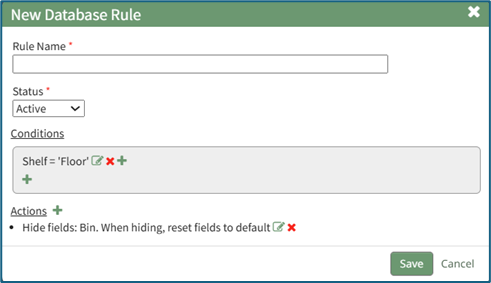
The condition created will show in the modal. As many conditions as desired can be entered, as well as none at all. Click the plus sign to the right of the Actions to add an action to the rule, expanding the section to all for the configuration of the action to be taken when the conditions are met. Once the rule as been entered, select “Save” to return to the New Database Rule Modal.
The action will show in the modal. Select “Save”. A popup will confirm that the rule was saved. It will now show in the Rules Table.
| ||
Manage Entries | Selecting “Manage Entries” on the context menu opens the Entries for Database (DatabaseName) Page and the Database Entries Table. Entries can be added, imported, and exported on this page. Bulk edits can also be enabled for efficiency. How To: Edit a Database Entry | ||
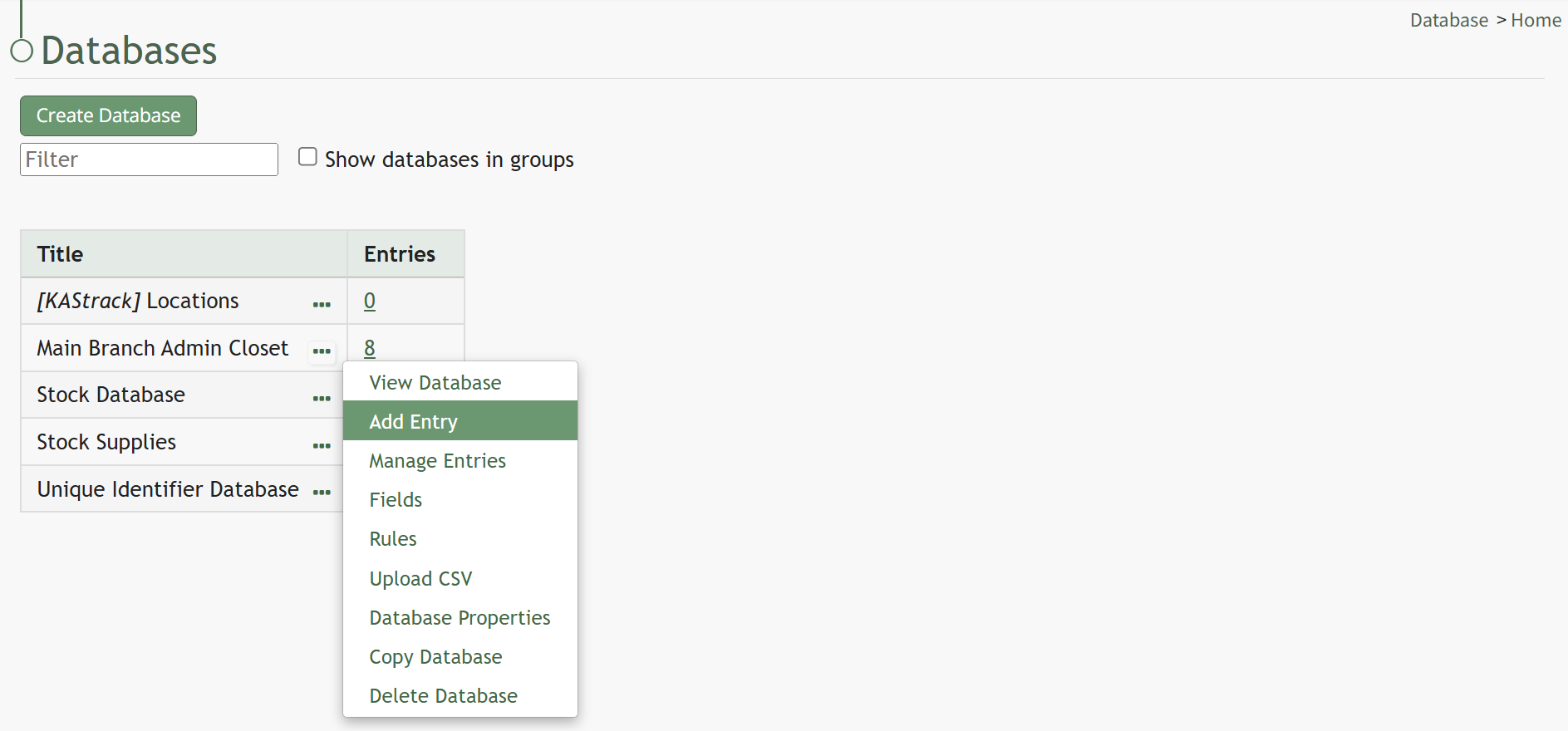
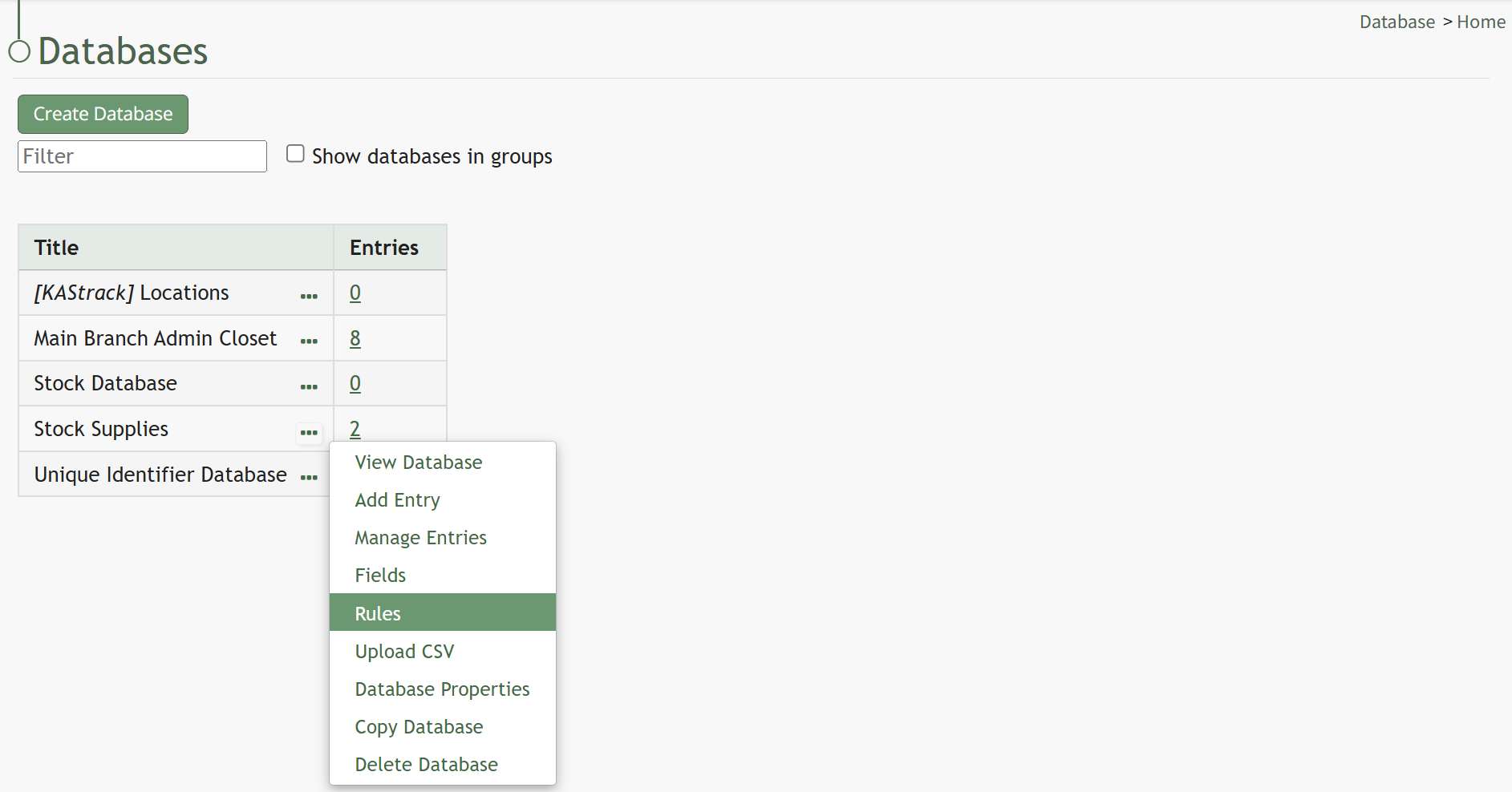


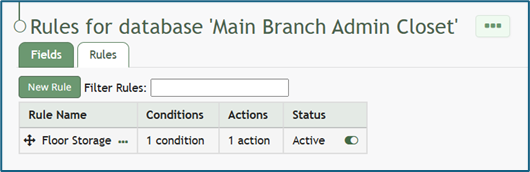
Rules can also be accessed from the Rules Tab below the header.
Database Rules Tab
Selecting “Rules” on a database context menu opens the Rules for database (DatabaseName) Page on the Rules Tab which shows the Rules Table. New rules can be added to the database from this tab.
Selecting “Rules” from the Databases Table context menu will open a form’s Rules Tab that contains the Rules Table. The Rules Table shows the conditions, actions, and status of a rule. Rules can be filtered for efficient access. The Rules Tab is where new rules can be added to your Database.

Fields / Rules Page Context Menu Option Explanation | |||
Option | Explanation | ||
Add Entry | Selecting “Add Entry” on the context menu opens a New Database The modal that appears for a new database entry has already been customized for that specific database and will vary significantly based on its purpose and design.
How To: Add an Individual Database EntryTo add a database entry, go to the Home Page of the Database Module. Click the three dot (…) icon to the right of the database you wish to add an entry to opening the context menu. Select “Add Entry”. You can select “Add Entry” from any context menu in the Database Modal without returning to the Home Page.
Selecting “Add Entry” opens the New Database Entry modal. Two visual examples of this modal have been included below. The New Database Entry Modal will vary for every database, based on the fields that have been created for it.
Input the entry data into the modal. Select “Save” for the new entry to be added to the database. If no fields have been created for the database, the New Database Entry Modal will show without any fields as seen below.
If you select to “Save” a database entry prior to the creation of database fields, an entry will be assigned an Entry ID by the system and will show in the Entries Table. The submitter, approval status, and entry date will be logged.
| ||
Database Properties | Selecting “Database Properties” on the context menu open the Database Properties Modal, allowing an individual to edit the specific permissions established when the database was created. How To: Edit a DatabaseTo edit a database, go to the Home Page in the Database Module.
Click the three dot (…) icon to the right of the database you want to edit to open the context menu. Select “Database Properties” opening the Database Properties Modal.
The title, groups, tags, or database description can be altered from the modal, as well as the additional database specific permissions established when the database was created. How To: Create a DatabaseTo create a new database, go to the Home Page of the Database Module.
Click the “Create Database” button, opening the New Database Modal.
Input a Title for the new database. Select any groups the database should be associated with. Provide a description of the database and its purpose in the textbox provide. Select any tags desired. Select the “Allow Default Access” checkbox to indicate that the database should follow the defaults established by module and access levels. If this checkbox is not selected, you will be required to establish user specific access based on individual or certification roles.
The following database specific permissions are selected via drop down menu lists that include all individuals and certification roles that can be assigned permission. The Admins field allows users or role to have admin module level permissions for this particular database. A list of all admin module level permissions are shown in the table below.
Manage Entry Permissions gives the indicated users permission to view, add, edit, and delete database entries. View Entry Permissions gives the indicated users permission to view database entries. Allow Integration With denotes which other modules can link with and integrate with this database or forms for reference. The Database Module can be integrated with the following modules:
Click “Cancel” and return to the Database Module Home Page without any changes being made. Select “Save” to create the new database and you will be directed to the Fields Table for your newly copied database.
Once a database has been created, you can enter database fields into it. How To: Import Fields from a CSV File Into a DatabaseTo import database entries from a CSV, database fields must already have been created. How To: Add a Database Field{{@321}} How To: Import Fields from a CSV File Into a Database{{@339}} How To: Import Fields from a PDF Field Import{{@340}} To import database entries from a CSV, go to the Home Page of the Database Module and click the three dot menu to the right of the database you wish to import entries into.
Select “Upload CSV” opening the Upload CSV for (DatabaseName) Modal. You can also import entries by selecting “Manage Entries” from the context menu and selecting the “Import Entries” button underneath the Database Entries Page header, which opens the same Upload CSV Modal.
Click the “Download Template” link at the top of the modal and a CSV file will be downloaded to your personal device. See Notes on the Download Template before uploading your CSV file to ensure it is done correctly. Notes Regarding the Downloadable Template for Uploading CSV FilesThe first row of the CSV file is for each of the database fields. If you download a CSV Template from the Upload CSV Modal, two additional column headers will show that are not database fields: Entry ID and Modify Existing Entry. If you are importing database entries and no entries have been added to the database yet, leave these columns blank in your upload. If database entries already exist in the database, the Entry ID column will contain the unique system generated ID for each pre-existing database entry. Leave this column blank if the row is to be imported as a new entry. The second column, Modify Existing Entry, should have a “Y” input if the existing entry is being modified and an “N” input if it has not been modified. Leave it blank if the entry is new.
After creating your Database Fields CSV File, save it as a CSV UTF-8 for importing. Click the “Choose File” button and open the relevant file from your personal device.
Confirm that the correct CSV file now shows in the Upload CSV Modal.
Select the “Upload” button.
The entries imported from the CSV file will now show on the Upload CSV for (DatabaseName) Page. The system automatically indicates to ignore the first row. Click “Import Now” if there are no errors. A summary of the import will now show on the CSV Upload Page.
Click the “Entries for (DatabaseName)” link to see all imported entries in the Manage Entry Table.
How To: Import Fields from a PDF Field ImportThis method of importing Fields from a PDF requires access to Adobe Acrobat Pro. If a field has already been added to a database, you are no longer able to bulk import database field names from a PDF Field Import. You are now required to enter each field name individually. How To: Add a Database Field{{@321}} To import field names in bulk from a CSV file, go to the Home Page of the Database Module. Click the three dot (…) icon to open the context menu of the database you wish to enter fields for.
Select “Fields” opening the Fields for database (DatabaseName) Page.
Click the “PDF Field Import” button opening the PDF Field Import Modal.
To import fields using a PDF, use the “Prepare Form” tool in Adobe Acrobat Pro. Add the fields you wish to use for your form. Add a button on your document.
Use the URL link provided on the PDF Field Import Modal in KAStrack.
Confirm that the Export Format is “PDF The complete document”.
Open the PDF and submit the form to generate the fields here. You do not need to fill in any of the fields, and you must not sign it.
Select “Allow” and the PDF will confirm that the fields were added to the database.
Go to the Fields Table in the database Monday, and a warning now states that a PDF is associated with the form and that adding/editing or deleting fields may result in the PDF no longer being compatible.
How To: Add a Database FieldTo create a database field, go to the Home Page of the Database Module.
Click the three dot (…) icon to open the context menu of the database you wish to enter fields for.
Select “Fields” opening the Fields for database (DatabaseName) Page. There are two ways to add a field to the Field Table. Click the “New Field” button above the Field Table or click the three dot (…) icon to the right of the page header opening the context menu and select “Add Entry”.
This opens the New Database Field Modal. The creation of a new field will always require you to enter a field name. Include an input for the displayed label and select the field type from a dropdown menu. The inputs on the New Database Field Modal will vary based on the Field Type. Possible field types in the database module include Form Fields, Formatting Fields, Utility Fields, or a Reference to Another Database. A database field can only have one field type. If you need to utilize another (e.g., for formatting purposes), you can set the displayed label to be same, but the field label must be unique. For an explanation of field types and the formatting choices associated with each one, reference the Understanding Fields Section of the Database Module in the User Manual.
Once you are finished inputting the information for the new field, select “Save” and the new database field will show in the Field Table. Fields can also be imported in bulk into a Database from a CSV. How To: Import Fields from a PDF Field Import{{@340}} Once you have entered database fields, you can add database entries into it. How To: Add an Individual Database EntryTo add a database entry, go to the Home Page of the Database Module. Click the three dot (…) icon to the right of the database you wish to add an entry to opening the context menu. Select “Add Entry”. You can select “Add Entry” from any context menu in the Database Modal without returning to the Home Page.
Selecting “Add Entry” opens the New Database Entry modal. Two visual examples of this modal have been included below. The New Database Entry Modal will vary for every database, based on the fields that have been created for it.
Input the entry data into the modal. Select “Save” for the new entry to be added to the database. If no fields have been created for the database, the New Database Entry Modal will show without any fields as seen below.
If you select to “Save” a database entry prior to the creation of database fields, an entry will be assigned an Entry ID by the system and will show in the Entries Table. The submitter, approval status, and entry date will be logged.
How To: Import Database Entries from a CSVTo import database entries from a CSV, database fields must already have been created. How To: Add a Database Field{{@321}} How To: Import Fields from a CSV File Into a Database{{@339}} How To: Import Fields from a PDF Field Import{{@340}} To import database entries from a CSV, go to the Home Page of the Database Module and click the three dot menu to the right of the database you wish to import entries into.
Select “Upload CSV” opening the Upload CSV for (DatabaseName) Modal. You can also import entries by selecting “Manage Entries” from the context menu and selecting the “Import Entries” button underneath the Database Entries Page header, which opens the same Upload CSV Modal.
Click the “Download Template” link at the top of the modal and a CSV file will be downloaded to your personal device. See Notes on the Download Template before uploading your CSV file to ensure it is done correctly. Notes Regarding the Downloadable Template for Uploading CSV FilesThe first row of the CSV file is for each of the database fields. If you download a CSV Template from the Upload CSV Modal, two additional column headers will show that are not database fields: Entry ID and Modify Existing Entry. If you are importing database entries and no entries have been added to the database yet, leave these columns blank in your upload. If database entries already exist in the database, the Entry ID column will contain the unique system generated ID for each pre-existing database entry. Leave this column blank if the row is to be imported as a new entry. The second column, Modify Existing Entry, should have a “Y” input if the existing entry is being modified and an “N” input if it has not been modified. Leave it blank if the entry is new.
After creating your Database Fields CSV File, save it as a CSV UTF-8 for importing. Click the “Choose File” button and open the relevant file from your personal device.
Confirm that the correct CSV file now shows in the Upload CSV Modal.
Select the “Upload” button.
The entries imported from the CSV file will now show on the Upload CSV for (DatabaseName) Page. The system automatically indicates to ignore the first row. Click “Import Now” if there are no errors. A summary of the import will now show on the CSV Upload Page.
Click the “Entries for (DatabaseName)” link to see all imported entries in the Manage Entry Table.
Confirm you wish to edit the database by clicking the “Save” button. Selecting “Cancel” will return you to the Databases Home Page without any alterations being made. | ||
Field | Selecting “Fields” on the context menu opens the Fields for database (DatabaseName) Page on the Fields Tab which shows the Fields Table. New fields can be added to the database from this tab. Hot To: Add a Database FieldTo create a database field, go to the Home Page of the Database Module.
Click the three dot (…) icon to open the context menu of the database you wish to enter fields for.
Select “Fields” opening the Fields for database (DatabaseName) Page. There are two ways to add a field to the Field Table. Click the “New Field” button above the Field Table or click the three dot (…) icon to the right of the page header opening the context menu and select “Add Entry”.
This opens the New Database Field Modal. The creation of a new field will always require you to enter a field name. Include an input for the displayed label and select the field type from a dropdown menu. The inputs on the New Database Field Modal will vary based on the Field Type. Possible field types in the database module include Form Fields, Formatting Fields, Utility Fields, or a Reference to Another Database. A database field can only have one field type. If you need to utilize another (e.g., for formatting purposes), you can set the displayed label to be same, but the field label must be unique. For an explanation of field types and the formatting choices associated with each one, reference the Understanding Fields Section of the Database Module in the User Manual.
Once you are finished inputting the information for the new field, select “Save” and the new database field will show in the Field Table. Fields can also be imported in bulk into a Database from a CSV. How To: Import Fields from a PDF Field ImportThis method of importing Fields from a PDF requires access to Adobe Acrobat Pro. If a field has already been added to a database, you are no longer able to bulk import database field names from a PDF Field Import. You are now required to enter each field name individually. How To: Add a Database FieldTo create a database field, go to the Home Page of the Database Module.
Click the three dot (…) icon to open the context menu of the database you wish to enter fields for.
Select “Fields” opening the Fields for database (DatabaseName) Page. There are two ways to add a field to the Field Table. Click the “New Field” button above the Field Table or click the three dot (…) icon to the right of the page header opening the context menu and select “Add Entry”.
This opens the New Database Field Modal. The creation of a new field will always require you to enter a field name. Include an input for the displayed label and select the field type from a dropdown menu. The inputs on the New Database Field Modal will vary based on the Field Type. Possible field types in the database module include Form Fields, Formatting Fields, Utility Fields, or a Reference to Another Database. A database field can only have one field type. If you need to utilize another (e.g., for formatting purposes), you can set the displayed label to be same, but the field label must be unique. For an explanation of field types and the formatting choices associated with each one, reference the Understanding Fields Section of the Database Module in the User Manual.
Once you are finished inputting the information for the new field, select “Save” and the new database field will show in the Field Table. Fields can also be imported in bulk into a Database from a CSV. How To: Import Fields from a PDF Field Import{{@340}} To import field names in bulk from a CSV file, go to the Home Page of the Database Module. Click the three dot (…) icon to open the context menu of the database you wish to enter fields for.
Select “Fields” opening the Fields for database (DatabaseName) Page.
Click the “PDF Field Import” button opening the PDF Field Import Modal.
To import fields using a PDF, use the “Prepare Form” tool in Adobe Acrobat Pro. Add the fields you wish to use for your form. Add a button on your document.
Use the URL link provided on the PDF Field Import Modal in KAStrack.
Confirm that the Export Format is “PDF The complete document”.
Open the PDF and submit the form to generate the fields here. You do not need to fill in any of the fields, and you must not sign it.
Select “Allow” and the PDF will confirm that the fields were added to the database.
Go to the Fields Table in the database Monday, and a warning now states that a PDF is associated with the form and that adding/editing or deleting fields may result in the PDF no longer being compatible.
| ||
Rules | Selecting “Rules” on the context menu opens the Rules for database (DatabaseName) Page on the Rules Tab which shows the Rules Table. New rules can be added to the database from this tab. How To: Add a Database RuleTo add a database rule, go to the Home Page in the Database Module.
Click the three dot (…) icon to the right of the database you want to edit to open the context menu. Select “Rules” opening the Rules Tab that contains the Rules Table. Before any rules are created, the Rules Table will show the fields rule name, conditions, actions and status with no entries.
Select the “New Rule” button opening the New Database Rule Modal.
Input a Rule Name, a required field. Select a status from the dropdown menu: Active or Inactive. This is a required field. Click the plus icon to the right of Conditions to add a condition to the rule, expanding the section for the input of the trigger, what must be true, and what happens if it is true.
Once the condition has been entered, select “Save” to return to the New Database Rule Modal.
The condition created will show in the modal. As many conditions as desired can be entered, as well as none at all. Click the plus sign to the right of the Actions to add an action to the rule, expanding the section to all for the configuration of the action to be taken when the conditions are met. Once the rule as been entered, select “Save” to return to the New Database Rule Modal.
The action will show in the modal. Select “Save”. A popup will confirm that the rule was saved. It will now show in the Rules Table.
| ||
Manage Entries | Selecting “Manage Entries” on the context menu opens the Entries for Database (DatabaseName) Page and the Database Entries Table. Entries can be added, imported, and exported on this page. Bulk edits can also be enabled for efficiency. How To: Edit a Database Entry | ||
In a database, fields are the columns where individual pieces of data are stored. Database Rules define how each field behaves – the type of data it can hold, what is and is not allowed, as well as how it interacts with other fields.
Within KAStrack, rules are required to have a Rule Name and Status (Active or Inactive). Conditions and Actions are optional fields in the New Database Rule Modal. Multiple conditions and / or actions as well as no conditions and / or actions can be used.
Rules Conditions
Conditions are what make field rules both powerful and flexible. They determine when, how, or if a rule applies. Conditions are what make field rules dynamic, allowing KAStrack to react to what a user enters or to what is stored in other fields.
A condition is a logical statement that must be true in order for a field rule to activate. (You can think of it as “If X happens, then do Y.” When conditions are applied, rules will only be utilized if certain criteria are met.
A Conditional Rule always has three parts, explained in the Structure of a Conditional Rule Table.
The Structure of a Conditional Rule | ||
Part | Description | Example |
Trigger | What the rule watches | Status |
Condition | What must be true | = “Pending” |
Action / Result | What happens if the condition is true | “Make Compliance Data field required” |
Within KAStrack, a condition can be triggered by fields, the system, or steps.
Conditional Triggers | |||
Main Parameter | Modifier 1 | Modifier 2 | Condition |
Form Fields | General | Is Equal To | |
Is Not Equal To | |||
Matches Regular Expression | |||
Does Not Match Regular Expression | |||
Is Blank | |||
Is Not Blank | |||
Is Updated | |||
Numeric | < | ||
<= | |||
> | |||
>= | |||
System | Current Time | Is Before | |
Is After | |||
User / On Behalf of User | Is a Member of Certification Role | ||
Is not a member of Certification Role | |||
Is valid in Certification Role | |||
Is not valid in Certification Role | |||
Has access level | |||
Does not have access level | |||
Is logged in | |||
Is not logged in | |||
Is supervised by (direct) | |||
Is supervised by (all) | |||
User/ On Behalf of User: Username User/ On Behalf of User: Full Name | General | Is Equal To | |
Is Not Equal To | |||
Matches Regular Expression | |||
Does Not Match Regular Expression | |||
Is Blank | |||
Is Not Blank | |||
Is Updated | |||
Numeric | < | ||
<= | |||
> | |||
>= | |||
Logged In User | Is a Member of Certification Role | ||
Is not a member of Certification Role | |||
Is valid in Certification Role | |||
Is not valid in Certification Role | |||
Has access level | |||
Does not have access level | |||
Is logged in | |||
Is not logged in | |||
Is supervised by (direct) | |||
Is supervised by (all) | |||
Logged in User: Username Logged In User: Full Name | General | Is Equal To | |
Is Not Equal To | |||
Matches Regular Expression | |||
Does Not Match Regular Expression | |||
Is Blank | |||
Is Not Blank | |||
Is Updated | |||
Numeric | < | ||
<= | |||
> | |||
>= | |||
Steps | No Step | Is the Current Step | |
Is Not the Current Step | |||
Submitted | Is the Current Step | ||
Is Not the Current Step | |||
There are different categories of Form Rule Actions.
Forms Rules Actions | |
Category | Available Rule Actions |
Field Management | Show / Hide Fields, Change Validation of Fields, Change the Value of Fields, Lock / Unlock Fields, Increment a Sequential Number Field, Add / Remove CSS Class, Configure a signature field |
Workflow | Show Save and Next button, Do Not Allow Submission |
Other | Use An Alternative Entry PDF, Use An Alternate Filename For Entry PDF |