Dashboard Module
- Dashboard: Introduction
- The Dashboard
- Default Dashboard Summary
- Dashboard Context Menu Explanations
- Overview of Widgets
- Module Summary Widget Explanation
- Chart Wizard Explanation
- Dashboard: Supplemental Resources
Dashboard: Introduction
Module Summary
The Dashboard is a visual representation of the data stored in KAStrack modules that is pertinent to a user’s account. Dashboard is the default login screen unless modified in the user profile.
How To: Customize Your Default KAStrack Login Screen
By default, a user logging in to KAStrack will be taken to the Dashboard Module. The Home Page field allows a user to designate the URL within KAStrack of their preference.
To customize your KAStrack Home Page and open your user account to a page other than Dashboard, go to the Account Info Tab on the My Account Page of the Accounts Module.
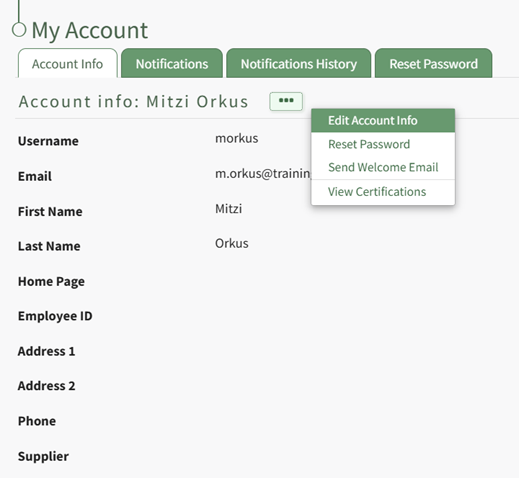
Select the three-dot icon opening the context menu and select “Edit Account Info”. This enables you to edit your own account information. Enter the page URL in this field if you wish to start on a different page than the Dashboard. For example, if you’d like to start in the Documents Module after login, set Home Page to: https://sitename.kastrack.com/r/documents.

As a shortcut, you can also simply use the part after the .com, entering /r/documents in the field.
After making changes to the account information, select “Save” and the changes made will be reflected on the Account Info: (User Name) Page.
The Dashboard is fully customizable for user preference, allowing at-a-glance visualization of any outstanding or upcoming action items and any alerts the user has set. Multiple dashboards can be created if desired.
The dashboard does not show company wide information beyond what is relevant to an individual account.
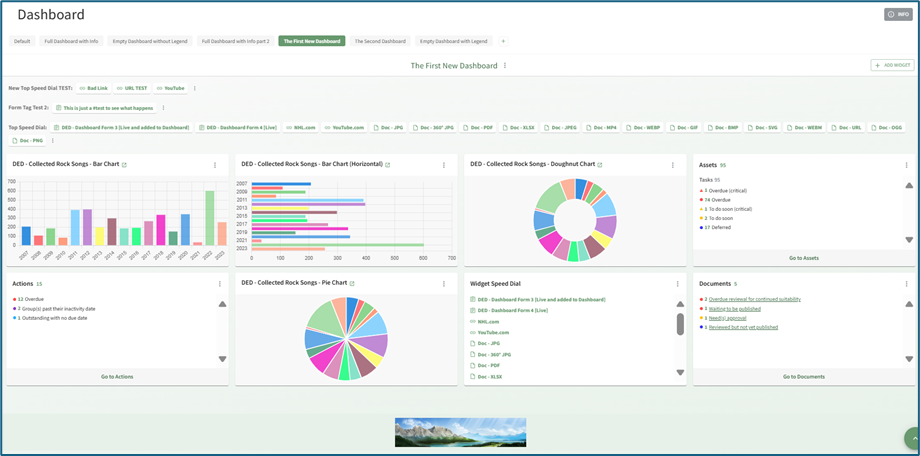
Dashboard Title Tabs can be dragged and dropped for placement, and the order will be reflected on the Main Menu. Widget placement can also be altered by clicking the header and dragging and dropping.
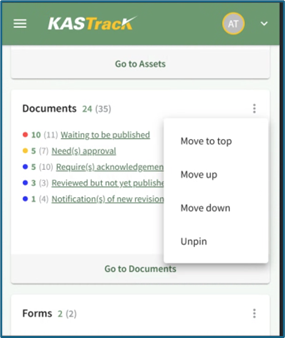
When accessing the web-based KAStrack site on a mobile device (not the app), tablet, or Surface laptop, you will not be able to change the placement of widgets through the drag and drop feature.
The Dashboard
Default Dashboard Summary
The default dashboard displays eight Widgets: People, Assets, Documents, Forms, Actions, People-Competency, People-Courses, and Meetings. Each widget is a summary of relevant information from that specific module. The placement of these module summaries can be customized by dragging and dropping widgets into your individual preference.
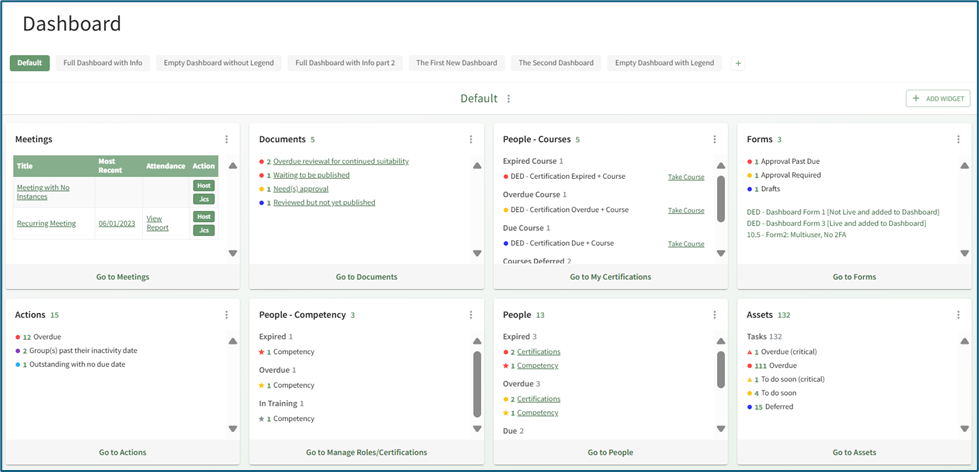
In order to unpin widgets from the default dashboard, KAStrack requires you to create a new dashboard first.
Dashboard Context Menu Explanations
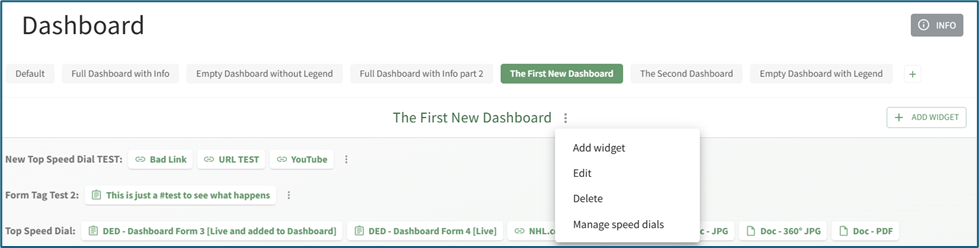
To the right of a dashboard title is a vertical three dot menu that opens a context menu with options to Add Widget, Edit, Delete, Manage Speed Dials.
| Dashboard Context Menu Explanations | ||
| Option |
Explanation | Image |
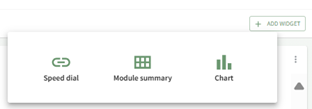
| Add Widget | Selecting “Add Widget” from the dashboard context menu opens the Add Widget Modal on the right-hand side of the screen and has the same function as selecting the “Add Widget” button on the screen’s right side (or in the center of an empty Dashboard). |
|
| Edit |
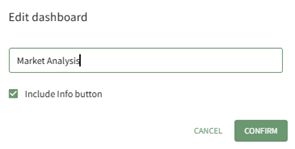
Selecting “Edit” from the dashboard context menu opens the Edit Dashboard Modal, allowing an individual to alter the dashboard name. |
|
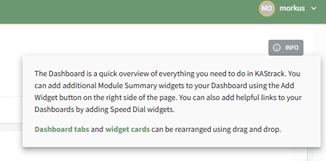
| Deselecting the “Include Info button” checkbox will remove the grey “INFO” button from the top right-hand corner of the dashboard. |
|
|
| Delete |
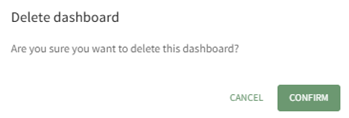
Selecting “Delete” from the dashboard context menu will open the Delete Dashboard Modal. You can only delete the Default Dashboard after creation of a new Dashboard. If all Dashboards are deleted, KAStrack will automatically regenerate a new Default Dashboard. |
|
| Manage Speed Dials | Selecting “Manage Speed Dials” from the dashboard context menu will open the Manage Speed Dial Modal. From this modal, an individual can create, edit and delete speed dials. |
|

Overview of Widgets
The Dashboard is comprised of speed dials and widgets. Speed dials allow you to establish links to KAStrack Documents, Forms, and even URLs, so that you can easily access desired webpages (including webpages outside of the KAStrack system). Widgets highlight module summaries or charts representing report information.
A detailed explanation of speed dials, module summary widgets and chart widgets is provided in the tables below.
| Speed Dial Explanation Table |
||
|
||
| Placement Options |
Explanation | Images of Placement Location |
| Disabled | When placement is marked as disabled, the speed dials will no longer show on the dashboard. Disabled unpins the speed dial from the dashboard without deleting record of it from the Module. | |
| Top |
|
 |
| Floating |
|
 |
| Widget |
|
|

Module Summary Widget Explanation
| Module Summary Widget Explanation Table | |||
On a mobile device accessing the web version of KAStrack, additional options will show in the context menu, allowing the user to rearrange the ordering of the widgets within the widget grid. |
|||
| Module | Comments |
Image | |
| Actions |
Module Summary Widget Key |
|
|
|
|
Overdue | ||
|
|
Nearing due date |
||
|
|
Group(s) past inactivity date |
||
|
|
Outstanding with no due date | ||
|
|
Outstanding |
||
| Assets |
Module Summary Widget Key |
|
|
|
|
Overdue critical item task |
||
|
|
Overdue task | ||
|
|
Critical item task due soon | ||
|
|
Task due soon | ||
|
|
Deferred Task | ||
| Dispatch |
Module Summary Widget Key |
|
|
|
|
To go to scheduled status |
||
|
To go to ready to dispatch status |
|||
|
To go to dispatched status |
|||
|
To go to completed status |
|||
|
To go to cancelled status |
|||
|
To go to archived status |
|||
|
Documents |
Module Summary Widget Key |
|
|
|
|
Overdue continued suitability review | ||
| Waiting to be published | |||
|
|
Need(s) approval | ||
|
|
Require(s) acknowledgement/approval | ||
| Reviewed but not yet approved | |||
| Notification(s) of new revisions | |||
| Drafts Form Entries Assigned to Me | Forms can be designed to allow users to save their current work as a draft, giving them the option to come back to an entry and complete it at a later time. If a user has any active Draft Entries assigned to their account, they can be accessed through a quick link in the Draft Form Entries Assigned to Me Module Summary. |
|
|
| Finances |
Module Summary Widget Key |
|
|
|
|
Outstanding Budget Items | ||
|
|
Pending Approvals | ||
| Forms | Module Summary Widget Key |
|
|
|
|
Approval past due | ||
|
|
Approval required | ||
|
|
Drafts | ||
|
At the bottom of the Forms Module Summary Widget, forms attached to the dashboard are shown as quick links for ease of access. This is set in the Form’s settings by its creator or an Admin.
How To: Add Forms to the Forms Module Summary WidgetTo add a specific form so that it is displayed on specific user's the Forms Module Summary dashboard widget, go to the Form you want included on the Home Page of the Forms Module. Select the three-dot icon opening the Forms context menu.
Select “Edit Form” opening the Edit Form Modal and go to the Advanced Settings section. Input the users or certification roles you wish to see the selected form in their Dashboard Forms Module Summary Widget.
Select “Save” and the form will now be visible on the dashboard to the selected users.
|
|||
| Kanban |
|
All To Do Notifications in Kanban |
Kanban Module Summary
Customizable Kanban Board Module Summary |
| The Kanban Module Summary cannot be customized. Each board will show with the total number of to dos associated with it. |
|||
|
Each Kanban Board can have their own individual Module Summary, which can be customized at the Kanban level. Changes to the Board Module Summary will show to all who add the widget. Coming Soon: How To Customize a Kanban Board Module Summary Widget |
|||
| Meetings |
Meeting with Recent Instance |
|
|
| Meeting with no Instances | |||
| People |
Module Summary Widget Key |
|
|
|
|
Expired Certification | ||
|
|
Expired Competency | ||
|
|
Overdue Certification | ||
|
|
Overdue Competency | ||
|
|
Due Certification | ||
|
|
In Training or Deferred Certification | ||
|
|
In Training or Deferred Competency | ||
| People- Competency |
Module Summary Widget Key |
|
|
|
|
Expired Competency | ||
|
|
Overdue Competency | ||
|
|
In Training or Deferred Competency | ||
| People- Courses |
Module Summary Widget Key |
|
|
|
|
Expired | ||
|
|
Overdue Courses | ||
|
|
Due Courses | ||
|
|
Deferred Courses | ||


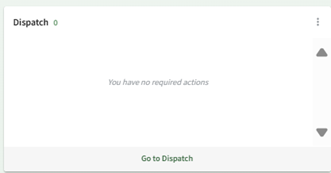

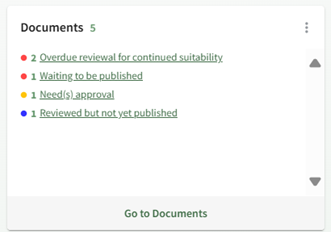


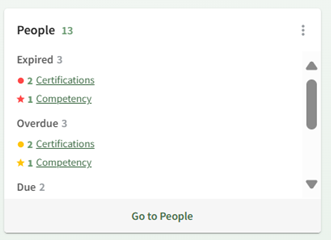


Chart Wizard Explanation
| Chart Widget Explanation Table |
||
|
The widget header in bold identifies the chart title and the chart type. The vertical three dot icon to the right opens a context menu with the options to View Chart and Unpin. |
||
| Charts | Type and Recommended Usage | Image |
| Representative |
Bar Chart: Recommended when comparing quantities across different categories |
|
|
Horizontal Bar Chart: Recommended when comparing quantities across different quantities |
|
|
|
Pie Chart: Recommended when showing composition and parts of a whole |
|
|
|
Line Chart: Recommended when showing continuous data trends over time |
|
|
|
Doughnut Chart: Recommended when showing parts of a whole and highlighting a total or key metric in the center |
|
|
| Trending |
Line Chart: Recommended when emphasizing patterns and direction of change |
|
| Empty Chart |
If you see a chart but no data appears, confirm that the value column contains numeric values. |
|
|
If a chart widget does not show a chart, it is because you do not have authorization to view that data. |
|
|


Dashboard: Supplemental Resources
There are no email alerts associated with the Dashboard Module.
Complete List of Dashboard Module How Tos
How To: Add a Module Summary Widget to the Dashboard
To add a module summary widget to the dashboard, go to the Dashboard Module and select the specific Dashboard you wish to add widgets to.

Select the “+ Add Widget” button from the right-hand sign of the screen.

This opens a modal with three options: Speed dial, Module summary, and Chart.
Select the “Module Summary” icon opening the Add Module Summary Modal.
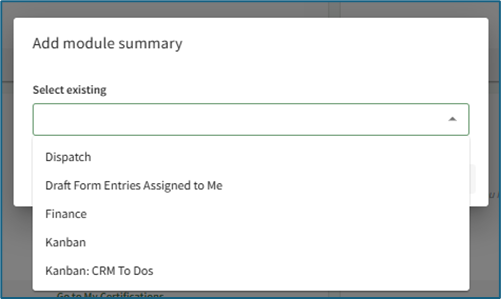
Any possible module summaries that are not yet included on the current dashboard will show in a dropdown menu on the modal.
Select the desired widget to be added to the dashboard. Multiple module summaries can be selected at once if desired.

Click the “Add Widget” button and the selected module summary will now show at the bottom of the Dashboard.
Module summary widgets can only be added to one dashboard at a time. For the widget to show on multiple dashboards, it must be added to each dashboard individually.
How To: Add Forms to the Forms Module Summary Widget
To add a specific form so that it is displayed on specific user's the Forms Module Summary dashboard widget, go to the Form you want included on the Home Page of the Forms Module. Select the three-dot icon opening the Forms context menu.
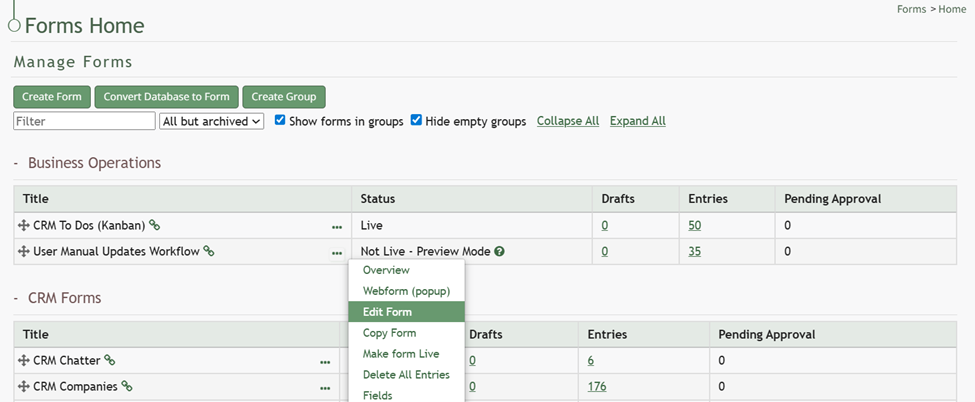
Select “Edit Form” opening the Edit Form Modal and go to the Advanced Settings section.
Input the users or certification roles you wish to see the selected form in their Dashboard Forms Module Summary Widget.

Select “Save” and the form will now be visible on the dashboard to the selected users.
How To: Create a Chart Widget
To create a Chart widget, select the Add Widget button (from the top right-hand corner of the page or the dashboard context menu accessed by the vertical three dot icon next to the Dashboard name).

This opens the Add Widget modal.

Select “Chart” opening the Add Chart Modal.

Existing charts will show on the dropdown menu. Select the desired chart and click the “Add Widget” button.
Note: In order to create a Chart Widget, you must first create a chart by going to a report in the Reports Module and clicking the Chart Wizard Icon. If no charts exist in the Reports Module, the Add Chart Modal will state, “No widgets available.”
How To: Create a Chart Widget
To create a Chart widget, select the Add Widget button (from the top right-hand corner of the page or the dashboard context menu accessed by the vertical three dot icon next to the Dashboard name).
This opens the Add Widget modal.
Select “Chart” opening the Add Chart Modal.
Existing charts will show on the dropdown menu. Select the desired chart and click the “Add Widget” button.
Note: In order to create a Chart Widget, you must first create a chart by going to a report in the Reports Module and clicking the Chart Wizard Icon. If no charts exist in the Reports Module, the Add Chart Modal will state, “No widgets available.”
How To: Create a Chart Widget
{{@13}}
How To: Create a New Dashboard
To create a new dashboard, click the “+” icon located to the right of any existing dashboard tabs.

This opens the New Dashboard Modal.

Input the desired title for the new dashboard and select the “Create Dashboard” button. Dashboard names must be unique from other Dashboards on your account.

The new dashboard opens, stating “No widgets on the dashboard yet.” Click either of the “+ Add Widget” buttons on the page, opening the Add Widget Modal and begin designing the new dashboard.
How To: Add a Module Summary Widget to the Dashboard
To add a module summary widget to the dashboard, go to the Dashboard Module and select the specific Dashboard you wish to add widgets to.
Select the “+ Add Widget” button from the right-hand sign of the screen.
This opens a modal with three options: Speed dial, Module summary, and Chart.
Select the “Module Summary” icon opening the Add Module Summary Modal.
Any possible module summaries that are not yet included on the current dashboard will show in a dropdown menu on the modal.
Select the desired widget to be added to the dashboard. Multiple module summaries can be selected at once if desired.
Click the “Add Widget” button and the selected module summary will now show at the bottom of the Dashboard.
Module summary widgets can only be added to one dashboard at a time. For the widget to show on multiple dashboards, it must be added to each dashboard individually.
How To: Create a Speed Dial
To create a Speed Dial, select the Add Widget button (from the top right-hand corner of the page or the dashboard context menu accessed by the vertical three dot icon next to the Dashboard name).

This opens the Add Widget modal.

Select “Speed Dial” opening the Add Speed Dial Modal.
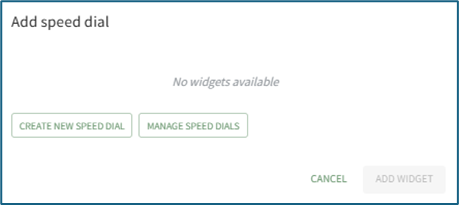
If no speed dials have been created yet on your account, the modal will state “No widgets available.” Select “Create New Speed Dial” opening the New Speed Dial Modal.

Input the speed dial title.
The title of the speed dial will be used to identify the speed dial when it is pinned to a Dashboard. It is not the name of an individual Link.
Select the desired placement (top, floating or widget) of the speed dial.
Click the “+ Add Link” button opening the New Speed Dial Link Modal.

There are three types of speed dial links: a URL website link, a KAStrack Form, or a KAStrack Document. Select the appropriate type.
If the speed dial type is a URL Link, input the link and give the link a title. If a KAStrack Document or Form type is selected, select the desired file/form from the dropdown menu and give it a title. The name of the chosen file/form is pre-filled for convenience.
Select the “Add Link” button. Once you’ve added all desired links for this speed dial, click “Confirm”. The modal will close, creating the speed dial, but the speed dial is not yet visible on the dashboard. Click the “+ Add Widget” button and select Speed Dial to open the Add Speed Dial Modal.

Now that the speed dial has been created, it will show in the select existing dropdown menu. Select the Speed Dial to show on the dashboard. Click the “Add Widget” button.
The Speed Dial will now show on the dashboard in the desired placement.
You can select multiple speed dials (if there are more than one available) from the dropdown to add them all to the Dashboard at the same time.
How To: Create a Chart Widget
To create a Chart widget, select the Add Widget button (from the top right-hand corner of the page or the dashboard context menu accessed by the vertical three dot icon next to the Dashboard name).
This opens the Add Widget modal.
Select “Chart” opening the Add Chart Modal.
Existing charts will show on the dropdown menu. Select the desired chart and click the “Add Widget” button.
Note: In order to create a Chart Widget, you must first create a chart by going to a report in the Reports Module and clicking the Chart Wizard Icon. If no charts exist in the Reports Module, the Add Chart Modal will state, “No widgets available.”
How To: Create a Chart Widget
{{@13}}
How To: Create a Speed Dial
To create a Speed Dial, select the Add Widget button (from the top right-hand corner of the page or the dashboard context menu accessed by the vertical three dot icon next to the Dashboard name).
This opens the Add Widget modal.
Select “Speed Dial” opening the Add Speed Dial Modal.
If no speed dials have been created yet on your account, the modal will state “No widgets available.” Select “Create New Speed Dial” opening the New Speed Dial Modal.
Input the speed dial title.
The title of the speed dial will be used to identify the speed dial when it is pinned to a Dashboard. It is not the name of an individual Link.
Select the desired placement (top, floating or widget) of the speed dial.
Click the “+ Add Link” button opening the New Speed Dial Link Modal.
There are three types of speed dial links: a URL website link, a KAStrack Form, or a KAStrack Document. Select the appropriate type.
If the speed dial type is a URL Link, input the link and give the link a title. If a KAStrack Document or Form type is selected, select the desired file/form from the dropdown menu and give it a title. The name of the chosen file/form is pre-filled for convenience.
Select the “Add Link” button. Once you’ve added all desired links for this speed dial, click “Confirm”. The modal will close, creating the speed dial, but the speed dial is not yet visible on the dashboard. Click the “+ Add Widget” button and select Speed Dial to open the Add Speed Dial Modal.
Now that the speed dial has been created, it will show in the select existing dropdown menu. Select the Speed Dial to show on the dashboard. Click the “Add Widget” button.
The Speed Dial will now show on the dashboard in the desired placement.
You can select multiple speed dials (if there are more than one available) from the dropdown to add them all to the Dashboard at the same time.
Delete a Speed Dial
To delete a speed dial, go to the Dashboard Module and select the dashboard you wish to make speed dial edits on.
The most efficient way to delete a speed dial is from its current placement. Refer to the table below to identify how to access the “Edit” option from each of the various speed dial placements.
| How to Select Edit Based on Speed Dial Placement | |||
| Placement | Top | Floating | Widget |
| Image | 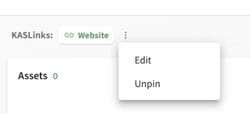 |
 |
 |
| Notes | Selecting the vertical three dot icon opens the context menu with the “Edit” option. | Click the floating speed dial icon to open it, showing the “Edit” option. | Selecting the vertical three dot icon opens the context menu with the “Edit” option. |
Click the “Edit” button for the speed dial you wish to alter, opening the Edit Speed Dial Modal.
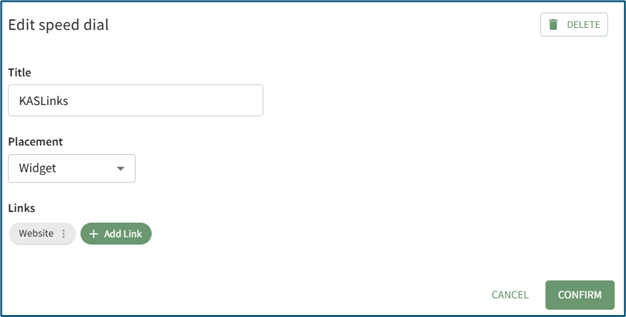
Select the “Delete” button in the top right hand corner of the modal.

This opens the Delete Speed Dial Confirmation Modal that states, “This will affect all dashboards where the speed dial is present. Are you sure you want to permanently delete this speed dial?”
Select the “Confirm” button.
You can also select the “+ Add Widget” button from the top right-hand corner of any dashboard and click the speed dial icon.

This opens the Add speed dial modal.

Select the “Manage Speed Dials” button opening the Manage Speed Dial Modal.

Click the “Delete” button for the speed dial you wish to delete, opening the Delete Speed Dial Confirmation Modal that states, “This will affect all dashboards where the speed dial is present. Are you sure you want to permanently delete this speed dial?”
Select the “Confirm” button.
How To: Edit a Dashboard
To edit a dashboard, go to the Dashboard Module and select the specific Dashboard you wish to edit. Select the vertical three dot menu to the right of the Dashboard’s name in the center of the page. Select “Edit”.
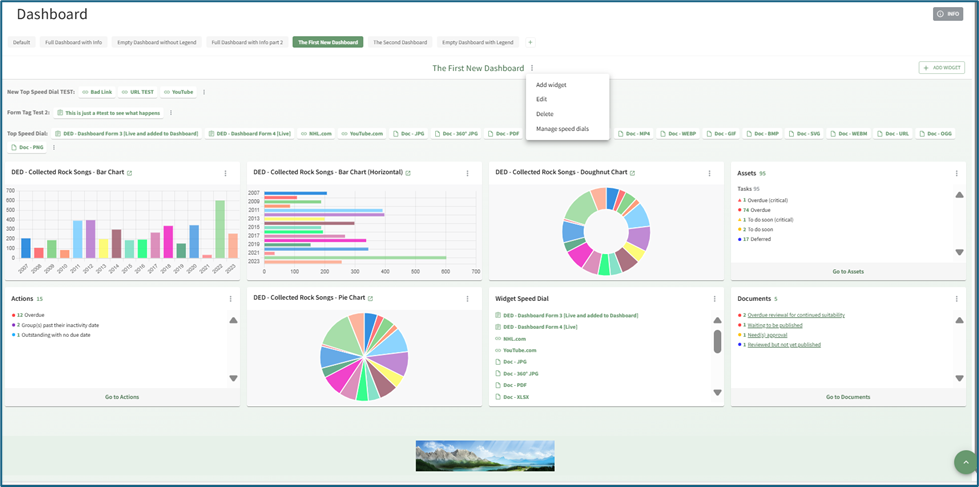
This opens the Edit Dashboard Modal.

Make changes as desired to the Dashboard name and select the “Confirm” button.
Deselecting the “Include Info button” checkbox will remove the grey “INFO” button that expands with an explanation of the in the top right-hand corner of the Dashboard Page.

How To: Edit a Speed Dial
To edit an existing Speed Dial, go to the Dashboard Module and select the dashboard you wish to make speed dial edits on.
The most efficient way to edit a speed dial is from its current placement. Refer to the table below to identify how to access the “Edit” option from each of the various speed dial placements.
|
How to Select Edit Based on Speed Dial Placement |
|||
|
Placement |
Top |
Floating |
Widget |
|
Image |
|
|
|
|
Notes |
Selecting the vertical three dot icon opens the context menu with the “Edit” option. |
Click the floating speed dial icon to open it, showing the “Edit” option. |
Selecting the vertical three dot icon opens the context menu with the “Edit” option. |


Click the “Edit” button for the speed dial you wish to alter, opening the Edit Speed Dial Modal.

Make the desired changes and select “Confirm” to save them. Your edits will now be reflected on the dashboard.
You can also select the “+ Add Widget” button from the top right-hand corner of any dashboard and click the speed dial icon.

This opens the Add speed dial modal.

Select the “Manage Speed Dials” button opening the Manage Speed Dial Modal.
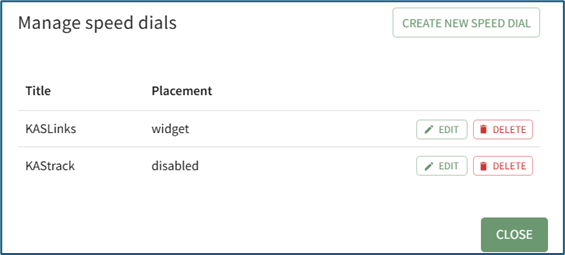
Click the “Edit” button for the speed dial you wish to alter, opening the Edit Speed Dial Modal.

Make the desired changed and select “Confirm”.
How To: Unpin a Widget or Speed Dial from the Dashboard
To unpin a widget from the dashboard, go to Dashboard Module and select the specific Dashboard you wish to edit.

Click the vertical triple dot icon in the top right-hand corner of the widget.

Doing so opens a dropdown menu (options on the dropdown menu vary based on the widget type).
Select “Unpin” and the widget will no longer be seen on the dashboard. To add the widget back to the Dashboard, click the Add Widget button at the top right-hand corner of the screen.