For example, if a user attempted a course three times and failed every time, their supervisor could reset the course. When the user goes back to take the course, the Attempts (current) would show as 1 while the Attempts (total) would show as 4.
[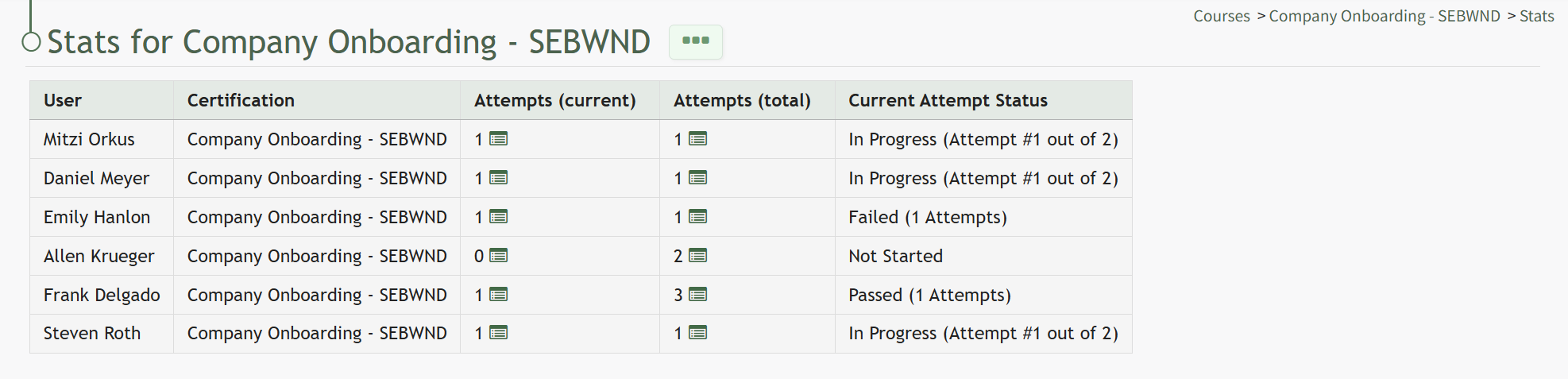](https://kaswiki.kastrack.com/uploads/images/gallery/2026-04/bi1image.png) To the right of the number of attempts in the Attempts columns is an icon. Selecting the attempts icon [](https://kaswiki.kastrack.com/uploads/images/gallery/2025-12/e4jimage.png) provides detailed information about an individual’s attempts on a specific course, showing the time the course was started/completed, the individual's grade on the attempt, and a link to review their submitted answers once a course is complete. [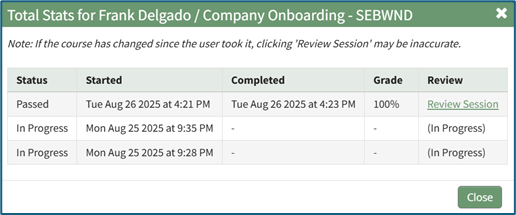](https://kaswiki.kastrack.com/uploads/images/gallery/2026-04/4H1image.png) Clicking the Review Session link in the Review Column will allow an individual (with appropriate permissions) to see responses to all course questions, whether graded or ungraded. To the right of the Course Stats Page header is a three dot (…) icon the opens to the Course Stat Page Context Menu. An explanation of all possible context menu options are included in the table below.| **Course Context Menu Option Explanations** | |
| **Options** | **Explanation** |
| Videos | Selecting the Videos option from the context menu opens the Video Page for the specified course. Videos is only an option when reviewing the Course Stats Page for a course with required videos in the course.
Videos are the only required activity that will show on the Course Stats Page Context Menu. This is helpful for when someone cannot access a video for any reason (such as a bad internet connection or their device can't support watching it) allowing an admin to move the user through the video independently of the course and to mark the video as complete, allowing the user to continue with course requirements. |
| Course Properties | Selecting Course Properties from the context menu opens the Course Properties modal, allowing the user to edit the original parameters that were selected when the course was created, re-opening the modal to change the course name, tags, settings for grading, and post course review.
How To: Edit a Course's Properties{{@239}} |
| Pages | Selecting the Pages option from the context menu opens the individual pages that have been created for the course.
How To: Edit Existing Pages{{@234}}How To: Add Pages in a New/Existing Course{{@244}} |
| Test Course | Selecting the Test Course option from the context menu opens a trial run of the course with quiz questions.
Testing the course will not impact course stats. How To: Take a Course in Test Mode{{@241}} |
| Course Stats | Selecting the Course Stats option on the context menu opens the Course Stat Page which displays records of test taking attempts and access to an individual’s answers to course questions.
How To: Access Course Stats{{@242}} |
| Delete Course | Selecting the Delete Course option on the context menu will open a deletion confirmation modal. The modal displays a warning that will notify the user that deleting the course will “remove all pages and history of people taking the course.” Confirmation of deletion is required.
If the course is a required activity for a certification, it will not be deleted unless certification course requirement is removed from the certificate. How To: Delete a Course{{@243}} |