In order for a user to access a course, the course must be set as a required activity in a certification after the course is created in the People Module. The certification must be assigned to the user.
The User Manual for the {{@951#bkmrk-courses-module-is-up}}
# Main Menu Page Summaries The Courses Module on the Main Menu shows two pages, Home and Settings. [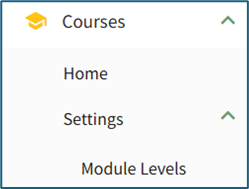](https://kaswiki.kastrack.com/uploads/images/gallery/2025-12/O79image.png)| **Courses Module - Main Menu Page Summaries** | |
| **Page** | **Summary Description** |
| Home | The Courses Module homepage is the Manage Courses Page. This is where new courses are created and existing courses are edited. |
| Settings | “Settings” within the Courses Module directs the user to the Manage Module Levels Page where module level permissions for the Courses Module are customized. |
Systems users that do not have access to the Manage Courses homepage still have the capability to take courses in KAStrack.
[](https://kaswiki.kastrack.com/uploads/images/gallery/2026-06/B61image.png) The Manage Courses Page houses the Course Title Table, which lists all courses alphabetically. The New Course button below the header is used to create a new course. Courses can be managed and edited by clicking on the three-dot icon to the right of the course title.| **Course Context Menu Option Explanations** | |
| **Options** | **Explanation** |
| Course Properties | Selecting Course Properties from the context menu opens the Course Properties Modal, allowing the user to edit the original parameters that were selected when the course was created. The course name, tags, number of attempts, and settings for the course can be edited from the Course Properties Modal.
How To: Edit Course Properties{{@239}} |
| Pages | Selecting the Pages option from the context menu opens the Course Details Page. The pages that have been created for the course are grouped in sections on the Course Details Page.
How To: Edit Existing Pages{{@234}}How To: Add Pages in a Course{{@244}} |
| Test Course | Selecting the Test Course option from the context menu opens a trial run of the course with quiz questions.
Testing the course will not impact course stats. How To: Take a Course in Test Mode{{@241}} |
| Course Stats | Selecting the Course Stats option on the context menu opens the Course Stat Page which displays records of test taking attempts and access to an individual’s answers to course questions.
How To: Access Course Stats{{@242}} |
| Delete Course | Selecting the Delete Course option on the context menu will open a deletion confirmation modal. The modal displays a warning that will notify the user that deleting the course will “remove all pages and history of people taking the course.” Confirmation of deletion is required.
If the course is a required activity for a certification, it will not be deleted unless certification course requirement is removed from the certificate. How To: Delete a Course{{@243}} |
In KAStrack, certifications with a required activity are used to assign courses to users. To require a user to complete a course, you must create a Certification in the People module with Required Activity set to "Course - KAStrack".
For example, if a user attempted a course three times and failed every time, their supervisor could reset the course. When the user goes back to take the course, the Attempts (current) would show as 1 while the Attempts (total) would show as 4.
[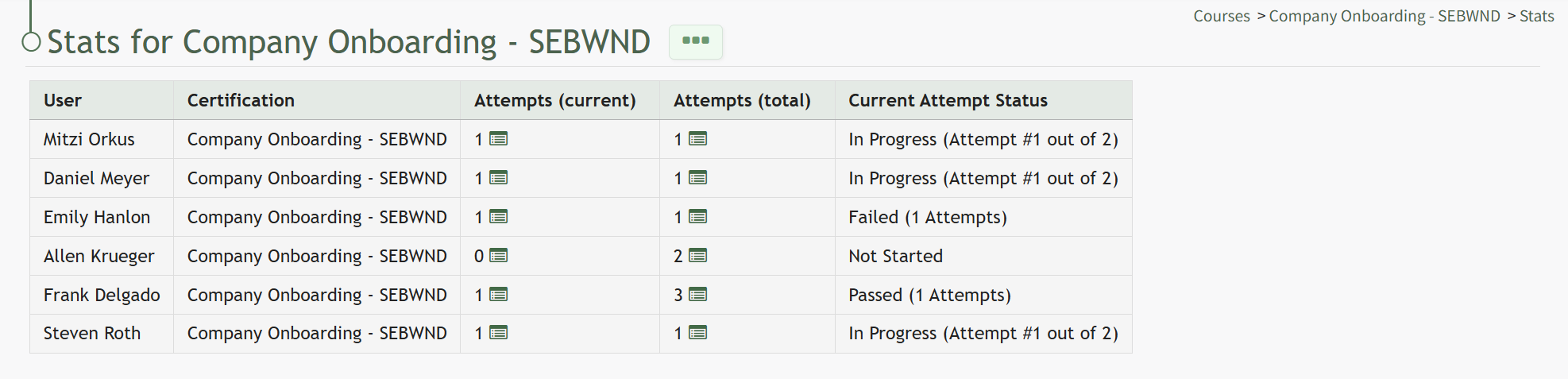](https://kaswiki.kastrack.com/uploads/images/gallery/2026-04/bi1image.png) To the right of the number of attempts in the Attempts columns is an icon. Selecting the attempts icon [](https://kaswiki.kastrack.com/uploads/images/gallery/2025-12/e4jimage.png) provides detailed information about an individual’s attempts on a specific course, showing the time the course was started/completed, the individual's grade on the attempt, and a link to review their submitted answers once a course is complete. [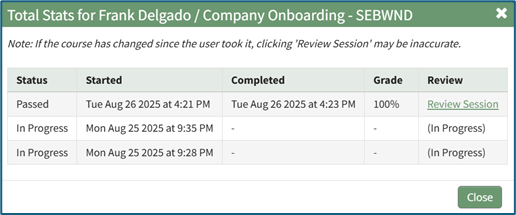](https://kaswiki.kastrack.com/uploads/images/gallery/2026-04/4H1image.png) Clicking the Review Session link in the Review Column will allow an individual (with appropriate permissions) to see responses to all course questions, whether graded or ungraded. To the right of the Course Stats Page header is a three dot (…) icon the opens to the Course Stat Page Context Menu. An explanation of all possible context menu options are included in the table below.| **Course Context Menu Option Explanations** | |
| **Options** | **Explanation** |
| Videos | Selecting the Videos option from the context menu opens the Video Page for the specified course. Videos is only an option when reviewing the Course Stats Page for a course with required videos in the course.
Videos are the only required activity that will show on the Course Stats Page Context Menu. This is helpful for when someone cannot access a video for any reason (such as a bad internet connection or their device can't support watching it) allowing an admin to move the user through the video independently of the course and to mark the video as complete, allowing the user to continue with course requirements. |
| Course Properties | Selecting Course Properties from the context menu opens the Course Properties modal, allowing the user to edit the original parameters that were selected when the course was created, re-opening the modal to change the course name, tags, settings for grading, and post course review.
How To: Edit a Course's Properties{{@239}} |
| Pages | Selecting the Pages option from the context menu opens the individual pages that have been created for the course.
How To: Edit Existing Pages{{@234}}How To: Add Pages in a New/Existing Course{{@244}} |
| Test Course | Selecting the Test Course option from the context menu opens a trial run of the course with quiz questions.
Testing the course will not impact course stats. How To: Take a Course in Test Mode{{@241}} |
| Course Stats | Selecting the Course Stats option on the context menu opens the Course Stat Page which displays records of test taking attempts and access to an individual’s answers to course questions.
How To: Access Course Stats{{@242}} |
| Delete Course | Selecting the Delete Course option on the context menu will open a deletion confirmation modal. The modal displays a warning that will notify the user that deleting the course will “remove all pages and history of people taking the course.” Confirmation of deletion is required.
If the course is a required activity for a certification, it will not be deleted unless certification course requirement is removed from the certificate. How To: Delete a Course{{@243}} |
System default module levels cannot be customized.
| **Courses Module Level Permissions Table** | |
| **Module Level** | **Permissions** |
| Admin | Can manage rolls, add/edit/delete courses, see the stats page, view all course stats, manual reset course, test course, can take course on behalf of anyone |
| Guest | None |
| Manager | add/edit/delete courses, stats, manual reset course, test course |
| Staff | None |
| **Module Level Customization Icons** | |
| **Icon** | **Explanation** |
| [](https://kaswiki.kastrack.com/uploads/images/gallery/2025-12/OQrimage.png) | The eyeball icon allows you to view users assigned to the module level as well as the permissions assigned to them. |
| [](https://kaswiki.kastrack.com/uploads/images/gallery/2025-12/Bbrimage.png) | The bulleted list icon allows you to assign permissions to customized module levels. |
| [](https://kaswiki.kastrack.com/uploads/images/gallery/2025-12/ELJimage.png) | The pencil icon opens the Edit Module Level Modal. |
| [](https://kaswiki.kastrack.com/uploads/images/gallery/2025-12/Uwlimage.png) | The trashcan icon opens the Delete Module Level Confirmation Modal. |
| **Course Detail Page Context Menu Option Explanations** | |
| **Option** | **Explanation** |
| Add Page | Selecting Add Page from the context menu opens the New Page Modal, where a user can title the new page, identify the section it belongs in, and select the navigation options for the page.
How To: Add Pages in a Course{{@244}} |
| Add Section | Selecting Add Section from the context menu opens the Add Section Modal.
How To: Add a Section to a Course{{@936}} |
| Course Properties | Selecting Course Properties from the context menu opens the Course Properties Modal, allowing the user to edit the original parameters that were selected when the course was created. The course name, tags, number of attempts, and settings for the course can be edited from the Course Properties Modal.
How To: Edit Course Properties{{@239}} |
| Test Course | Selecting the Test Course option from the context menu opens a trial run of the course with quiz questions.
Testing the course will not impact course stats. How To: Take a Course in Test Mode{{@241}} |
| Course Stats | Selecting the Course Stats option on the context menu opens the Course Stat Page which displays records of test taking attempts and access to an individual’s answers to course questions.
How To: Access Course Stats{{@242}} |
| Back to Courses Home | Selecting Back to Courses Home on the context menu will take the user back to the Courses Home Page, the Manage Courses Page. |
| **Page Icon Explanations** | |
| **Icon** | **Explanation** |
| [](https://kaswiki.kastrack.com/uploads/images/gallery/2026-06/I0Fimage.png) | Clicking the page and pen icon in the center of the page will open the individual page in the course, where the details of the page can be managed and edited.
How To: Edit a Specific Course in a Page{{@234}} |
| [](https://kaswiki.kastrack.com/uploads/images/gallery/2026-06/HF1image.png) | Clicking and holding the directional cross icon in the top left corner of the page allows a user to drag and reposition the page, reordering the pages in the course.
How To: Edit the Order of Pages in a Course{{@937}} |
| [](https://kaswiki.kastrack.com/uploads/images/gallery/2026-06/a4zimage.png) | Clicking the eyeball icon in the top right corner of the page opens the specified page in preview mode.
Page Preview mode is different from the course test mode. Only the individual page is visible and any buttons on the page have been disabled. How To: View an Individual Page in Preview Mode{{@938}} |
| [](https://kaswiki.kastrack.com/uploads/images/gallery/2026-06/LRtimage.png) | Clicking the double page icon in the top right corner of the page opens the Copy Page Modal, enabling you to copy a specific course page.
How To: Copy a Course Page{{@939}} |
| [](https://kaswiki.kastrack.com/uploads/images/gallery/2026-06/cVXimage.png) | Clicking the trashcan icon in the top right corner of the page opens the Delete Page Confirmation Modal.
How To: Delete a Page{{@940}} |